Automating Surveys using Microsoft Forms Pro and Microsoft Flow (Part 2)

Sorry I was a little late with the post this week.  I had a few items on my plate and didn’t have the time to pay attention to this second part of the blog on Forms Pro and Microsoft Flow.

In the future, I would  like to drop these helpful tips on Tuesdays, although, life happens, therefore, I am going to commit to trying to get one out every week, and would like to make it on Tuesdays. 😊

Review:

Last submission was about how to access Microsoft Forms Pro, creating your first document, working with the different types of question controls and to administer this first survey.  Please click here to review.

In this article I would like to discuss the following topics:

  1. Personalization
  2. Auto Access to the Application
  3. Sending Options (Integration with Microsoft Flow)

In Part 3, (next week), I will finish up with these last topics.

  1. Administration
  2. Reporting
  3. Branching Surveys
  4. Sectioning off Surveys.
  • Personalization of your Survey:

It is one thing to get a survey that appears to be auto generated from a list, from my point of view it feels stuffy and impersonal.  Did you know with Forms-Pro and the Common Data Service connections you can pass parameters from the CDS to Forms-Pro to allow for Personalization?

 Let’s look:

  1. Start of with the survey you would like to personalize
  2. Click on the ellipses and click on the personalize option, (below)

5.1

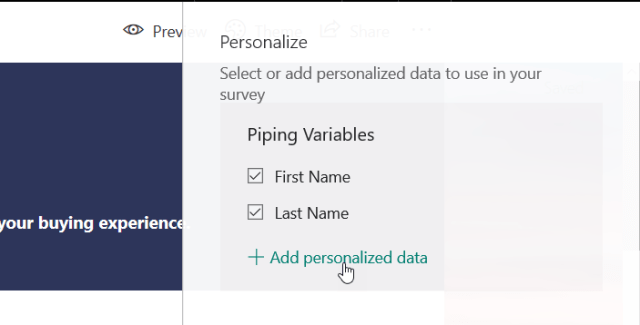
  1. The next screen, (below) describes the Piping Variables out of the box, (all connected to the CDS)
  2. You can also add additional personalized Piping Variables out of the box, (all connected to the CDS)

5.2a. Select the variables you would like to expose on the survey

b. If you decide to include personalized data click on the +Add icon.

5.3

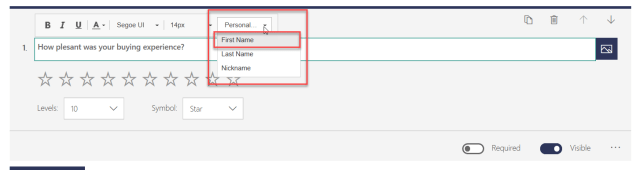
  1. After you select the variables you wish to include on the survey adding them to the survey is easy
  2. Place your cursor anywhere on the survey, (Header, Header Description, or the Questions)
  3. Click on the personal button and select the variable(s) you wish to use.

5.4

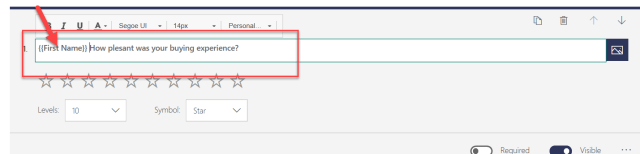
  1. After you select the variable your final personalized question will look as below.

5.5

  • Using a Solution to allow Ease of Access to Forms Pro

 There are times when an operator of Dynamics 365 would like to gather perspective from their clients on their performance.  Below is an easy method for allowing access directly to the surveys they wish to send.  (I am only using one survey in this example, although, it is possible to repeat these procedures for additional surveys.)

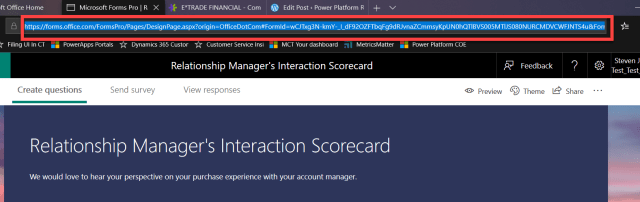
  1. Open the survey you want to give users access to, to manually send to clients.
  2. Copy the URL of the survey

5.6

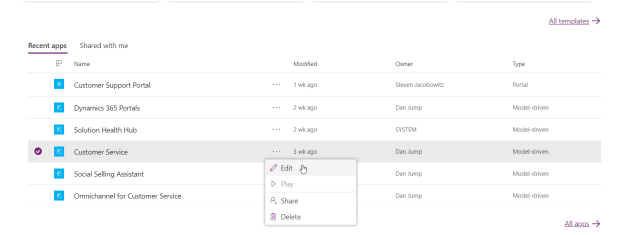
  1. Go to the Maker Portal in PowerApps (https://web.powerapps.com)
  2. Select the correct environment (1)
  3. Select or create the solution you would like to work with (2) Below:

5.7

  1. Open the model driven solution

5.8

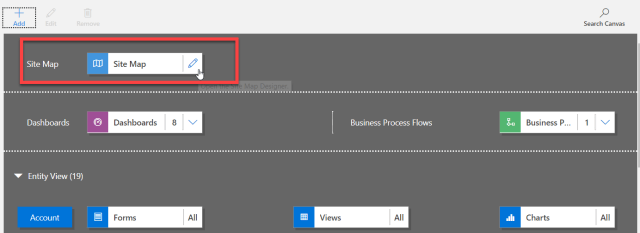
  1. Select the sitemap option on top click on the edit pencil.

5.9

  1. Select the group you wish to edit and click on the (+ Add Icon)
  2. Select the Subarea control

5.10

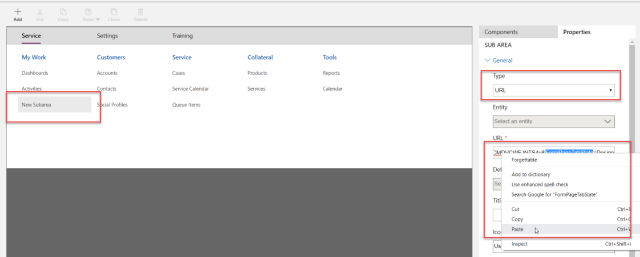
  1. Click on the new Subarea control on the sitemap
  2. Identify it as a URL
  3. Select the URL attribute
  4. Paste the URL you selected into this attribute, (either Ctrl V, or Right Click and Paste)

5.11

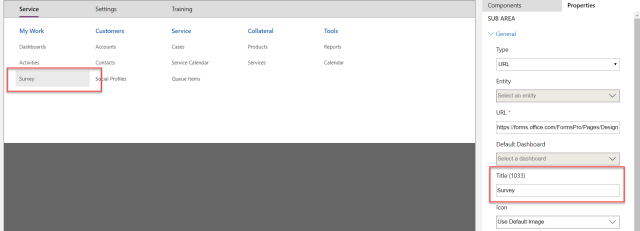
  1. Give the title a name, I like to use Survey

5.12

  1. Click Save then Publish controls located in the upper corner of the sitemap.
  2. Click Save and Close
  3. You will now be directed to the main model driven app screen
  4. Click Save
  5. Click Validate
  6. Click Publish
  7. You can now click on the > Play control to test the results

5.13.1

  1. Notice you will now have the Survey function on the site map

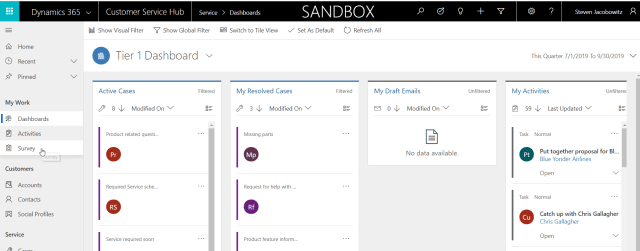
23. If one of your CSR’s would like to manually send a Survey, then can do so by clicking on the Survey Icon on the sitemap.

5.15

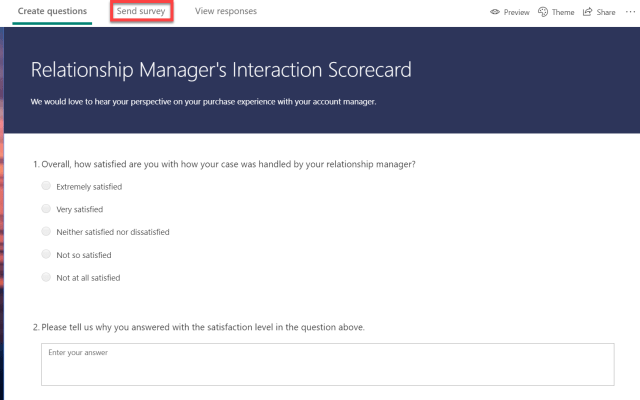
  1. Click on the Send Survey option

5.16

  1. Click on the Email Option5.17
  2. Notice you have a automatic email created with the complete body
  3. If you like you could add additional text to this email.

Note: You could also use the personalize options mentioned in section 1 of this document to personalize the email, although this would only work if you automated the send via Microsoft Flow, (Next Section)

5.18

  1. Type in the To email address
  2. Click send in the lower left-hand corner

At this point if you would like to send another survey manually all you have to do is click on Compose new email.  You would automatically open to the email window again.

Repeat the process above (steps 7 to 21  ).

5.19

  • Sending Options (Integration with Microsoft Flow)

As we discussed in the last section, your end users can manually send surveys by selecting the email option.  The question becomes will they remember to send out the surveys?  What are my options for automation?  The good news is there is a Microsoft Flow Option that is wizard based. 

Let’s try it out:

  1. Open the survey
  2. Click on the send survey option button5.20
  3. Click on the Microsoft Flow , Configure Flow

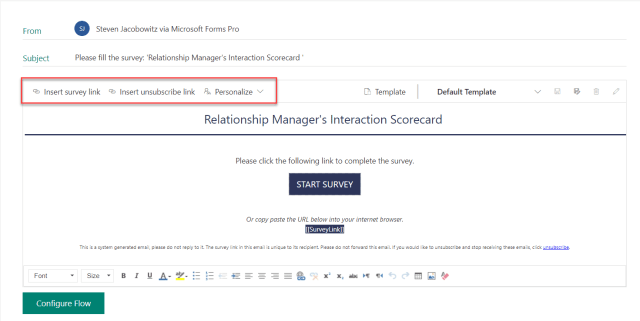
Note: The next window will give you several options for the survey prior to creating the Flow.  Notice there is no To any longer, this will come directly from the CDS record.

  1. On the middle of the email body form there are several survey options, (see below),
  2. a Survey Insert option,
  3. an Unsubscribe option,
  4. a Personalize option.

Note: The personalize option is my favorite since it is always nice to recognize the client by their name. 

5.21

  1. Place your cursor at the beginning of the subject line
  2. Click on the personalize option

5.22

  1. You have the option of using the first name or the last name or both.
  2. Click on the option you would like to use

(Note: if you are using both don’t forget the space after the first name)

5.23

  1. Now that you configured the personalization of the survey
  2. Click on configure flow
    You are presented with 5 Preconfigured options you also have the option to add a new flow by clicking on the + Add Icon

(Note:  If you use the Configure from Blank the process isn’t automatic any longer, you will have to pick your trigger, data source and actions.)

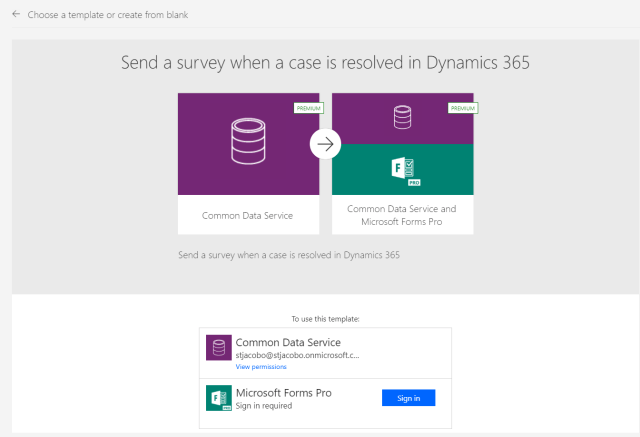
  1. Since we want to send this survey out automatically when an opportunity is closed in Dynamics 365
  2. I am going to modify one of the Flow Templates
  3. Click on the Case Close option

5.24

  1. Notice you are already connected to your Common Data Service
  2. Sign into the Microsoft Forms Pro, (use your credentials)
  3. You will see the verification green that is successful

5.25

  1. Click on the continue button

5.26

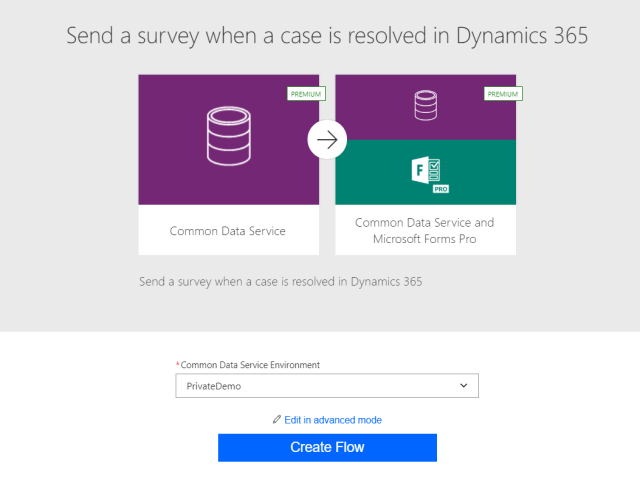
  1. Select your environment
  2. Click on Create Flow
  3. Wait a few minutes while your Flow is automatically configured

5.27

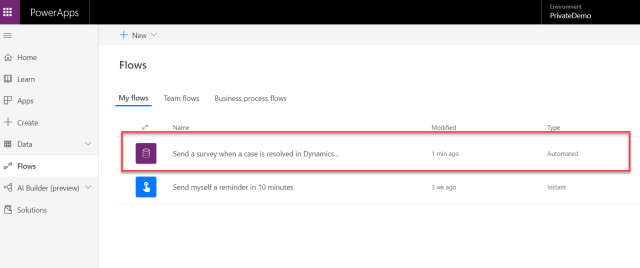
  1. Open the PowerApps Maker Portal
  2. Click on the flow option on the left navigation menu.

5.28

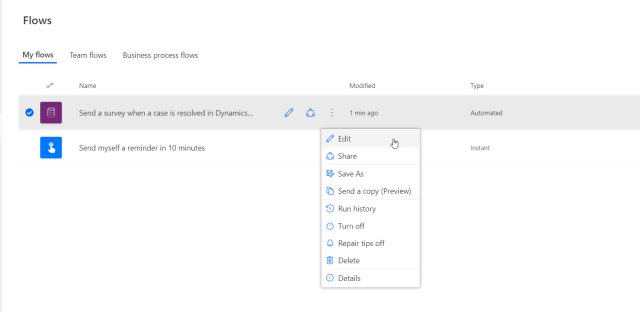
  1. Notice a Flow was created by the Form-Pro wizard
  2. Click on the ellipsis on the flow just created
  3. Click on Edit

5.29

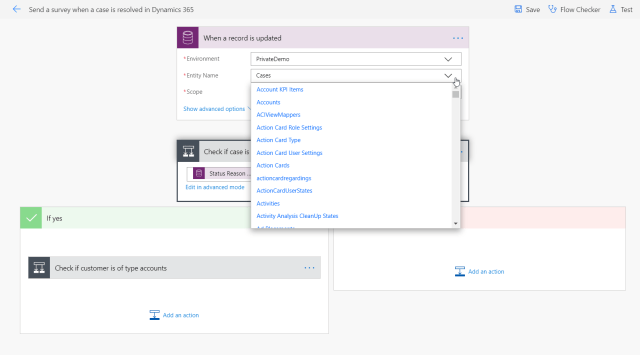
  1. I would like to change the focus from the case to the opportunity
  2. Click on the entity name
  3. Search for the opportunity entity
  4. Select the opportunity entity

5.30

You have now accomplished the following:

  1. You have changed the CDS entity to Opportunities, (1)

5.31

  1. You can click on the ellipsis and edit the title of the next step (2, 3)
  2. Finally, you check and replace if necessary, the value of the closed opportunity for the status reason (4)
  3. Click on Save
  4. Click on the Flow Checker to validate there are no errors
  5. At this point you will be able to manually test the flow against actual records in your CDS opportunities, either manually or automatically.
  6. If everything is clear you can return to the Flow Listing
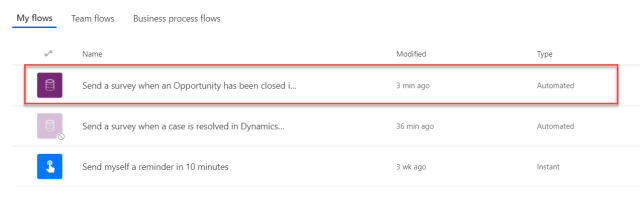
  7. As a last step I always navigate to the ellipsis and save the flow as (I give it a name that is consistent with the opportunity function.
  8. Finally, I disable the original modified Case Flow.

5.32

  • Let’s end with the additional distribution options

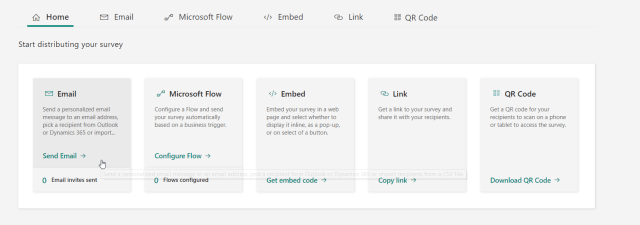
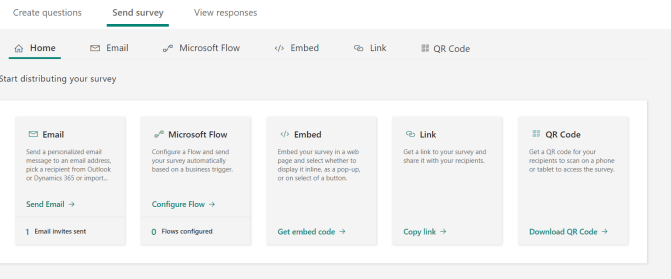
There are additional options for sending or placing your surveys (See Picture Below)

5.33

The Embedded Option:

5.34

  1. Your options include Inline, Pop-up and Button.
  2. Notice you can also personalize by passing parameters from your CDS database into the option you choose.
  3. You can also add your own custom parameters
  4. When you click on the generate code button, Forms Pro will automatically create the script you will embed at your website.

5.35

The Link Option:

If you choose the link option, click the option and Forms Pro will automatically generate the link to the form’s website.

5.36

You can use this link on customized distributions as well as SMS Text Sends, the options are limitless.

The QRC Option:

If you select the QRC option, Forms Pro will automatically generate the QRC code to the survey

5.37

In Closing:

Today we discussed some of the additional options that are available from within Forms Pro.

We discussed:

  1. Personalization
  2. Auto Access to the Application
  3. Sending Options (Integration with Microsoft Flow)

Part 3, (next week), I will finish up with these last topics:

  1. Administration
  2. Reporting
  3. Branching Surveys
  4. Sectioning off Surveys.

My hope is you find these articles helpful and they allow you to see the value of the Microsoft Dynamics 365, Azure and Office 365 Cloud Strategies.

These products are continuing to be evolved, it is Microsoft’s mission “To Allowing every person and organization in the world to achieve more”.

I am sure you will see the value and utility of Forms-Pro.  I love the product.

Be Cheerful,

StevenSig

Posted in Configuring Dynamics 365 CRM, CRM Workflow, Dynamics 365, Dynamics 365 CRM, Forms Pro, MS Flow, Survey Creation, Workflow | Leave a comment

Automating Surveys using Microsoft Forms Pro and Microsoft Flow (Part 1)

Overview and creating your first survey.


About 4 months ago, Microsoft announced it was going to sunset Voice of the Customer for survey creation and replace it with a new product call Microsoft Forms Pro. I have worked with both products and am convinced that Forms Pro is easier to work with for creating surveys and online quiz documents. The product is all point and click.
The good news is, if you own Dynamics 365 CE, you will have licensing for this new functionality as part of your licensing agreement.
I would say the goal is to make Forms Pro part of the Power Platform as it is already integrated to Dynamics 365, Office 365 and the Azure clouds. Therefore, most of the integration you would need would continue to carry forward on Microsoft’s promise “To empower every person and organization on the planet to achieve more.”

Microsoft is demonstrating the clarity of this vision with respect to Forms Pro.

Forms Pro allows you to:

Create professional surveys no matter your skillset

  • Develop customized, on-brand surveys with your company’s look and feel using AI-assisted suggested questions.
  • Incorporate sophisticated survey functionality like advanced branching, skip logic, individualized survey links, and multilingual capabilities.
  • Reach your audience with timely, mobile-optimized surveys distributed through email, QR codes, webpages, and apps.

This is truly low and no code configuration. The product is very intuitive to learn, (I think I was able to create my first survey in about 15 minutes), after that I was able to build on my experiences by hunting around the product and discovering the additional built in functionality.

Integrate data with your business applications

  • Engage with respondents at the right moment by automatically sending surveys based on trigger events.
  • Increase response rates by personalizing questions based upon integrated data from your CRM, ERP, or HR systems.
  • Integrate results and view survey responses directly in Office 365 and Dynamics 365 to enhance business processes and gain a more comprehensive view of your customers.

This functionality is integrated into Microsoft’s 3 cloud strategy and by default if you use Microsoft Flow you would be able to enable the already created 250 built in connectors to other applications or create your own custom connectors. The business outcomes include quicker time to market as well as, business value by enabling less skilled individuals to work with this product.

Take informed action with AI-driven insights

  • View real-time results in Forms Pro or integrate data seamlessly with Power BI for advanced analytics.
  • Monitor the pulse of your workforce or customers with AI-driven insights, including sentiment analysis, trend identification, and keyword detection.
  • Identify and act on opportunities by using Microsoft Flow to create triggered actions or notifications based on survey responses or sentiments.

Forms Pro includes built in analytics, therefore, you will be able to gauge your success out of the box with no additional configuration or integration. These reports are hosted on Azure and have AI features included to maximize the business value of the offering.

Creating your first survey

Scenario Defined –
Contoso Commercial Bank would like to analyze the performance of their product specialists. They are currently using Dynamics 365 Customer Engagement. All opportunities are stored within the application. When an opportunity is closed, either won or lost, Contoso would like to send automatically a survey to elicit feedback about the sales process, whether positive or negative.
Contoso’s principals have heard about Forms Pro and would like to accomplish their objectives above using this product. Your job is to realize their vision using Forms Pro.

Let’s get started:
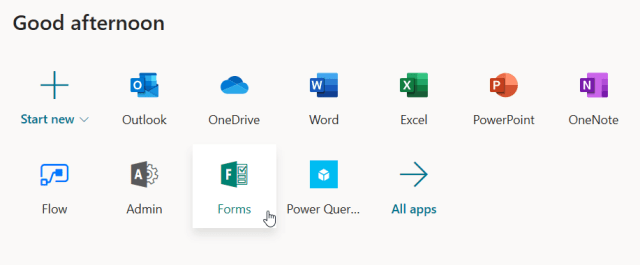
There are a number of ways to access Forms-Pro, initially you can go to your admin portal on Office 365, if you have had this functionality turned on for your profile, you will find this icon amongst your applications. Click on the icon.

(Note: There are other options for access, I will get to administration during part 2 of this series).

b4.1

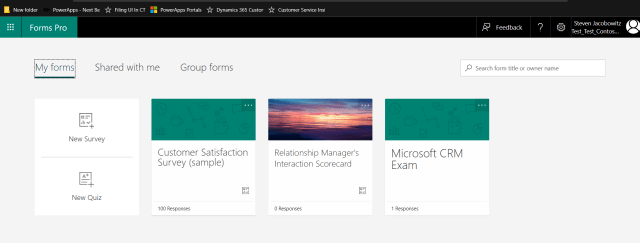
Initially when you open the application you will be presented with the following screen. (the relationship managers scorecard will not be there as we are going to build this during the exercise).

b4.2.png

Please note this application behaves exactly like all other applications associated with the Power Platform. On the upper right-hand corner, you will notice the environment dropdown, (see below).

(Reminder: Make sure you choose the environment instance you wish to use for the survey or quiz. By doing so you will be automatically connected to the correct CDS environment).

b4.3.png

We can follow the wizard to create our first survey. Click on the create new link on the middle of the page.

b4.4

The next screen you will view will allow you to manipulate your survey form. It is very simple to use.

b4.5

Creating a Theme:
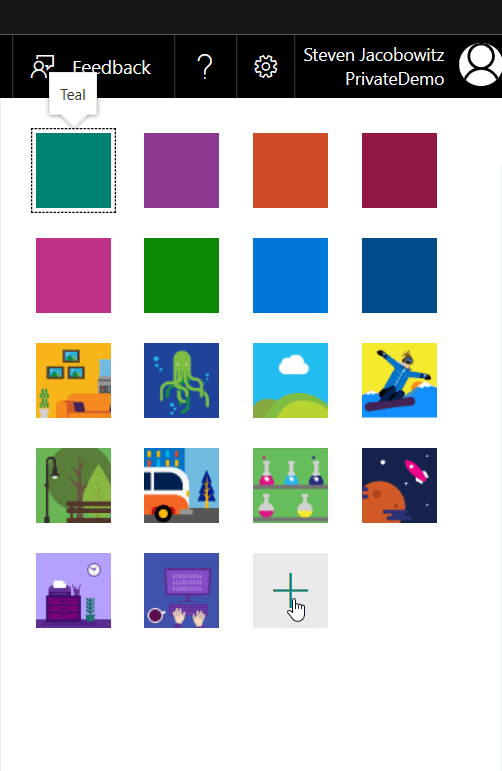
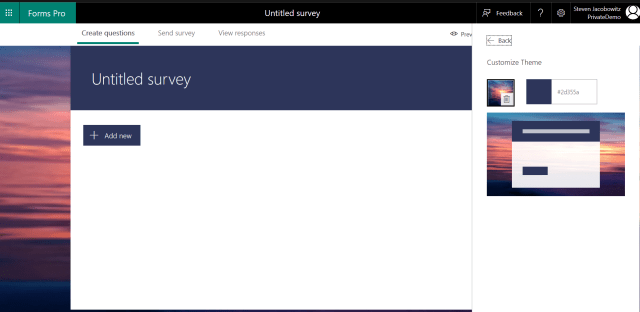
I usually start by changing the theme of the form, your options are to change the form colors, add an image or upload your own image, either by uploading from your computer or One Drive.
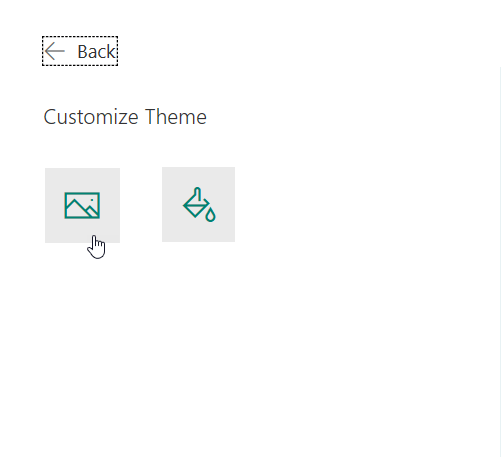
Click on the Theme icon on the white command bar. If you would like to use your own theme click on the + (add new) icon on the next screen.

b4.6

You will then upload the image from the source of your choice, or the custom color you wish to deploy.

b4.7

Click on the option, in this case we will be using a custom imagb4.8Select the image of your choice click on the upload option.
When completed notice how Forms Pro changes the background with your image selected and the header of the form with a color that matches the image, (this is automatic).

b4.9

Renaming the Form:
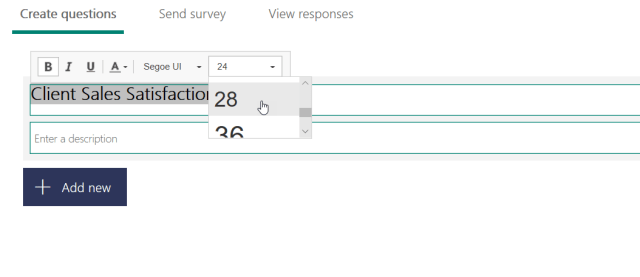
Before you start adding questions you should rename the form. Click on the header section. You will open a new dialog box, (below); here you can give your survey a name and a purpose. At this point you can also manipulate the size of the text and the color of the font using the controls available on the form, (this is all point and click

b4.10

At this point your survey should look have its own identity.

b4.11

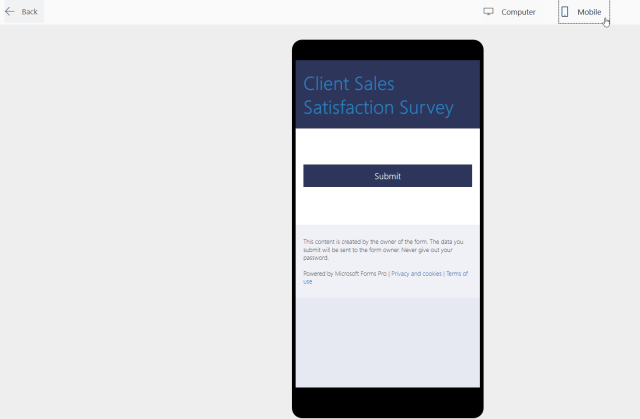
Notice on top right of the form, you can go into preview mode, either computer or Mobile.

(Hint: I usually use these buttons often to check the progress of the survey building).

b4.12

Adding Questions:
At this point click on the + (Add Icon) on the body of the form.
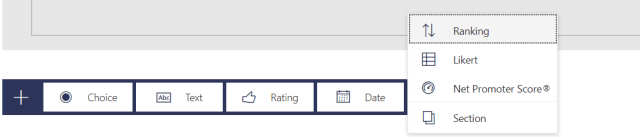
Your question options are as follows.

b4.13
Select one of the options it will immediately render on the form.

(Note: each one of the question types have different options and behaviors I will briefly describe each of them below).
Your Question Options:
Choice

b4.14
Choice Options:
Notice the choice question renders as a single choice option with two choices. (Radio buttons). You can control the font color as well as the Multi-Select option, (turning this on will change the radio buttons to check boxes). You can also select required which will make the question mandatory. In order to add additional option selections, click on the + (add icon).
There is also a visible option. (We will discuss this feature on Part 2 of this series on administration. Visibility is a very powerful tool and is mostly used during branching scenarios where turning on additional questions based on a specific answer to a previous response.
Finally, all questions have additional options accessed through the ellipsis. When you click on the choice question more options, you have the ability to add a subtitle to the question as well as making the choices available through a drop down list.

(Additional Bonus: Look to the right of the actual question, there is an image icon. Forms Pro has the functionality to allow you to add a pictures or videos to questions. I will present an example in the Text section below. This is helpful especially when you want to elicit a response based on a visual queue rather than just a text question).

Text

b4.15

Text Options:
In the above the picture there are 4 icons:

  • The 1st allows you to copy and past the question on the form again, for example you need a few questions that require text answers, you can create a copy of the question, paste and change the question keeping the original formatting
  • The 2nd icon will allow you to delete the question.
  • The 3rd and the 4th icons will allow you to move the question from its original position to a different location by using either up or down arrows.

On the bottom of the picture on the right:
You can change the answer from a single line answer to a multiple line answer. Required and visible have the same behaviors as mentioned on the choice question. At the ellipsis option you could create a subtitle to the question.

Rating

b4.16

Rating options:
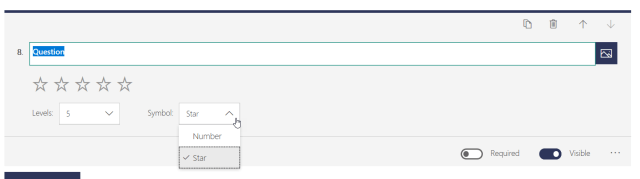
You can change the interval from 1-10 or any number in between. For this example, I am using 5 figures. As far as the symbol you can change it from stars or numerical value, in the above I am using stars.

b4.17
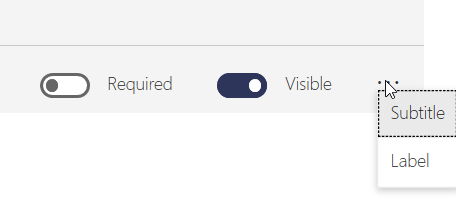
If I use the ellipse value of label, I could assign terminology to the lower and upper values of the rating scale.

b4.18

The question would render as follows when presented to a respondent.

b4.18.5

Date

b4.19

Date Options:
For date it is just that a date input. As you can see from the picture above there is very little you can do to manipulate this question control.
Ranking

b4.20

Ranking Options
The only additional options you have with the ranking question is to add additional items. When the form renders you are left with the following view.

b4.21

Notice to the right of the options there are up and down arrows allowing you to stack rank your answers from most important to least important.

Likert

b4.22

Likert Options:
You have normal control over the Likert question. You can add additional options and you can change the text including the attributes such as fonts and color. In addition, you can also create your own terminology for the option headers. Click on any of the title headers and you can define the ratings in your terminology.

Your finished Likert question will render as follows.

b4.23

Net Promotor Score ®

b4.24

NPS Options:
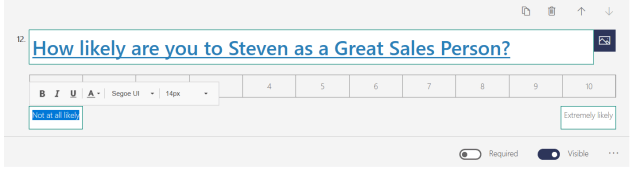
There are very few options available to the Net Promotor Score Question. Fill in the question and you can also define the lower and upper rating scale headers by clicking on the title box and creating your own interval names.
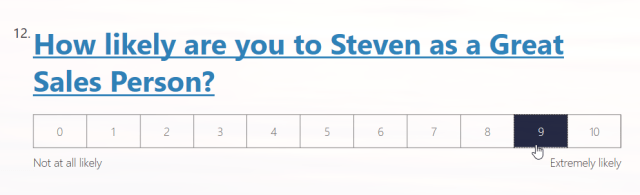
When rendered the respondent can choose one number, (below), to answer the question.

b4.25

I am going to end Part 1 here. You have now completed your first survey. When you test the form factors of the survey your completed product should resemble the following:

I am planning Part 2 of this series to present the following topics:

• How to personalize a survey
• How to create sections
• How branching works on surveys
• How to administer Forms Pro
• Using the reporting features
• How to incorporate Flow and Dynamics 365 into the process
• How to access Forms Pro within the Dynamics 365 Unified Interface

I hope you found this topic interesting and are now as excited as I am about creating surveys and quizzes using Forms Pro.

Any suggestions contact me at stevenj@precisioncrmsolutions.com

Have a good week, and be cheerful,

StevenSig

Posted in Dynamics 365, Dynamics 365 CRM, Forms Pro, MS Flow, Survey Creation | Tagged , , , , , | Leave a comment

Turning off Use New Unified Interface Only Switch D365 CRM (Supported Method)

Good Afternoon –

I hope all had a wonderful weekend!

Saturday, I noticed a post where someone suggested a method for turning off the new Unified Interface or getting to the Old Interface by changing URL browsing defaults. Of course, one of my cohorts immediately pointed out that this method was not supported by Microsoft. I am in total agreement with the reply.

How would you address this challenge while remaining supportable?

Why would you want to do this in the first place?

1. Old time configurators, (like myself), enjoy the flexibility of getting to the old settings tab during the configuration process. Therefore, when they are spinning up a new instance, they require access to both the old and new User Interface.

2. People moving from on-premise to online haven’t used the new UI exclusively, and might want to allow their users access what they are used to, while going through the change management process, (too much change at one time might confuse users and subsequently preclude adoption).


Note: There is a switch that started shipping during the last fall update that will allow the use of both interfaces while either during development or adoption cycles.  (Please note that during the May June timeframe, Microsoft has defaulted this switch to Use Only New User, On).


Below is the method for turning this switch off.

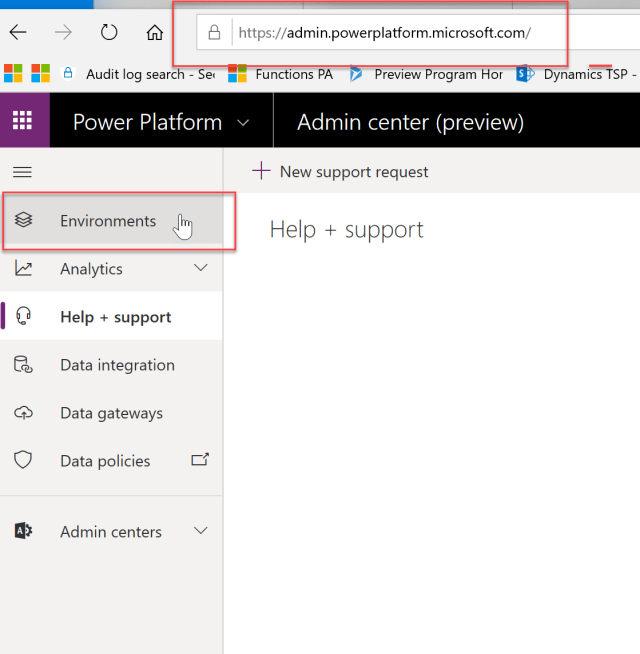
Please go to https://admin.powerplatform.com
Click on the Environments Navigation Tile (make sure you are logged into Dynamics365 with administrator privileges and Office 365)

Art2-Pic1

You should see the environments you created.
Click on the ellipse to the right of the environment name.
Click on Settings.

Art2-Pic2

Your next screen should look like this one below.

Art2-Pic3
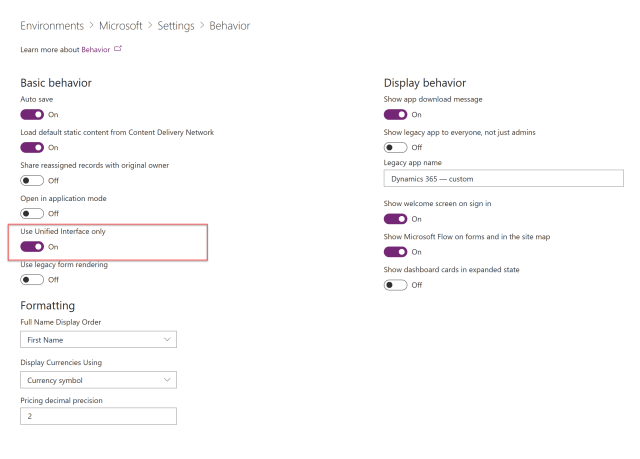
Click on the Behavior navigation section.
The screen should render as follows:

Art2-Pic4
Change the Use Unified Interface Only to Off.
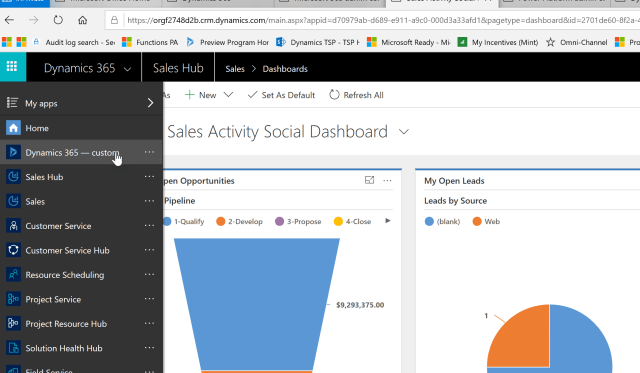
Now Open up your Dynamics 365 Instance.
Click on the Down Arrow next to Dynamics 365
Click on the Dynamics 365

Art2-Pic5

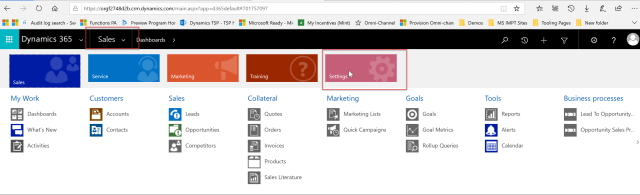
You will now have access to the Old and the New User Interface solutions:

Art2-Pic6

Old User Interface includes:

1. Dynamics 365 – custom solution
2. Sales
3. Customer Service
4. Project Service
5. Etc.

I hope this helps you going forward. Remember you can always revert this switch back so all solutions above will also render in the New User Interface.

I will be posting more going forward. Please keep in contact on subjects you would like to have some content for by emailing me at stevenj@precisioncrmsolutions.com.

Have a great week.

My best,

CAL-Part1-18

Posted in Uncategorized | Leave a comment

My Learning: How to Retain Employees.

Yesterday, I came across an amusing anecdote. An employee, let us call them Employee A, recently announced their intention to leave their current job. Surprisingly, the very next day, they were presented with a new job title and a slight salary increase to retain their services. Does this situation sound familiar to you? Have you ever encountered a similar strategy? Rather than addressing the underlying reasons behind an employee’s desire to leave, it seems that offering incentives to stay has become a customary practice. It is interesting to consider how long it will take for this information to disseminate throughout the organization. It appears that simply threatening to leave can result in a promotion and a raise.

Factors leading to employees deciding to leave their current positions.

Reflecting on my own career, I have encountered numerous learning experiences that have helped me enhance my ability to retain top-notch employees. Considering my track record, I believe I have been quite successful in this regard. When I transitioned from my position at Company Y to Company Z, an astonishing fourteen employees reached out to express their interest in joining me. It was a remarkable display of loyalty, and it prompted me to examine my individual actions and managerial approach. I sought feedback from those who reported to me, asking them why they wanted to work where I was working.

Here are some of the responses I received:

  • You consistently demonstrated honesty with me.
  • You displayed genuine concern for me as a person and as an individual.
  • I trusted you because you always followed through on your commitments.
  • I witnessed you transform the work environment, making it a safe place for employees.
  • You showed a genuine interest in advancing my career.
  • I knew I could rely on you to support me.
  • You were transparent in your communication with me.
  • Whenever I had a question, you acted as a mentor, teaching me or guiding me to the right resources when you didn’t have the answer.

Please understand that I am not attempting to boast, but rather emphasize that I learned valuable lessons by posing these challenging questions to my employees, which helped me maintain a growth-oriented mindset. The results were evident: while working at Company Z in 2022, during what analysts referred to as the “Great Resignation,” we only lost six employees. Additionally, we onboarded another seventy employees during the same period.

What I learned; Real world lessons on how to retain employees successfully:

Based on my research on why employees leave their current positions, I discovered that a significant factor is the lack of career growth and development opportunities. When employees perceive limited chances for advancement or feel that their professional growth has become stagnant, it can lead to dissatisfaction and their departure.

To address this issue, I implemented several measures in my organization. Firstly, I created comprehensive job descriptions for each department, outlining the responsibilities and requirements for every role. This provided clarity and transparency regarding the expectations and potential paths within each department.

Additionally, I established a structured career path for employees within these departments. By mapping out a clear trajectory, we eliminated any inertia or ambiguity surrounding career progression. Employees could now envision the steps they needed to take to make a positive impact and advance within the organization.

Furthermore, we introduced annual review sessions for every employee. During these sessions, we discussed their performance, identified areas for improvement, and collaboratively set new goals that aligned with their career aspirations. This process ensured that employees were actively involved in shaping their career direction and provided them with a sense of purpose and growth.

By making it apparent to employees what they needed to do to reach the next level and by continuously measuring their progress throughout the year, we aimed to foster a culture of continuous development and empower individuals to pursue their career goals within the organization.

Another crucial factor that influences employees’ decisions to leave a company is inadequate compensation and benefits. Employees expect to be fairly rewarded for their skills and contributions, and when they perceive their compensation as uncompetitive or not meeting their expectations, they may be inclined to seek better opportunities elsewhere.

In my role, I recognized the importance of addressing these deficiencies and took initiative-taking steps to improve the compensation and benefits offered to employees. When I initially joined Company Z, the existing benefits package included high deductibles and limited paid benefits, such as health, eye, and vision coverage.

During my tenure of two years, I spearheaded efforts to enhance the benefits package by introducing additional options. We successfully added Long-Term and Short-Term Disability Insurance, Health Savings Account (HSA) options, Life Insurance, and a 401(k)-retirement plan. These additions were made possible through thorough research and strategic decision-making.

To ensure that the revised benefits package was both effective in retaining current employees and appealing to prospective candidates in the labor market, we undertook comprehensive market research and explored different plan options. By being proactive and making bold moves, we were able to assemble a competitive benefits package that addressed the needs and expectations of our workforce.

By offering improved compensation and comprehensive benefits, we aimed to create a more attractive and rewarding work environment, demonstrating to employees that their contributions were valued and that we were committed to their well-being and financial security.

Another critical factor that can contribute to employees leaving their positions is poor management and leadership. When employees have issues with their immediate supervisors or managers, it can lead to frustration, demotivation, and an overall negative work environment. Employees desire to work in an environment where they feel respected, supported, and valued.

Recognizing the significance of effective management and leadership, I implemented several practices to address these concerns in my organization. Firstly, I made it a policy to acknowledge and celebrate employees’ achievements and successes. Whenever someone did something noteworthy or made a positive impact, I ensured their efforts were recognized and shared throughout the organization. This could be done through group emails, using tools like MS Viva to give accolades, or by formally acknowledging individuals at our monthly town hall meetings.

By officially recognizing employees’ contributions, we created a culture of appreciation and encouragement. This not only boosted morale but also demonstrated to employees that their hard work and dedication were valued and recognized by both their peers and higher-ups.

Furthermore, I fostered an environment of open communication and support. I encouraged regular feedback sessions where employees could openly discuss their challenges, ideas, and concerns. This allowed me to address any issues promptly and provide the necessary support or guidance to ensure their success.

Additionally, I prioritized professional development and growth opportunities for employees. By investing in training programs, mentorship initiatives, and career advancement pathways, I demonstrated a commitment to their long-term success and fulfillment within the organization.

By focusing on effective management, fostering a culture of recognition, and providing opportunities for growth, we aimed to create a positive work environment where employees felt empowered, valued, and motivated to excel.

Work-life imbalance and excessive stress can significantly impact employees’ well-being and job satisfaction. When workloads become overwhelming, and there is a lack of balance between personal and professional life, employees may become burnt out and seek opportunities that offer a healthier equilibrium.

To address this issue, it is crucial to prioritize work-life balance within the organization. One approach is to have open and honest conversations with employees about their workload and stress levels. By engaging in coaching sessions, it becomes possible to explain the rationale behind reducing their responsibilities and allowing them to focus on specific objectives where they excel. This approach aims to prevent overloading employees and burning them out quickly.

Maintaining work-life balance is important for several reasons. First, it provides employees with more time to spend with their families and engage in activities that bring them joy and relaxation. This contributes to their overall well-being and happiness, which, in turn, positively impacts their performance and satisfaction in the workplace.

Moreover, a balanced work-life approach can lead to increased productivity and better client outcomes, especially in service-oriented industries. When employees have the time to decompress and recharge, they can bring their best selves to work, resulting in improved client experiences. This creates a win-win situation for all stakeholders involved.

By recognizing the importance of work-life balance and actively promoting it within the organization, employers can foster a healthier and more sustainable work environment. This includes setting realistic expectations, promoting flexible work arrangements when feasible, and encouraging employees to prioritize self-care. Prioritizing work-life balance supports employee well-being and contributes to a positive organizational culture.

The presence of a toxic or unhealthy organizational culture can be a significant factor driving employees away from a company. Issues such as lack of teamwork, poor communication, unethical practices, or a hostile work environment can contribute to employee disengagement and lead them to seek employment elsewhere.

During my time at Company Z, I recognized the need to address these cultural issues on multiple levels. I took on the role of the Chief People Protector (CPP) within the organization, emphasizing the importance of creating a positive and supportive work environment. Prior to my arrival, there was a tendency to engage in finger-pointing and terminating entire groups of people when something went wrong. This created a sense of fear and instability within the organization, which was further exacerbated by negative feedback on platforms like Open Door and LinkedIn.

To initiate positive change, I made it a priority to personally visit each department and every employee to provide reassurance. I assured them that such behavior would not be tolerated in the future and that they could always come to me with any concerns or needs they might have. This was accompanied by the establishment of a 100% open-door policy, which I actively followed through with in practice.

Additionally, I focused on breaking down the barriers between our USA organization and our India delivery teams. By creating an unclouded vision and consistently articulating it to all employees, we were able to unite as one team. This collaborative approach fostered a sense of cohesion, trust, and shared goals, which helped to dismantle the toxic elements of the organizational culture.

As a result of these efforts, we witnessed a significant shift in the company’s culture. Mass firings were replaced with a more supportive and inclusive environment, allowing us to grow rapidly. By prioritizing a positive organizational culture, we created an atmosphere where employees felt valued, supported, and motivated to contribute their best work.

To address the issue of lack of work engagement, I implemented a strategy focused on creating more meaningful and challenging opportunities for employees within the organization. One of the key steps was developing a comprehensive diagram of our future information systems, all based on Microsoft Technologies.

Recognizing the importance of keeping employees engaged and on the forefront of technology, we made the decision to transform our internal projects using Microsoft Technologies. We provided opportunities for employees to work on these projects, leveraging their skills and interests, and allowing them to grow in their chosen technologies.

Over a span of less than two years, we successfully developed and implemented various applications and systems. These included an estimator application, an employee skills matrix, an onboarding and offboarding application, the installation and configuration of Microsoft Viva, the upgrade of Microsoft SharePoint, the migration to Microsoft Business Central, the upgrade of our sales process using Microsoft CRM, the enhancement of our service capabilities with Microsoft Service, the adoption of Microsoft Project Service Operations for project management, and the utilization of Microsoft Teams for collaboration.

The remarkable aspect of these developments was that everything worked together seamlessly through Microsoft Power Automate, enabling streamlined processes and data integration. We were able to generate insightful reports on all this information using Power BI, enhancing our decision-making capabilities.

Furthermore, this initiative brought various practices and departments together, fostering collaboration and knowledge sharing. Our technicians not only became proficient in the products but also gained expertise in deploying and integrating them effectively.

By providing employees with challenging and meaningful work that aligned with their skills and interests, we created an environment where they felt engaged and fulfilled. This approach not only contributed to their personal and professional growth but also enhanced our organization’s competitiveness and ability to deliver outstanding services.

Recognizing the importance of work autonomy and decision-making opportunities for employee satisfaction and engagement, we implemented measures to empower our cohorts and encourage their independent thinking. We allowed them to make decisions regarding the certifications they pursued and gave them a say in the decision-making process for the projects they were assigned to.

However, we encountered challenges with individuals who struggled to think creatively and hesitated to take risks due to a fear of making mistakes. To address this, we shifted our messaging to promote a “Learning Mindset” and fostered a culture of embracing challenges and growth. We introduced the concept of “Climbers vs. Campers,” emphasizing the importance of continuously seeking improvement and making an impact.

Encouraging this behavior became a daily practice, permeating throughout the entire organization. We consistently reinforced the message, not only with existing employees but also during the hiring process. We sought individuals who demonstrated a willingness to take ownership, make decisions, and contribute to the organization’s goals.

By promoting work autonomy and decision-making opportunities, we aimed to create an environment where employees felt empowered, valued, and trusted to make meaningful contributions. This approach fostered a sense of ownership and accountability, which in turn enhanced their job satisfaction and motivation to excel.

Commuting or location-related issues, such as long and stressful commutes or relocation requirements, can indeed be significant factors contributing to employees’ decisions to leave their current positions. Employees may prioritize their work-life balance by seeking opportunities that are closer to their homes or in more desirable locations.

In the case of Company Z, there was a specific instance where an employee was forced to relocate from New Jersey to Texas by the owner, only to be let go just four weeks after starting. The motivation behind this decision was fear of losing control. However, in today’s technological landscape, it is possible to track and evaluate employee contributions without the need for physical proximity. The availability of advanced technologies allows companies to assess employee performance regardless of their location. This realization led to the transformation of the company into a distributed organization, with operations spanning both India and the United States.

By embracing a distributed work model, Company Z was able to address commute and location issues, resulting in a significant rise in employee satisfaction. Employees no longer had to endure long and stressful commutes or face the pressure of relocating. The newfound flexibility allowed them to achieve a healthier work-life balance, leading to increased job satisfaction and potentially reducing the likelihood of seeking alternative employment.

Furthermore, technology enabled the company to track employee contributions and assess their performance effectively, regardless of physical location. This data-driven approach helped ensure transparency and accountability, contributing to a positive work environment.

By acknowledging and addressing commute or location-related challenges, Company Z successfully created a distributed work environment that improved employee satisfaction and well-being.

The unknown personal factors and their impact on employees’ decisions. Personal circumstances, such as changes in family situations, health issues, or the pursuit of higher education, can be significant drivers behind an employee’s choice to seek alternative employment opportunities that better align with their evolving needs.

In my experience at Company Z, I encountered a real-life situation that exemplifies the importance of considering personal factors in the workplace. I had an employee who was dealing with a terminally ill father in her home country. Despite not having accrued the necessary leave time, she approached me expressing her desire to be with her father during his final days. In response, I adhered to my belief that family should always take precedence and granted her the time off. When she returned after three weeks, her position was still waiting for her, acknowledging the importance of her personal circumstances.

Later, she went on to have a child and took birth-related leave. Unfortunately, during that time, her father passed away, and she needed to travel abroad once again. These significant life events occurred within a short six-month period. Consistently, my response remained the same, emphasizing the importance of prioritizing family more than anything else. She was able to take the necessary time off and return to work when ready, knowing that her job was secure, and her needs were understood.

The moral of this story is to always approach employees’ personal circumstances with empathy and compassion. It is essential to recognize that we never know when we may find ourselves in a comparable situation, needing the same understanding and flexibility from our superiors. By demonstrating compassion and providing necessary latitude, employers can foster a supportive work environment where employees feel valued, cared for, and motivated to contribute their best.

In conclusion, it is crucial to acknowledge that there are several reasons why employees may choose to leave an organization. Merely promoting employees who give notice as a retention tactic is not a comprehensive solution. If underlying issues within the organization are not addressed, a vicious cycle can emerge, perpetuating a culture where employees feel they can leverage the threat of leaving to obtain desired outcomes.

To break this cycle, it is essential to focus on improving the organization in key areas. Addressing factors such as limited career growth and development opportunities, inadequate compensation and benefits, poor management and leadership, limited recognition and rewards, work-life imbalance and stress, toxic organizational culture, limited work autonomy and decision-making opportunities, and considering personal factors can help create a more supportive and engaging work environment.

By taking proactive steps to address these issues, organizations can foster a culture of trust, growth, and empowerment. This includes providing clear career paths, fair compensation and benefits, effective leadership, recognition, and rewards for achievements, promoting work-life balance, nurturing a positive organizational culture, offering work autonomy and decision-making opportunities, and showing empathy and understanding towards employees’ personal circumstances. By prioritizing these aspects, organizations can break free from the cycle of employee turnover and build a solid foundation for employee retention, engagement, and long-term success.

Posted in Employee Retention, Leadership, Management, Uncategorized | Tagged , , , , , , | Leave a comment

My Learnings: How to Deal with Disappointment Constructively

Despite the best strategy, planning and execution, work and life falls apart sometimes, and leaders are often ill-prepared to deal with derailment.   Recently I encountered a life changing event, and learned that the practice of self-compassion is the key to thriving during hard times.   Here’s the steps I recommend you take when life takes a hard turn:

Disappointment is an inevitable part of life. Whether it stems from a missed opportunity, a failed expectation, or an unforeseen setback, it can leave us feeling disheartened and frustrated. However, disappointment can also present an opportunity for personal growth and resilience.
Allow yourself to feel:
When faced with disappointment, it’s important to acknowledge and embrace your emotions. It’s normal to feel sad, angry, or frustrated. I had to give myself permission to experience these emotions fully. Suppressing or denying my feelings can prolong the healing process. I had to allow myself the space and time to process my disappointment. I call this surrender and acceptance.

Practice self-compassion:
During moments of disappointment, it was crucial to be kind and compassionate toward myself. I did everything I could to avoid self-blame and negative self-talk. I had to remind me several times that disappointment is a part of life and doesn’t define my worth or capabilities. I decided to treat myself with the same empathy by trusting that I deserved the same kindness and understanding I would offer a friend going through a similar situation.

Reframe your perspective:
Shift your perspective by reframing the situation. I had to look for the lessons and opportunities for growth hidden within the disappointment. I continued to ask myself, “What can I learn from this experience?” and “How can I use this setback as a steppingstone to success?” Reframing disappointment as an opportunity for growth helped me find new paths forward.

Set realistic expectations:
Unrealistic expectations often lead to disappointment. I reflect on whether my expectations were reasonable given the circumstances. If necessary, I had to adjust my expectations to align with reality. By setting realistic goals and expectations I found, I was increasing the likelihood of achieving my goals and would reduce the likelihood of further disappointment. I am currently reading a book where the first chapter’s theme was concentrated on just one thing to achieve success.  “Focus on 1 item.” Me, being a juggler and multitasker at first, I found this difficult, now I am starting to get the hand of it and I am becoming much happier.

Seek support:
I didn’t face the disappointment alone. I had to reach out to trusted friends, family members, or mentors who offered support, guidance, and a listening ear. By sharing my feelings with other’s provided me emotional support but also gave me a fresh perspective and insights that helped me navigate the situation. About 10 years ago I realized I needed to create a board of directors for Steven.  I had to deal with my own fear of blind faith and build the skill of listening to others’ opinions.  Today I am realizing this was one of the best decisions I made, it really helps when going through turbulent times. 

Learn from setbacks:
Disappointment is an excellent teacher. By me taking the time to reflect on what went wrong and why. I can analyze my actions, decisions, and the external factors that contributed to the outcome. It also gave me the ability to analyze what I could have done in advance to avoid the situation going forward.  Einstein said, “Insanity is going through the same situation over and over and expecting different results”. By using this self-reflection as an opportunity to identify areas for my own self- improvement I was able to devise a plan to avoid similar disappointments in the future. I call this a learning mindset and honest self-evaluation.

Focus on the present and future:
While disappointment may be rooted in the past, I realized that dwelling on it would hinder my progress. Instead, I shifted my focus to the present and future. I identified new goals and aspirations that inspire me. I channeled my energy to pursuing fresh opportunities and taking proactive steps toward my desired outcomes. In my case I have tripled the sales volume on my eBay store, (and I do not have to work 70 hours a week to make this all work).

Practice resilience:
Resilience is my ability to bounce back from adversity. Cultivate resilience by viewing disappointment as a temporary setback rather than a permanent defeat. I embraced my growth mindset and I do believe in my ability to overcome challenges. I drew strength from previous instances where I’ve overcome disappointment and reminded myself of my persistence and never give up attitude.  My mom used to tell me I was like a cat, no matter what ever happened to me, I always landed on my feet. 

My Conclusion:
Dealing with personal disappointment constructively is an essential life skill that helps me navigate setbacks and achieve personal growth. By allowing myself to feel, practicing self-compassion, reframing my perspective, setting realistic expectations, seeking support, learning from setbacks, and focusing on the present and future, I transformed disappointment into an opportunity for positive change. The most important theme I had to remember, disappointment, doesn’t define me; how I responded to it does. I have learned to embrace the challenges, learn from them, and keep moving forward with resilience and determination.

Posted in Learning Mindset, Uncategorized | Tagged , , , , | Leave a comment

Lessons Learned: My negotiation journey for a new car:

With my car lease expiring in mid-July, time was running out. I visited the original dealership, determined to replace my current vehicle with a new lease. However, the new car I wanted came with a $16,000 price increase. Despite a discount based on the equity in my current car, the lease payments would be $325.00 more than what I was already paying. This presented a dilemma.

I was determined to reduce my monthly payment instead of increasing it, I spent two weeks researching alternative options online. Eventually, I found a vehicle that was $11,000 cheaper than the vehicle that was a current replacement to my current vehicle. However, configuring the models online forced me to send the details to a dealership. Consequently, I started receiving calls from both the original dealership and the alternate one.

Though I dislike sales pitches, I answered their calls out of respect. My goal was to lease a more expensive vehicle than my previous one while lowering my monthly payment. After careful consideration and reviewing quotes from Carvana and CarMax, I decided to proceed on Monday.

At the dealership where I had sent the configurations, the salesperson was friendly, and we had a pleasant chat. They appraised my current car and even offered a test drive. Upon returning to the showroom, they provided a lease quote that was $120.00 higher than my current payment. Curious about the credit for my car, I discovered that a $5,000.00 down payment was also necessary to achieve the quoted price.

Despite feeling frustrated, I managed to remain calm. I made it clear that I would only pay the same lease price I was currently paying, hence $120.00 less. After discussing with his manager, he returned and assured me, “They can do it, they will work it out.” Instantly, I felt a twinge of suspicion, thinking that it was too easy. Self-doubt crept in, and I started considering if I could find a better deal elsewhere. Looking directly into the salesperson’s eyes, I kindly requested 24 hours to consider the offer. He handed me his card, and we parted ways amicably.

During my trip to the second dealership, I decided to share my experience at the first dealership, adding a small exaggeration. Upon arrival, I had an open and honest conversation with a new salesperson. I mentioned that the other dealership had offered me the same car for $25.00 less and expressed my expectation of a better deal here. I proposed a $4,000.00 down payment, which was $1,000.00 less than the original dealership.

To support my negotiation, I provided copies of the quotes from Carvana and CarMax, along with the detailed specifications of the desired vehicle. The salesperson appraised my car and then showed me a similar vehicle with some missing options. Declining the test drive since I had already done one, we returned to the showroom. After discussing with their manager, the salesperson returned with great news: the fully accessorized car would cost $529.00 per month, $46.00 less than the other dealership, and I only needed to pay $4,000.00 down. We struck a deal, saving me $1,656.00 over the three-year lease period.

While my negotiation story may not be universally applicable, it signifies a significant personal accomplishment. I learned the importance of compromise, realizing that I didn’t always need the top-of-the-line option. Trusting my intuition and actively listening led me to success. I can’t wait to drive off the lot with my new car on Saturday.
Posted in Business | Tagged , , , , , | Leave a comment

Dynamics 365 – New Feature Update Ability to View Documents from SharePoint

Good Day All –

Brian Dewulf is one of the members on my team at Avtex.  I read the blog he published below, and I am embarrassed to admit I didn’t know this editor even existed until I completely read his helpful tips.  I did learn several additional tips from the blog, therefore, I decided to share it to all of my readers also. 

I hope this helps you as much as it did me. 

Have a great day,

StevenSig

Dynamics 365 – New Feature Update Ability to View Documents from SharePoint

By Brian Dewulf

A new feature in the Dynamics 365 2019 Release Wave 2 is the ability to display the related SharePoint documents (when using the native Dynamics SharePoint integration) on the main form. Previously these documents could only be accessed via the related items menu.

Adding this new functionality is straightforward, although, you are required to implement the functionality in the correct place.

NOTE: This feature cannot be activated using the current forms editor.

Installing in the historic form’s editor will cause issues with the implementation of this feature.

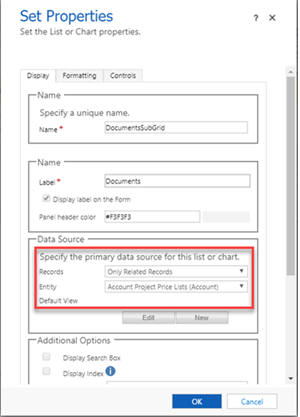
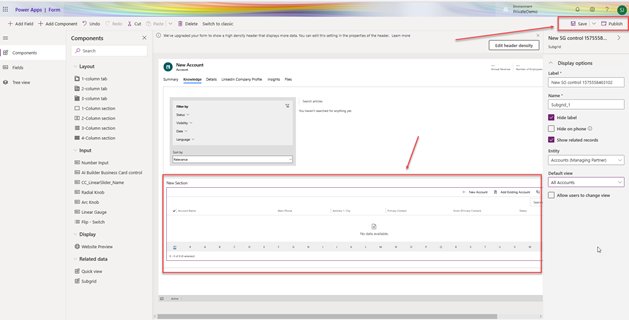
The image below shows the properties of the subgrid using the new SharePoint functionality. This is confusing as the Entity listed in the Data Source section does not reference SharePoint.  In addition, the Entity drop down is locked for changes.

This occurs because the SharePoint display feature is not accessible from the old form’s editor.

BP12-31V1


Figure 1 Data Source is Disabled


Note: This modification will work only if you have already enabled the SharePoint integration for the selected entity.


The solution is to use the new form editor. There are a couple of ways to access this new editor.

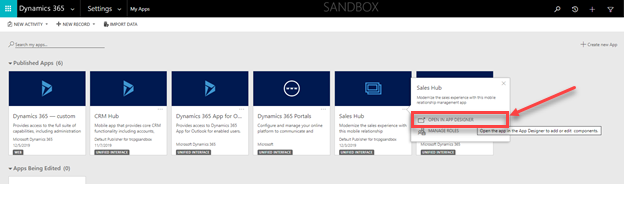
One access point is to navigate to Settings, My Apps, click the ellipsis on the desired app, and select Open in App Designer.

BP12-31V2

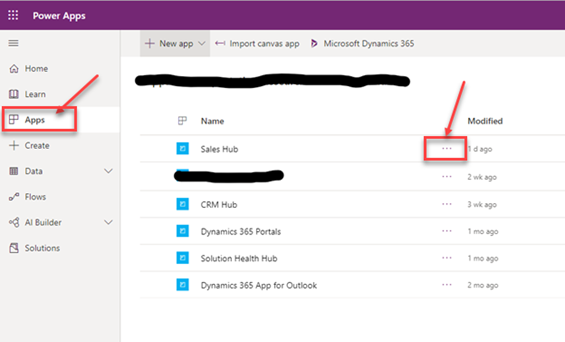
The second method is to navigate to the PowerApps Maker Portal:  https://make.powerapps.com/ .

Click on Apps tab and access from the list of apps.

Click the ellipsis next to the app you wish to edit and select Edit.  This will also open the App Designer.

BP12-31V3

From the app designer, navigate to the entity you wish edit, and click on forms.  From the list of forms on the right side of the page, hover over the form you wish to edit and click the pencil icon (edit form).

This action will open the new form editor.

BP12-31V4

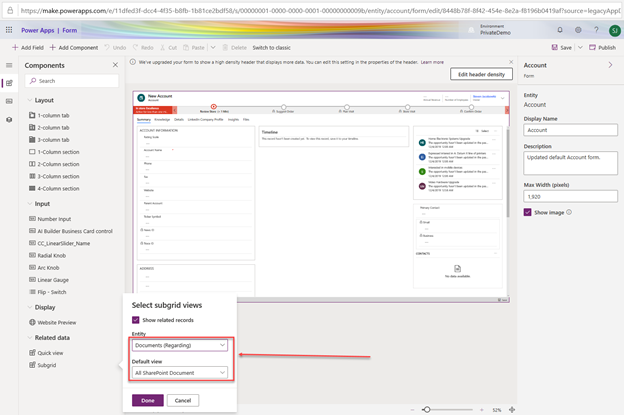
From this form editor, add a new tab or section (or select an existing section) where you wish to add the document subgrid.  Click Add Component and choose Subgrid.  In the Entity drop down select Documents. In the Default view drop down select All SharePoint Document.

BP12-31V5

Notice the Documents (Regarding) and All SharePoint Documents are selected in the Sub-grid view.  Select the Done button.

Your form should appear as below.

BP12-31V6


Note: the save and publish options are located on the top right of the screen.  You will need to Save and Publish this Form.


Close this form.  Return to the App Designer, click on Validate and then Publish.   You have just completed the modification.
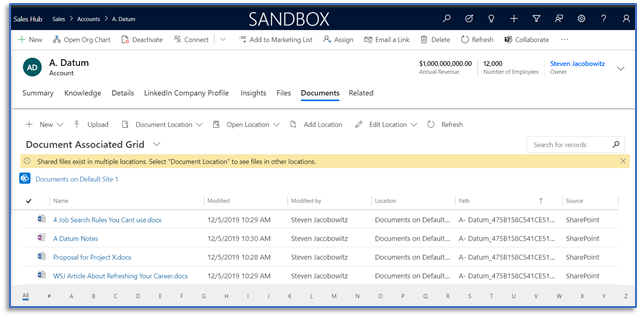
Check one of your current account records.  As demonstrated below you have added a document Subgrid to your form.  You can now add documents to your Document Subgrid.

BP12-31V7

I hope this has been helpful and look for more content on new features soon.

SignatureB

Posted in CRM Announcements, CRM Configuration, Dynamics 365, Dynamics 365 CRM, Dynamics 365 Fall Release Features | Tagged , , | Leave a comment

Thinking about a New Work Opportunity?

If you are a Specialist in Dynamics 365 or a Sales Specialist in Dynamics 365 and looking for a great place to work.   I would suggest Avtex

We have open positions for the following qualified individuls,  Feel free to contact me if you are interested or apply on the links below.

Microsoft – Dynamics D365

Posted in Uncategorized | Leave a comment

Assigning Images to Option Set Labels in Dynamics 365 CE

A few weeks ago, I was attending a demo with one of my colleagues @Amy Caine. As she was demoing, she presented the account record with an option set that contained images as the set members. I was totally amazed with this trick.

Amy being a great teacher taught me her trick. I want to thank her for this knowledge and the support to share this knowledge with my readers.

Below is an example of how your dynamics will look after you create the visual option set.

1-Pic


Prerequisites you must have a laptop that can go into tablet mode.

Scenario
One of my clients would like to have the ability to rate each of their clients using a visual indicator on each of their account forms.

Ok let’s get started.
1. Go to Settings -> Solutions -> Open your configuration solution. **

2. Select the entity you wish to modify.
3. Expand the entity and go to fields
4. Click on + sign, (new field)
5. This will open the new field dialogue box.
6. Name the field.
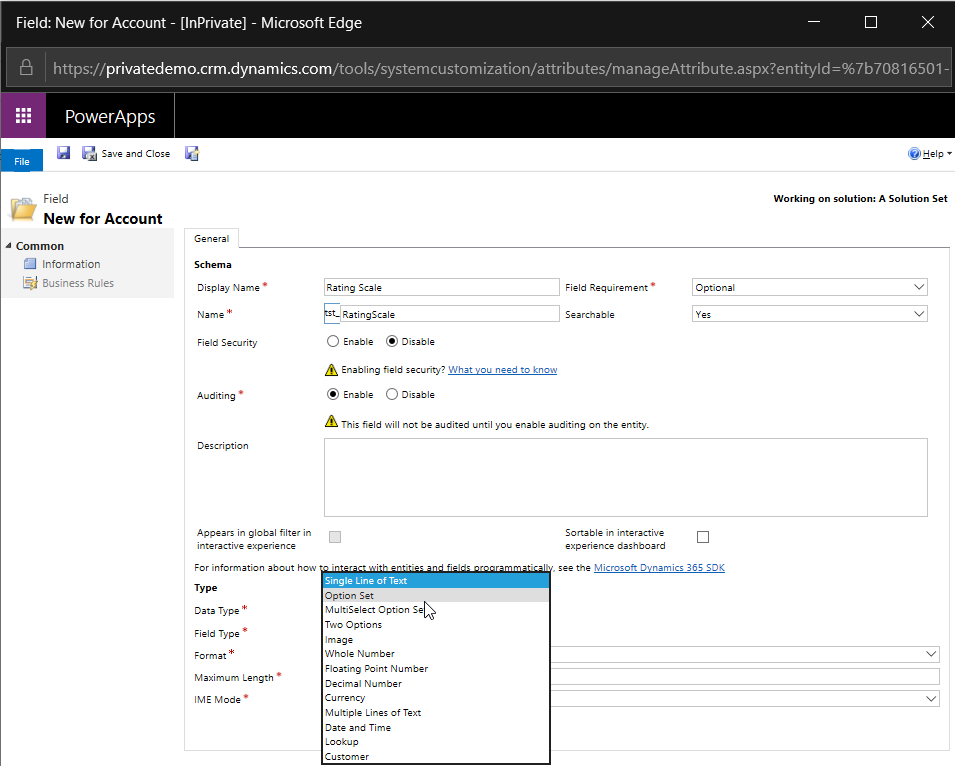
7. Select Option Set on the bottom

2-Pic

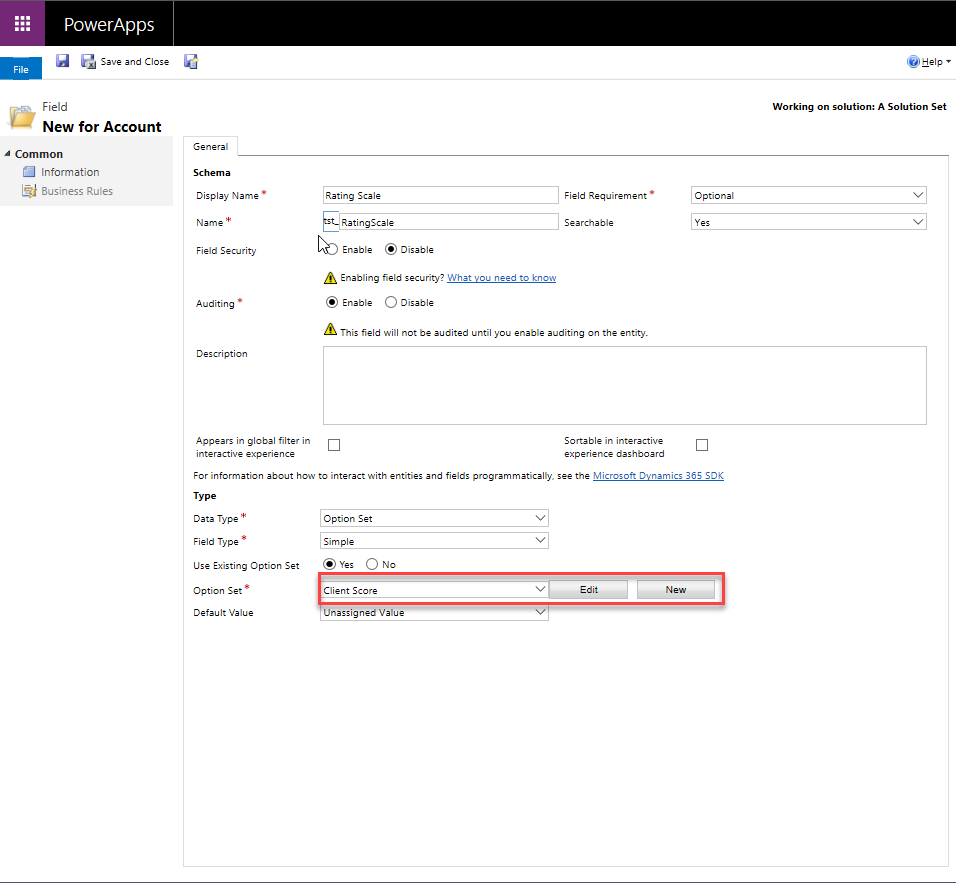
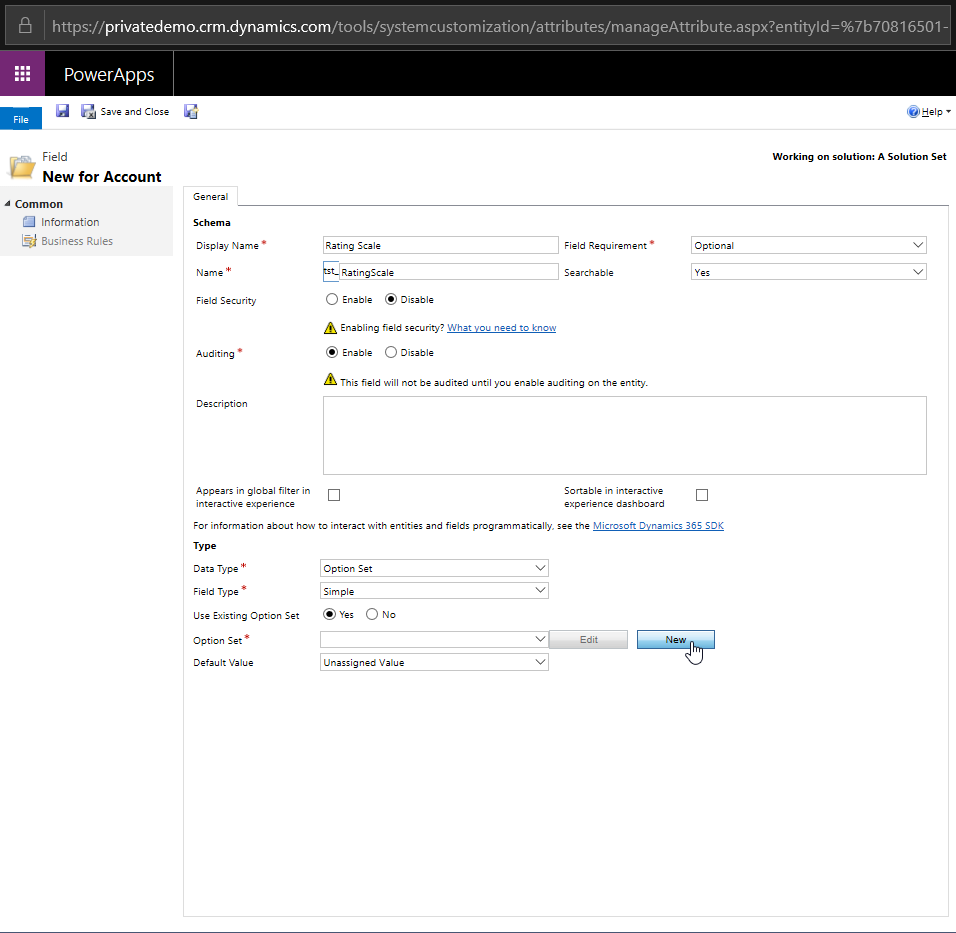
Note: You now have the option of selecting whether you would like to use a local option set or create a global option set. *Note: I usually will create a global option set at this point because I then can have the option of using this configured global set with additional fields on different entities. Therefore, I am going to use the global option in this example, although, you can follow the rest of the solution as outlined below on a local option set for this field.

Let’s continue:
8. Click on the yes radio option Use Existing Option Set option
9. Click on the new button

3-Pic

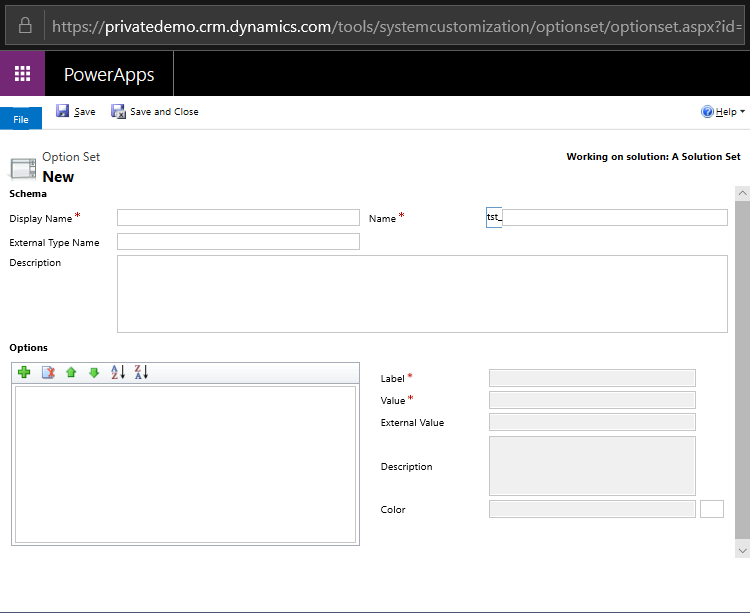
10. This will open the global option set dialogue box

4-Pic

11. Create a Display Name
12. An External Type Name
13. Click on the + under the word Options, (at this point I will click on the + sign for as many members that will appear in the option set).
14. At this point you should be viewing something similar to the picture below.
15. Save the Global Option set.

5-Pic

Adding visuals to the Global Option Set
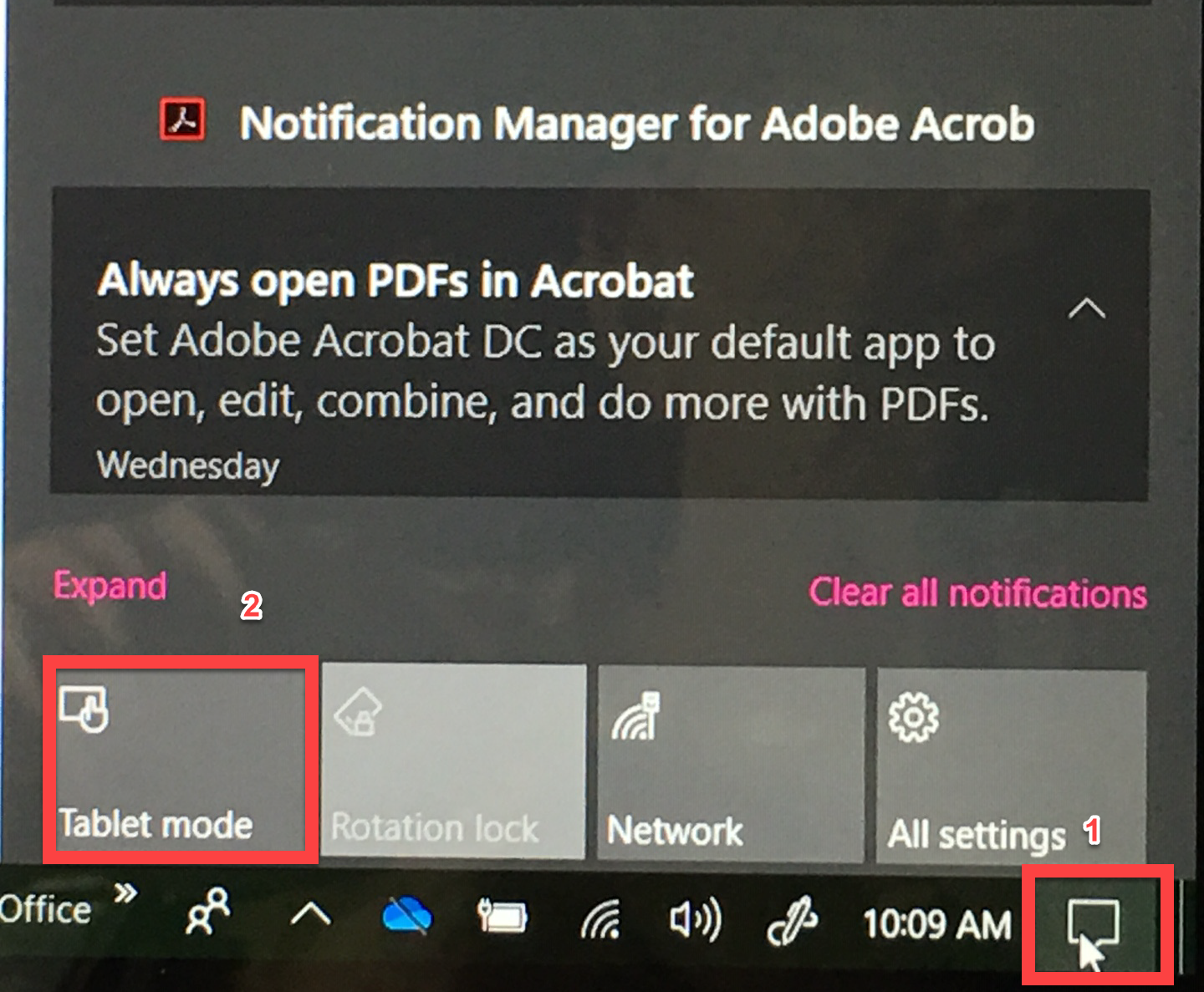
16. On the far-right hand side of your device click on the new notifications’ icon. (1)
17. Put your device in Tablet Mode (2)

6-Pic

18. At this point make sure you have your global option set open
19. At the bottom right of your toolbar click on the keyboard Icon

7-Pic

20. You should now be presented with a screen like this one below.

8-Pic

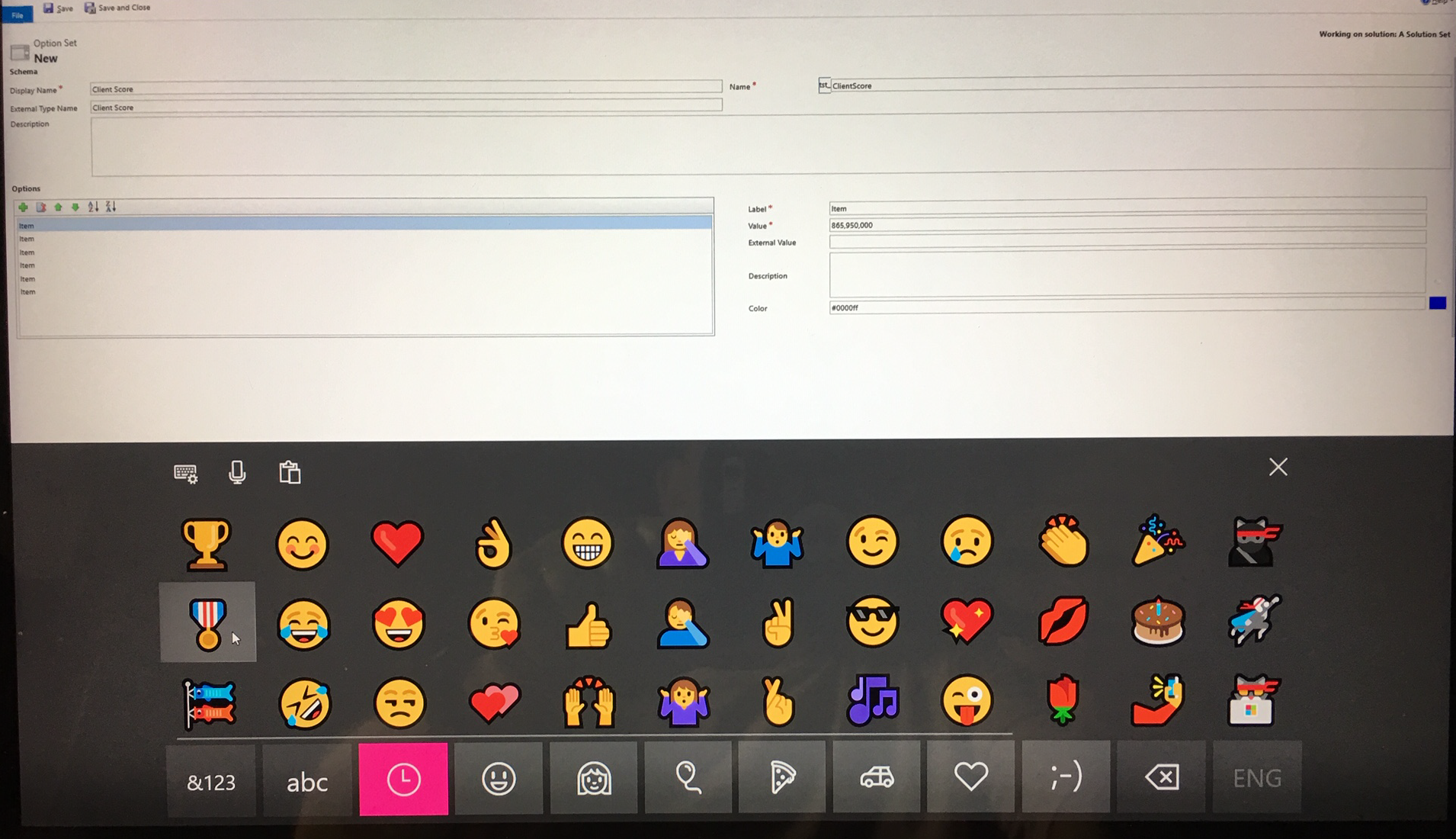
21. Click on the first item on your list (named Item)
22. On the right-hand side remove the Item designation from the Label (Right)
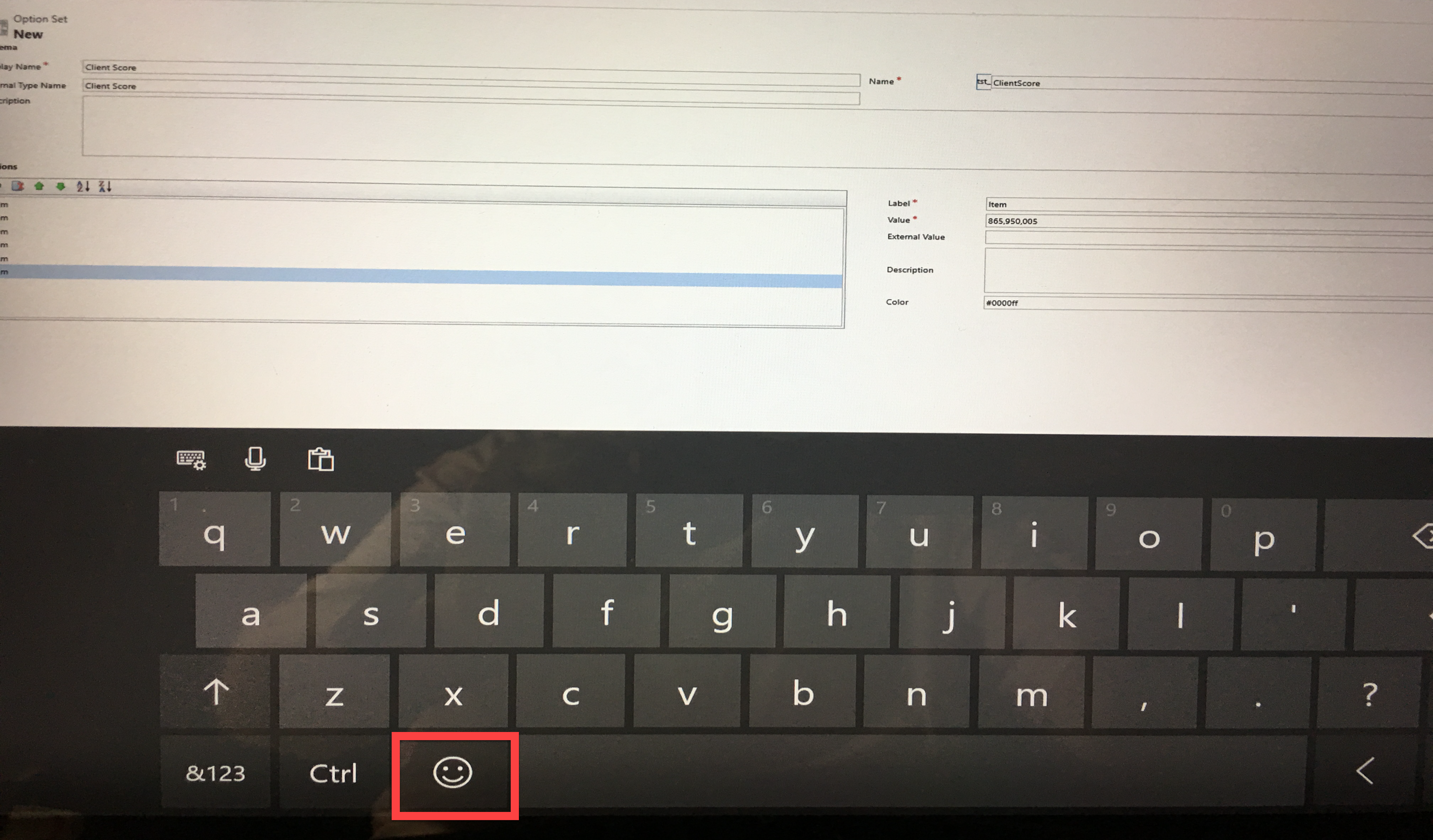
23. Now click on the emoji icon (there are hundreds of emojis to select from)
24. Your screen should look like this.

9-Pic

25. Click on the emoji you want to work with.
26. The image will fill in the first label
27. Move to the next label and highlight the word Item
28. Click on the emoji again, (I usually rate at 4-5 levels), therefore, I would click on the emoji twice to create two images.
29. Continue to repeat this action until you have changed all test labels to images.

A few notes (tips):
a. You can only use one image per option set, therefore, choose the one you would like to use for all options.
b. You can add text after the images if you wish to do so.
c. All members of the option sets are searchable using Advanced Find.
d. Sometimes you will lose focus on the keyboard. All you do is click on the keyboard icon on the right tool bar. (see above)

Finishing up
30. Save the Global Option Set
31. Make sure you see the Global Option Set identified within the field option set.

10-Pic

32. Save and Close the Field Option Set
33. Go to Forms on the Entity
34. Choose the main Form you would like to add this field to
35. Add the fields using the drag and drop option
36. Save and Close the form
37. Publish all (Not just the form)
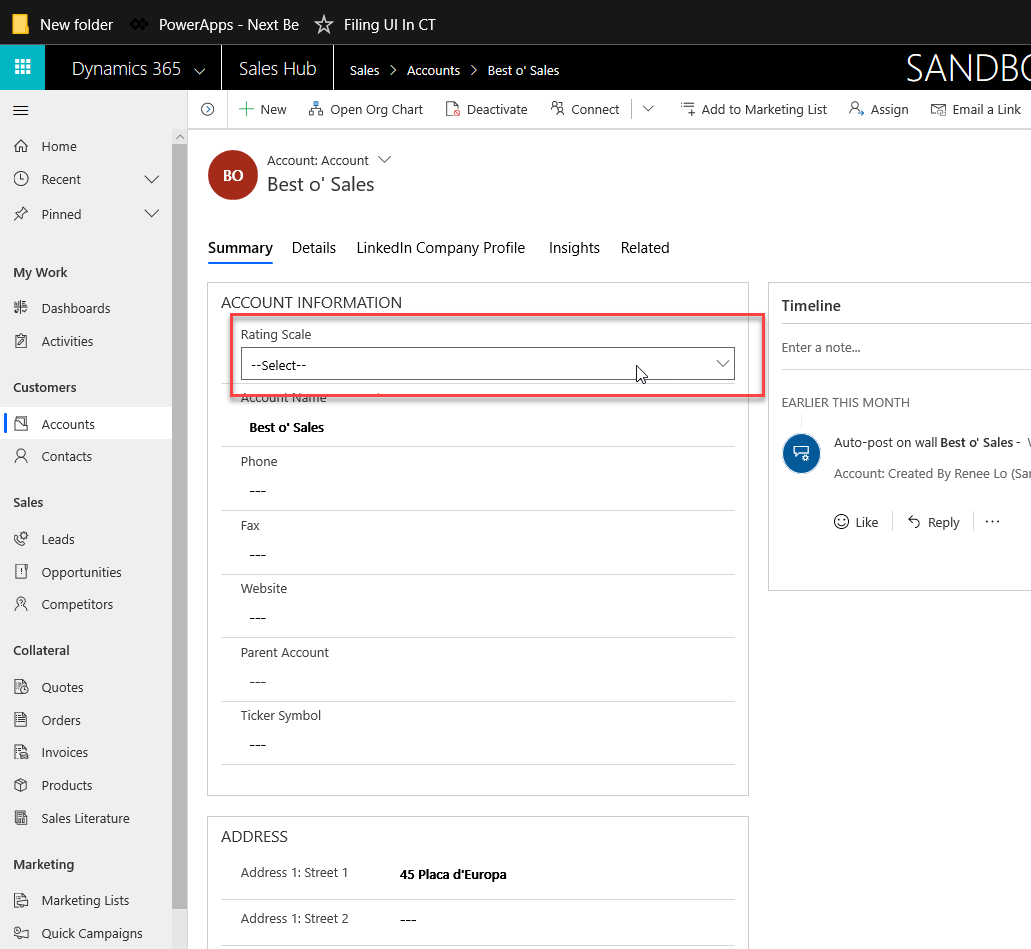
38. Open the Sales Hub Solution
39. Your records should look like below.

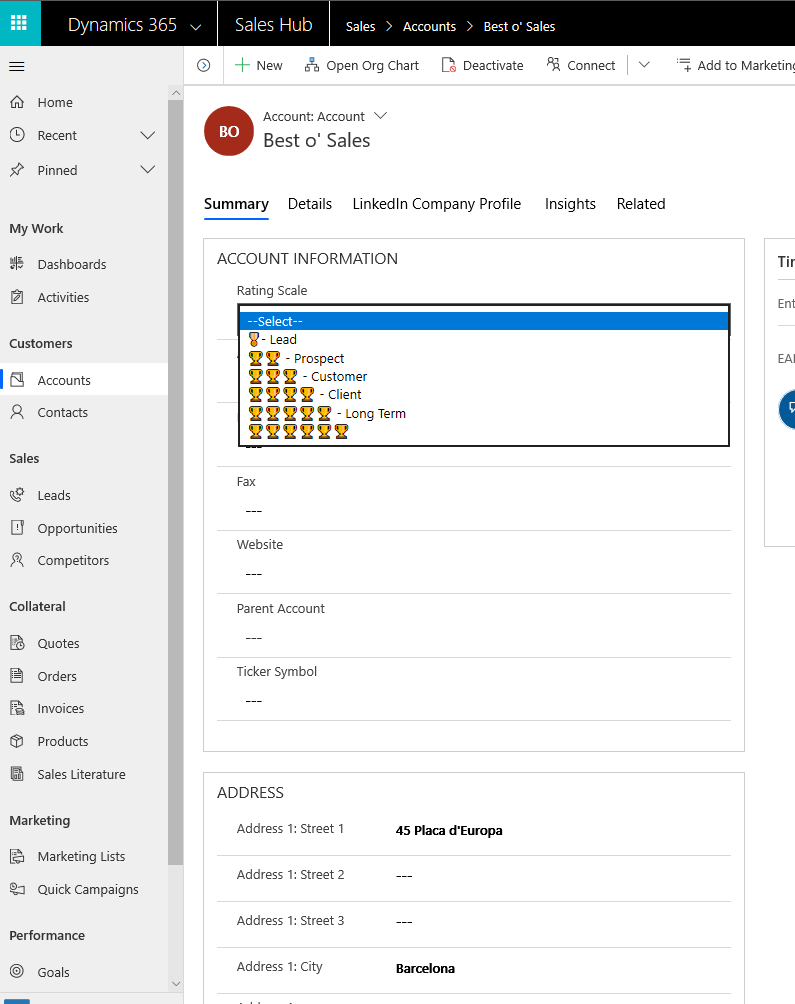
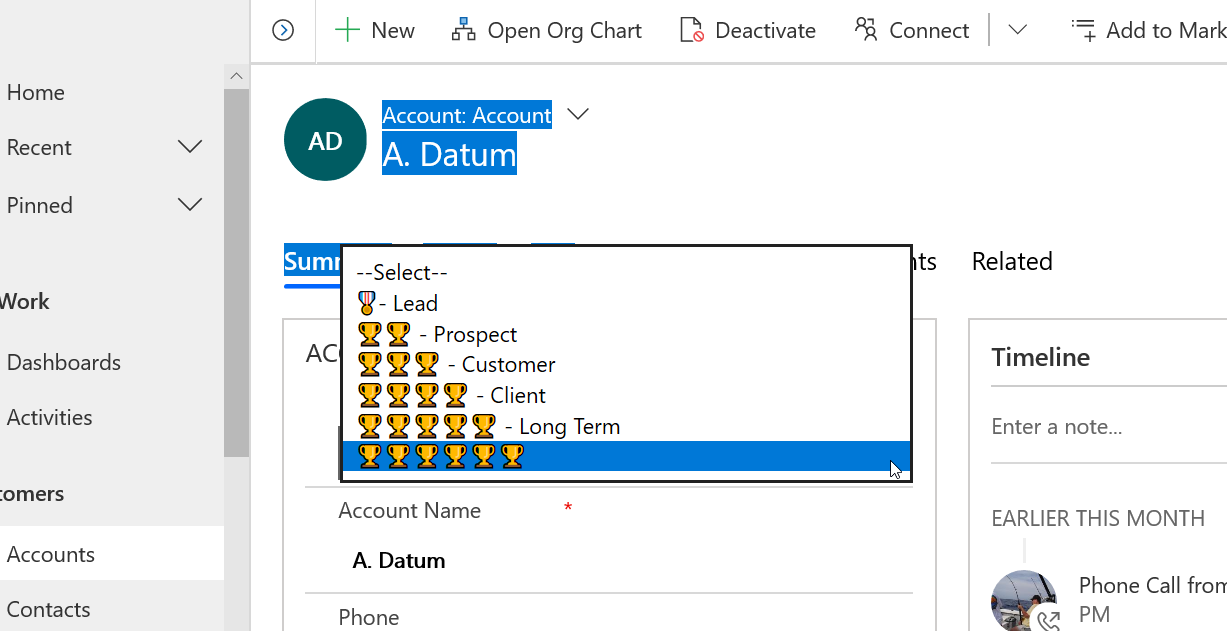
11-Pic

40. Click into the option set, to view your choices

12-Pic

41. Select your option
42. Save the record
43. Below is what you should view.

13-Pic

It is just that simple!

Again, I want to thank Amy Caine from Microsoft for the idea and the assistance in creating this blog.

I am looking for more topics, please contact me @ stevenj@precisioncrmsolutions.com with your ideas.

Until next time.

Be Cheerful,

CAL-Part1-18

Posted in Uncategorized | Leave a comment

Social Selling Index included within Linked in Sales Navigator:

What is your score and what does it measure?

I have been using LinkedIn Sales Navigator for almost two years. Something I was always fascinated with is The Social Selling Index, (SSI). Prior to getting started with LinkedIn Sales Navigator I went through training. The first tool the trainer pointed out was the Social Selling Index.

At the time I was rated at 71 and was assured by the LinkedIn Trainer that was a very good and high score this measure. But what did it all mean?

The SSI is a combination of scores and rankings that is AI infused that measures your social selling activity. For example, it monitors your activity of liking articles posted, it monitors your networking circle, if it is growing, it also monitors your posts on LinkedIn and on Sales Navigator.

It was interesting on what the SSI measures and how it correlates four major goals pertaining to your sales efforts. According to Microsoft the four elements measured and the goals are stated below.

Four elements of social selling

LinkedIn measures your social selling efforts. Here’s what adds up to your score and ways to improve them.

  1. Establish your professional brand

Complete your profile with the customer in mind. Become a thought-leader by publishing meaningful posts.

  1. Find the right people

Identify better prospects in less time using efficient search and research tools.

  1. Engage with insights

Discover and share conversation-worthy updates to create and grow relationships.

  1. Build relationships

Strengthen your network by connecting and establishing trust with decision makers.

This being stated, I started to work on my presence on LinkedIn. I have been supporting and selling Microsoft Dynamic’s for over 15 years. My goal was to be a thought leader in the space because I love the suite of product and helping clients with their digital transformation goals.
Therefore, I started changing my behavior by working on growing my SSI. The first year was a bit of a transitionary period for me. I never saw the index climb beyond 74, which was a great score, although, I realized I was not doing enough socially to raise it higher.

I decided if I wanted to get to my objective I would need to started posting on LinkedIn, therefore, I also started commenting on other’s blogs, and I started to write my own articles and point of views on topics where I felt I could help educate others.

The Result; Slowly my score started creeping upwards. The reason I wanted to become so diligent with this behavior on LinkedIn is because I do believe in the stated value of having a very high SSI.

The Value of having a high Social Selling Index.

  1. Social selling leaders create 45% more opportunities than peers with lower SSI.
  2. Social selling leaders are 51% more likely to reach quota.
  3. 78% of social sellers outsell peers who don’t use social media

This is very much worth the effort, so I became dedicated to this behavior, and I am slowly realizing the above stated benefits.

How do you get to the SSI Scoring and what does it look like?

If you go to the top of menu on LinkedIn, (you must have LinkedIn Sales Navigator) you click on the Sales Navigator icon.

LISN-Icon

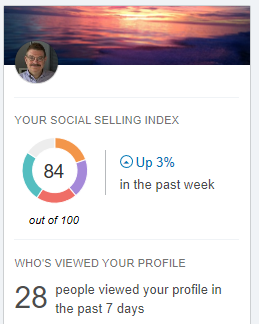
After the page renders if you look to the right upper quadrant on the page you will view the summary of your social selling index.

ssiScore

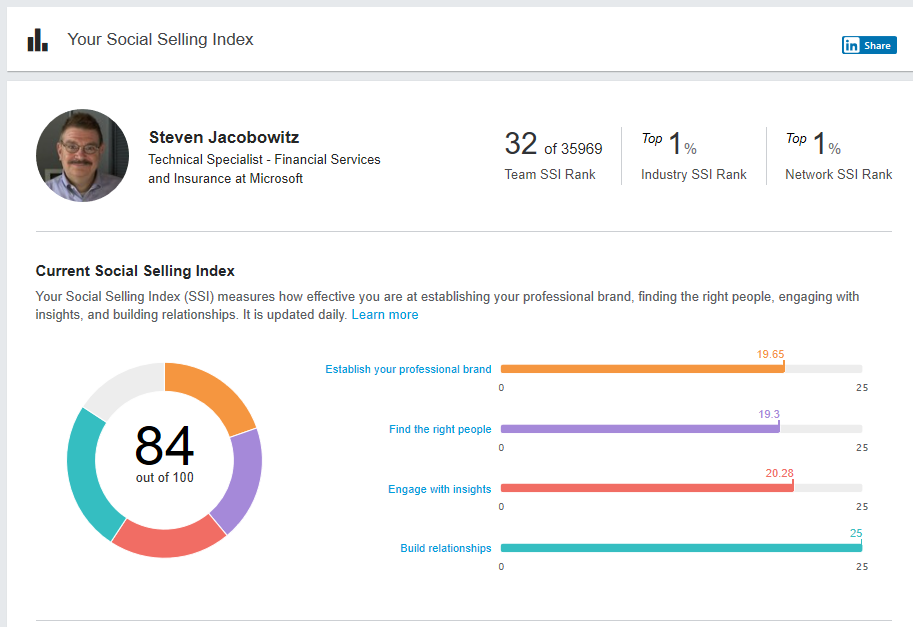
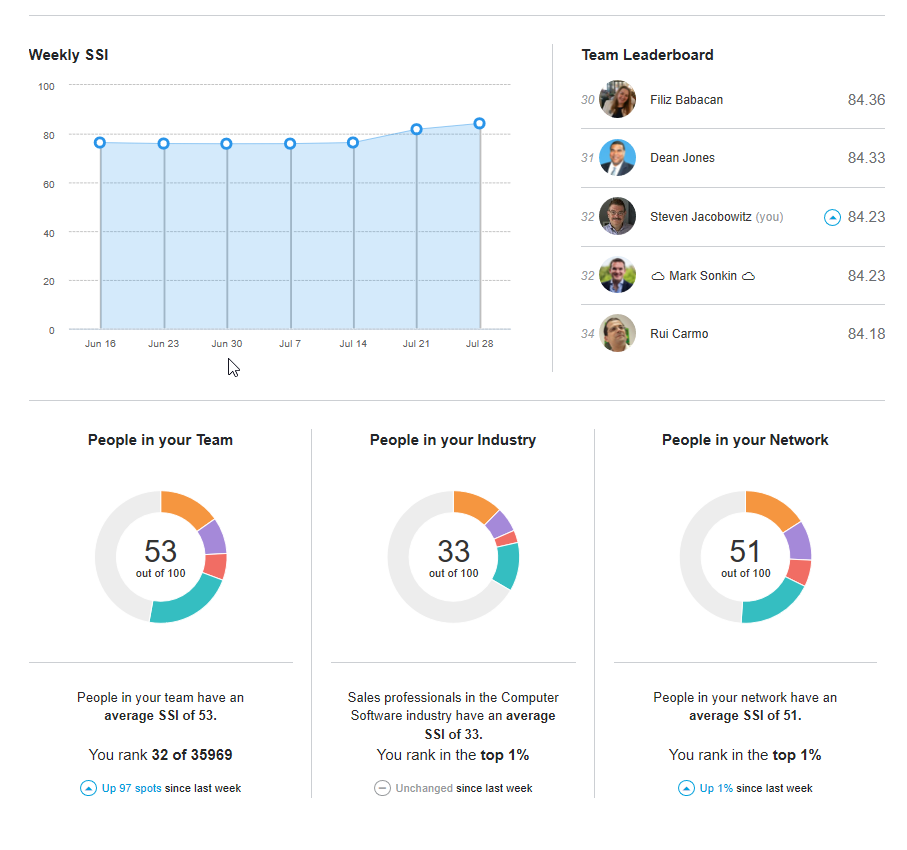
It doesn’t end with this score, if you click on the number section you will see several amazing analytics.

SSIDetail1
SSIDetail2

As you can see my score is raising, now at 84%, and by the way, my ability to assist our group and my primary colleague the ability to reach their sales quotas. My team achieved over 100% this year. In addition, the person I work most closely with on all opportunities achieved 117% this year.

The more important goal is I have slowly changed my behavior on LinkedIn and am networking with more individuals, collaborating and exchanging ideas. My objectives of being domain expert and a thought leader are coming true. My investment in time maybe 2 hours a week. Trust me it is worth the effort.

Be Cheerful!

Steve

Posted in Uncategorized | Leave a comment