
Last week we discussed the use of the Option Set attribute when configuring Microsoft CRM 2011. As mentioned it is advisable to use an Option Set when you require standardized input into a field on one of the entity forms in CRM 2011.
The benefits of using the Option Set include:
- Ease of data entry, you can pick the type from a list and the field will be populated.
- Standardization – Only items in the list are available for use
- Reporting and filtering, since these lists are pre-populated the spelling of the values will remain consistent; therefore it will be easier to work with the data during the analysis phases.
A few drawbacks with using option sets:
- Security Issues – In order to add additional values to the option set the user must be assigned the customizer role within CRM, which might violate governance rules within your company.
- Maintenance – A list box will only be as good as the number of permutations of entries, for example, if a client was of type A and type B you would have to have a list box entry for Type A and B.
- Multiple Entries – As is implied above Multiple Entries aren’t allowed in a list box entry, (there are a number of non-programing methods for handling this type of situation which I will discuss in future blog entries.
- Reusability – In CRM 2011 you can create an Option Set that can be accessed from several entities although in order to maintain the set the user will still have to have access to the Customizations Section of CRM, therefore it might be unacceptable based on your company’s policy of governance.
Today we will look at addressing the issues identified in 1, 2, and 4 above with the use of a custom entity and a corresponding lookup attribute on a CRM 211 form.
The use of a custom entity is advisable in situations where you require additional flexibility beyond what is available within an Option Set, for example, an option set allows for two variables within its definition, the label and the value, whereas with a custom entity you can create as many additional attributes as you require.

Creating an Entity Option Set:
You want to create an option set to contain all of the state abbreviations, full state name, and state capitals of the United States to be used on the lead, contact and account forms in Microsoft CRM 2011.
- Start off by creating a new entity called State Table
- Go to settings
- Customization
- Customize the System
- Entities
- Click on the new entity option

7. Define the display name, plural name and the areas to display the entity. (Note I usually place entities that are being used for lookups in the settings area for ease of access.)
 8. It is also advisable to rename the primary field, click on the primary field tab and define the primary field display name and name.

9. Save the entity
10. Click on forms
11. Click on Main Form
12. Add the State Long Name and the Capital City Entities and place on the form.
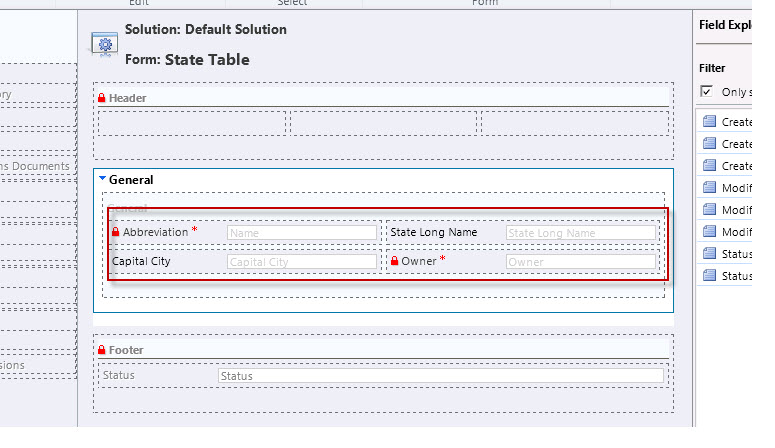
13. Save the form
14. Publish the form
15. Close the form
16. At this point you can also customize the views to display the expanded lookup information; I usually concentrate on the lookup, associated, and the quick find views.
17. Next step is to place this new state field on a form for use.
18. Open the Contact Entity
19. Open the Main Form
20. Create a new field
21. Add the display name and use the type lookup
22. Use the drop down Target Record Type to locate your State Table entity

23. Save and close the form
24. Put the new attribute on the contact form
25. Save and publish the form
 Your new State Lookup attribute
In Conclusion:
Using an entity for an Option Set will solve several issues I addressed above.
1. Security: You can control the security from the role attribute, using this methodology you can determine who can add, create, and append values to your new table without giving the users system administration or system customizer rights.

2. Maintenance: To add a new value you only need to go to extensions under settings highlight the entity and click on new. You can then add the new values.

3. Reusability: You can create look up attributes using this table on any entities in CRM 2011
Using this methodology will address several the issues identified as drawbacks in using Option Sets. The only issue I haven’t addressed is Multiple Entries. I will discuss methodology to address this requirement in my next post.
As always happy CRM’ing!
Steven


 Steve's Site Innovation, Transformation, Change, Growth, Culture Building, Learning