
Good Day!
To recap; Part 1 of this series we focused on the option set attribute and the benefits associated with providing our end users with a method for entering in pre-determined entries into an attribute. For example, ease of data entry, standardization and reporting and filtering. We also discussed some of the drawbacks with using the option set attribute, for example:
- Security Issues – In order to add additional values to the option set the user must be assigned the customizer role within CRM, which might violate governance rules within your company.
- Maintenance – A list box will only be as good as the number of permutations of entries, for example, if a client was of type A and type B you would have to have a list box entry for Type A and B.
- Multiple Entries – As is implied above Multiple Entries aren’t allowed in a list box entry, (there are a number of non-programing methods for handling this type of situation which I will discuss in future blog entries.
- Re-usability – In CRM 2011 you can create an Option Set that can be accessed from several entities although in order to maintain the set the user will still have to have access to the Customizations Section of CRM, therefore it might be unacceptable based on your company’s policy of governance
Part 2 of this series focused on building out the functionality of Microsoft CRM using a custom entity and a lookup attribute to address some of the gaps inherent is using the option set, for example:
Using an entity for an Option Set will solve several issues I addressed above.
- Security: You can control the security from the role attribute, using this methodology you can determine who can add, create, and append values to your new table without giving the users system administration or system customizer rights.
- Maintenance: To add a new value you only need to go to extensions under settings highlight the entity and click on new. You can then add the new values.
- Reusability: You can create look up attributes using this entity multiple times and on any entities in CRM 2011.
This segment Part 3 will focus on how we can further extend the entity we created to act as an option set and use the relationship ability of the xRM platform to solve the multiple entry issues identified in parts 1 & 2.
The Scenario:
You are a consultant working on a solution for your client. You are modifying the contact entity. It was determined in the requirements you need to include a solution that will allow our client to track each state their contacts are authorized to practice in.
The Solution:
This is really a very basic solution using the relationship ability of the xRM platform. As you can see we have a typical contact record in crm. Start off with clicking on the customize tab and go to the customize entity option.

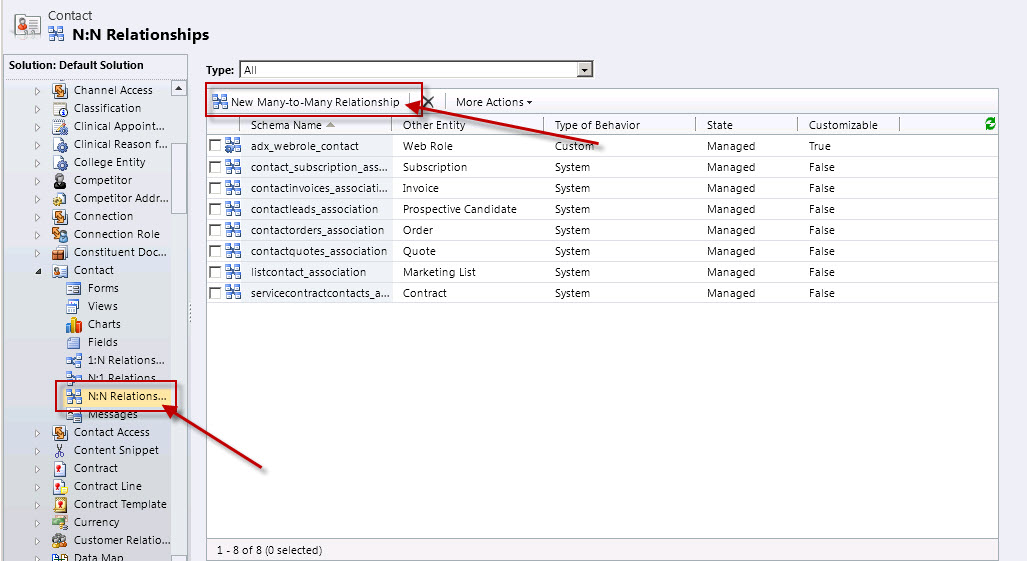
As you can see on the bottom left navigation we have several different relationships we can define for use on this entity.

For this solution we are going to use the many to many relationship. Click on N:N and click on the New Many-to-Many Relationship button.
On the relationship dialog screen you must define the two entities, for our example it will be contact and state table. In addition you will have to define the labels for each of the entities and the relationship defination names.

Click save and close. At this point I usually like to define the views that will be associated with the relationship. In this case, the associated view of the state table. Double click on view under the state enity. Click on Add Columns located on right common tasks navigation window.
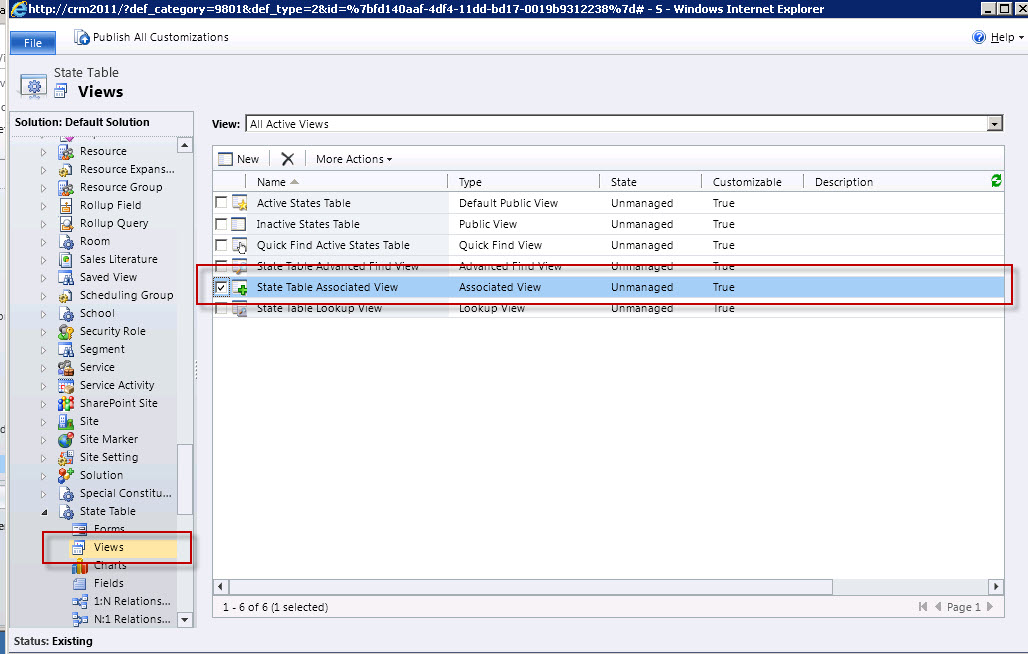
Choose the attributes you wish to display.

Click Ok. Arrange the view fields in an order that will make sense to your end users.

Click Save and Close. Click on the Publish All Customizations button at the entity level. Close the Customize Entity Window. As you can see using the relationship function you now have a new “area” located in the navigation at the contact level.
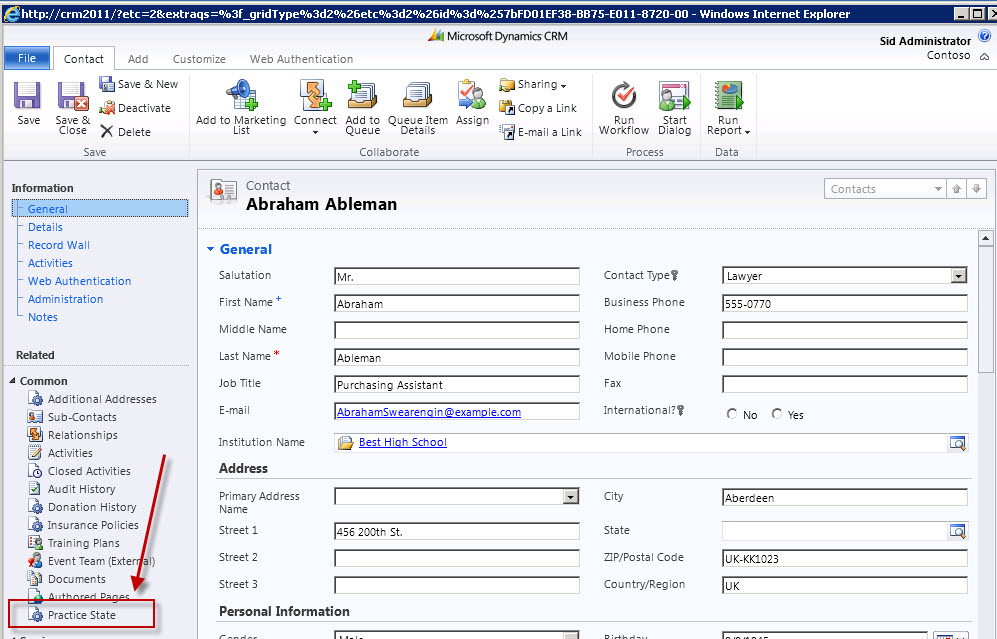
To add a new state practice click on the Practice State Area and then the Add Existing State Table on the Ribbon.

You will get the state lookup dialog box, you can select as many states as you wish.

Click the OK Button on the dialog box. As you can see you are now able to define multiple options associated with one record.

Now suppose you wanted to display these options on the contact form itself. New to CRM 2011 is the function to imbed grids of related data on the parent entity. Start out by clicking on the Customization Tab on the Contact Record. Click on the form Option. Go to the Insert tab on the form customization. Choose Sub-Grid.
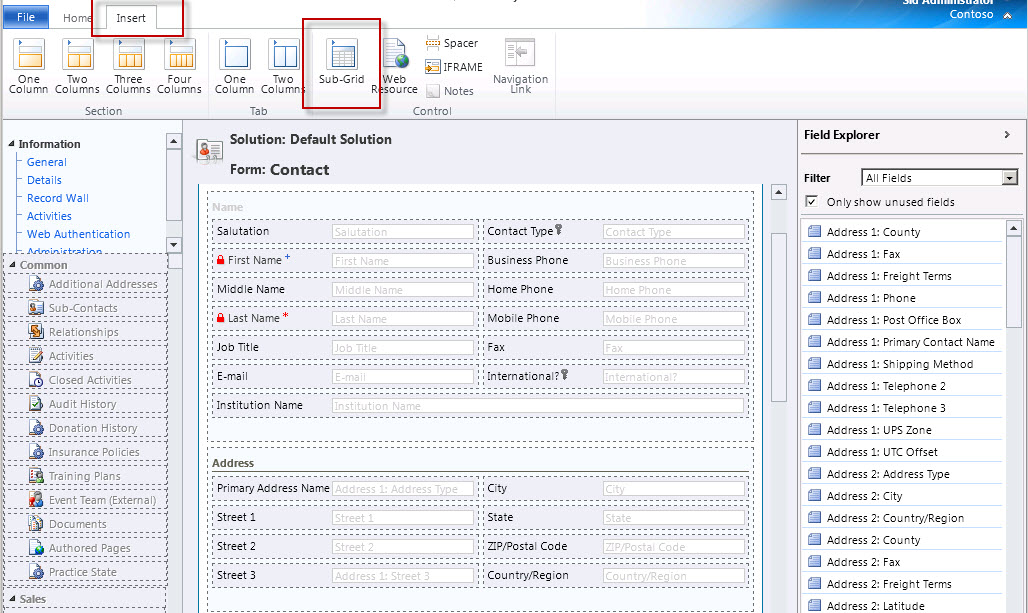
On the Grid Dialog box identify the related entity, for example the State Table.

Next identify the grid with a name and a lable. Choose the records you wish to display on the grid and the default view. Note I usually turn off the view selector for this function although you have the option to allow all system views to be visible to this view by changing this option.

On completion click on Ok. Then click on publish all. Finally close out the customization window. You can then open up a contact record and vew the states practiced right on the form as demonstrated below.

This will conclude this three part series on configuring option sets. As has been demonstrated each method addresses ease of data entry, standardization and reporting and filtering. Depending on the need there are instances when a simple option set should be specified. When the requirements entail additional complexity surrounding security, maintenance, multiple entiries and reusability there are techniques inherent in the xRM platform that will allow you as a configurer of Microsoft CRM to address them without the use of code.
As always happy CRM’ing!
Steven


 Steve's Site Innovation, Transformation, Change, Growth, Culture Building, Learning
Do you have any blog posts connected with this particular one???
I’d personally prefer to look for much more about this amazing subject!
I love your main content, however I really want extra details relating to automotive crm.
Thanks a lot!!!