
Undoubtedly one of the first requests I receive with when assisting a new client is to downsize the MSCRM application to include only the “items” they need. A number of times this includes removing items from the left navigation window or “Site Map”.
In order to modify the Site Map In CRM 2011 click on settings, customization, solutions, and create a new solution. Save it so it becomes active.

Click on add existing button, and choose the Site Map option from the menu list.
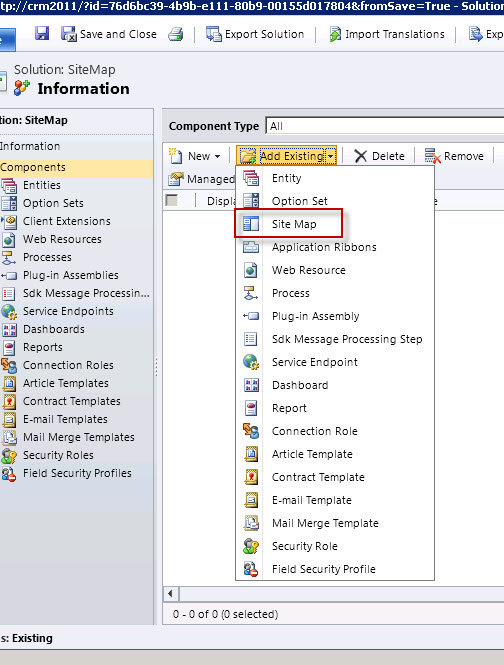
Now you can save your solution, close it, and then export it. At this point the only other requirement is the ability to modify XML in order to make the necessary changes you require. When finished you can import the solution back, and publish.
There is another method for modifying the Site Map. During January, 2012 Microsoft Dynamics Labs published the Microsoft Dynamics CRM Site Map Editor utility that obviates the need write code in order to make these customizations.
You can download this very helpful utility at this location.
All documentation can be found at the following location.
The Microsoft Dynamics CRM Site Map Editor provides a quick and easy way for users to update the site map through a user interface within Microsoft Dynamics Users can use the Microsoft Dynamics CRM Site Map Editor to edit the different elements of a site map XML and their corresponding attributes without the use of code. There is also a drag-and-drop capability which allows the user to select a node and its sub-nodes and move it to a different location in the site map.
Let’s see how this useful utility works.
First step is to download the SiteMapEditormanaged.zip.cab file from the download site. After downloaded, open you’re Microsoft Dynamics CRM Organization; go to settings, customizations and then solutions. Click on the import button.
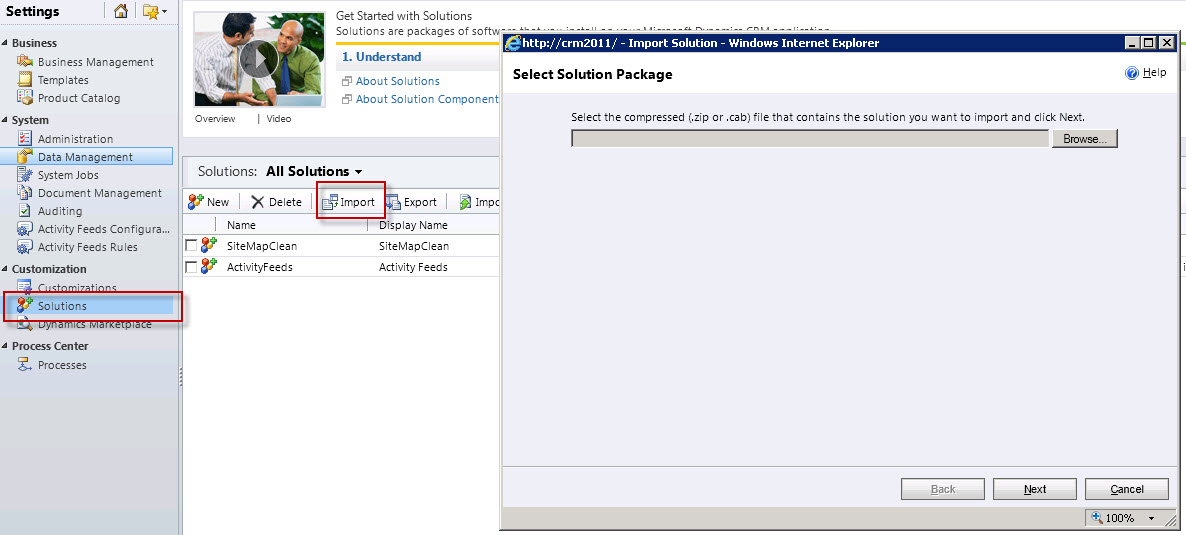
Browse to the SiteMapEditormanaged.zip.cab downloaded. Select the file, click on next, and next to import the file into your organization.
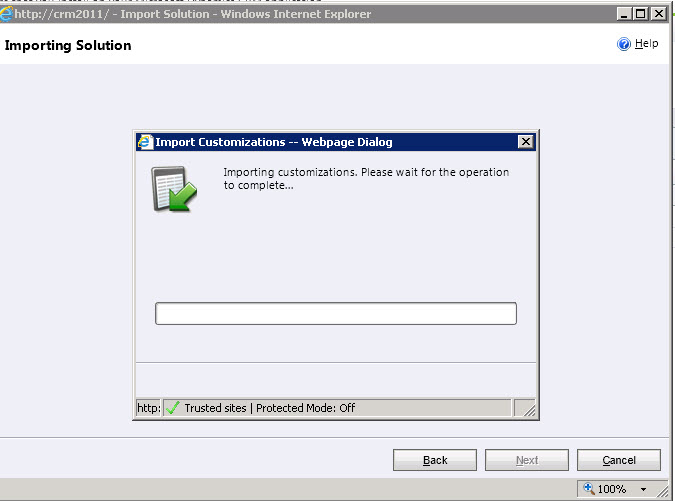
After the import is completed click Publish All Customizations button from the Solutions Window.

Shut down your CRM Organization then reopen go to settings, customization and then solutions you will see the Site Map Editor in the solutions window.

To open, double Click the solution. You will be presented with a visual representation of the Site Map.
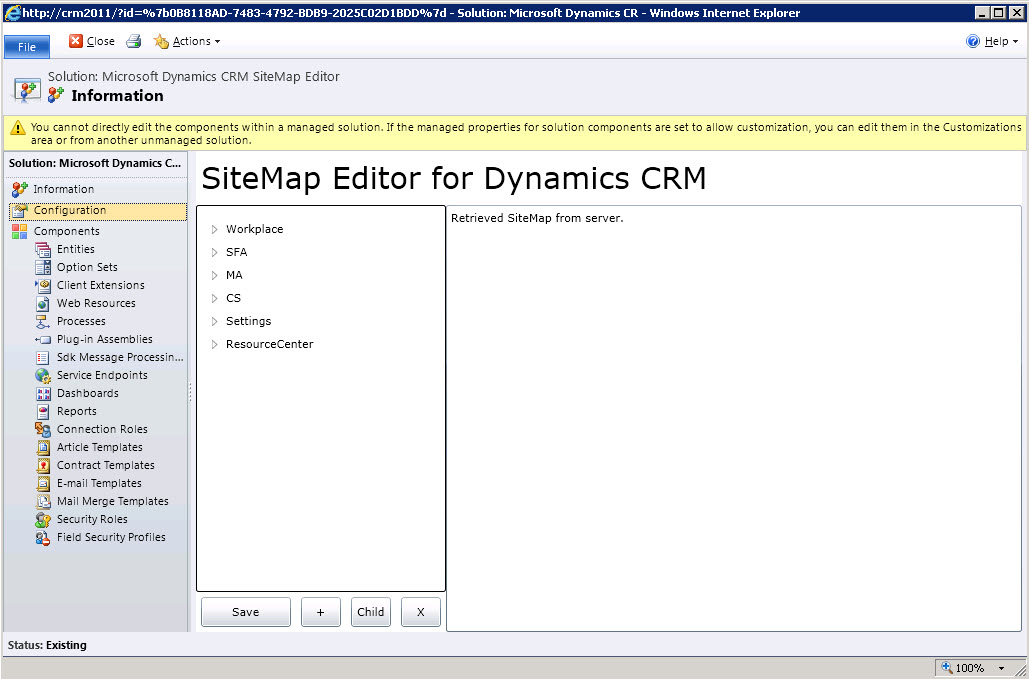
This application is intuitive and very easy to use as will be demonstrated. As you can see you now have a visual representation of the site map along with the controls needed to manipulate the site map
You can add references (+)
Create Child References (Child)
Remove References (X)
Let’s try it out:
Scenario – Our client would like to display Goals within the My Work section of the Workplace.
Expand Workplace, Expand My Work, Click on My Work, Click on the add Child button.
To configure this New_Element do the following:
- In ID change to New_Goals
- In Entity add the schema name goal, (you will need to know the exact underlying schema names in order to add navigation elements to the sitemap.)
- You now have the option to make these changes available for offline clients, check this box.
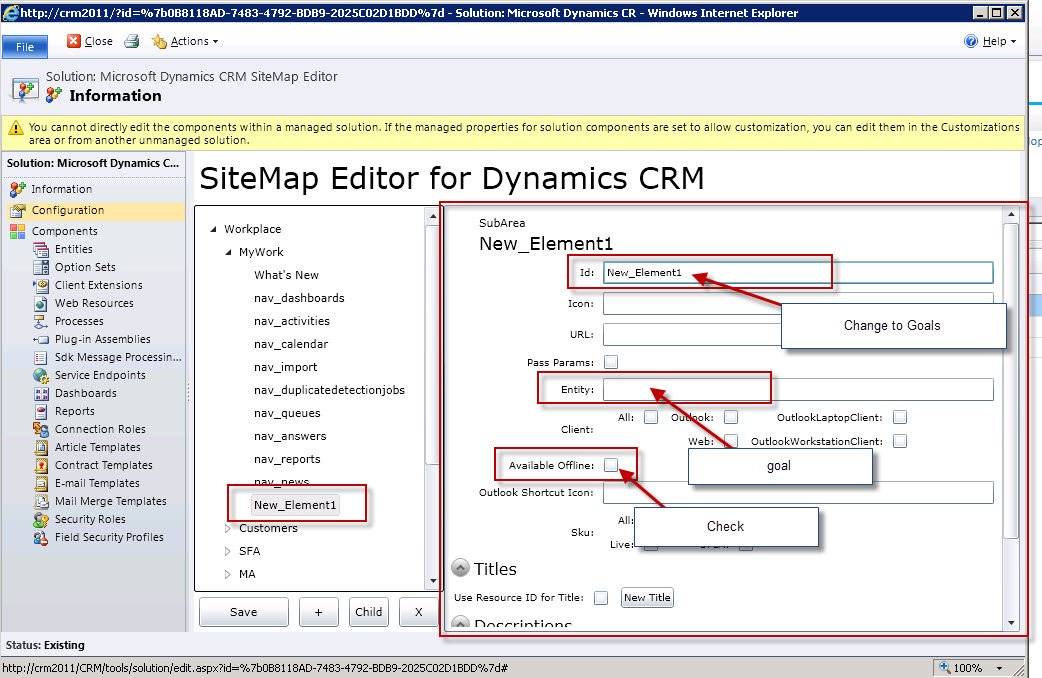
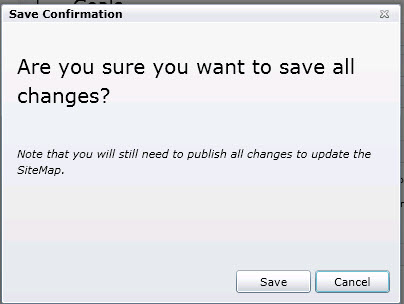
After you are completed you can click on the save button on the bottom. You will get a dialog box asking you if you want to save all changes. Now click on the save button.
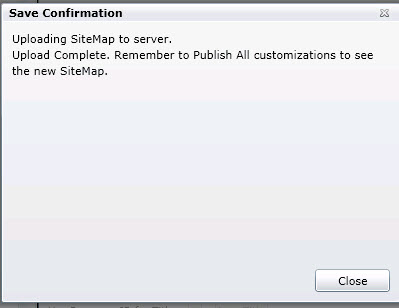
The utility will automatically upload all changes to the sitemap to the server. When the process is completed click on the close button.
Publish all customizations.
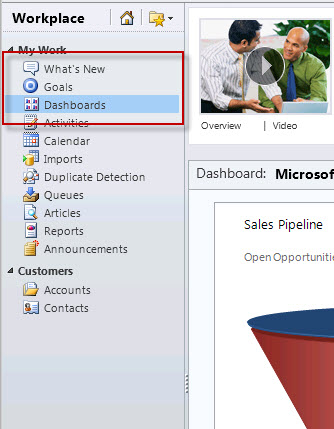
Click on Workplace and My Work, notice Goals are now on the Sitemap.
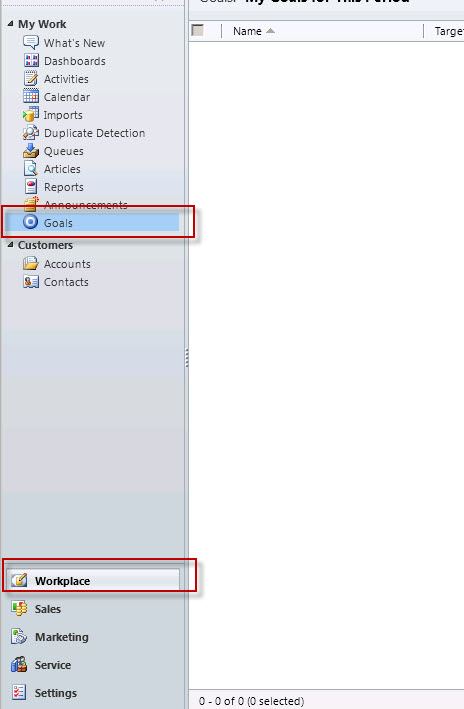
Wait a minute your client has just asked you to make sure Goals Just below the What’s New Section.
Click on settings, customizations, solutions, double click on the Sitemap utility, and expand Workplace then My Work. Click on the Goals element and drag it up underneath What’s New. Repeat the save procedures and then publish the changes.
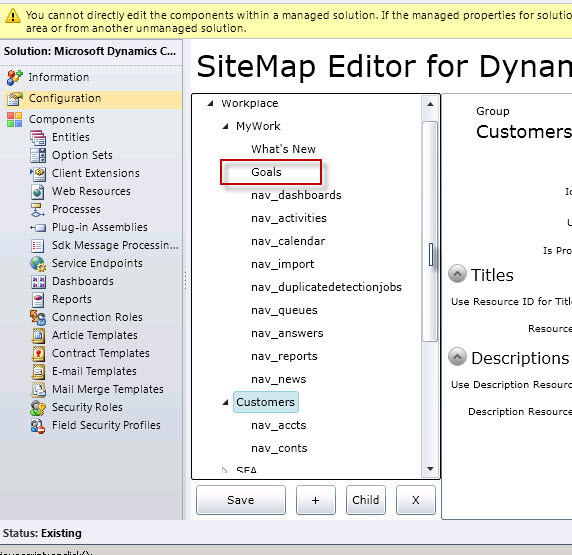
Notice the Goals Reference is now located underneath What’s New, simply by dragging and dropping.
Of course this was a very simple example using this application. I have found I have been able to put this to use many times over in my support of my clients. My hope is you can see the benefit of using this application when customizing the Site Map, and can agree this will save the need for having to write code.
Happy CRM’ing
Steven


 Steve's Site Innovation, Transformation, Change, Growth, Culture Building, Learning