
Microsoft first introduced business logic rules in CRM 2013. Business logic allowed non programmer’s the ability to create simple rules based on client input into a record to further enhance the applications usability. For example, based on input in one field the ability to lock or unlock that field or any other field on the form.
Typically these simple business rules had to be customized with Jscript by developers. The first release had a few limitations one being the actions allowed, (Please see picture 1).

The more limiting feature was the inability to evaluate more than one condition / Action clause within a business rule.

Therefore if you were creating a business rule on an option set that required different actions depending on the value of the option selected, the person configuring the system would have to create a separate rule for each option.
In this release, in addition to the AND operator, you can use OR and If-Else to build more complex and rich business rule logic with less effort. Now creating a commonly used branching logic, becomes a simpler task. The business process flow branching capability is built on the new If-Else logic.
Let’s take a look at this new functionality:
Scenario – Contoso sells Business to Business. In a number of accounts there is a Parent, (Corporate Office) and several Subsidiary offices. The Vice President of Sales requires that if a company is designated as the Headquarters, the Parent attribute should be removed from the form. Furthermore, if the record is created for a subsidiary the Parent Attribute should be visible, business required and once the parent is linked, the Parent Attribute should be locked.
The Solution-First we will navigate to the solution set by clicking on Dynamics CRM -> Settings and then the Solutions tile.


We will then open the Business Rules Editor Solution.

Since this scenario focuses on the Account Entity we will add it to our solution. Our first step is to create a new attribute called “Is Headquarters?” as an option set with the following options:
- Parent Company (Headquarters)
- Subsidiary Notice we left the default value set to “Unassigned Value”, meaning a new record will have this attribute as blank. Picture 6We will then Save and Close the new Attribute. Our next step is to include this attribute on the to the Main Account form.

Save and Publish.
Now we can start to configure the business rules. I always try to start out with the Conditional logic required for example based on the above scenario I have the three following Options:
1. Is Headquarters? Attribute is “Null”
2. Is Headquarters? Attribute = “Parent Company”
3. Is Headquarters? Attribute = “Subsidiary”
From these three conditions I can determine the appropriate logic Actions. For example,
a. If 1 above Is Headquarters Attribute is Business Required and Parent Company Attribute is Hidden.
b. If 2 above Is Headquarters is changed to Read Only and Parent Company Attribute is Hidden
c. If 3 above Is Headquarters is changed to Read Only and Parent Company Attribute is exposed for Input and business required.
d. Once C is completed Parent Company Attribute is set to Read Only.
To access business rules stay on the account entity and click down to business rules, click on the new button to bring up the business rule editor.


Start off by naming your rule: “Company Headquarters Rules”
Click on the add condition + Sign
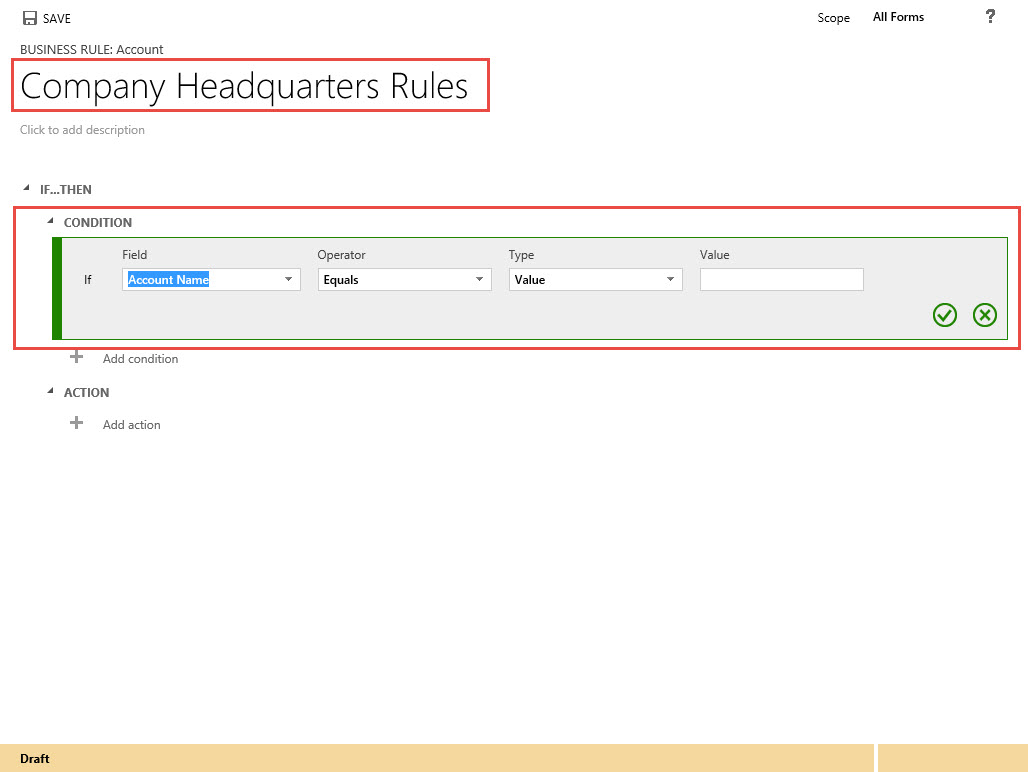
Let’s fill in Rule 1

At this point you could enter another condition to this first rule by clicking on the + underneath the first rule, (Please note in MSCRM 2013 when you added multiple conditions under one If…Then they were evaluated as .AND. conditions, meaning all the conditions must be true in order for the action to fire.
New in MSCRM 2015 you know have the ability to use the .OR. As well as the .AND. clause. (See Pictures 13 & 14)

 Notice the additional new feature in CRM 2015, the ability in include an ADD ELSE Condition / Action

Now add an action please note that there is a new “Set Default Value” Action in CRM 2015.

Your first Condition and Action should appear as below.

Notice once you add the action another section will render called Add Else. The Add Else will allow you to configure .OR. Logic onto the Business Rule, (This is new in CRM 2015)
Let’s now complete the final two conditions and actions. Your Business Rule should look like this.

Click on the Save Button and then the Activate Button on top of the form.
Let’s take a look at our work.
When we open up a record we can view the new “Is Headquarters Attribute?” is blank and required. (We are requiring input prior to saving the record from our data entry people).

When we change the “Is Headquarters?” field to Parent Company, the Required Input is removed.

When we change the “Is Headquarters?” attribute to Subsidiary the parent account lookup field is exposed and changed to Business Required Input.

Once we add the Parent Account name to the Parent Account attribute the field is changed to Read Only

This was a very simple scenario example at how powerful this feature of Microsoft CRM 2015 can be configured, and WITHOUT code. Microsoft is concentrating on adding additional functions to this facility in order to continue to make this application more sustainable.
I hope you will try this feature out or try the new features identified as improvements to the 2015 edition of the program.
As always,
Steven


 Steve's Site Innovation, Transformation, Change, Growth, Culture Building, Learning