
My last post focused on the basics of the new Roll-Up feature in Microsoft Dynamics CRM 2015. Today I would like to discuss maintenance of the systems jobs, and build on the scenario started in the previous post. Finally, I will outline and demonstrate an additional business use case using the COUNT Aggregation Function.
Continuation from last posted scenario:
I would like to start by enhance the Investing scenario we started in the last post because our manager was so impressed with being able to view their contact’s total combined dollar value in their bank accounts.
He now requires to view the combined total dollar amount of all assets owned by the contact, rendered on the contact’s record.
Execution:
Remember we previously created a new entity called Account Information and subsequently created a 1:N relationship between the Contact entity and the Account Information entity, (this is a requirement in order to configure roll-up functionality). We can view all the records associated with Susan Burk’s record below.

Since we have the information and the relationship captured we will use the same methodology to create the rollup total of all assets field.
First we will create a new attribute called Net Worth and define it as a Currency Field with the Field Type Rollup. Then Click on the Edit button

- Next we will define the Source Entity, (Account Information)
- The Filter All Account Types that Contain Data and are Active.
- And the Aggregation Function – Sum of Estimated Value

Save and Close our Work.
The next step is to place the attribute on the form, (Notice again when we created the attribute the three related attributes are also created in conjunction with the first.
- The Net Worth Base Attribute
- The Net Worth Last Updated On Attribute
- The Net Worth State Attribute

Double click or drag the attribute “Bank Account Total” on the Contact form.

We will then Save and Close then Publish. Let’s hover over the attribute to view the message (automatically rendered)

Remember the Mass Update will occur 12 Hours after the last modification to the attribute and once it has processed will reset for 10 years.
Let’s manually click the refresh button on the side of the attribute to render the correct Asset Total.

As before we can also view when the last processing occurred by hovering over the attribute.

Notice the last update was recorded as 12/21/2014 at 10:31 PM. Remember after the initial Mass Rollup Job has been completed the Calculate Rollup Field Job will reoccur based on the options you select.
System Jobs – Demonstration
To access the System Jobs Go to Settings -> System Jobs

Change the view to Recurring System Jobs
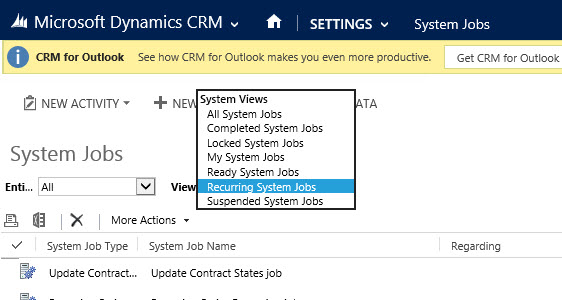
Notice you can view the 2 Mass Calculate Jobs including created (One for each of the attributes created). Also notice the date for refresh is set automatically for 10 years from the creation date + 12 Hours.

If we double click on one of these jobs and click on Actions you can modify the job by resuming, postponing or pausing.

Close this window and view the System Job Window, notice on the bottom there is a Calculate Rollup Field Job for the contact entity with a date set for Today at 7:30 AM.
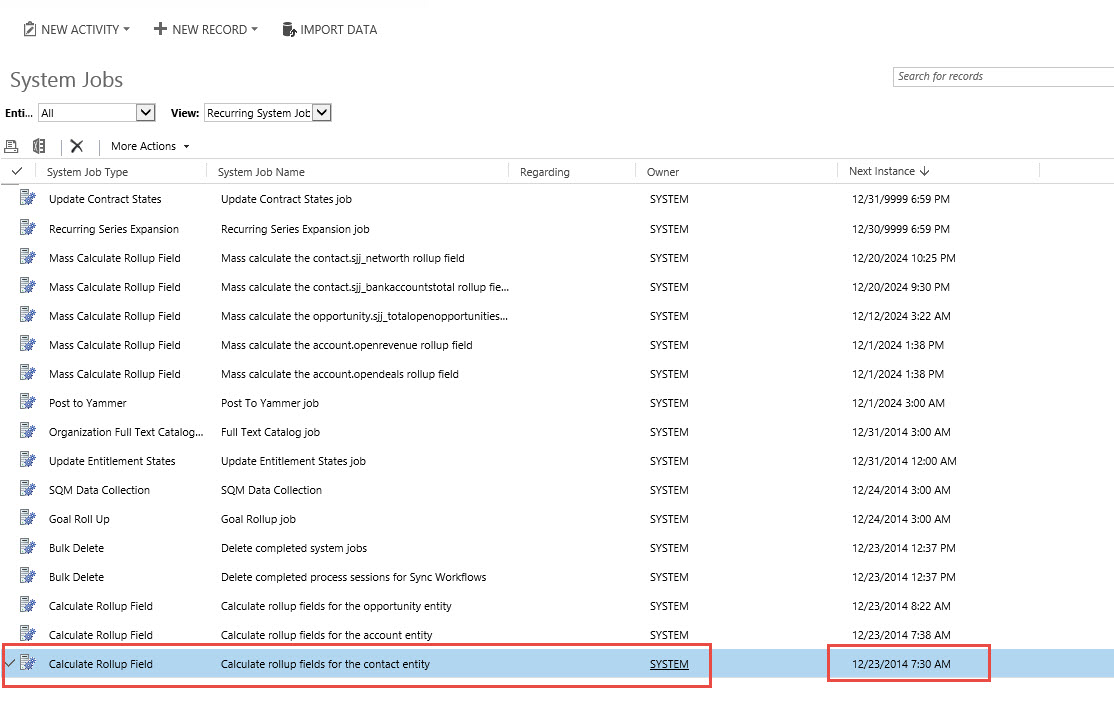
If we double click on one of these jobs and click on Actions, notice there is one additional menu option called Modify Recurrence besides the Resuming, Postponing or Pausing.

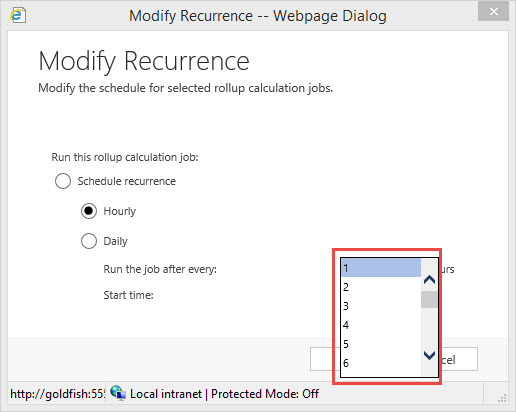
It is at this location you can change the update the schedule recurrence interval. Let’s click on this option.

Notice it is defaulted to every (1) hour. Which is the maximum update interval.
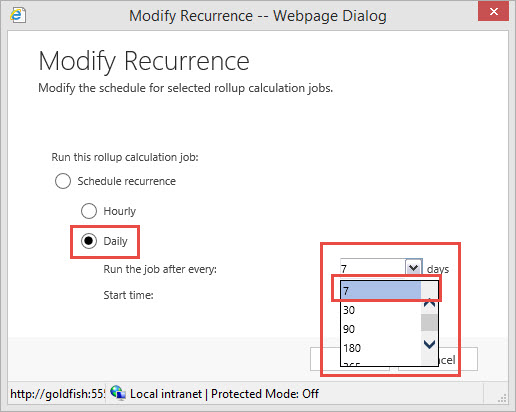
Notice there is the option to set the schedule to daily with the maximum date at every (7) days or greater.
After you complete setting up the schedule click ok and your next scheduled update will initiate based on your selection.
It is that simple to maintain the .
Scenario 2 Practice using the Count Function:
Our Manager of the Investment Firm would like to understand how many individual active client asset accounts are owned by the customer and managed by the firm.
Execution:
By now we can utilize the same steps as in the prior examples.
- Create the new field
- Set the data type to whole Number
- Set the Field Type to Rollup
- Make sure you modify the Minimum Value to anything >= 0
- Then Click on the Edit Button

- Set up your Rollup Field Capture Profile
- Select the Account Information
- Select your Filter Criteria
- Select your Aggregation Function, (This time we are going to use the COUNT function because we are only interested in a record count if the record meets the Filter Criteria.

Your Rollup Field Capture Profile should look similar to below.
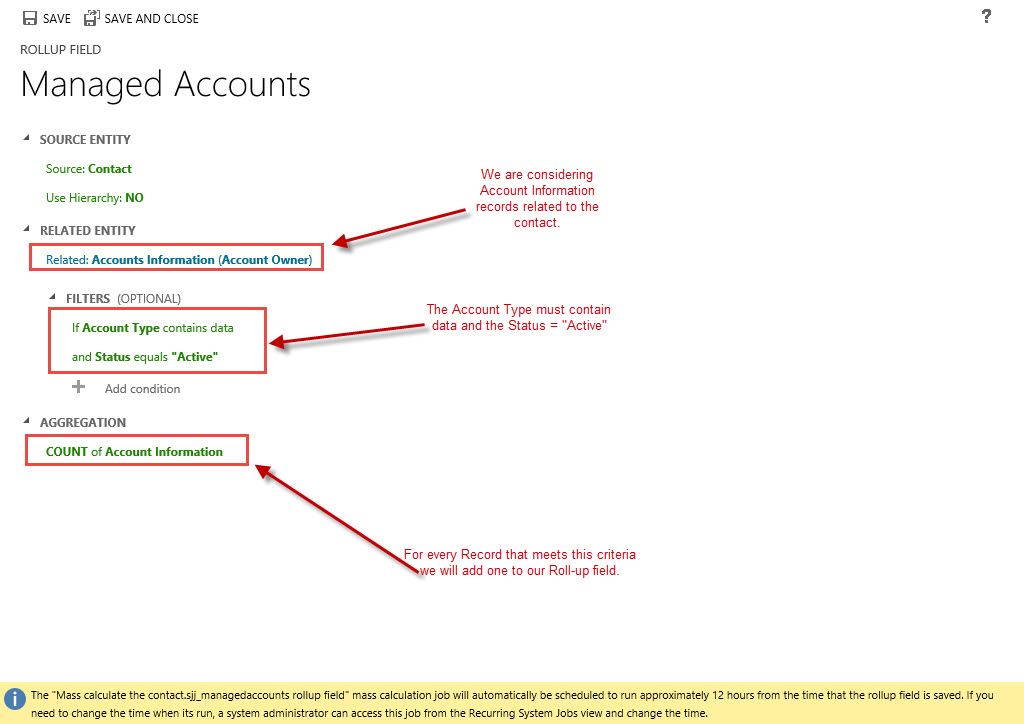
Save and close the Profile then open up the form you wish to locate the field on. (Notice the associated related attributes created automatically with the Managed Account field).

Let’s save this and publish the work. Now let’s navigate to the system jobs. Please notice the new Mass Calculate Job was created with the new Attribute and the Update is for 8:02 PM, (which is 12 hours after the creation of the attribute).

Finally let’s go to Susan Burk’s record and manually recalculate the Managed Account Attribute just to make sure we captured the proper number of Asset Accounts

Although all the examples were rather sophomoric I hope my readers will agree this new feature can be very powerful. Again I must emphasize there is no code being written in the background to meet these requirements. All the work is configurable through the interface.
I hope you all have similar success using this new feature!
My next post will focus on another new feature in CRM 2015 – The Calculated Fields.
Have a happy holiday and a healthy New Year!



 Steve's Site Innovation, Transformation, Change, Growth, Culture Building, Learning
Pingback: Microsoft CRM 2015 New Feature – Drilling into Calculated Fields – Part 1 | C/xRM Ramblings