
Welcome to 2015.
My last post concentrated on the basics of new calculated field functionality available in Microsoft Dynamics CRM 2015. Today, I am going to continue with an additional example using the string function, while adding a bit of complexity with the use of additional calculation functions now available.
If you would like to view Part 1 of series you can do so at this location.
At the completion of the examples I am going to post a few items you should consider when using the string calculated field functions and a few tips, based on my own experience.
Keep in mind the primary benefit of using calculated fields in your solution will allow you to create business process without the need for writing code. Also please note these functions are the beginning of what I believe will be expanded functionality going forward.
Scenario 1 (This is a continuation from the previous blog posts starting from the Roll-up functionality, therefore, if you need to review please feel free to do so).
Requirement 1: Our financial manager would now like to add additional functionality to the Account Information entity. Our first task is to assign a unique ID for each of the client’s holdings.
Execution: We are going to use the String Functions available and concatenate a combination of the client’s last name, their address, and the name used to identify the account. Let’s go. Our first step is to create a new attribute of a text type that is calculated.

Click on the edit button, as you can see I am using a number of functions to calculate this Account Identifier field. First we want to concatenate the results of the 3 TrimRight Expressions.

Notice the first and second TrimRight expressions, here we are identifying the relationship lookup field sjj_clientaccountsid plus a period this will alert the system we want to use the one of the parent attributes. Intellisense will render all attributes at the parent level for you to choose from.
Note: Remember as long as you correctly identify the related parent lookup attribute and follow it with a period Intellisense will automatically render all attributes at the parent level for use in calculation functions.
Of course all Trim functions require the numeric position of where the trim should end being either from the right or the left position. In addition I am using literal separators throughout this formula. For example “-“.
All literals require the quote marks surrounding the text. One important exception is if the literal contains a quotation mark you must precede each mark with the backslash (\) escape character, for example,:
“The Answer is:” literal would be included in the function as follows:
“\The Answer is:“\
This ensures that the quotation marks inside the string aren’t treated as special characters that separate the strings.
Limitation Identified: One item I did find that is problematic is the fact that the trim function will not respect the length of the attribute. It only respects the content of the attribute.
For example, if you only wanted to use the 3 most left characters of the last name in your identifier, normally you could look at the field length record it at 50 characters and then use the following function TrimRight(<<Attribute>>, 47).
Unfortunately this will not work unless you have 50 Characters filling the attribute. I believe this is something that will have to be worked out in the future with the Microsoft developers. Once this is completed we can click on the Check mark to save the function.
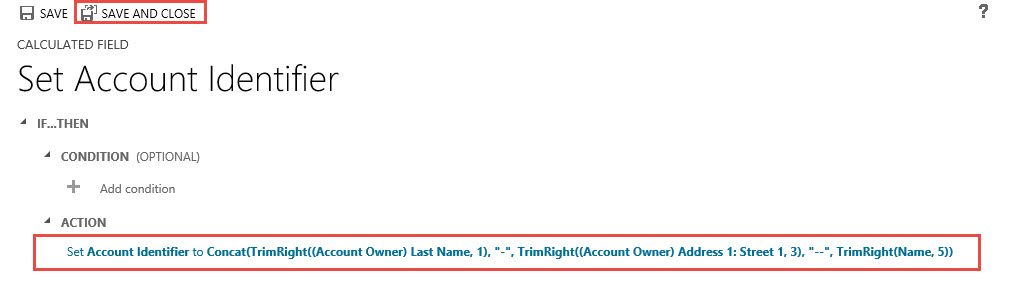
Click on Save and Close, then publish the changes. Now when you open any of the Account Information records you will notice we have captured a Unique Identifier.

Please take note: Three years ago, I put together a Blog on concatenation using workflow. This method is no longer required with the advent of the Concat function as I just demonstrated. In addition, you now have the ability to trim results from fields to create a powerful functional solution for the clients business.
What is even more impressive is the ability to nest the functions using multiple functions in one calculation.
Next week’s post will conclude this series on calculated fields. My focus in that post will be on a complex cross entity requirement as well as an example using the date functions.
I would love to hear about your experiences using this new functionality, please feel free to contact me with comments to these posts.
As always,


 Steve's Site Innovation, Transformation, Change, Growth, Culture Building, Learning
Reblogged this on CRM Dynamics.
Pingback: Microsoft CRM 2015 New Feature – Drilling into Calculated Fields- Advanced Calculations and Date Calculations – Part 3 | C/xRM Ramblings
Pingback: Microsoft CRM 2015 New Feature – Everything You Wanted to Know About the Timer Control in CRM 2015 – Part 1. | C/xRM Ramblings