Another feature present in CRM 2015 is the capability to present data visually in a hierarchical model. Microsoft CRM always had the capability to create hierarchies of related records using self-referential relationships. A few obvious examples occur when configuring the sub-account or the sub-contact.

Historically we use the sub-account representation above when we are required to have a Parent Company and Related Branch offices. By adding the sub-account attribute to the account form we subsequently have the ability to link account records to one parent record. Using this method required you to query records using Under and Not Under logic. The Under and Not Under hierarchical operators are exposed through Advanced Find and the workflow editor. There was no easy way to visually view the hierarchies in past versions of CRM.
With Dynamics CRM 2015 you can now visualize these relationships and the hierarchically related data gaining a better understanding of your information. This feature gives you a view into your data using a hierarchical representation. This feature will work on system entities and custom entities by enabling the hierarchy setting now located on the relationship definition.

As viewed above when creating a new self-referential relationship you now have the ability to set the Hierarchical Option to yes activating the ability to visualize your information.
This new feature will allow users to:
- View the data in a tree view, which shows the entire hierarchy
- View the data in a tile view, which is a detailed view of a smaller portion of the hierarchy.
“You can explore a hierarchy by expanding and contracting a hierarchy tree. Also, you can compare the attributes between the records at multiple levels in a tree and perform actions on one or more records right from the tree view. Once defined, the hierarchy settings enable visualization in the CRM web application and in Microsoft Dynamics CRM for tablets, but, for the tablets, in a modified format suitable for the smaller form factor. Because these visualizations are solution components, they can be transported between organizations like any other customization. You can configure the attributes shown in the visualization by using the customization tools in the CRM Web application. There is no requirement to write code.” CRM Help File
Let’s configure an example of this new feature.
Scenario:
Our Financial Manager notices he is now tracking investments and accounts from related family members he would like to have a method to visualize this data in a format giving him the ability to view all assets and liabilities managed over the entire household. He has an idea of how he would like to view this data and put together a family tree representation of a household and asked his Business Analyst if this would be possible using Microsoft Dynamics CRM 2015. See Below.

Execution:
Our Business Analyst decides this is a perfect fit for the use of the new Hierarchical Visualization feature available in Microsoft CRM Version 2015. He is now ready to execute based on this requirement from our Financial Manager.
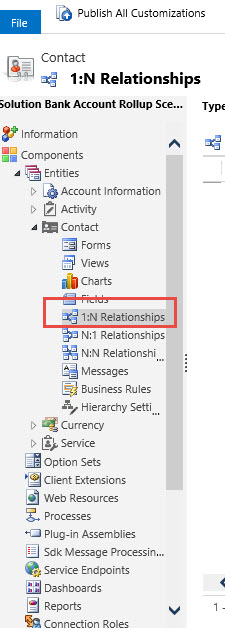
His first step is to enable a hierarchy based on the Contact Entity. This will give him the ability to relate family members together under 1 household. (Open you solution, go to 1:N relationship reference and click new.
Now define the self-referential relationship.
Save your work.
Next step – Navigate to the Hierarchy Settings reference under the entity.
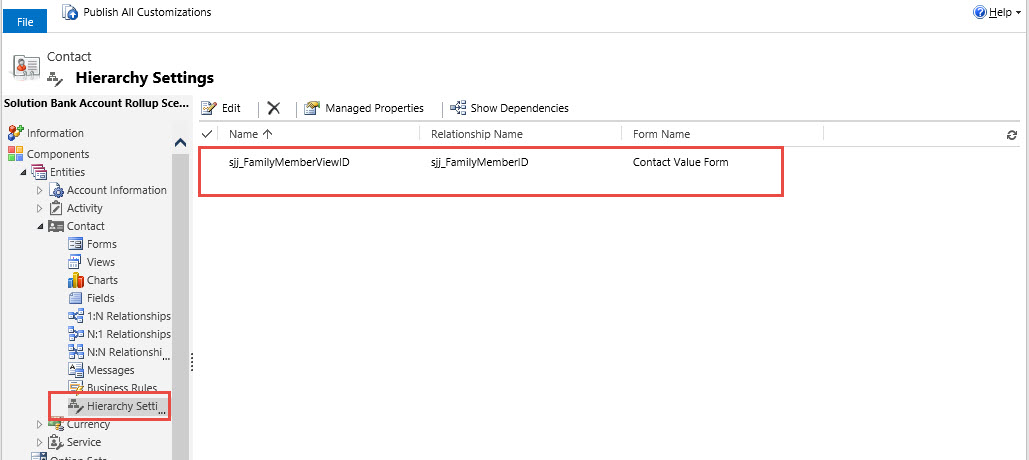
Highlight the relationship and click on Edit.
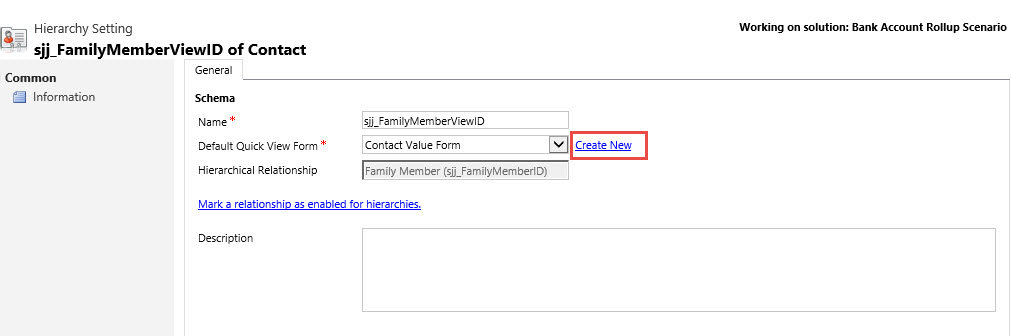
You can define the Default View from this screen or create a new form to use as the default.

Please note you can also define the form as “Null” forcing the Tree View only in the visualization.
Our BA completed the form he would like to use for the data view.
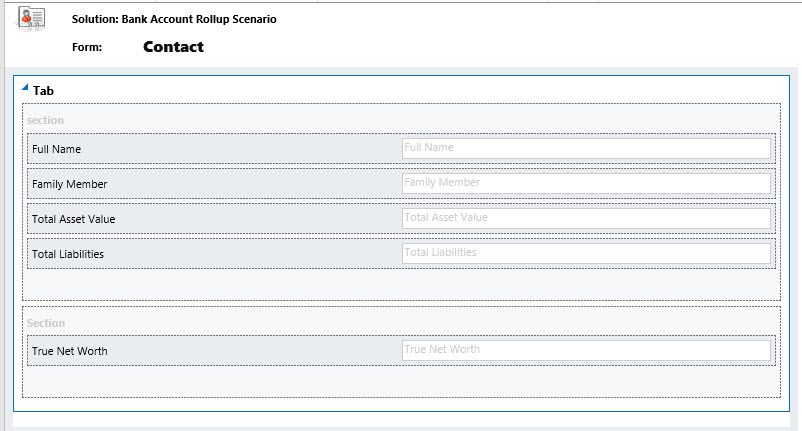
Clicks on Save then publish.
The next step is to relate the records together for the hierarchy.
Go to the head of the household then navigate to the family members reference.

Add the related family members that are existing or add them as new contacts.
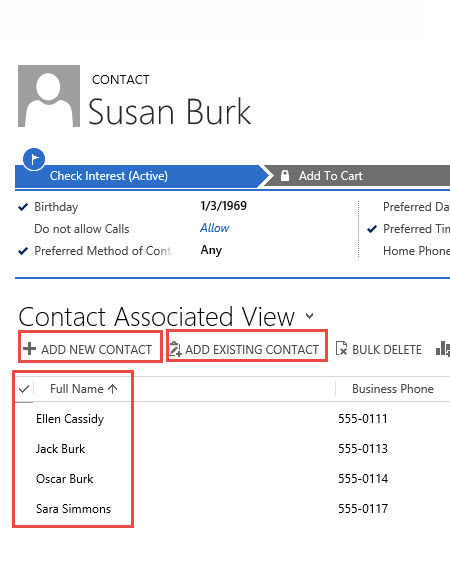
Your BA is now ready to present the results to the Financial Manager.
As you can see from the All Account View you are now able to see the records that are related to a hierarchy.

You can launch the hierarchy view by clicking on the icon or by opening the contact record and click on the hierarchy from the Quick Access Toolbar.

As you can see we can view the hierarchy in two different formats. The tree view.

Notice you can launch a specific record by highlighting on the contact reference and clicking on the launch icon.
Our Tile View is our other option.

You can launch the records by highlighting the tile and clicking on the launch icon. Also notice on the right side of the tile representation you have the ability to view into the additional records related to the hierarchy by clicking on one of these navigation icons.
It is that simple to configure this new feature.
A few drawbacks with this functionality:
- In order to use this feature the hierarchy must be defined as a self-referential entity relationship
- From the Tile View you can only view up to 4 attributes on the quick view form.
- From the Tile View you can only view up to 3 records across
- From the Tile View you can only view up to 3 levels at the same time
- Each of the relationships can only allow 1 default view for the Tile View.
My next post will focus on the entity process flow updates.
I would love to hear about your experiences using this new functionality, please feel free to contact me with comments to these posts.
As always,


 Steve's Site Innovation, Transformation, Change, Growth, Culture Building, Learning