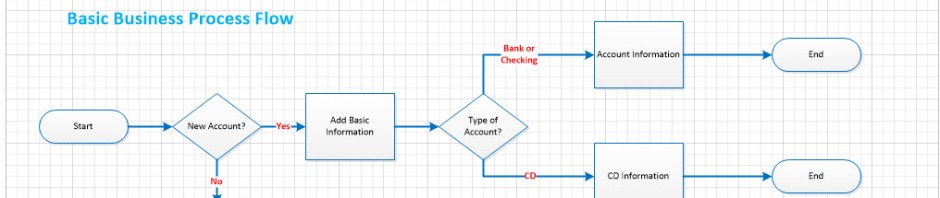
Business Process Flow is a feature that was released with Microsoft CRM 2013. I will not dwell on the differences between the 2013 version and the 2015 version until my next post.
This week the focus is on:
- What business process flows are
- The benefits of using Business Process Flows in your solution
- How to configure a basic business process flow
What are Business Process Flows?
The feature will allow you to create an efficient consistent business processes on an entity (s) and is available in the sales, marketing, and service modules. This function is also available on all custom entities you create also.
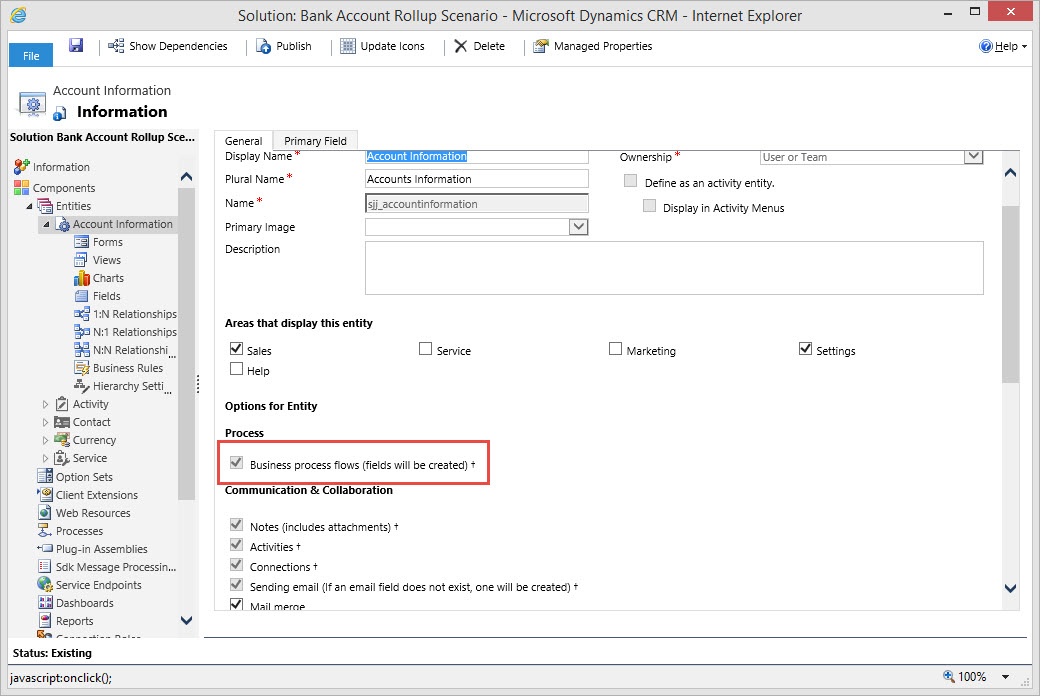
When creating a new entity there is a control check box in the entity definition under the options section of the new entity form. Check the option “Business process flows”
The business process flow gives your users a visual representation of the business process by placing a graphic on top of the specific entity, guiding your business user through the process related to the entity or several entities. You also have the ability using this functionality to break the processes into stages and steps.

Keep in mind, the information you enter into the steps will automatically populate the attributes on the form. This will change your classic Form-Centric orientation to a Processes-Centric paradigm.
The benefits of using Business Process Flows in your solution:
There are many benefits when configuring Business Process Flows for your solution, for example:
- Assists in Reinforcement Training – Users can follow the stages filling in the information required to become successful.
- Consistency of Process – All users will be following the same process and adhere to company standards
- Data Reliability – using the processes will assure information is recorded prior to moving on to the next stage of the process.
- Data Uniformity – you can configure the processes to require attributes are “business required” and you can require stage completion prior to advancing to the next stage.
- Visual Reminder of Next Action – If a user is working on a record and moves off to perform another task, when they come back to the original record, they will visually reminded of where they are in the process and can pick up where they left off.
- Reporting – Stage categories can be used to link stages across process flows for reporting purposes.
- Workflow – you can trigger an workflow process from the business process flow to run in the background when a field value of a record included in the process flow changes.
How to configure a basic business process flow
The scenario I am going to demonstrate below is very simplistic. I want to give you an initial overview of the functionality. My next post will drill into additional functionality.
Scenario:
Our financial managers department is growing. New accounts are continuing to be opened with missing information. As we demonstrated in previous posts there are also attribute differences required depending on the account opened.
Our financial manager discusses this situation with his Business Analyst and asks how he can make Microsoft CRM more intelligent and responsive to the types of accounts the Financial Specialist are opening.
Execution:
Our BA thought about this scenario and decided the Business Process Flow functionality would be perfect for this requirement.
Their first step was to create a simple flow chart of the process he would like to capture on the Account Information Entity.
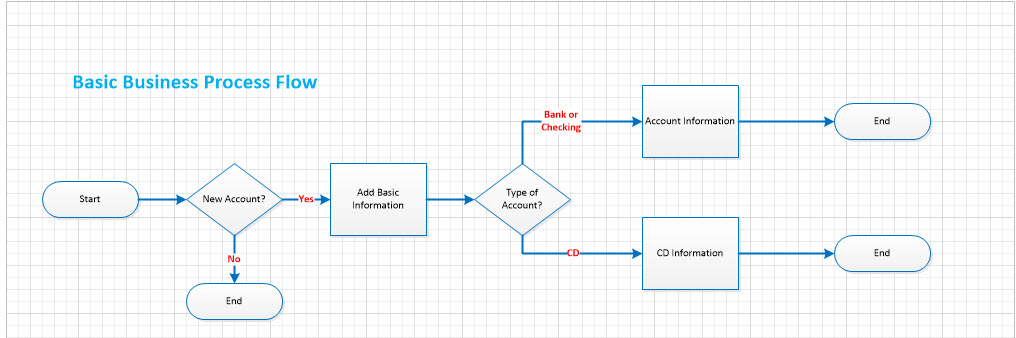
Our Financial Manager approved of this pilot and gave the green light to proceed.
- Navigate to Settings and our Solution.
- Click down to Process References
- Click on New
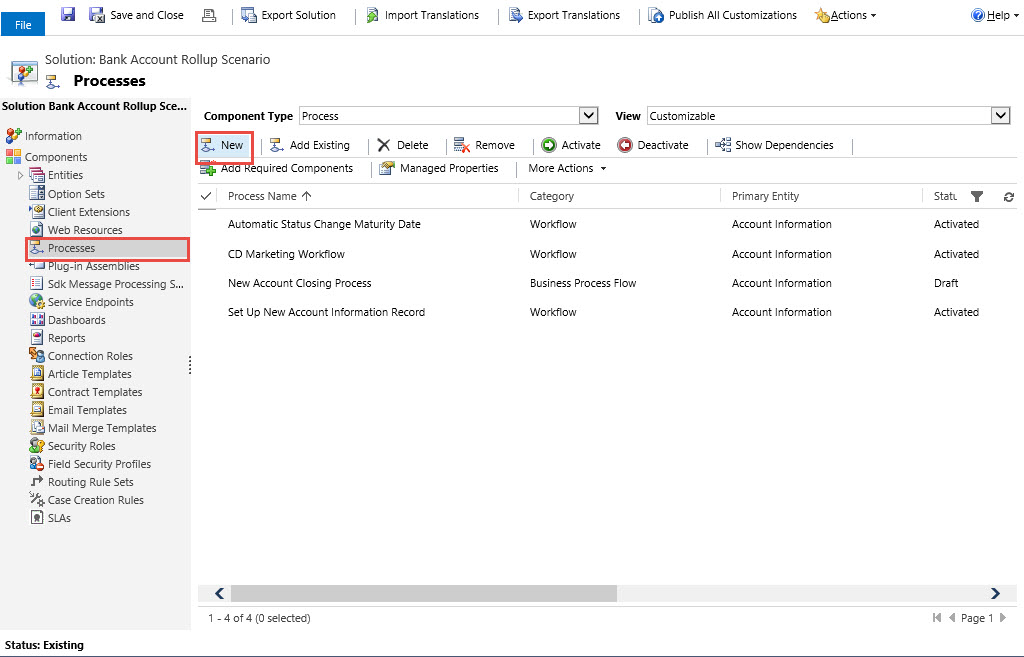
- His next step is to define the process by name, category and entity.

- Click Save
- The next viewable Window is Business Process Flow Form
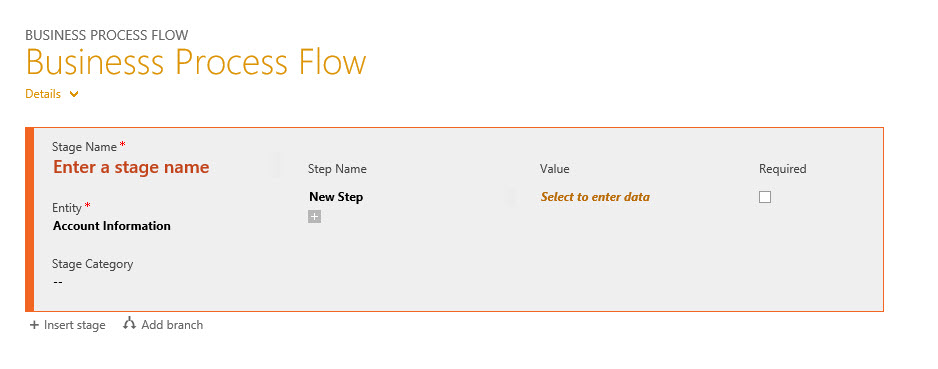
He will now define the following
- Stage Name
- Stage Category
- Steps

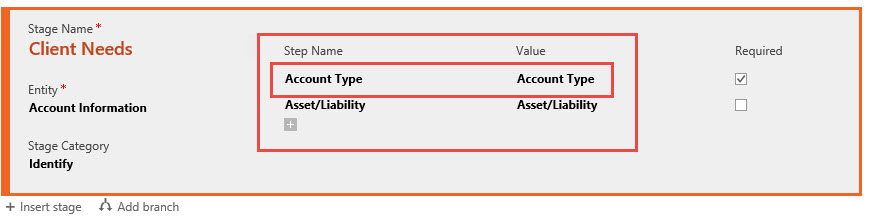
- Following the flowchart we are going to define the Account Type and whether it is an Asset or a liability and in addition whether any of the input is business required.
- Our next step in the flowchart would be Initiate the next steps depending on the account opening. (This conditional branching feature is new to CRM 2015 and I will discuss this and additional differences in Part 2 of this post)
- Our BA clicks on Add a Branch under the first stage and identifies the attribute(s) conditions to move to the proper next stage. In this case we need to define the Account Type Attribute.
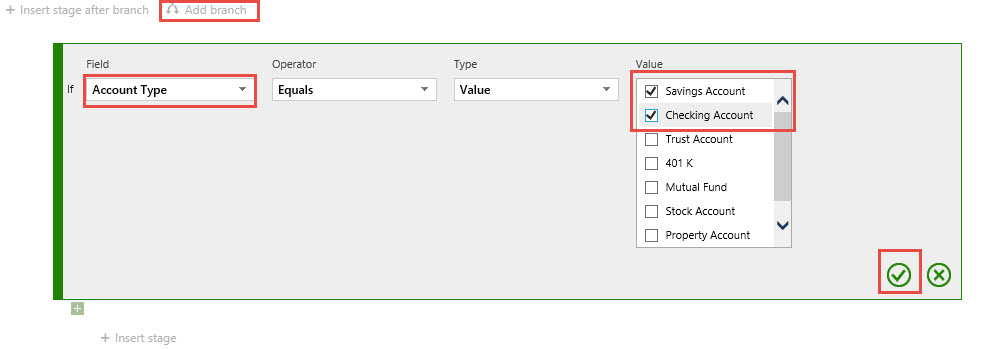
As you can see you can select the options required for the top branch of the Flowchart.
- Click on the Check Mark to save your work.
- The Next Step is to click on the Insert Stage under the Conditional Branch
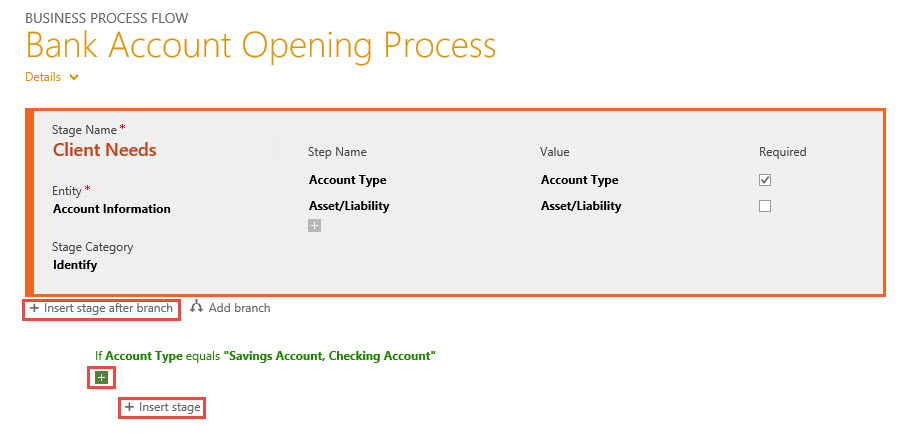
- We can then define the information we require during this stage execution if the Account Type = “Bank Account” .OR. “Checking Account”
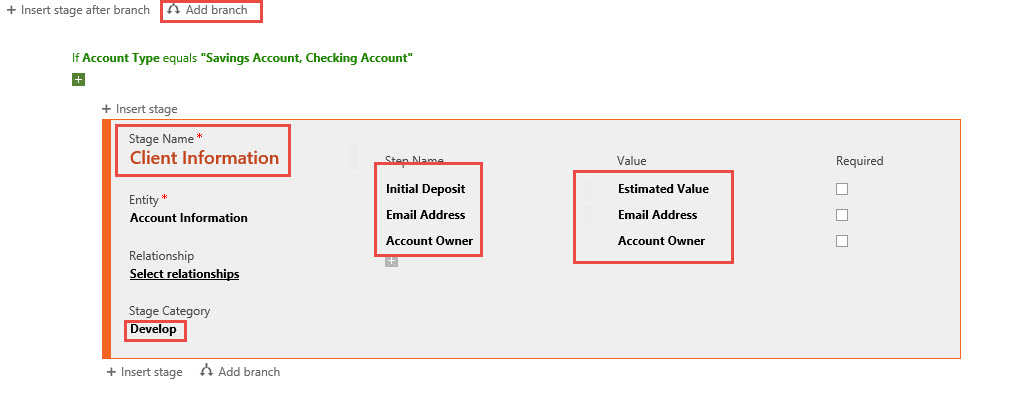
- Our next step is to repeat the previous steps for the If/Else Condition. Insert a new stage.
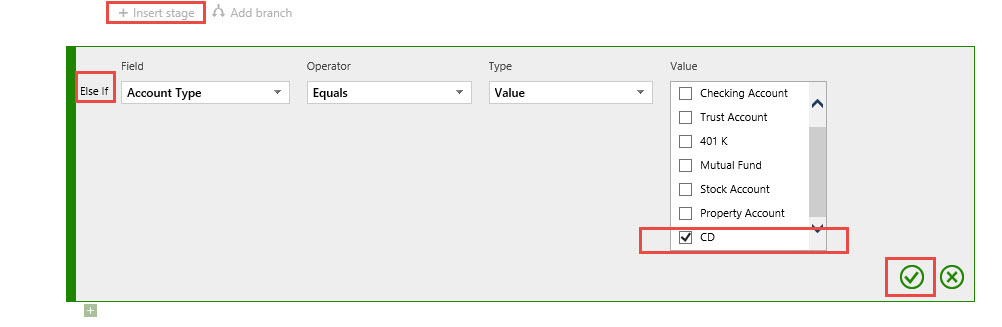
- As you can see the application will sense this is a conditional branch as illustrated with the Else IF prior to the condition. Here the BA is defining this Branch’s condition as Account Type = “CD”
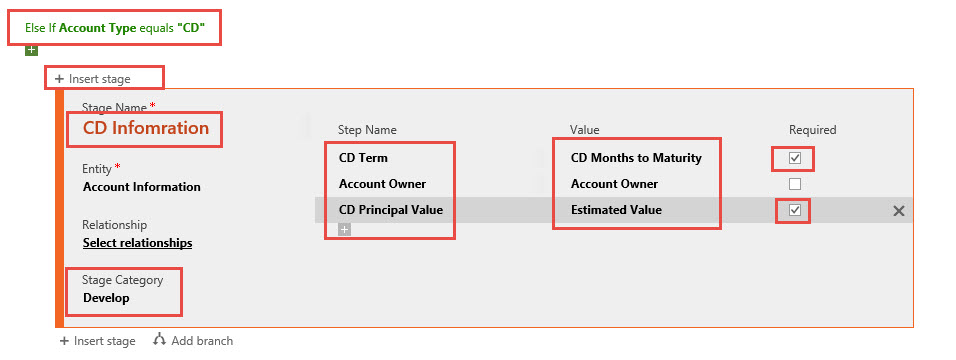
- We then can enter a new stage under this condition, (the required attributes for the CD option).
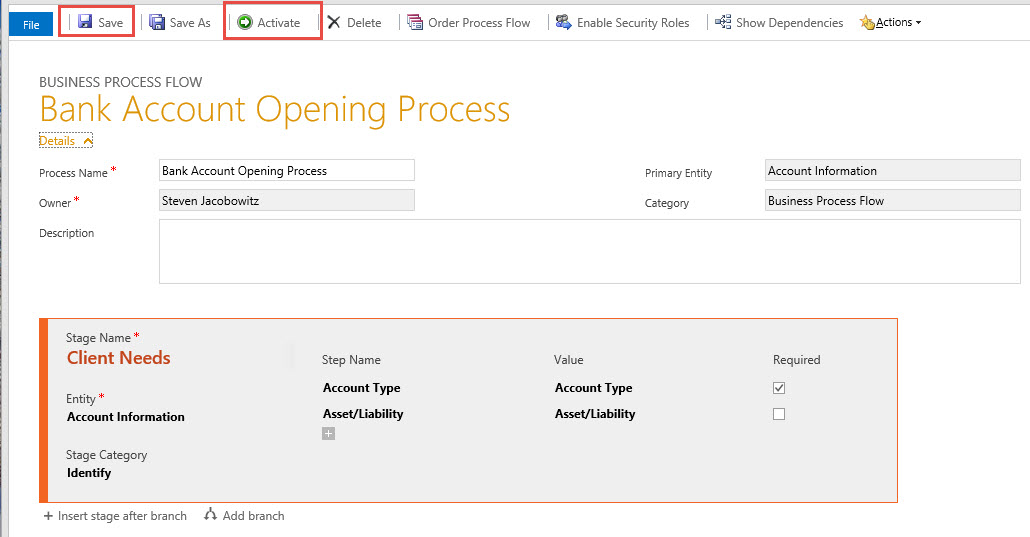
- Now that we fulfilled all the conditions on the flow chart we can save the Business Process Flow and activate it, (This is required).
- Let’s look at our work.
One of our clients Jammie Jones wants to open a new account. She is sitting with the financial planner, she opens up Jammie’s record and navigates to the account Information reference.
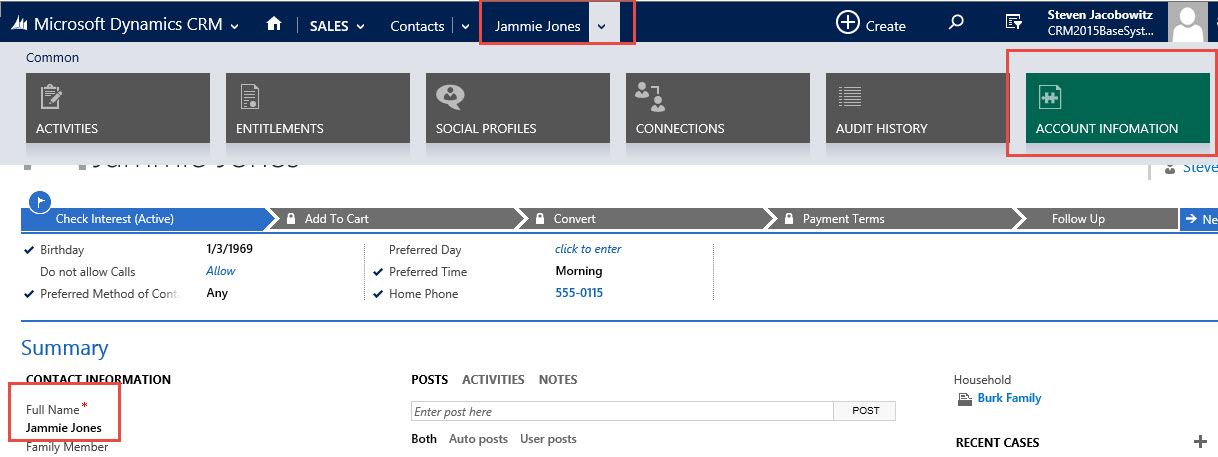
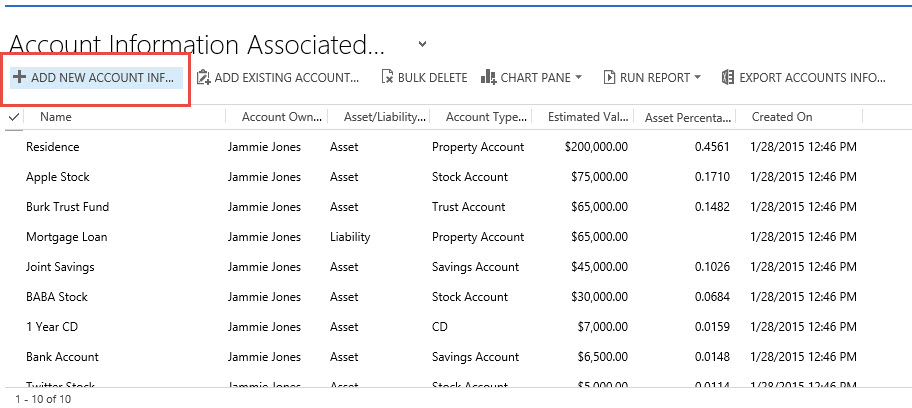
Clicks on Add a new Account.
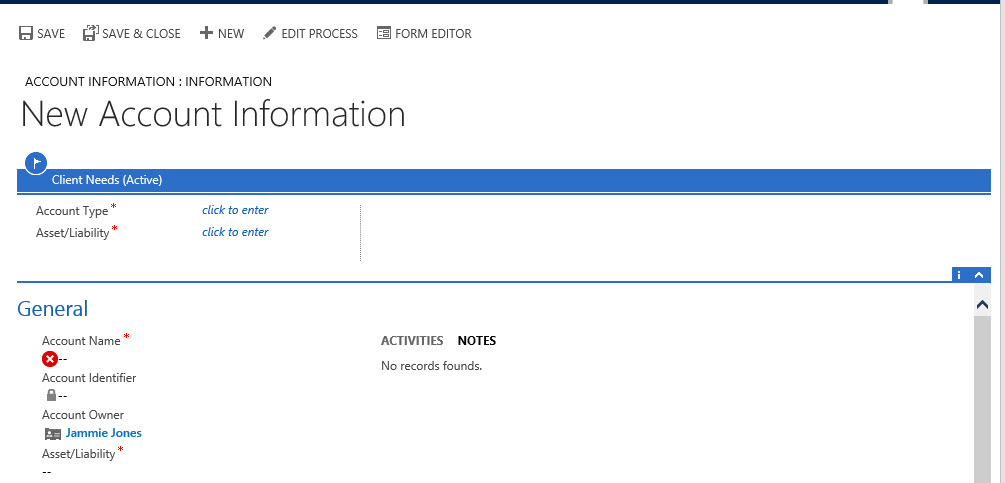
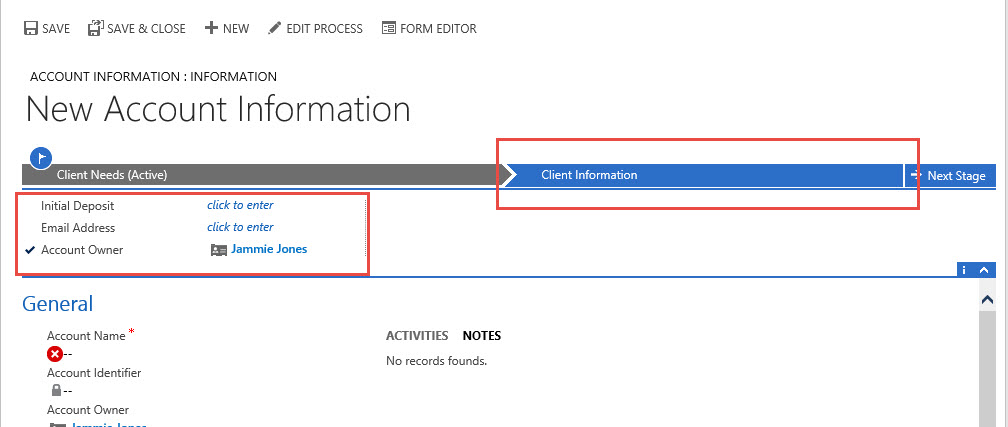
Notice on the top of the Account Information form we have our process above the form and showing Stage 1, Client Needs.
So Jaimmie is interested in opening a checking account. As you can view, we can enter the information right from the process window. (This information will also resolve to the corresponding attributes on the form).
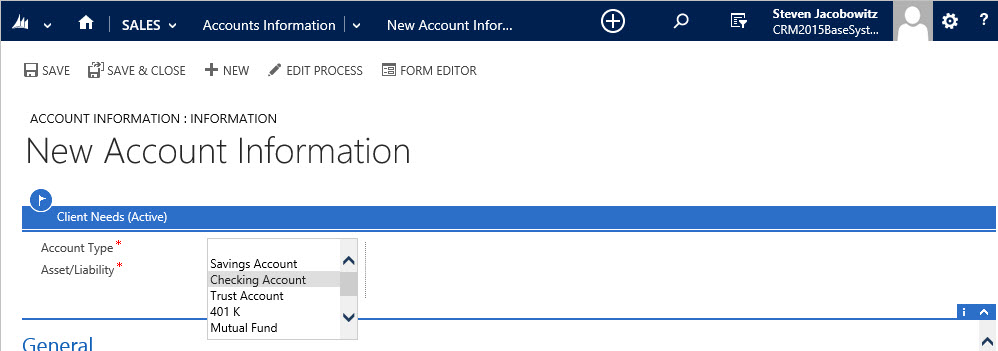
Notice when we choose the Checking account option stage 2 renders automatically with the attributes required to open a checking account.
Let’s take a step back and change the account type = “CD”
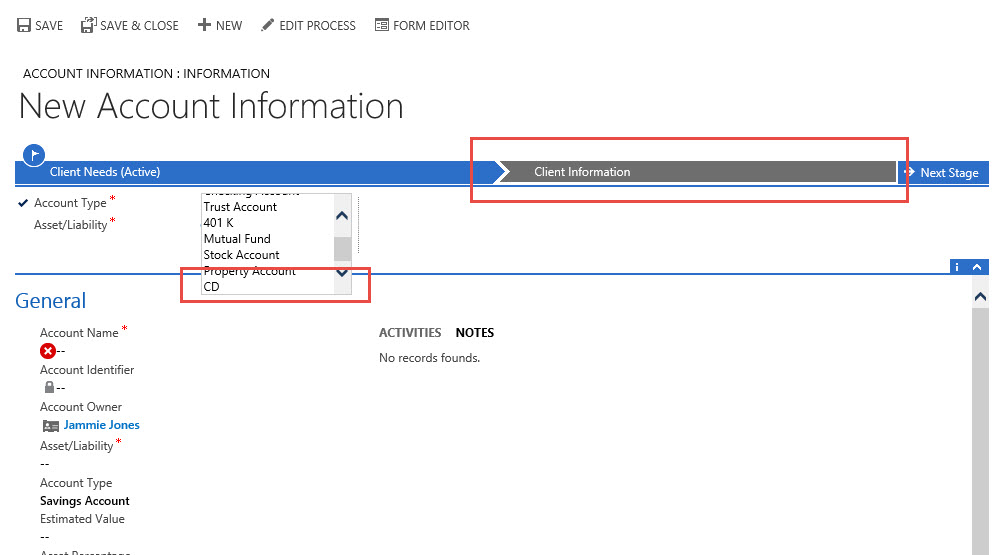
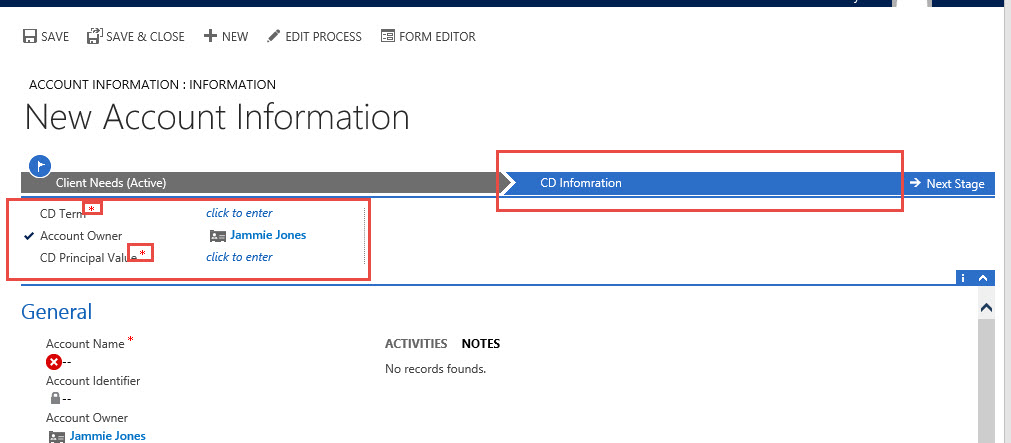
Notice stage 2 now renders as CD Information and the corresponding attributes are rendering as the stage 2 attributes
I purposely kept this first example very simple step by step so you would have a reference to try this functionality out.
My next post will focus on the following:
- Differences between V2013 and V2015
- Additional Benefits
- The Limitations
- Another example which will be robust.
Also I would love to hear about your experiences using this new functionality, please feel free to contact me with comments to these posts.
As always,


 Steve's Site Innovation, Transformation, Change, Growth, Culture Building, Learning
Pingback: New Feature – Updates to Business Process Flows in Microsoft CRM 2015 – Part 2 | C/xRM Ramblings
Reblogged this on CRM Backlog.
Good article