Good Afternoon – Sorry for missing last week. I was attending Microsoft’s Industry Summit held in California and there just wasn’t enough time to focus on writing.
My last post focused on business process flows, there benefits, and why you would want to deploy to in your business solution. This week I would like to focus on some of the improvements to this capability now available in MSCRM 2015, including building out on the scenario we started in my last post.
Briefly – The feature will allow you to create an efficient consistent business processes on an entity (s) and is available in the sales, marketing, and service modules. This function is also available on all custom entities you create also.
Differences 2013 vs 2015:
Business process flows were introduced in CRM 2013. The functionality allowed you to provide a guided process to your end users. You had/have the ability to stage a process that is repeatable for your end users based on an optimal process defined within the organization.
In Version 2013:
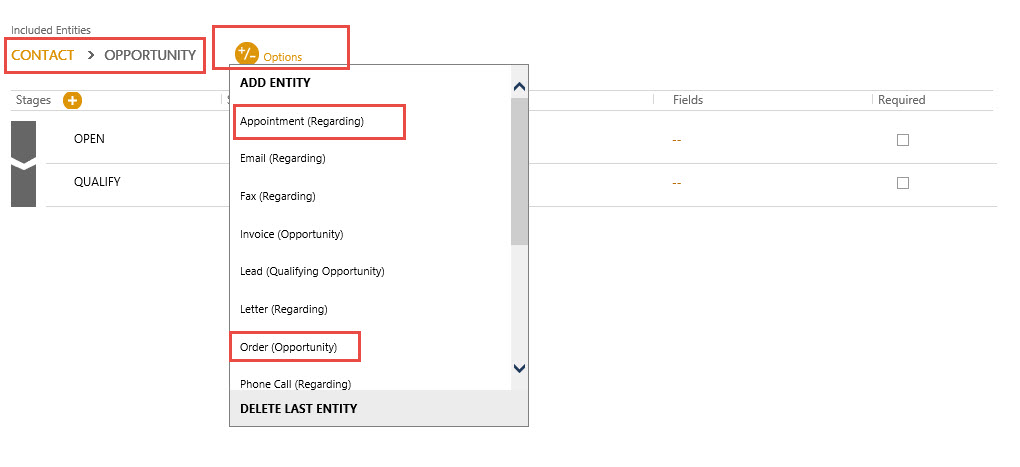
You do have the opportunity to add multiple entities to one process:
The process had to be linear in execution, meaning, you could traverse through the process from 1 entity to the logical next entity as long as the entities were related. (1 Below)
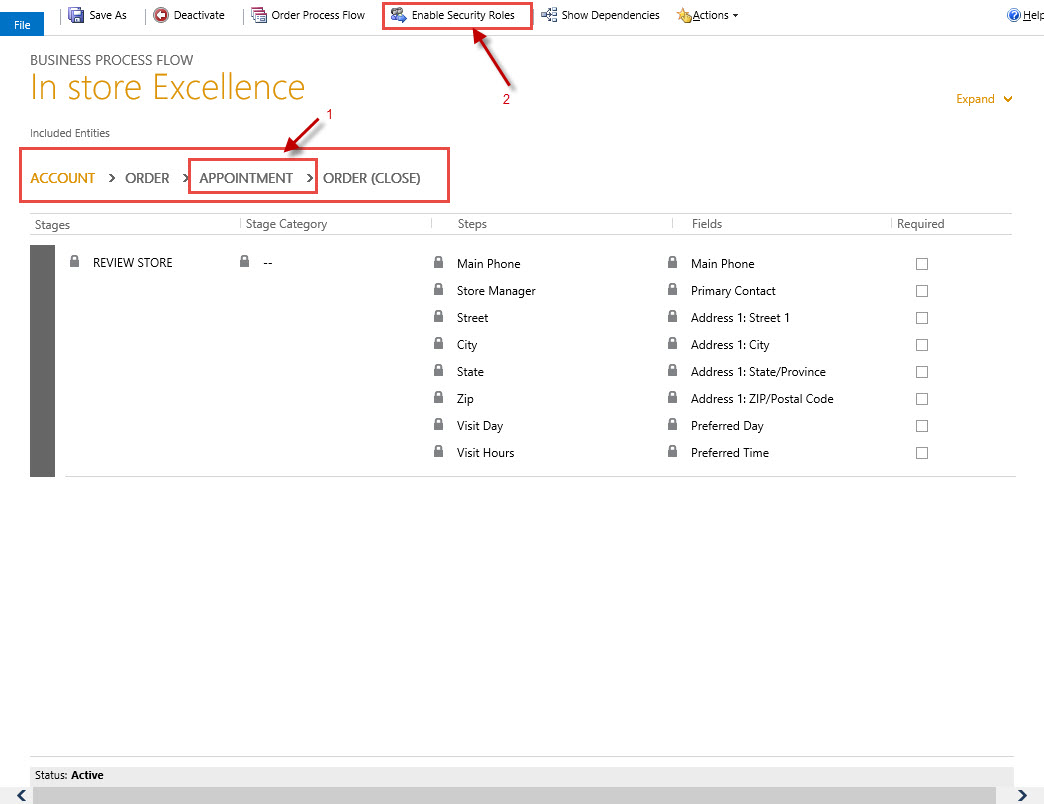
You had the ability to kick off workflows based on input within the process flow as well as enabling security roles for the processes. (2 Above)
Each entity defined could be split into multiple stages with business required input (1) or suggested input included within each stage. As an offshoot to this functionality you could actually require an end user from moving to the next stage until input was captured by making the attribute capture business required, (called Stage Gating).

In addition, you had the ability to alter the prompts when defining the attributes on the process flow. The attributes you select to define each stage will take on the properties available on the form, for example, if you were using an option set within a stage, the input would be defined as the members you added when creating the option set originally. Finally all input from the process flows will automatically populate the attributes on the main form of the entity. In essence, using process flows you can force your users to enter minimal required data in order to proceed.
Limitations of 2013:
The two most glaring limitations are as follows:
You can define a process with up to 5 logical entities and once you traverse from one entity to the next you cannot return to an entity logically through the process.

You can only “Close the Process Cycle” if there is no more than 4 entities defined

Once you “Close the Process Cycle” for one of your entities the process, is automatically closed for all the remaining entities also.
In CRM 2015 Business Process Flows:
The most glaring improvement made to Business Process Flow functionality is the ability to deploy conditional logic within a defined process, (called branches).
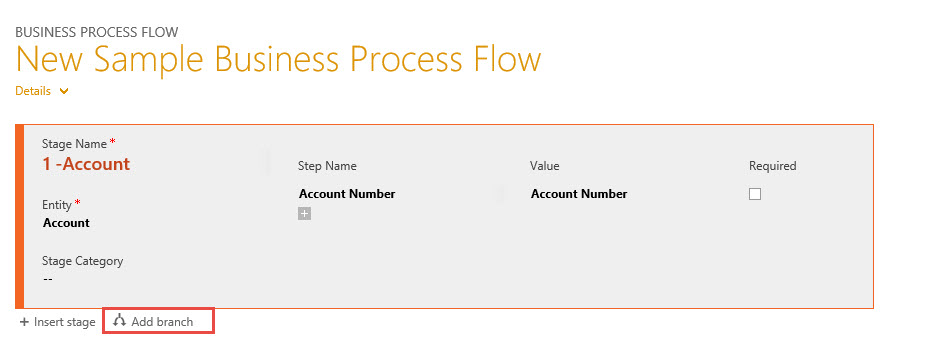
By Defining a branch you now have the ability to create the next logical stage in the process. (Please note the condition can only be defined by the entity you are currently working with, for example, if you stage starts with the account entity, your branch can only be a function from one of the account entity attributes.

Conditions can be complex and each conditional statement can be evaluated based as an “And” or “Or”

Please note once you select an “And” or “Or” all subsequent conditions will follow the parent.
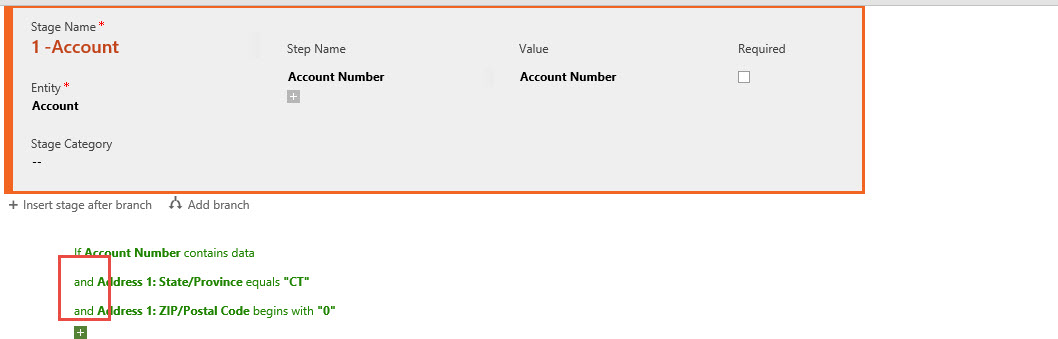
Once you add a stage to a condition you have the ability to further evaluate the input and create additional branches based on user responses.
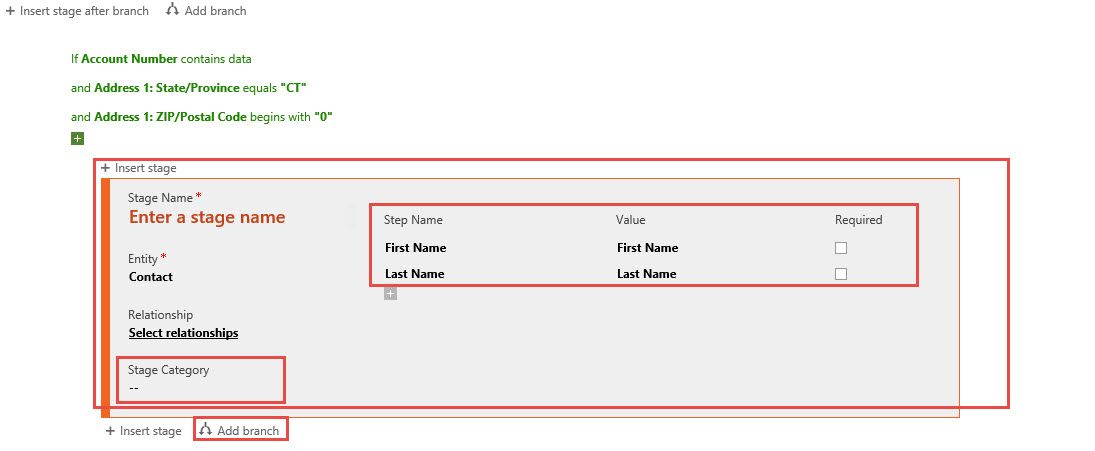
Furthermore, you have the ability to create an “If Else” conditional scenario based on the original input.

Also please note above within each of the stages you have the ability to further define the “Stage Category” based on pick list entries of the global list “Stage” therefor you can add additional values from the global list. This will greatly enhance your reporting capabilities of your choice, i.e. counts on dashboards, Excel Spreadsheet integration or SSRS Reports.

The Similarities between CRM 2013 and 2015
In both cases you have the ability to define multiple process flows for a single entity
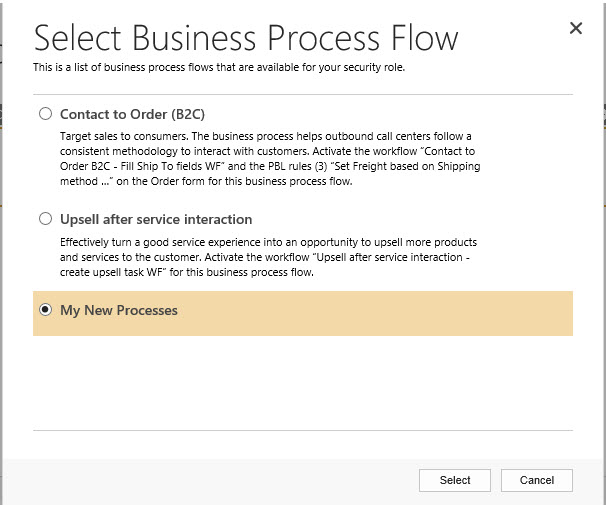
You can switch a process on an entity by selecting the ellipsis on the record and clicking on the switch process option.

By Default the process defined on the top of the list will automatically be assigned to a new record created, (please note you can have a process automatically selected based on input programmatically, beyond the scope of this discussion). You do have the ability to order the list of processes.
When traversing from one stage to the next if there is an entity switch the system will alert you to either create a new record or link an existing related record.

New Scenario: (Please go back to the original scenario in Part 1 for a refresher)
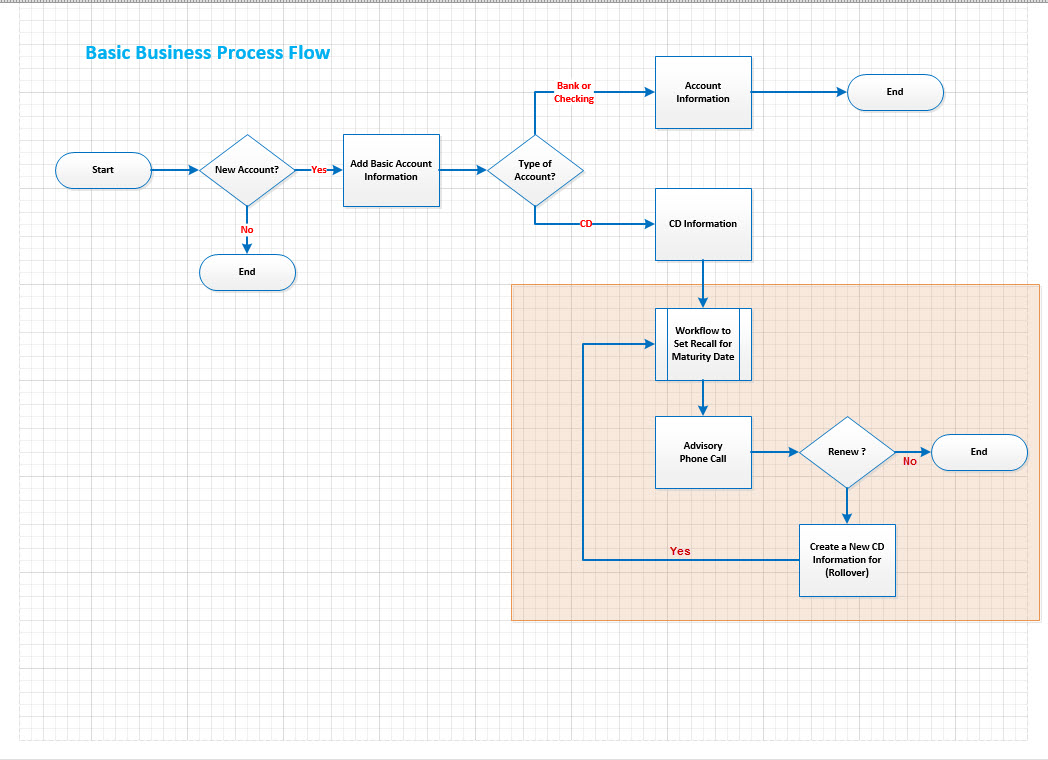
If you remember our initial process flow was very basic one branch conditional logic as follows.
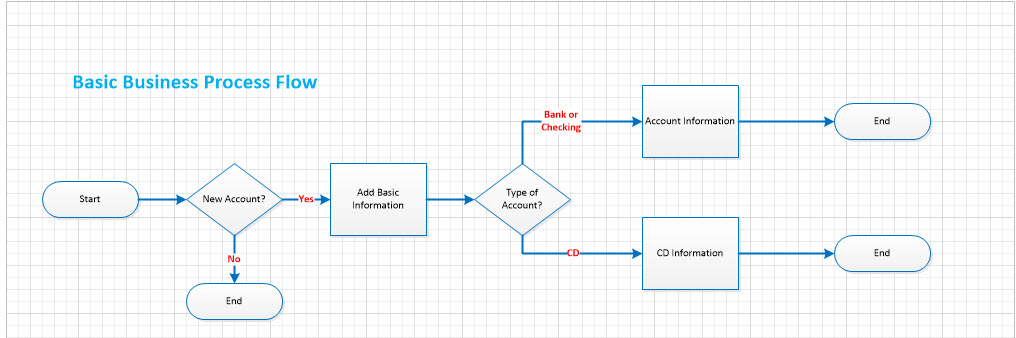
Our financial manager would like to build additional functionality onto this original process. If the Account Type = “CD” he would like to have additional information required for the business process branch to CD related to CD Term, Principal Value, Clients Email Address and eventually Rollover activity.
In addition if the Account Information is a CD, the financial manager would like to have a way to set a phone call automatically 30 days prior to the CD Maturity Date and a subsequent process to rollover the CD if the client agrees with the process starting from the beginning again.
Execution:
Our BA thought about this scenario and decided adding to the Business Process Flow functionality would be perfect for this requirement. In addition, the solution would require some additional screen design and a Workflow to manage the automated processing.
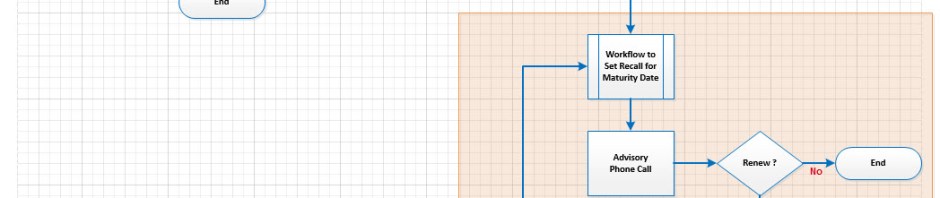
The first step was to update flowchart with the additional requirements to meet the objectives.
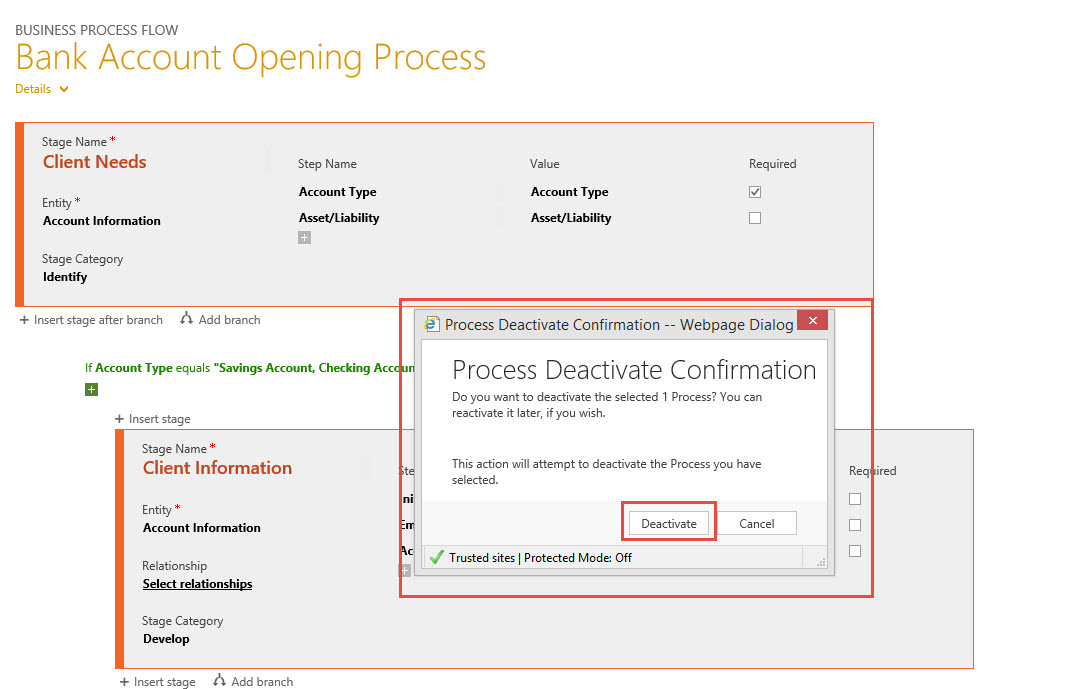
Our next step is to go to settings -> solutions open up our banking solution navigate to processes and deactivate the current process so he is able to modify.
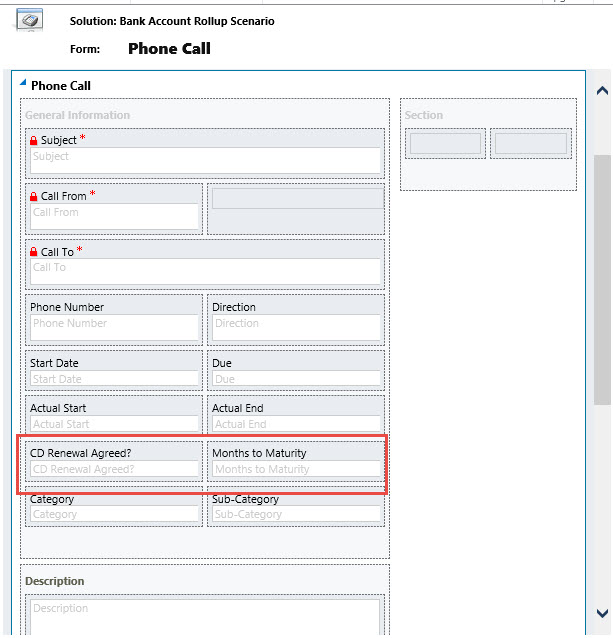
Since we need workflow to help us with this process we need to determine what triggers we will require on the entities to fulfill the requirements. It appears we will need to add two additional attributes to the Phone Call Entity to trigger the workflow further for example we will require:
CD Renewal Agreed? Which would be defined as two options Yes or No and Months to Maturity input in order properly set the new maturity date if the client agrees to a renewal. So we are going to add the Phone Call entity to our solution and make the necessary adjustments using the tool. Save, Publish and Close the form.
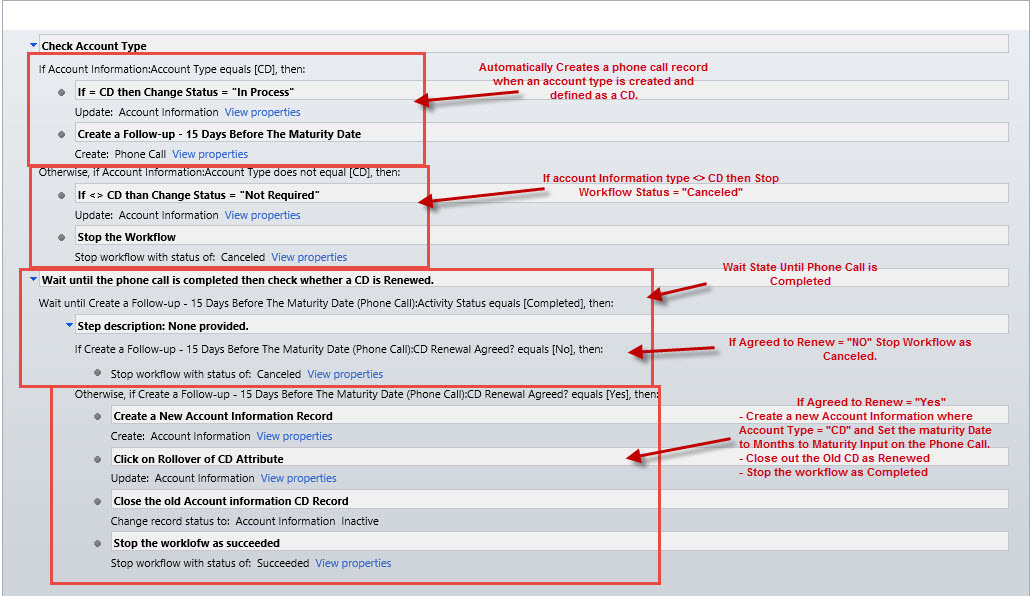
The next step is to create a workflow to follow the process as stated on the flowchart. (Please note the logic on the illustration below and compare it to the flowchart. Save the workflow and activate it.
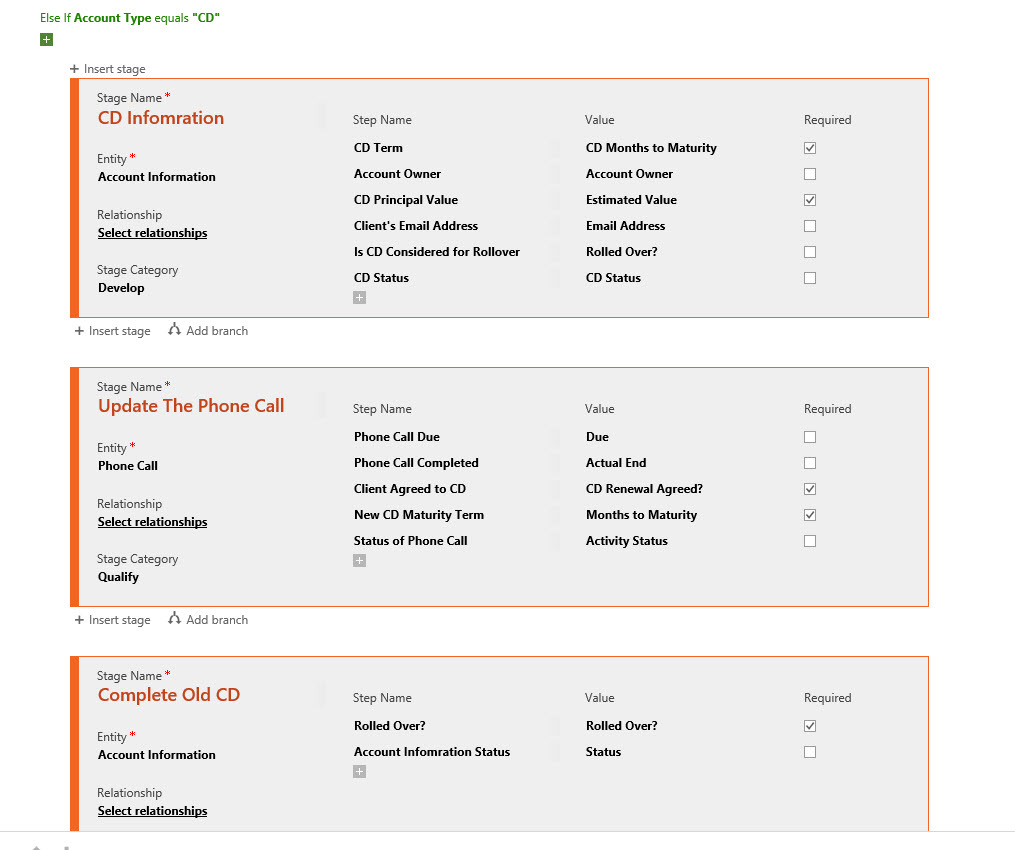
We are ready to start Modifying the Business process flow to meet the stated requirements. Remember from flowchart 1 we used the following conditional logic, we will continue to use this logic and update the attributes we require on the CD information to correctly identify the initial CD when purchased.

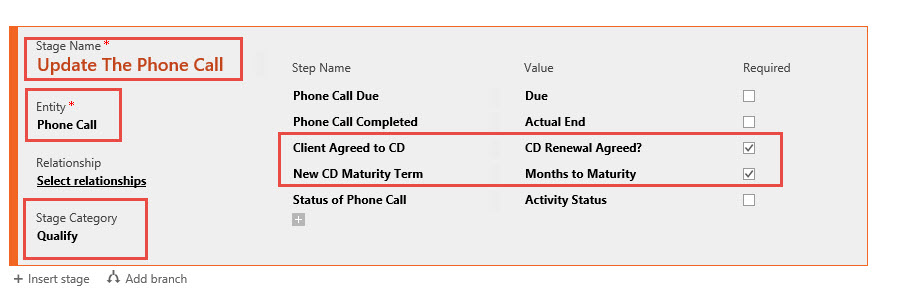
Our next step is to define the Phone Call record created within the workflow once an Account Information -> Account Type = “CD” and set the Client Agreed to CD and New CD Maturity Term to Business Required.
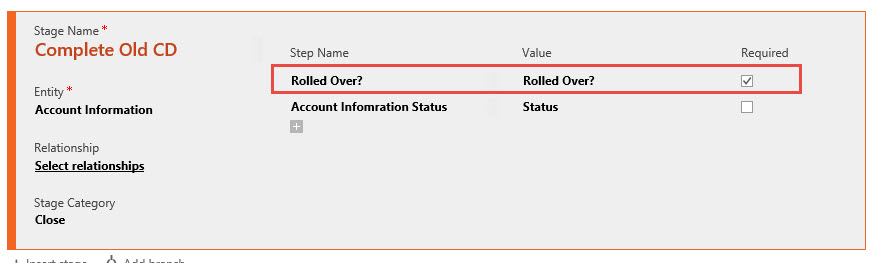
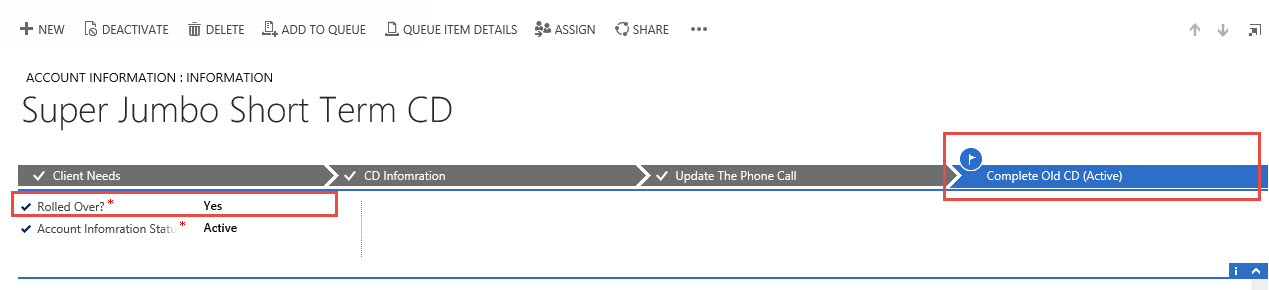
In order to finish the process we are moving back to the old CD in the next step and requiring input into the Rolled Over? Status of the original Account Information record.
Lets Save the changes to the process and Activate the Business Process Flow.
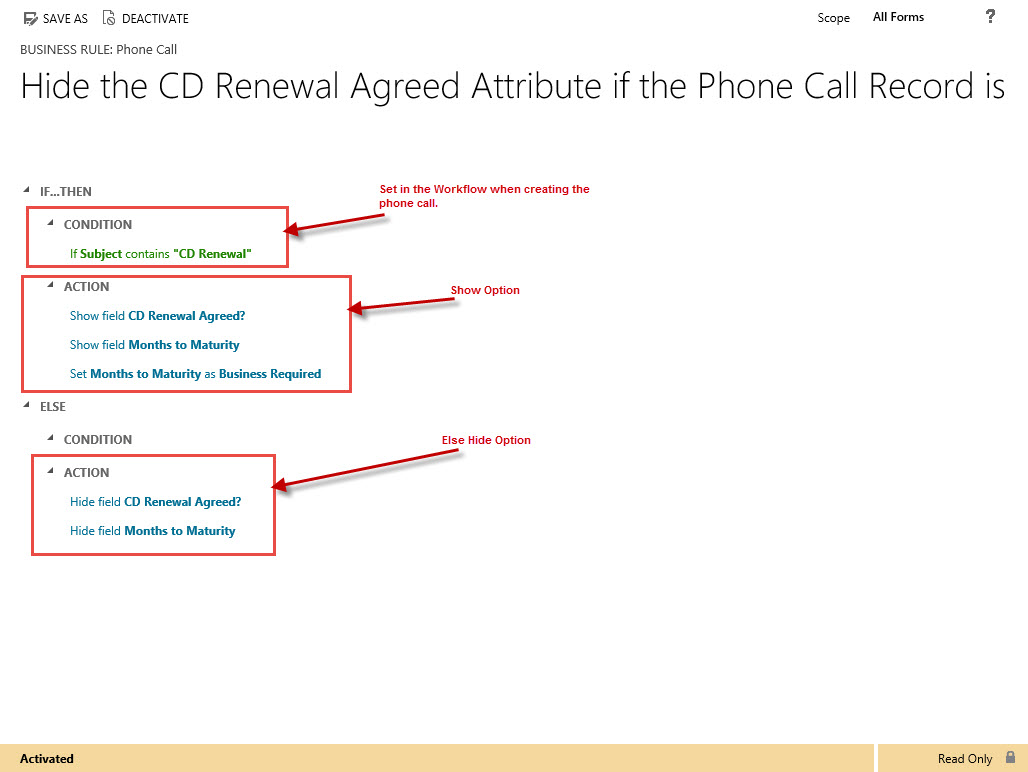
One last item, our BA realizes he just modified the Phone Call entity with two attributes that might not make sense to other members of the banking team, so he decided to use business rules to set the visibility based on the topic of the phone call record.
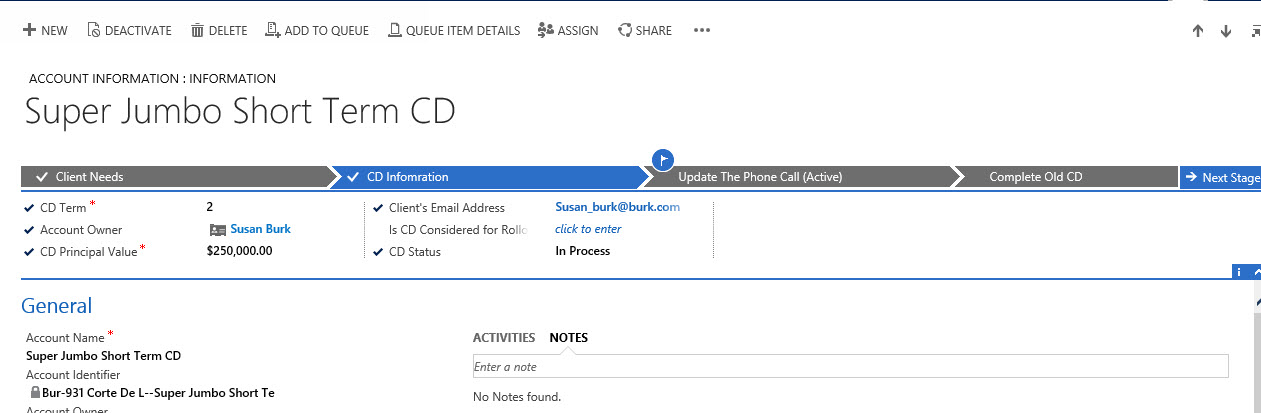
Let’s view the solution in Action, if we open one of Susan’s CD’s.
You will view we extended out the CD Process to include the phone call record and the complete old CD stages.
If we click on the update phone call stage you can view the Client Agreed to CD and the New CD Maturity Term as business required attributes. Once completed we can close the phone call.

Then we can move to the next stage and close the CD and let the workflow handle the rest of the processing.
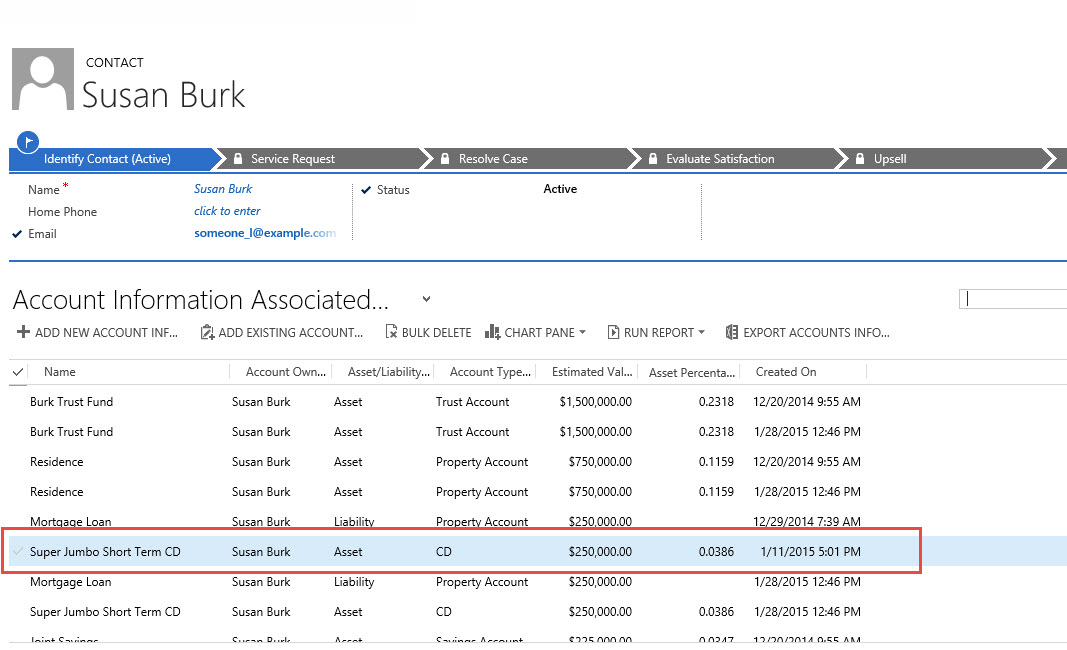
Finally if we view Susan’s account information we can confirm we have a new CD created today.

And when opening the record we can further confirm the new Maturity Dates and the workflow present to guide our Financial Advisor.

Business Process Flow is a powerful tool when combining with other capabilities as I just demonstrated. From the end user point of view there was very little input required in addition, guidance on what to do next. From Management’s view point there is a great deal of information that is being collected that is consistent in process. This valuable information can be analyzed for future direction with respect to sales and marketing functions in this use case.
Please keep in mind, not one line of code, and these processes can be changed just as quickly as they have been created.
Currently, this is my last post on new features in CRM 2015, and guess what? There is going to be a new spring release with additional new features as well as updates to some of the features I already posted on, though, I am sworn to secrecy at the present time so as soon as I can I will start up this series again.
In the meantime, if there is something you would like me to focus on next week, please reach out to me and suggest a topic . I will take all submissions into consideration going forward.
As always,


 Steve's Site Innovation, Transformation, Change, Growth, Culture Building, Learning
Pingback: New Feature – Updates to Business Process Flows in Microsoft CRM 2015 – Part 2 - Microsoft Dynamics CRM Community
Hello, You have done a fantastic job. For certain I will definitely digg it and actually endorse to my friends. Most likely they shall be benefited from this site.