Good Day All-
May, 2012 I submitted a post called “How to concatenate two fields using workflow in Dynamics CRM 2011”. Click Here
Three years later this is still one of my most viewed posts on WordPress. This method is still valid for CRM V3, V4, V2011 and V2013, although, it is much easier in CRM 2015.
A few months ago when covering the new features of Microsoft CRM 2015, I covered the calculated attribute functionality including the Concatenate features. I decided today I was going to cover concatenation one more time using 2015 since the steps to accomplish this task are minimal compared to what we had to do in any of the prior versions of Microsoft CRM.
Scenario:
Our Manager would like to create a unique ID for each of the account records in the database. She determined that a combination of the Account Name plus the main telephone number would be the optimal blend to create a Unique ID. She asks her CRM Administrator to execute this request.
Execution:
Since this is a combination of the account name and the phone number our CRM Administrator decides this is a perfect opportunity to use the calculated attributes function found in CRM 2015.
- She therefore will start off by opening a solution set and create a new attribute called ACCOUNT ID to retain the calculated information.
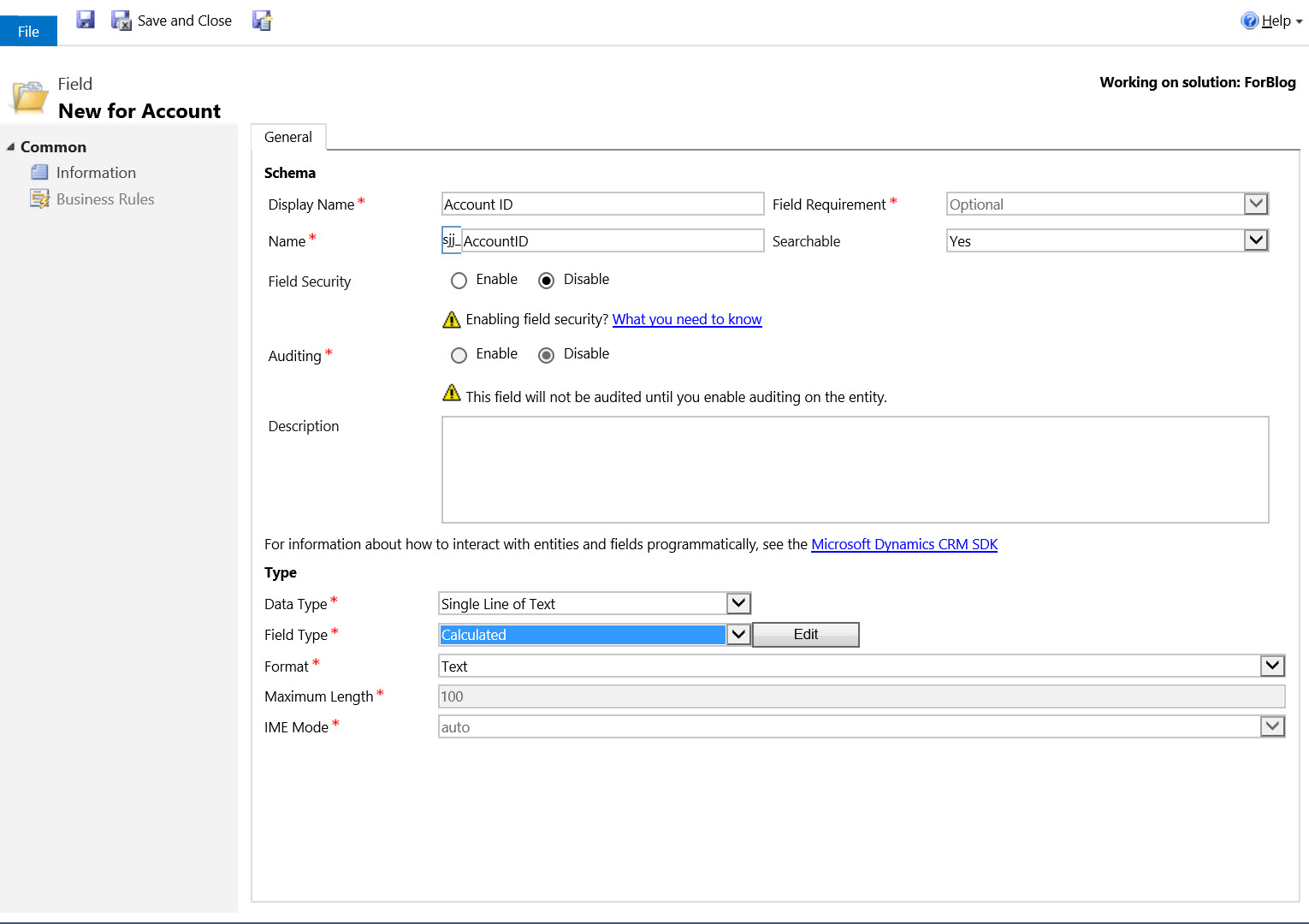
- She defines the attribute as a single line of text.
- The field type is defined as calculated.
- The Format as Text
- Click on Save
- The click on the Edit button to the left of the field type
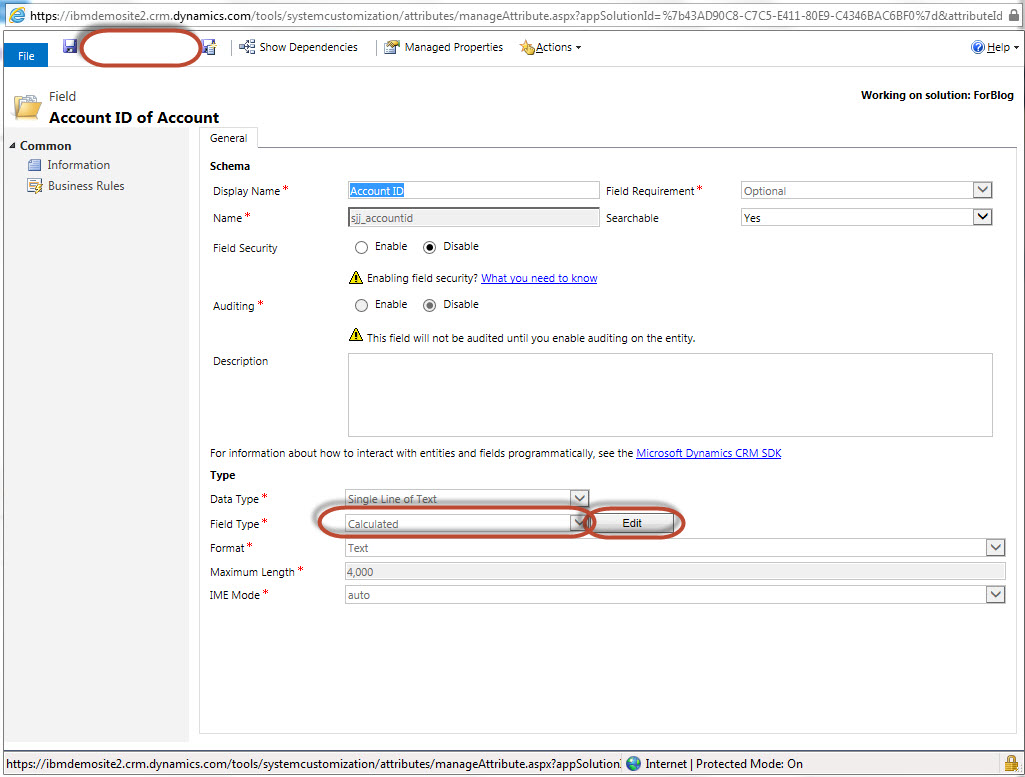
- This will open the calculated field dialog box

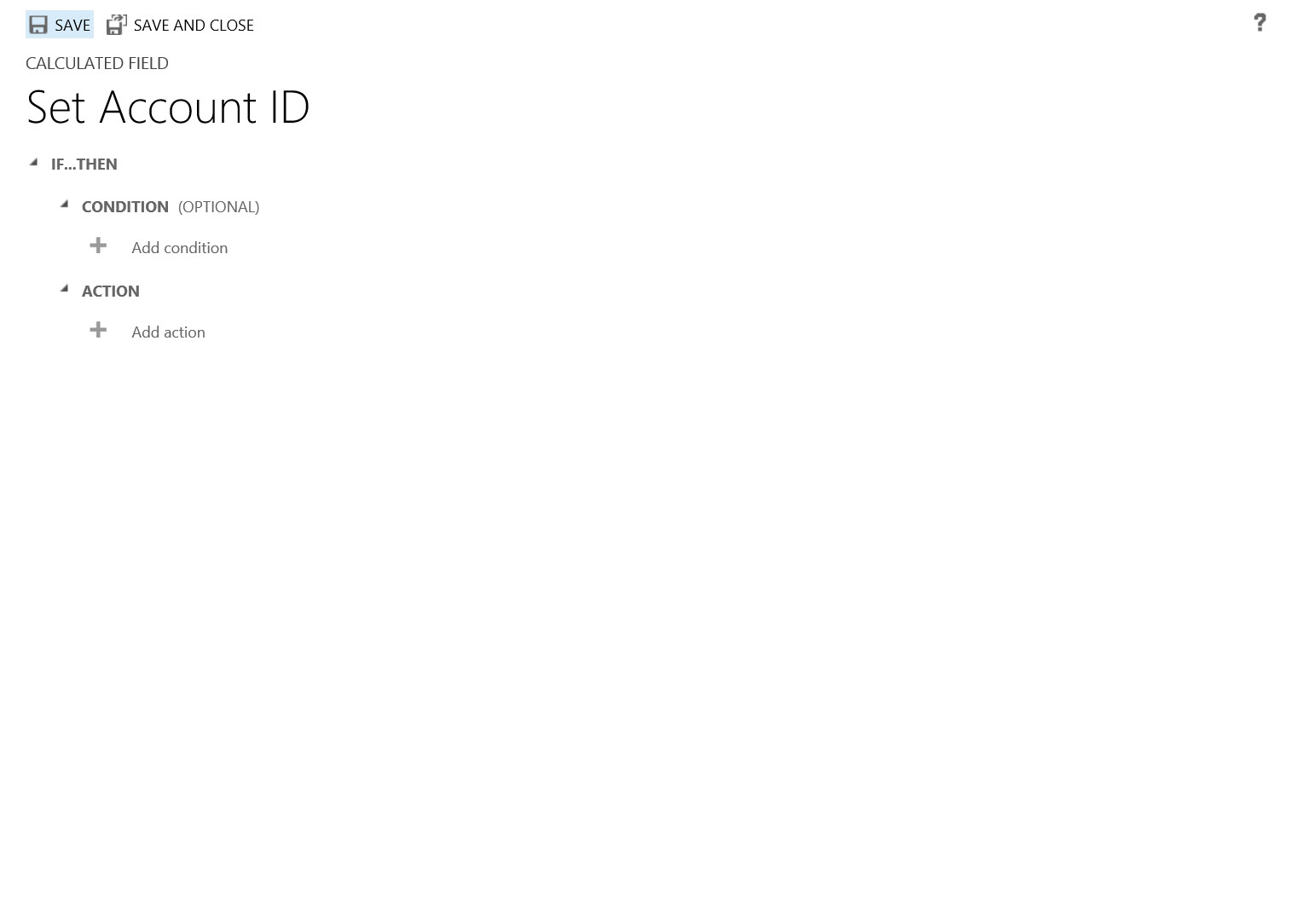
- Since this is straight forward implementation there is no reason to configure the condition, (in this case all records when created will require a unique ID).
- Using the Concat() function in CRM Action section, she can define the formula. Please note member attributes require a (,) comma to separate them within the function. If you are going to add a literal then it must be defined with double (“) quotes.
For example: Concat(attribute1, “-“, attribute2)
Notice a comma separates each of the attributes or literal in the expression.
Our example the expression would look as follows:
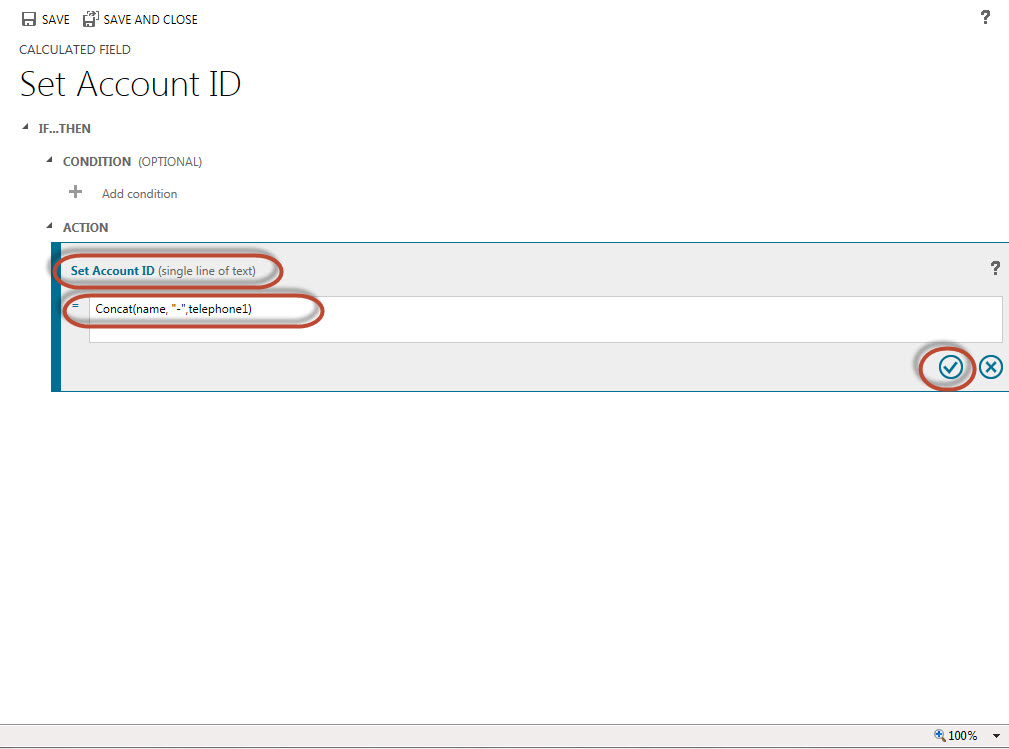
- Click on the check icon in the lower right corner of the expression to check for accuracy, (if the function is incorrect the application will throw an error message).
- Click on Save and close.
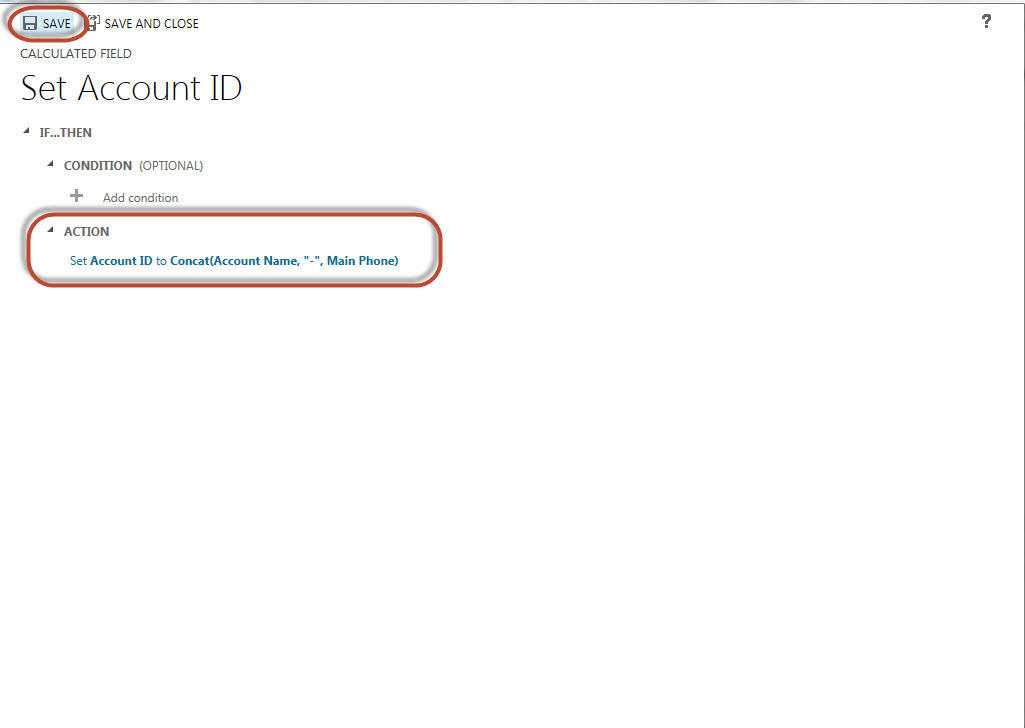
- Save the attribute and close.
- Place the attribute on the form
- Click on save
- Click on publish
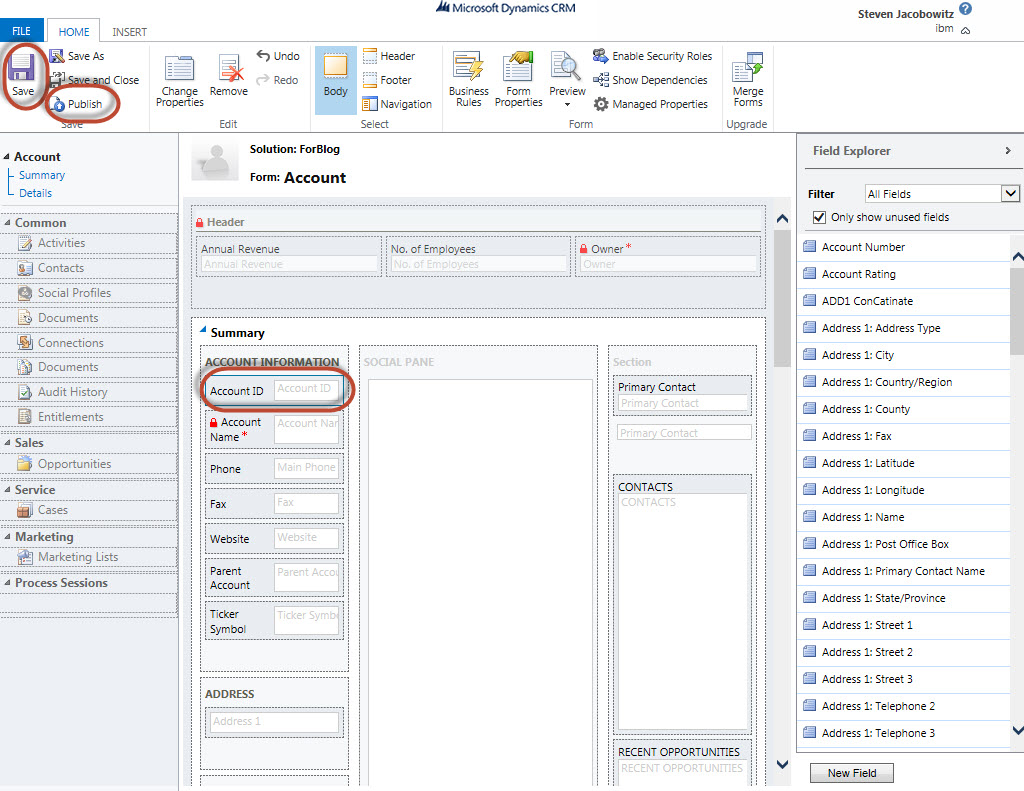
- Close the form.
She has completed the assignment.
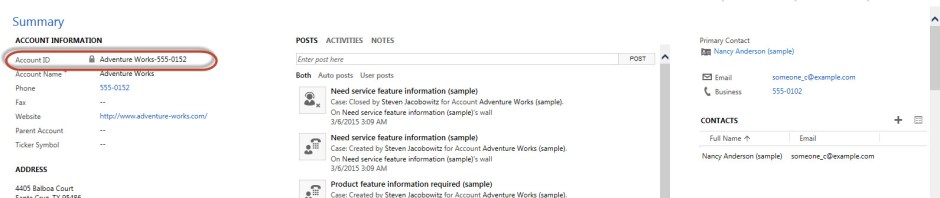
She opens the record and the calculated field automatically renders based on the defined formula.
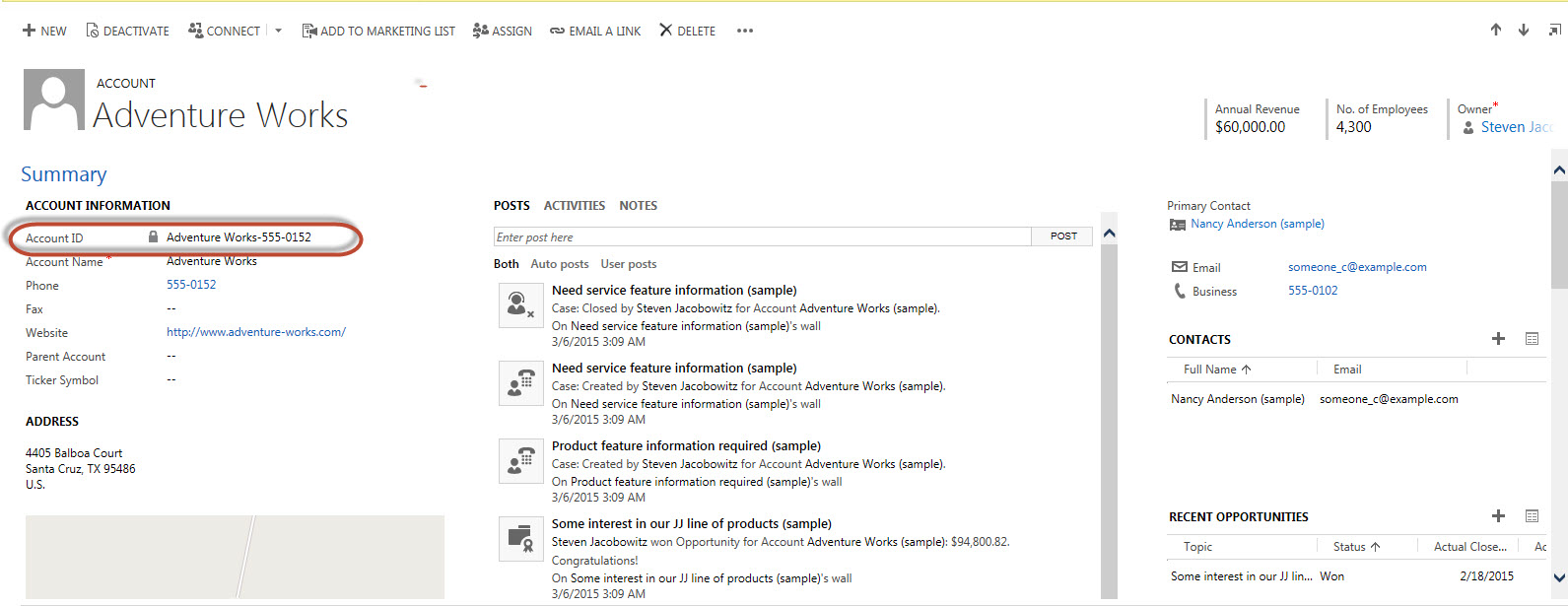
If you look at the methodology in my previous post from 2012 you will notice that this method is more efficient, and of course, codeless!
As always,


 Steve's Site Innovation, Transformation, Change, Growth, Culture Building, Learning
good explanation!
Steven, I played around with calculated fields on a contact record and noticed that the calculation was triggering when I went in and out of the form. Is there a way to get these fields to calculate when the data is loaded though an API call? I would like to have the fields calculated when they are loaded that way the data is available for reporting. Thanks
Hi Matt –
Actually there are multiple methods to arrive at your scenario, for example, a real time workflow, a jScript, or a plugin. All have positive and negative benefits, although they will meet your needs. I would more information to weigh out the optimal approach.