
Good Day All –
Last month, (sorry for the delay, client requirements first priority), we discussed business process flows and I provided a few tips and tricks. As a reminder there are several reasons for using business process flows for your solutions.
To recap a few:
- Using Business Process Flows will assist your organization follow consistent processes throughout the application.
- Configured properly you can lead your users of the system into next best actions including launching workflows and business rules.
- Business Process Flows can be set up to prevent movement from one stage to the next unless valid data is entered into the system, (called a stage gate).
- You can enforce stage process analysis through reporting by enforcing consistent processes.
- Finally, you will have the ability to move a user from entity to entity since Entity Business Process Flows can be configured to create or link related entities to the primary entity.
As I promised I will define a scenario to build out the next few tips I want to discuss:
- Branching Business Process Flows – Conclusion
- Movement of Stages in the Process
- Enabling Security Roles
- Order Process Flow
Scenario:
Last week we created a business process flow that was linked to a new opportunity. At that time we defined the Opportunity Name, Account, Contact and Probability of the opportunity, (We used Stage Gate on the Probability).
Today we want to enhance the business process flow.
Our manager just discussed the requirements with our configuration expert.
Required:
“If the account associated with the opportunity is located in New Jersey we want the ability to reassign the Owner of the opportunity to one of our other sales people.
When this reassignment stage is completed or if the stage is not required we what our process to force our Sales person to create a phone call to discuss the opportunity with our client account. We would like to make sure the stage is set to research.
We would then require the sales person to complete the phone call with the client and complete the opportunity as either won or lost.”
Execution of the Scenario:
Through this scenario we will demonstrate how to solve the execution of this requirements using Microsoft CRM out of the box functionality without the use of custom code.
Our first step will require us to move the State field in the client account record to the opportunity on creation of a new opportunity. (We will need to have this value in order to evaluate the state in our branching statement).
1. Open up your solution:
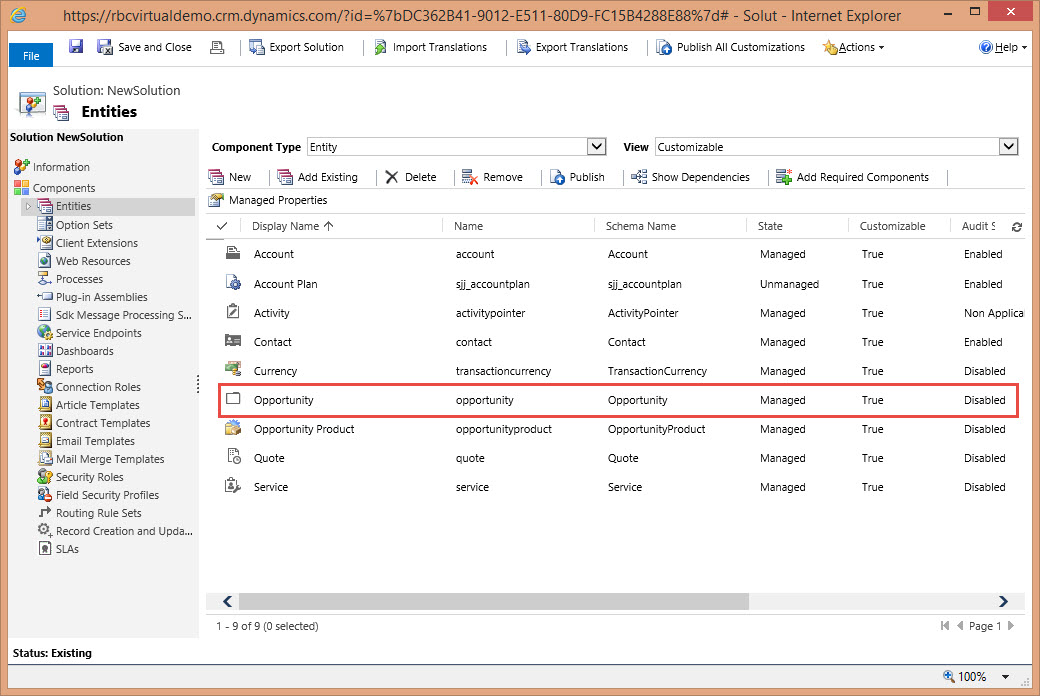
2. Expand on the entities tab, expand the opportunities entity, and add a new attribute called Account State which is a single line of text and 50 characters in length.
Important: (Remember when mapping attributes from one entity to another, the field types and field lengths have to match).

3. Place the attribute on the opportunity form

4. Save and Close the form, than publish your changes.
5. Your next step is to expand the account entity of your solution. Expand the 1:N relationships and identify the relationship associated with the opportunity.

6. Double click on the relationship

7. Click on New and map the Address1_StateProvence to the Opportunity Account State attribute

8. Click ok button. Click Save and then Click on publish.
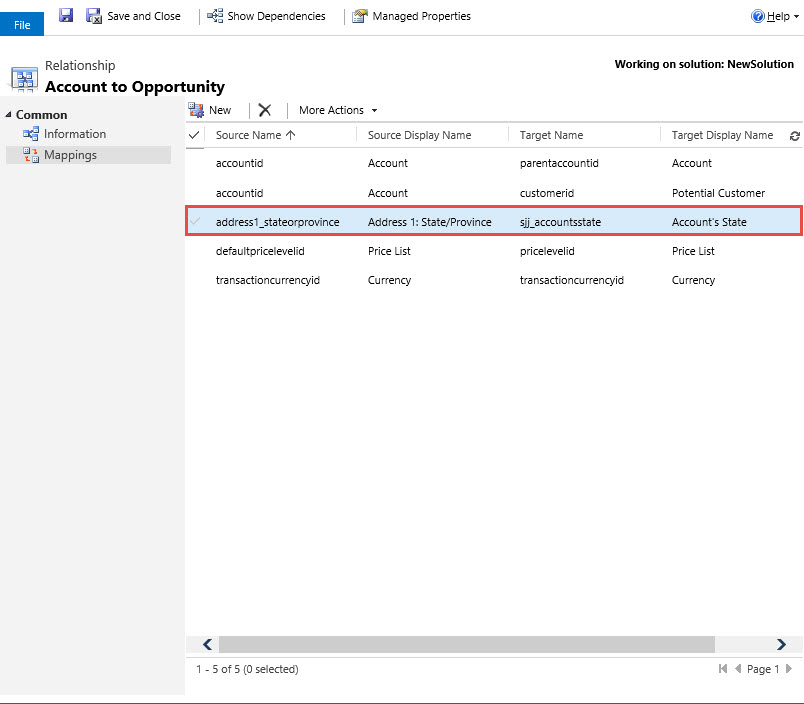
Remember our first stage in this process was to create an opportunity.

9. Your next step is to browse back to the Process section of your solution. Open up the New Process Sales we started last week. Click on the stage + sign to add a new attribute and add the Account’s State.
TIP
(NOTE: This is very important because in order to create a branch, which is our next step, we always have to have the attributes we are evaluating on the form of our previous stage otherwise the application will register an error 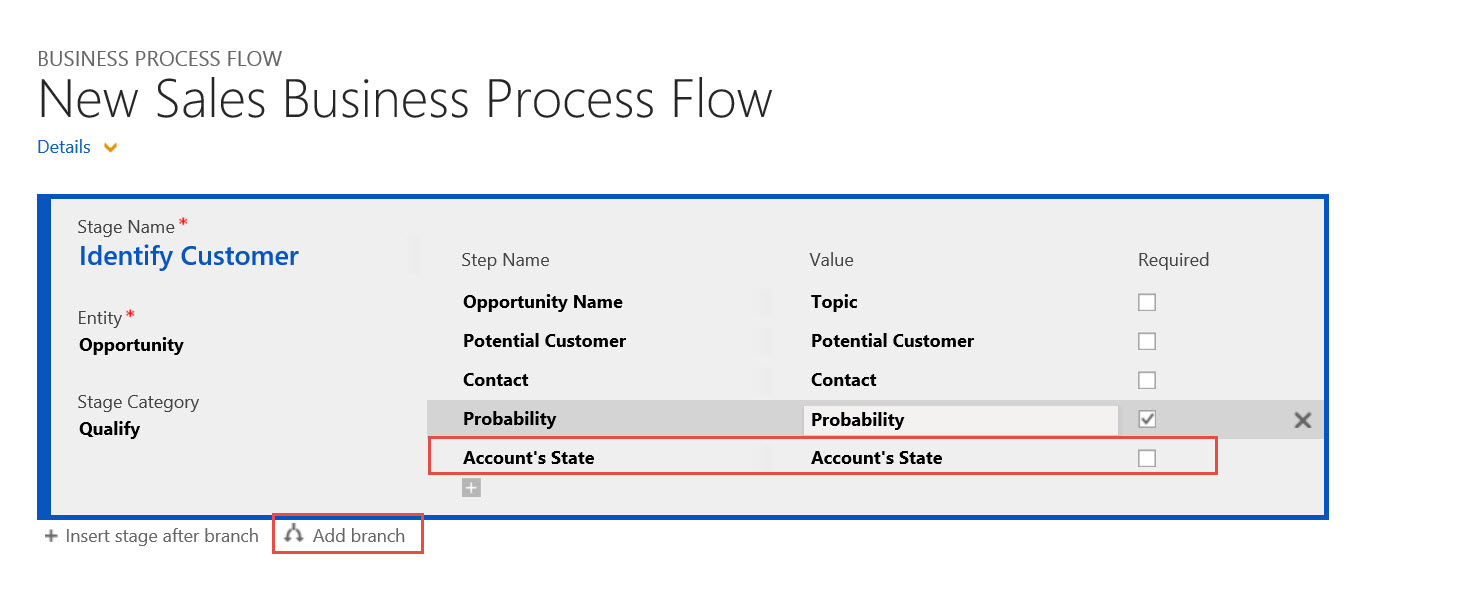
10. Next click on the branch icon located below the stage. We can now identify the condition for the branch, Account’s State = “NJ”

11. Click on the check at the bottom of the condition in order to save the condition. Please Note: The condition identified can be complex. In order to define another condition click on the + below the original condition.

As you can view below you have the ability to create requirements for multiple conditions by using the .AND. operator or evaluate options by using the .OR. Operator.
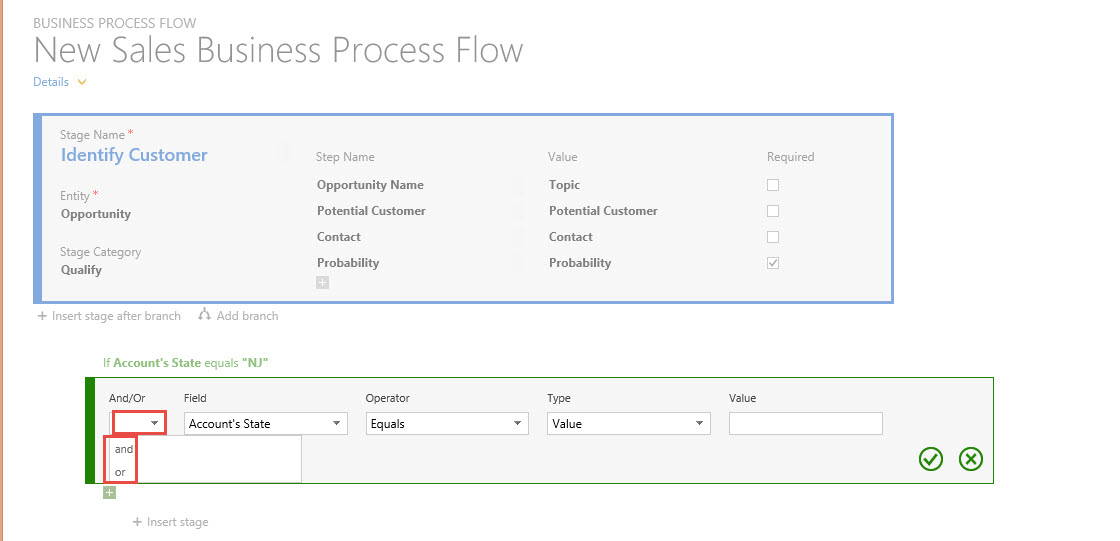
12. Our next step is to add the stage required if the condition is met. Account’s Stage = “NJ”

13. Now we can jump to the next step and set up the qualification phone call.

Notice the options available when setting up a stage.
14. The next step in the process is to create a stage for completing the phone call, although we only want the branch when the actual end is not completed
15. Click on the branch at the bottom of the stage and define the condition for the stage branch Actual End Time is equaled to blank.

16. Click on the complete check at the bottom of the screen when completed
17. Now click on the stage at the bottom of the Business Process Flow and create the Complete the Phone Call Stage. Define the attributes required for your to complete at this stage. (Notice when you make attributes required at the end of the stage you are not permitting the agent to move forward on to the next stage until the information is completely filled out. (Stage Gates)).
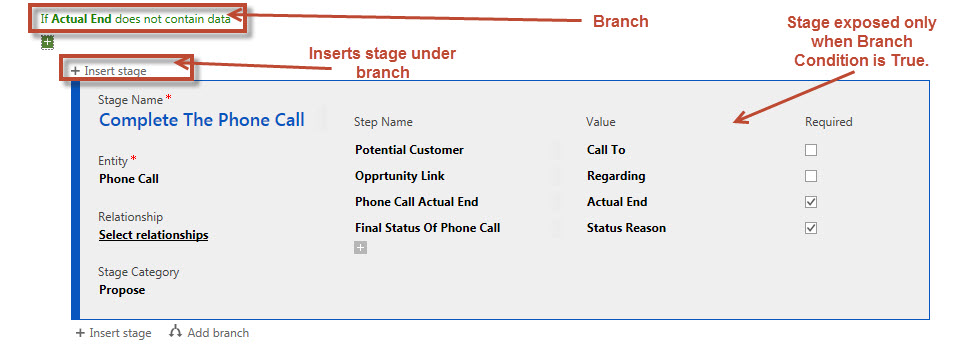
At this point your Business Process Flow should appear as below.
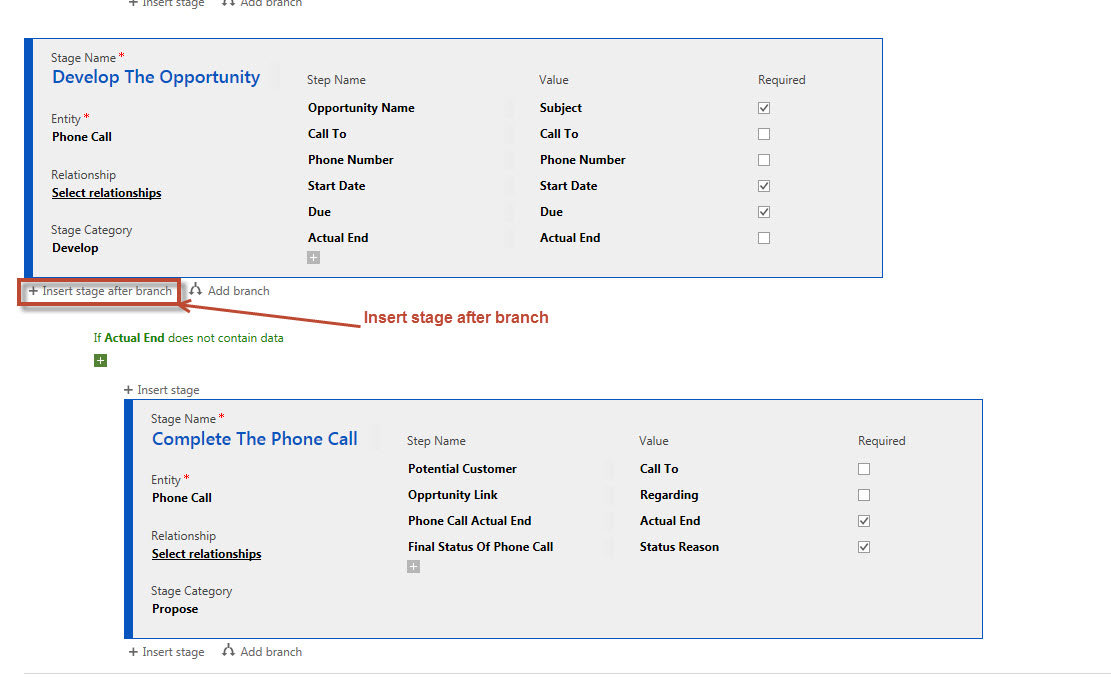
18. Our last step is to complete the last stage of this simple process and complete the opportunity once the phone call is completed. At the bottom of the previous stage prior to the branch click on new stage. Define the attributes you require to complete the opportunity process.

Notice below our entire process is defined.

There are a few more steps required before you are ready to test this Business process flow. Notice at the top of the screen on the toolbar.

You can Order the business process.
By ordering the business process you can determine which flow will automatically open when the entity is created.
1. Click on Order Process Flow Button.
2. You can position the flow on top using the up arrow. If there are no security considerations, anytime a new opportunity is opened, this process flow will automatically render at the top of the opportunity.

Enable Security Roles for Business Process Flows:
Using this option will allow you to assign specific processes to user roles. Therefore, if a user role is assigned to a Business Process Flow, the user will automatically open to the Process Flow assigned to their role.
1. Click on the Enable Security Roles Button.
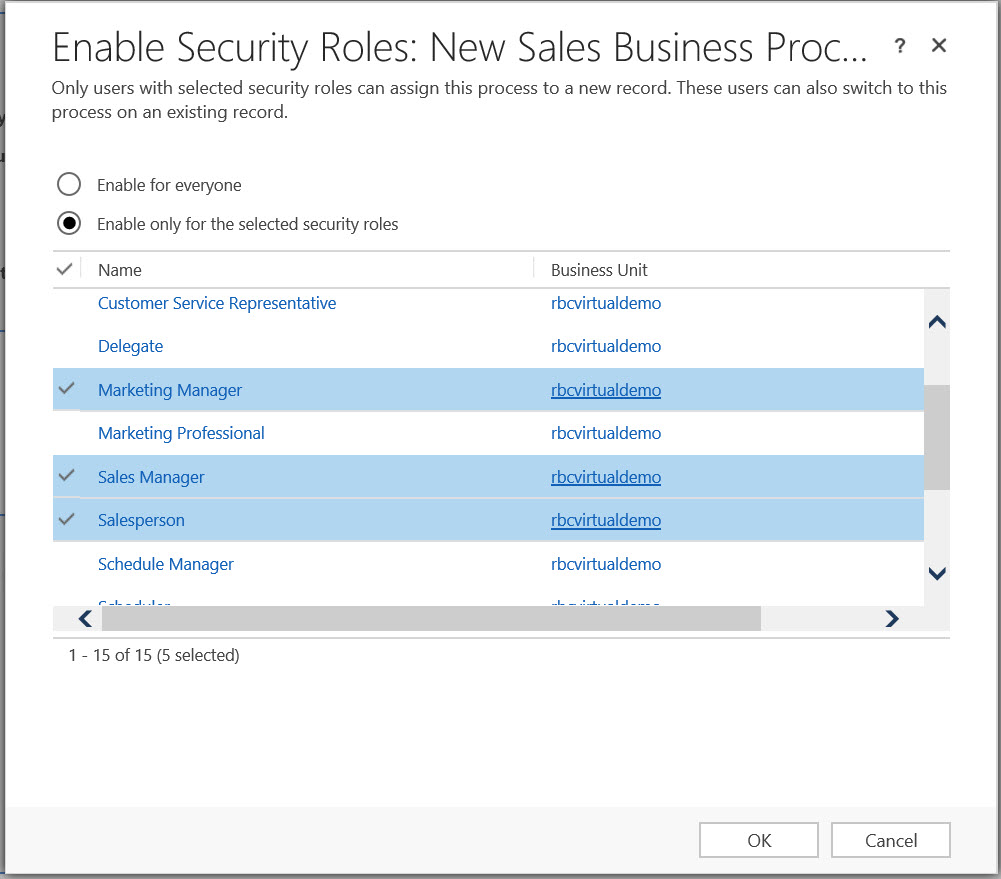
You can define the roles you would like to associate the Process Flow. Please note that only these roles will see the process on the opportunity.
In addition, if you would like to default a specific Process Flow to this group, it would have to be at the top of the list of processes assigned to the group.
Finally we can activate the business process flow on the tool bar.

1. Click on the Activate button and confirm the activation.
Testing the Process Flow:
Let’s create a new opportunity for Adventure Works.
Go to the account record and to the opportunity section and click on the + sign on the grid to create a quick create opportunity.

Fill in the information on the quick create opportunity form.
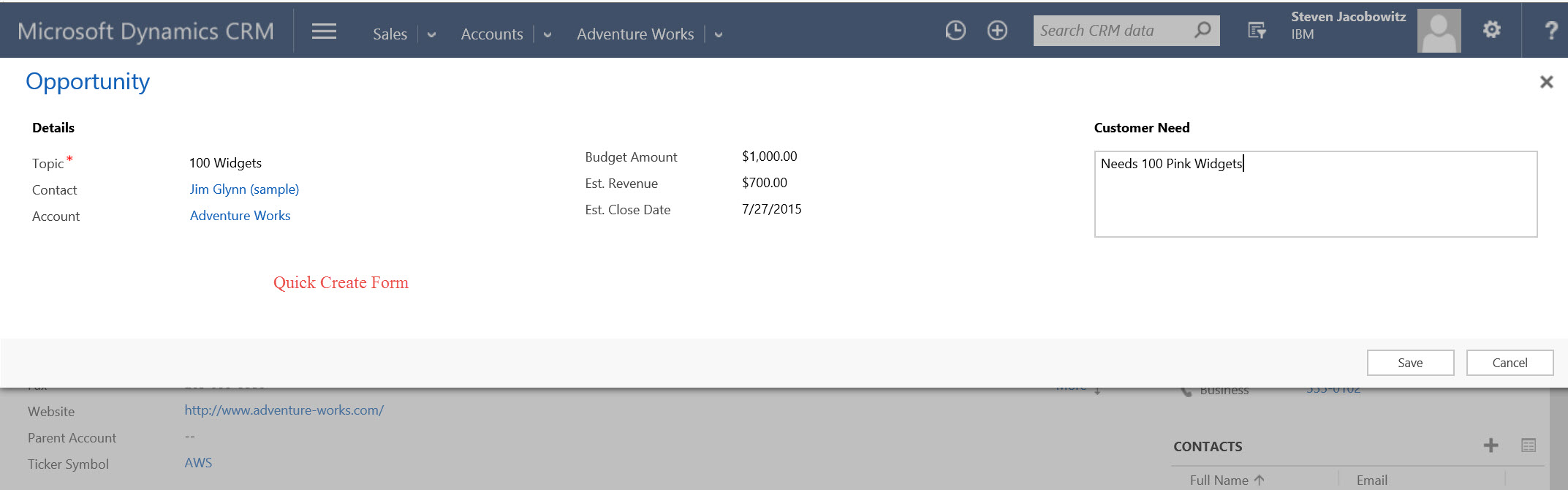
Save it and reopen the opportunity.

Notice we automatically open the new sales process business process flow automatically on the opportunity. Also notice we are showing 4 stages on the opportunity, (Adventure Works happens to be in New Jersey). Let’s change the state to CT to test the first branch.
Notice how one of the stages is removed from the Process Flow.
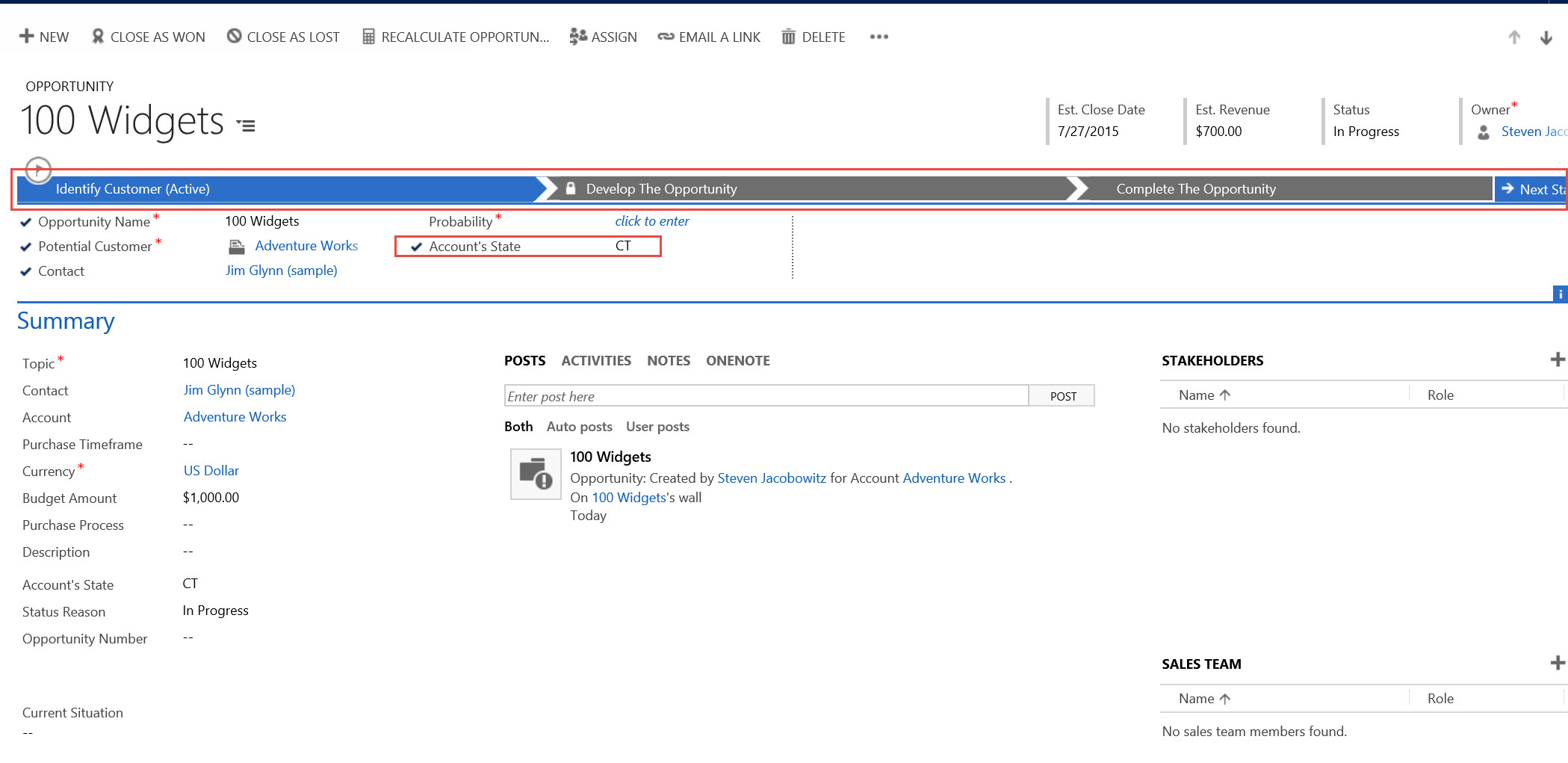
Let’s put Adventure Works back in CT. Try to click on the left “Next Stage” option. Notice you cannot move forward because you haven’t filled in the probability, (Red Star = Required Field, Stage Gate).

Let’s add the probability to the first stage and click on the “Next Stage” option again.

Notice the flag is hovering over the next chevron, (stage). At this point you can update the opportunity owner if required. Click on “Next Stage”. Since there is no phone call associated with the opportunity or the account you are prompted to create the phone call automatically. Click on create + on the bottom of the dialog box.

Notice the phone call is opened with auto fill information from the opportunity record.
You are now at the Phone Call Entity of the Opportunity with required information to be filled in. Also notice the flag is automatically moved to the phone call stage as required to let you know where you are in the process.

Click on Next Stage button and notice you now have to enter in the actual end of the phone call.

Complete the phone call from the top of the form menu.
You are brought back to the opportunity to complete the status of the opportunity, in this case purchase and close the opportunity as Won.
This was a very simple example of a business process flow, I hope I was able to display the primary features included in this functionality within MSCRM.
Using Business Process Flows you will be able to create a number of otherwise complex processes your company might be following, while enabling your users of the system with step by step guidance on completing their work. Using this tool will foster consistency in execution, predictable results and logical reporting.
Again thank you for reading and if you have any comments or suggestions, please contact me at this Location .
My best,

.


 Steve's Site Innovation, Transformation, Change, Growth, Culture Building, Learning