Good Day All–
I am pleased to write about a new feature in Microsoft CRM / Microsoft Office 365 called Office 365 Groups.
This is exciting new functionality in Beta found at the Microsoft Office 365 / CRM site.
Office 365 Groups allows users to team and collaborate across your company. This functionality enhances integration between, Microsoft CRM, Outlook Email, Outlook Calendar, SharePoint and OneNote. One feature of the collaboration, the user of Office 365 does not have to be a consumer of Microsoft CRM to be a part of these groups.
All alerts, notes and documents will also be available to the user on Outlook for Office 365.
You can create a group for your sales / support team and invite other Office 365 users to join the group. When they accept the shared users can view documents, conversations meeting notes and OneNote information related to a specific entity identified on the CRM interface. For example, below.

Important
This preview feature is available with CRM Online 2015 Update 1 and is only available in English.
Prerequisites
- For Microsoft Dynamics CRM Online organizations, this feature is available only if your organization has updated to Dynamics CRM Online 2015 Update 1. Interested in getting this feature? Find your CRM administrator or support person. This feature is not available for Dynamics CRM (on-premises).
- Before you can start using Office 365 Groups, make sure it’s turned on. For more info, see Enable Office 365 Groups.
I have also left the announcement of the functionality which will sound a bit like the rest of this post at the following location: Click Here
Set UP
The setup is relatively straight forward.
First go to the CRM Office 365 Online Administration Center.

Click on CRM Administration
Click on Updates
Highlight the office 365 Group Preview and click on install

Open Microsoft CRM once this process is completed
Click on Settings notice you now have a new item called Office 365 Groups
Click on the tile
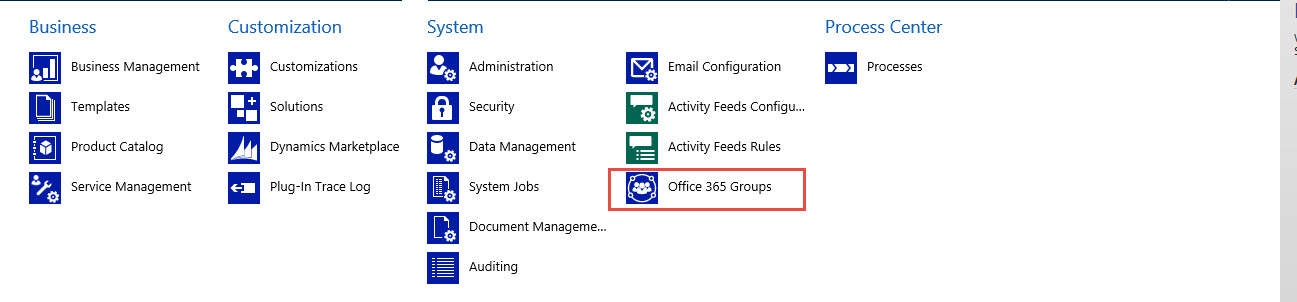
Entities you will allow collaboration on are identified on this screen.
Click on Add Entity notice you can define each entity by selecting

Also notice there is an Auto Create option, (This option will automatically create the collaboration space each time a new entity identified is created through the CRM interface).

Once you complete the entity identification process click on the Publish All activation button


Create a group
Go to the record that you want to create a group for. For example, Go to Sales > Cases. (How do I get there?)
Choose a case
On the navigation bar choose the account name and then choose Office 365 Groups.

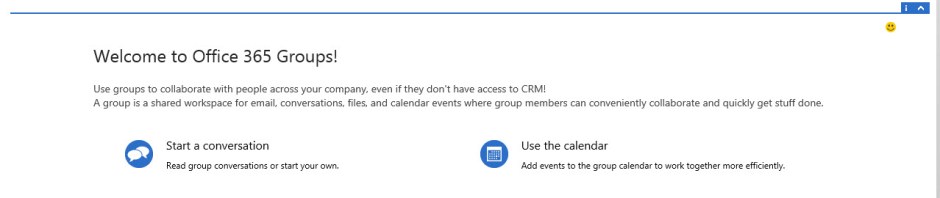
In the Welcome to Office Groups! section, choose Create Group.

Creation screen will look as follows:

When the rendering is completed your new collaboration space will appear under the specific case as follows:
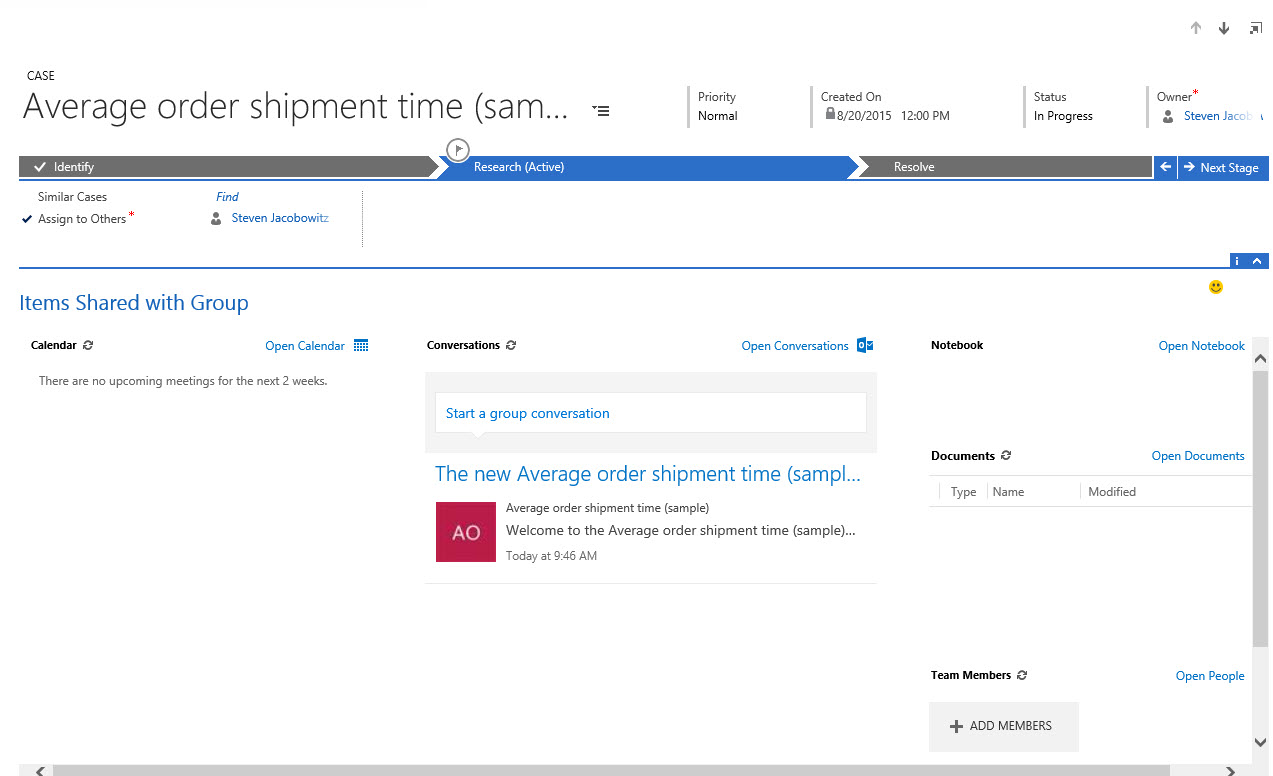
You now have the following options both inside MSCRM and outside using Office 365
Adding Team Members
Use this option to add members from Office 365 Users. This way you will collaborate both from CRM and outside of CRM on the individuals Outlook Calendar
Collaboration outside of Microsoft CRM:
You now have the following options of collaboration located on the entity record and also on your Outlook Office 365, (if you are not a Microsoft CRM user).
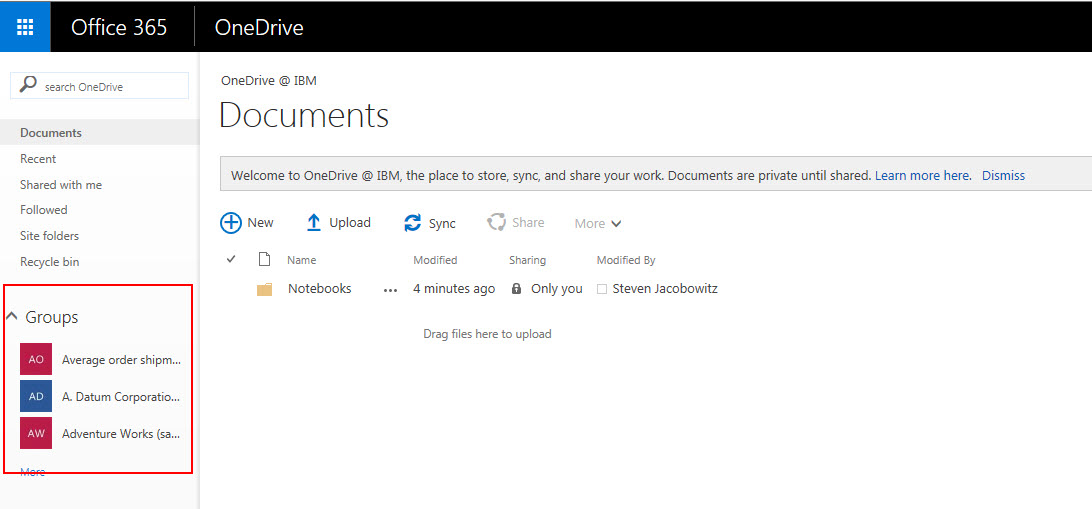
First go to your Office 365 Menu and select Mail to view the groups you have joined,

This is viewed from your Outlook Office 365 Mail interface.
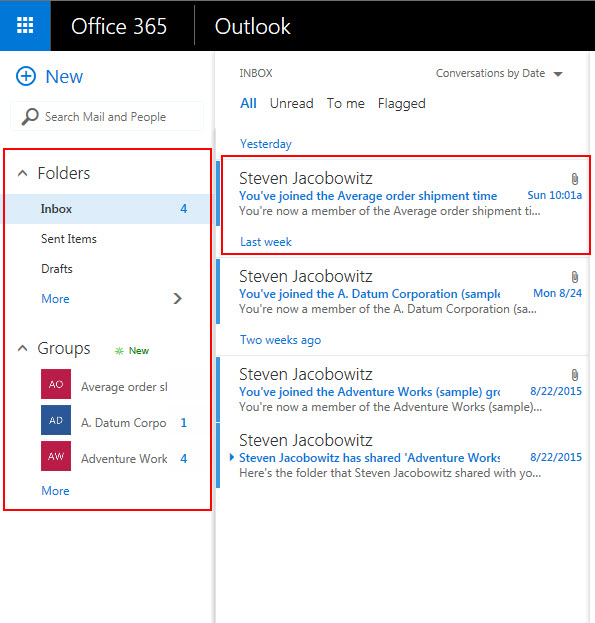
Notice when you click on the Join Notification you have several options from your Mail interface
- To Start a Conversation
- To View Group Files
- To Use the Group Calendar
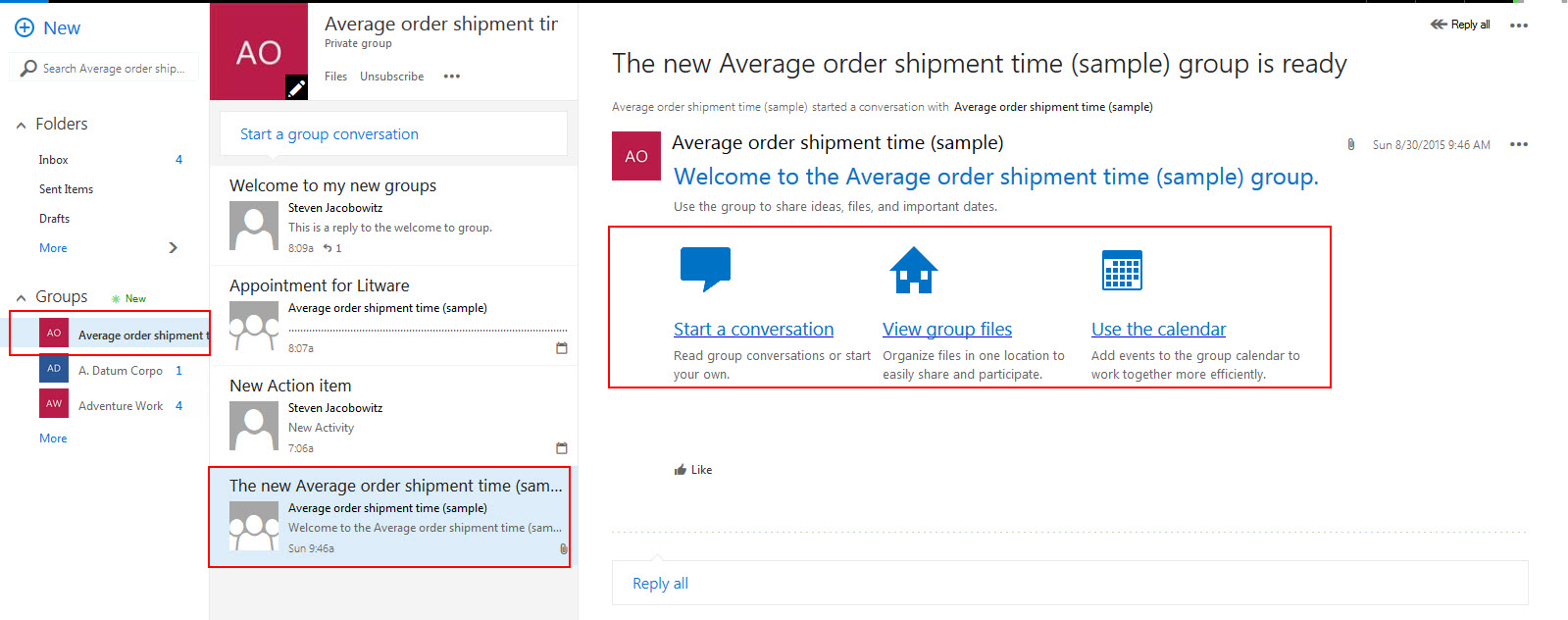
Now go back to your Office 365 Menu and select calendar
Calendar Integration
Select the Calendar Icon
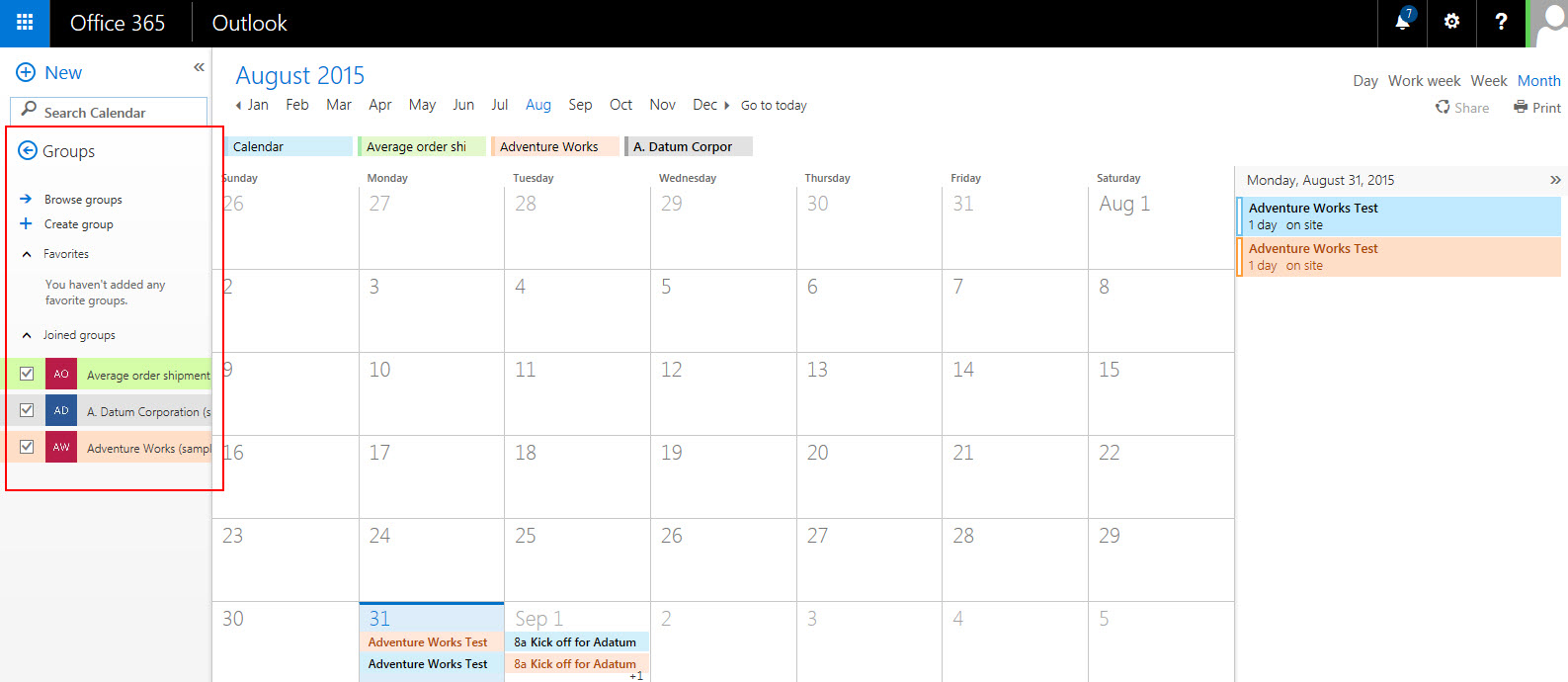
Notice you now have a calendar entry for each of the groups you are a member of. If you want to create an appointment from your calendar the entry will also resolve to the related entity record the group is associated with.
Join a meeting or set a calendar event
Group meetings help all members coordinate their schedules. Everyone in the group automatically sees meeting invites and other events.
- Choose the meeting title to view meeting details. If the meeting is an online meeting and you have Skype for Business installed, choose the Join link to directly join the meeting.


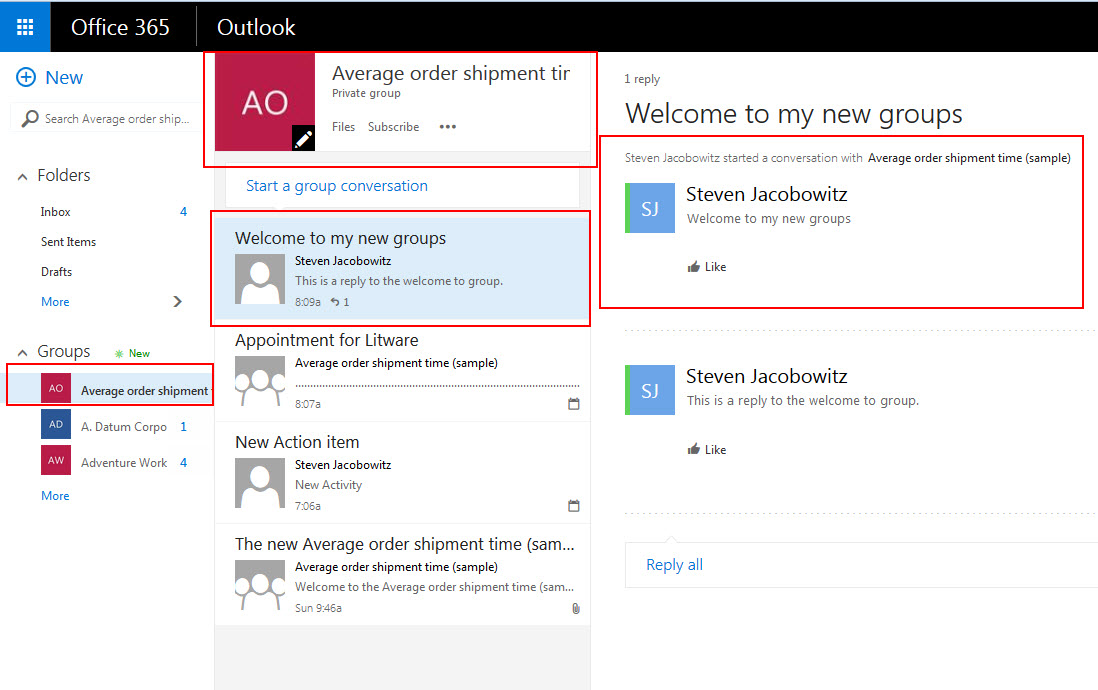
Start a conversation
Having a group conversation is a way to communicate with group members. The conversations section displays each message, where you can read, reply to, and create new conversations.
- To start a new conversion, in the Start a group conversion box, type in your message.
- In the Conversations section choose a conversion to read and reply to it.
If you are not a MSCRM user your conversations will be viewable from the Microsoft Office Outlook 365 interface
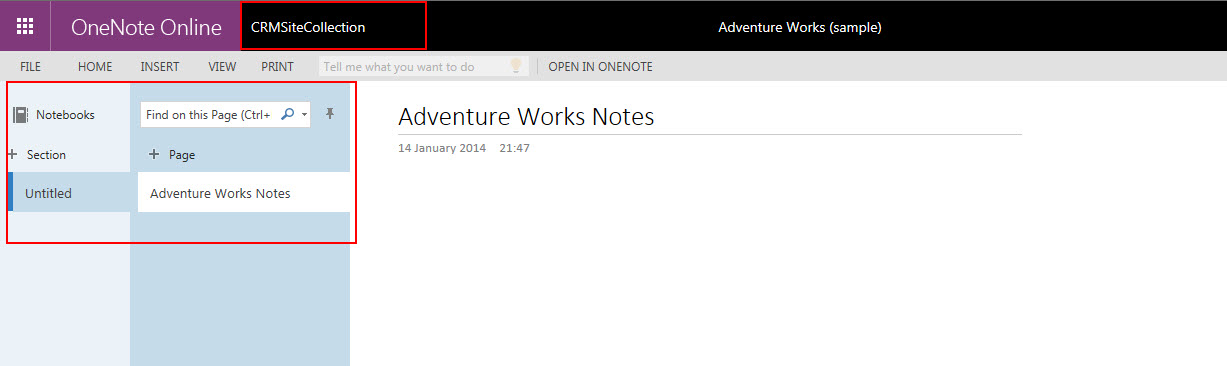
Add notes
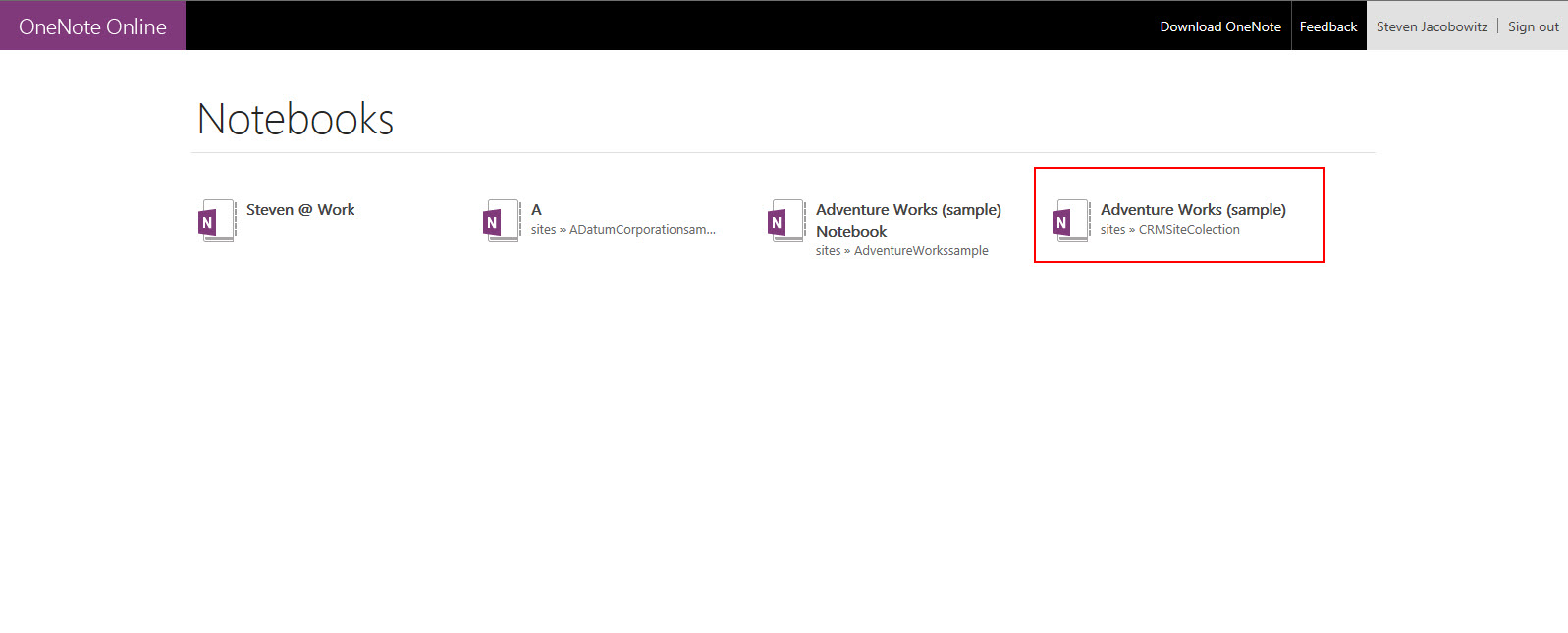
Share notes with everyone in your group using the OneNote notebook. OneNote lets multiple people write in the same notebook, on the same page, at the same time, and it automatically merges everyone’s changes.
- In the Notebook section, choose the group’s notebook. When OneNote opens, add your notes.
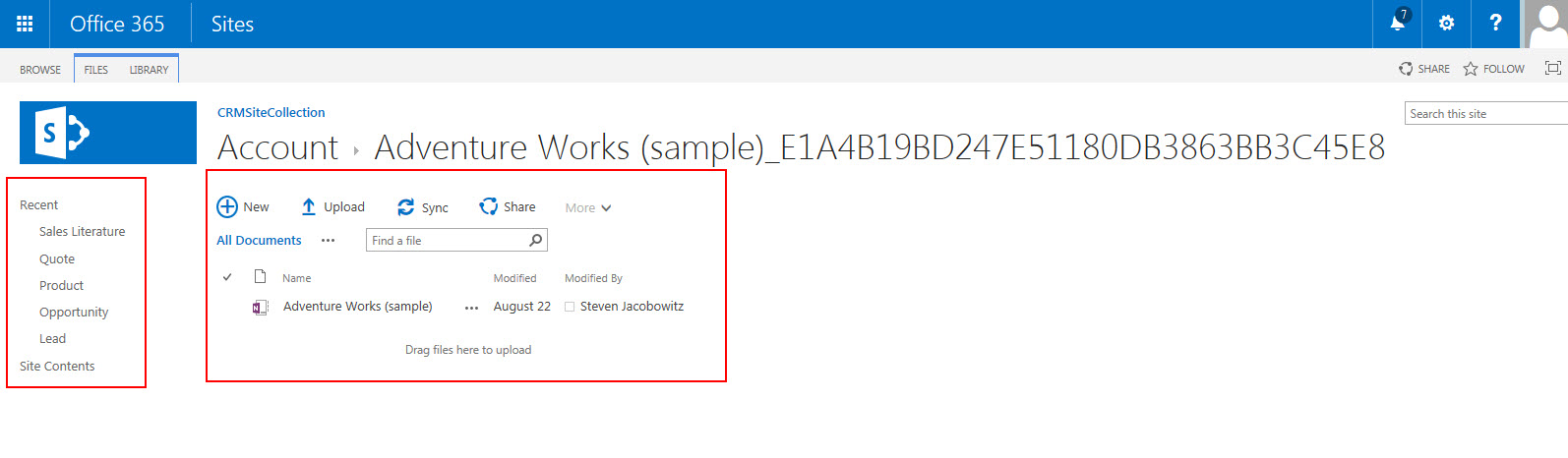
Share documents
When you create or upload a file in the group’s OneDrive for Business page, it’s automatically shared with all members of the group. When you add members to the group, they automatically get shared access to the files. By default, only group members have view and edit access to the files. When you create a group in Microsoft Dynamics CRM, it’s set to private, so only the group members can see information about the group including files, conversations, or even the group itself.
- To see the latest list of documents, refresh the list using by choosing the refresh icon.
- To upload or manage all of your documents in OneDrive for Business, choose Open OneDrive.
In Conclusion, this functionality will allow users to collaborate from within Microsoft CRM and outside using Office 365. This new integrated functionality will increase your organization’s efficiency by enabling your team to collaborate using familiar business productivity tools.
If you have access to Office 365 and Microsoft CRM online I would suggest you investigate.
Until my next post, my best,


 Steve's Site Innovation, Transformation, Change, Growth, Culture Building, Learning