Configuring Microsoft Dynamics CRM Efficiently: Using Custom Entities and Lookups as Option Sets – Part 3

Good Day!

To recap; Part 1 of this series we focused on the option set attribute and the benefits associated with providing our end users with a method for entering in pre-determined entries into an attribute.  For example, ease of data entry, standardization and reporting and filtering.  We also discussed some of the drawbacks with using the option set attribute, for example:

  1. Security Issues – In order to add additional values to the option set the user must be assigned the customizer role within CRM, which might violate governance rules within your company.
  2. Maintenance – A list box will only be as good as the number of permutations of entries, for example, if a client was of type A and type B you would have to have a list box entry for Type A and B.
  3. Multiple Entries – As is implied above Multiple Entries aren’t allowed in a list box entry, (there are a number of non-programing methods for handling this type of situation which I will discuss in future blog entries.
  4. Re-usability – In CRM 2011 you can create an Option Set that can be accessed from several entities although in order to maintain the set the user will still have to have access to the Customizations Section of CRM, therefore it might be unacceptable based on your company’s policy of governance

Part 2 of this series focused on building out the functionality of Microsoft CRM using a custom entity and a lookup attribute to address some of the gaps inherent is using the option set, for example:

Using an entity for an Option Set will solve several issues I addressed above.

  1. Security:  You can control the security from the role attribute, using this methodology you can determine who can add, create, and append values to your new table without giving the users system administration or system customizer rights.
  2. Maintenance: To add a new value you only need to go to extensions under settings highlight the entity and click on new. You can then add the new values.
  3. Reusability: You can create look up attributes using this entity multiple times and on any entities in CRM 2011.

This segment Part 3 will focus on how we can further extend the entity we created to act as an option set and use the relationship ability of the xRM platform to solve the multiple entry issues identified in parts 1 & 2.

The Scenario:
You are a consultant working on a solution for your client.  You are modifying the contact entity.  It was determined in the requirements you need to include a solution that will allow our client to track each state their contacts are authorized to practice in.

The Solution:
This is really a very basic solution using the relationship ability of the xRM platform.  As you can see we have a typical contact record in crm.  Start off with clicking on the customize tab and go to the customize entity option.

As you can see on the bottom left navigation we have several different relationships we can define for use on this entity.

For this solution we are going to use the many to many relationship.  Click on N:N and click on the New Many-to-Many Relationship button.
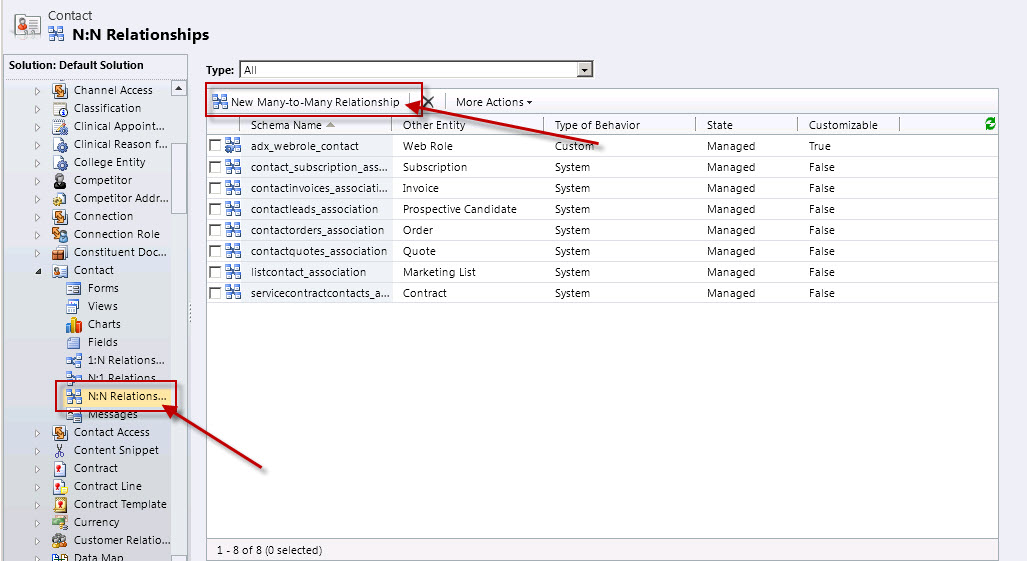
On the relationship dialog screen you must define the two entities, for our example it will be contact and state table.  In addition you will have to define the labels for each of the entities and the relationship defination names.

Click save and close.  At this point I usually like to define the views that will be associated with the relationship.  In this case, the associated view of the state table.  Double click on view under the state enity.  Click on Add Columns located on right common tasks navigation window.
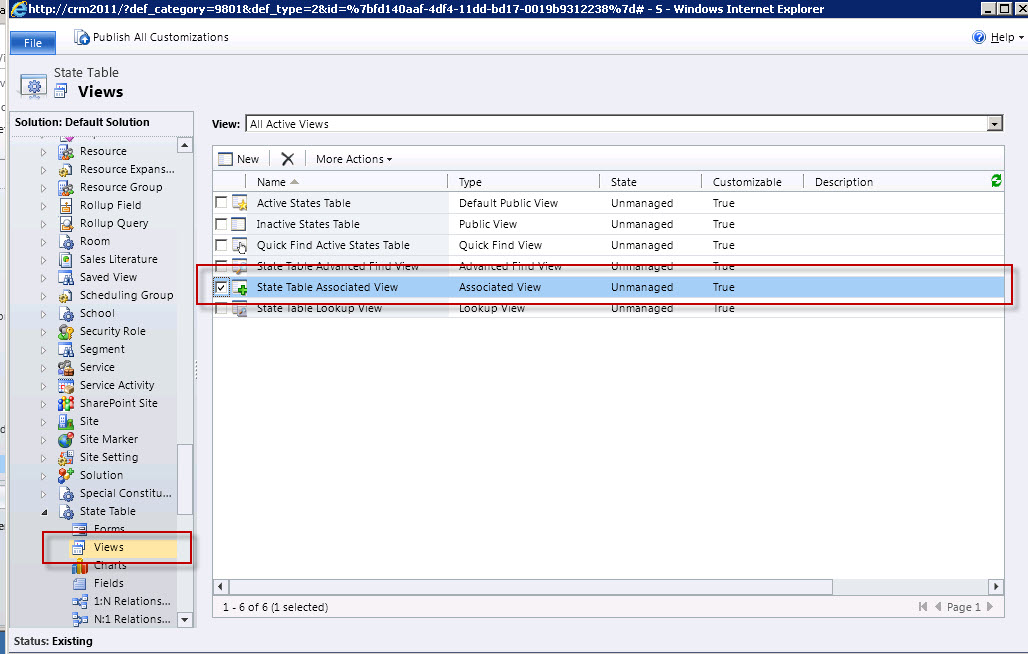
Choose the attributes you wish to display.

Click Ok.  Arrange the view fields in an order that will make sense to your end users.

Click Save and Close.  Click on the Publish All Customizations button at the entity level.  Close the Customize Entity Window.   As you can see using the relationship function you now have a new “area” located in the navigation at the contact level.
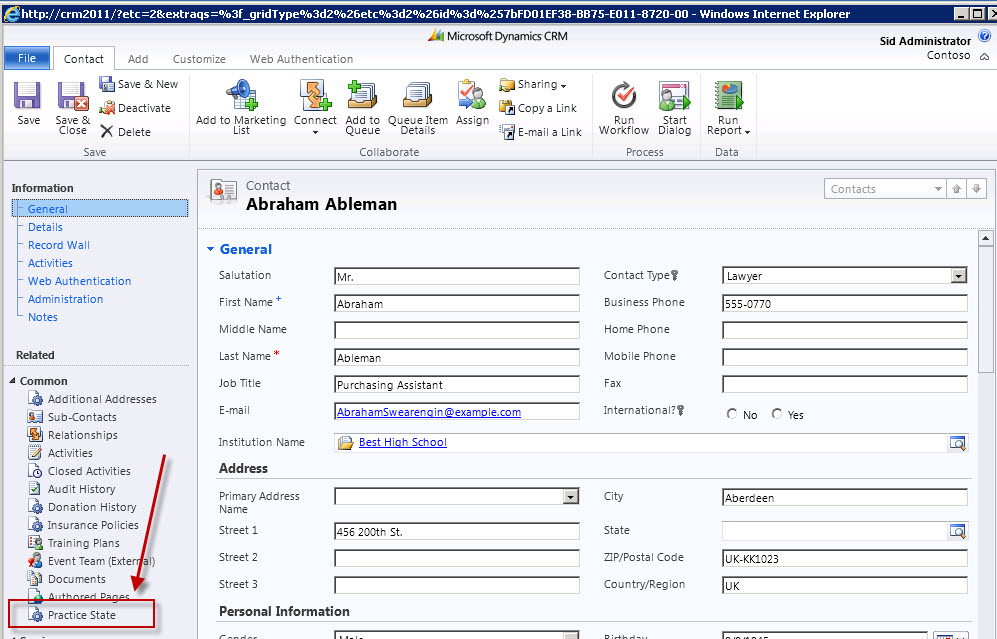
To add a new state practice click on the Practice State Area and then the Add Existing State Table on the Ribbon.

You will get the state lookup dialog box, you can select as many states as you wish.

Click the OK Button on the dialog box.  As you can see you are now able to define multiple options associated with one record.

Now suppose you wanted to display these options on the contact form itself.  New to CRM 2011 is the function to imbed grids of related data on the parent entity.  Start out by clicking on the Customization Tab on the Contact Record.   Click on the form Option.  Go to the Insert tab on the form customization.  Choose Sub-Grid.
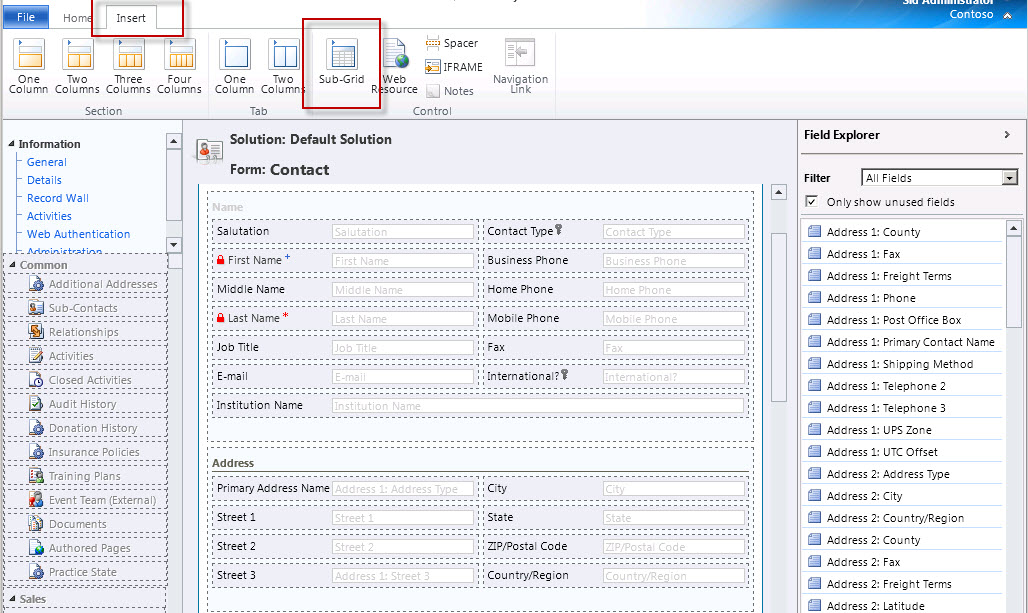
On the Grid Dialog box identify the related entity, for example the State Table.

Next identify  the grid with a name and a lable.  Choose the records you wish to display on the grid and the default view.  Note I usually turn off the view selector for this function although you have the option to allow all system views to be visible to this view by changing this option.

On completion click on Ok.  Then click on publish all.  Finally close out the customization window.  You can then open up a contact record and vew the states practiced right on the form as demonstrated below.

This will conclude this three part series on configuring option sets.  As has been demonstrated each method addresses ease of data entry, standardization and reporting and filtering.  Depending on the need there are instances when a simple option set should be specified.  When the requirements entail additional complexity surrounding security, maintenance, multiple entiries and reusability there are techniques inherent in the xRM platform that will allow you as a configurer of Microsoft CRM to address them without the use of code.

As always happy CRM’ing!

Steven

Posted in CRM Configuration | 1 Comment

Configuring Microsoft Dynamics CRM Efficiently: Using Custom Entities and Lookups as Option Sets – Part 2

Last week we discussed the use of the Option Set attribute when configuring Microsoft CRM 2011.  As mentioned it is advisable to use an Option Set when you require standardized input into a field on one of the entity forms in CRM 2011.

The benefits of using the Option Set include:

  1. Ease of data entry, you can pick the type from a list and the field will be populated.
  2. Standardization – Only items in the list are available for use
  3. Reporting and filtering, since these lists are pre-populated the spelling of the values will remain consistent; therefore it will be easier to work with the data during the analysis phases.

A few drawbacks with using option sets:

  1. Security Issues – In order to add additional values to the option set the user must be assigned the customizer role within CRM, which might violate governance rules within your company.
  2. Maintenance – A list box will only be as good as the number of permutations of entries, for example, if a client was of type A and type B you would have to have a list box entry for Type A and B.
  3. Multiple Entries – As is implied above Multiple Entries aren’t allowed in a list box entry, (there are a number of non-programing methods for handling this type of situation which I will discuss in future blog entries.
  4. Reusability – In CRM 2011 you can create an Option Set that can be accessed from several entities although in order to maintain the set the user will still have to have access to the Customizations Section of CRM, therefore it might be unacceptable based on your company’s policy of governance.

Today we will look at addressing the issues identified in 1, 2, and 4 above with the use of a custom entity and a corresponding lookup attribute on a CRM 211 form.

The use of a custom entity is advisable in situations where you require additional flexibility beyond what is available within an Option Set, for example, an option set allows for two variables within its definition, the label and the value, whereas with a custom entity you can create as many additional attributes as you require.

Creating an Entity Option Set: 

You want to create an option set to contain all of the state abbreviations, full state name, and state capitals of the United States to be used on the lead, contact and account forms in Microsoft CRM 2011.

  1. Start off by creating a new entity called State Table
  2. Go to settings
  3. Customization
  4. Customize the System
  5. Entities
  6. Click on the new entity option

7.  Define the display name, plural name and the areas to display the entity.  (Note I usually place entities that are being used for lookups in the settings area for ease of access.)
8.  It is also advisable to rename the primary field, click on the primary field tab and define the primary field display name and name.

9.  Save the entity
10.  Click on forms
11.  Click on Main Form
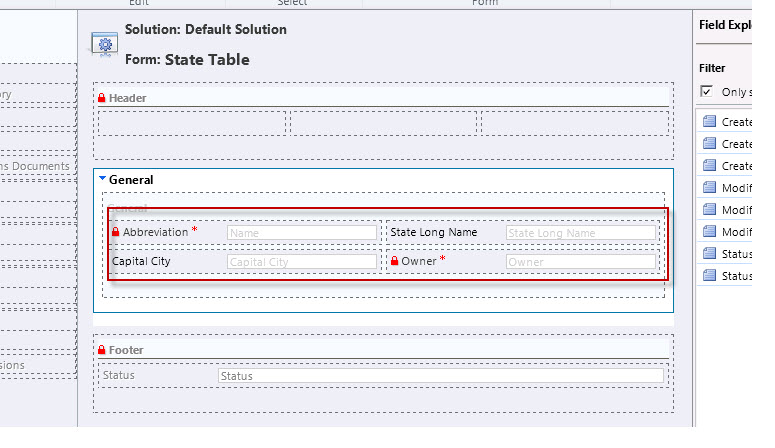
12.  Add the State Long Name and the Capital City Entities and place on the form.

13.  Save the form
14.  Publish the form
15.  Close the form
16.  At this point you can also customize the views to display the expanded lookup information; I usually concentrate on the lookup, associated, and the quick find views.
17.  Next step is to place this new state field on a form for use.
18.  Open the Contact Entity
19.  Open the Main Form
20.  Create a new field
21.  Add the display name and use the type lookup
22.  Use the drop down Target Record Type to locate your State Table entity

23.  Save and close the form
24.  Put the new attribute on the contact form
25.  Save and publish the form

Your new State Lookup attribute

In Conclusion:
Using an entity for an Option Set will solve several issues I addressed above.

1.  Security:  You can control the security from the role attribute, using this methodology you can determine who can add, create, and append values to your new table without giving the users system administration or system customizer rights.

2.   Maintenance: To add a new value you only need to go to extensions under settings highlight the entity and click on new. You can then add the new values.

3.  Reusability: You can create look up attributes using this table on any entities in CRM 2011

Using this methodology will address several the issues identified as drawbacks in using Option Sets.  The only issue I haven’t addressed is Multiple Entries. I will discuss methodology to address this requirement in my next post.

As always happy CRM’ing!

Steven

Posted in CRM Configuration | Leave a comment

Update Rollup 7 for Microsoft Dynamics CRM 2011

28 Mar 2012 6:58 PM

The Microsoft Dynamics CRM Sustained Engineering (SE) team released Microsoft Dynamics CRM 2011 Update Rollup 7 on Thursday, March 22, 2011.

The links below will take you to the necessary information about Update Rollup 7. If a link does not work, please refer to the Release Channel Schedule below to make sure it is past the release date
listed.

Microsoft Download Center: http://www.microsoft.com/download/en/details.aspx?id=29221

Microsoft Knowledge Base Article: http://support.microsoft.com/kb/2600643

Microsoft Update: http://catalog.update.microsoft.com/v7/site/Search.aspx?q=2600643

Release Channel Schedule

CRM Online Datacenter: Mid to Late April, 2012

Microsoft Download Center: March 22, 2012

Microsoft Update: April 10, 2012

General Details about Update Rollup 7

Update Rollup 7 installation requires Update Rollup 6 to be installed.

Client packages installed manually by downloading the packages and running install will require administrative privileges. If the client packages are installed via the Windows Update (Microsoft Update) system, they will not require administrative privileges.

For help with installation, please see the Installation Information section in KB2600643.

How to Get Support for Update Rollup 7

For support, please contact Microsoft Product Support. For a complete list of Microsoft Product Support Services telephone numbers and information about support costs, visit the following Microsoft web site: http://support.microsoft.com/default.aspx?scid=fh;[LN];CNTACTMS.

Note:

In special cases, charges ordinarily incurred for support calls may be canceled if a Microsoft Support Professional determines that a specific update will resolve your problem. The usual support costs will apply to additional support questions and issues that do not qualify for the specific update in question.

Posted in CRM Announcements | Leave a comment

Configuring Microsoft Dynamics 2011 CRM Efficiently: Using Option Sets

It has come to my attention through the blog posts that most contributors are primarily focused on customizing, (extending) CRM 2011 using code.  For the non-technical, such as myself, I find some of these processes and methodologies a bit overwhelming.

Yet, it appears there can be more done configuring Microsoft CRM 2011 through the user interface to assist the common user or administrator handle everyday use cases, or business processes without the use of custom code.

My submission today will deal with when to use of the Option Set, (List Box attribute), to extend the functionality of CRM to meet your current business needs.

Some basics: 

One of the field types available within the CRM paradigm is called an option set, (for better understanding a List Box) attribute.  It is advisable to use a list box in the case where you have standardized input into a field on one of the forms in CRM 2011.  For example on the Account Entity you might want to identify the type of business you are entering into your database.  For Example, Suspect Company, Prospect Company, Customer, Client.

The benefits of using Option Sets include:

  1. Ease of data entry, you can pick the type from a list and the field will be populated.
  2. Standardization – Only items in the list are available for use
  3. Reporting and filtering, since these lists are pre-populated the spelling of the values will remain consistent; therefore it will be easier to work with the data during the analysis phases.

A few drawbacks with using Option Sets:

  1. Security Issues – In order to add additional values to the option set the user must be assigned the customizer role within CRM, which might violate governance rules within your company.
  2. Maintenance – A list box will only be as good as the number of permutations of entries, for example, if a client was of type A and type B you would have to have a list box entry for Type A and B.
  3. Multiple Entries – As is implied above Multiple Entries aren’t allowed in a list box entry, (there are a number of non-programing methods for handling this type of situation which I will discuss in future blog entries.
  4. Reusability – In CRM 2011 you can create an Option Set that can be accessed from several entities although in order to maintain the set the user will still have to have access to the Customizations Section of CRM, therefore it might be unacceptable based on your company’s policy of governance.

Creating a Simple Option Set: 

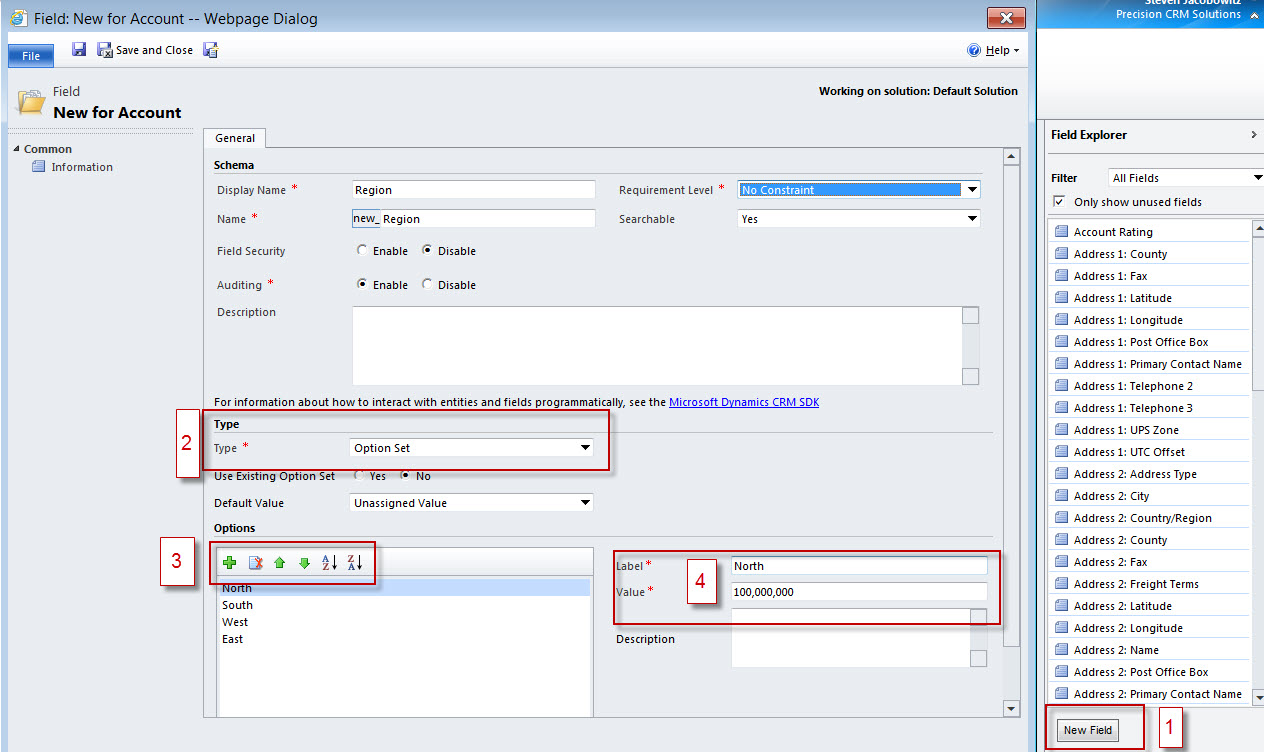
  1. From the form view Click on New Field under the Field Explorer, (1):

  1. When defining the field type select Option Set, (2),
  2. In order to add a new Label and Value click on the plus sign under options (3),
  3. Define the Label with your custom text (4)
  4. Place the field on your form, (5)
  5. Save the form and then publish, (6)

  1. Your Option Set is now available for use on all records:

Creating Option Set fields on CRM forms assures consistency of data entry.  This is valuable when you want to segment the records based on these values either through reporting or views.  One of the major drawbacks using this field type is in maintenance of the entries.  A user would have to be defined as a system customizer in order to access the field to add additional values.  In addition, using this method, only one entry can be populated into the field, therefore you would have to create combinations of entries should more than one option be appropriate.

My next submission will focus on another method of configuration addressing the user role issue. Part three will focus on methodologies to address the multiple entry issue.

Until next time,

Steven

Posted in CRM Configuration | Leave a comment

Microsoft Releases Rollup 4 for CRM 2011

Note: For people using Microsoft Dynamics CRM Online, it is unnecessary to subscribe to this product update alert because you automatically receive alerts from the Microsoft Dynamics CRM Online Team.

Update Rollup 4 for Microsoft Dynamics CRM Server 2011

Microsoft has released Update Rollup 4 for Microsoft Dynamics CRM Server 2011. It includes updates and hot fixes packaged together for easy deployment. We recommend that you install the update rollup to keep your software performing at its best.

Important:
You must have Microsoft Dynamics CRM Server 2011 installed to apply this update rollup.

Update Rollup 4 is available for all languages that are supported by Microsoft Dynamics CRM Server 2011.

Update Rollup 4 will be available from Microsoft Update on September 22, 2011.

For more information about this release, see Microsoft Knowledge Base article 2556167: Update Rollup 4 is available for Microsoft Dynamics CRM Server 2011.

Update Rollup 19 for Microsoft Dynamics CRM 4.0

Microsoft has released Update Rollup 19 for Microsoft Dynamics CRM 4.0.
It includes updates and hot fixes packaged together for easy deployment. We recommend that you install the update rollup to keep your software performing at its best.

Important:
Update Rollup 7 is a prerequisite to this update rollup. The Microsoft Dynamics CRM for Microsoft Office Outlook and Microsoft Dynamics CRM Data Migration Manager components require Update Rollup 7 to be installed.

For more information about Update Rollup 7, see the Microsoft Knowledge Base article: 971782: Update Rollup 7 for Microsoft Dynamics CRM 4.0 is available.

Update Rollup 19 is available for all languages that are supported by Microsoft Dynamics CRM 4.0.

For more information about this release, see Microsoft Knowledge Base article 2550097: Update Rollup 19 for Microsoft Dynamics CRM 4.0 is available.

Posted in Uncategorized | Leave a comment

Microsoft Dynamics CRM Launches New “Cloud CRM for Less” Offer

REDMOND, Wash. — Aug. 29, 2011 — Microsoft Corp. (Nasdaq “MSFT”) today announced a new “Cloud CRM for Less” offer that helps customers of Oracle, Salesforce.com Inc. and SAP switch to the familiar, intelligent and connected experiences delivered by Microsoft Dynamics CRM Online. Building on the momentum of the global launch of Microsoft’s online CRM service in the first half of 2011, Microsoft is extending $150 (U.S.) cash per user seat (minimum of 50 seats per organization) to up to 500 user seats for each eligible customer. 1 This offer provides an opportunity for dramatic cost savings and helps customers realize the benefits from using software and online services that work the way people and organizations work.

“We are a very relationship-oriented business and needed a CRM solution that gave us the ability to get a deeper understanding of our clients, their experiences, their company,” said Doug Elkins, CIO, ABC Financial. “We chose to switch from Salesforce.com to Microsoft Dynamics CRM, not only because it is cost-effective, but it seamlessly fit in with our existing systems like Office, SharePoint and Lync, and gave us a rich feature set and overall the most value for our investment. With Microsoft Dynamics CRM in place, we now have the tools to manage our customers and their experience, and can focus on growing our business.”

Indeed, Microsoft Dynamics CRM Online continues to be at the forefront of cloud computing and is attracting some of the largest businesses in the world, including General Mills, Konica Minolta and Yamaha.

“Customers choose Microsoft Dynamics CRM Online over solutions from Oracle, Salesforce.com and SAP to get compelling increases in productivity and user adoption, as well as significant reductions in ongoing costs,” said Brad Wilson, general manager, Microsoft Dynamics CRM product management group. “We feel that Microsoft Dynamics CRM Online delivers the best CRM service in the market — and at an extremely compelling price point.”

According to Nucleus Research Note L5, “An aggressive pricing strategy and developments in functionality put Microsoft closer to par with Salesforce.com on core CRM at roughly one-half to one-third the per-user subscription price.” 2

Offers such as “Cloud CRM for Less” also help Microsoft’s partners create profitable businesses. In fact, through the close of last year’s offer, Hitachi Consulting, a global business and IT consulting company, has experienced triple-digit growth in its CRM online business. National business and technology consulting firm Slalom Consulting is another Microsoft Dynamics CRM partner seeing success through such offers.

“Customers don’t have to pay high prices for a leading CRM solution,” said Brian Rimmer, National Solution director, CRM for Slalom Consulting. “The ‘Cloud CRM for Less’ offer has helped Slalom Consulting position valuable CRM solutions for customers that fit within their budgets.”

Microsoft Dynamics CRM Online helps people be more productive while giving them the insight necessary to gain a competitive edge in an ever-changing world of business. This promotion is available between now and March 31, 2012.

More information about Microsoft Dynamics CRM customers that have switched from Salesforce.com, as well as information on how to sign up for a free 30-day trial of Microsoft Dynamics CRM Online, is available at http://www.dontgetforced.com. The Microsoft Dynamics CRM team can be followed on Twitter at @MSDynamicsCRM and #MSDYNCRM.

About Microsoft Dynamics

Microsoft Dynamics CRM and ERP solutions empower your people to be more productive and your systems to last longer and scale as your business grows, while enabling you to derive the insights necessary to respond quickly in an ever-changing world of business.

About Microsoft

Founded in 1975, Microsoft (Nasdaq “MSFT”) is the worldwide leader in software, services and solutions that help people and businesses realize their full potential.

1 Read the complete terms and conditions for the “Cloud CRM for Less” promotion at http://www.cloudcrmforless.com.

2 “Microsoft Launches Dynamics CRM 2011,” Nucleus Research, January 2011.

Note to editors: For more information, news and perspectives from Microsoft, please visit the Microsoft News Center at http://www.microsoft.com/news. Web links, telephone numbers and titles were correct at time of publication, but may have changed. For additional assistance, journalists and analysts may contact Microsoft’s Rapid Response Team or other appropriate contacts listed at http://www.microsoft.com/news/contactpr.mspx.

Posted in Uncategorized | Leave a comment

Update Rollup 3 for Microsoft Dynamics CRM Server 2011

Microsoft has released Update Rollup 3 for Microsoft Dynamics CRM Server 2011. It includes updates and hot fixes packaged together for easy deployment. We recommend that you install the update rollup to keep your software performing at its best.

Important:
You must have Microsoft Dynamics CRM Server 2011 installed to apply this update rollup.

Update Rollup 3 is available for all languages that are supported by Microsoft Dynamics CRM Server 2011.

Update Rollup 3 will be available from Microsoft Update on August 9, 2011.

For more information about this release, see Microsoft Knowledge Base article 2547347: Update Rollup 3 is available for Microsoft Dynamics CRM Server 2011.

Update Rollup 18 for Microsoft Dynamics CRM 4.0

Microsoft has released Update Rollup 18 for Microsoft Dynamics CRM 4.0. It includes updates and hot fixes packaged together for easy deployment. We recommend that you install the update rollup to keep your software performing at its best.

Important:
Update Rollup 7 is a prerequisite to this update rollup. The Microsoft Dynamics CRM for Microsoft Office Outlook and Microsoft Dynamics CRM Data Migration Manager components require Update Rollup 7 to be installed.

For more information about Update Rollup 7, see the Microsoft Knowledge Base article: 971782: Update Rollup 7 for Microsoft Dynamics CRM 4.0 is available.

Update Rollup 18 is available for all languages that are supported by Microsoft Dynamics CRM 4.0.

For more information about this release, see Microsoft Knowledge Base article 2477777: Update Rollup 18 for Microsoft Dynamics CRM 4.0 is available.

To cancel your subscription to this newsletter, reply to this message with the word UNSUBSCRIBE in the Subject line. You can also unsubscribe at the Microsoft.com Web site. You can manage all your Microsoft.com communication preferences at this site.

Legal Information

This newsletter was sent by the Microsoft Corporation
One Microsoft Way
Redmond, Washington, USA
98052

Posted in Uncategorized | Leave a comment

Microsoft Dynamics CRM is a LEADER in the Gartner Magic Quadrant for CRM Customer Service Contact Center for 2011!

Fantastic news!   For the third year running,
Microsoft Dynamics CRM is a LEADER in the Gartner Magic Quadrant for CRM Customer Service Contact Center for 2011!   

Read the entire article here.

GARTNER Speaks!
Gartner continues to recognize Microsoft’s  hard work, aligned focus and increasing momentum in delivering compelling CRM customer service offerings to the marketplace.  Gartner recognizes Microsoft’s deliberate tightening of partnerships with other Microsoft product and services groups.  Specifically, Gartner calls out the native Microsoft Outlook look
and feel, together with the integration of SharePoint and Microsoft Office. Other areas important, but not specifically called out in this note, are the upcoming release of the Customer Care Accelerator for Microsoft Dynamics CRM 2011 (scheduled for end of month) and Microsoft’s ability to articulate a vision with Office 365 and Lync. 
You can read the entire article by Clicking Here. 
My very best,
Steven
Posted in Uncategorized | Leave a comment

An Interesting Website I was Directed to Today

Good Day-

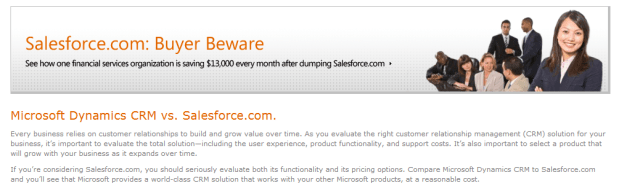
I was directed to a new website this morning that I didn’t know existed.  There was substantial information on how a company was saving $13,000.00 a month by moving from Sales Force dot Com to Microsoft CRM.

The site of course is one of Microsoft’s so there is a slant, although, there are some real good points you might want to look at.   Great comparison here.

In addition, for those of you that don’t know, if you are already on Sales Force,
Microsoft will rebate a switch to MSCRM on line from Sales Force to the tune of $200.00 per licensed user moved, up to 250 licenses.  That is a savings of $50,000.00.

This promotion is valid until the end of June.

If you would like more information, please contact me at sjacobowitz@ciber.com.

Enjoy the information on this link below.  I am confident you will find it a “WOW”.

My best,

Steven

Great comparison here.

Posted in Uncategorized | Leave a comment

Microsoft CRM 2011 Update Rollup 1 released

Microsoft has released Update Rollup 1.  This is a tested, cumulative set of updates for Microsoft Dynamics CRM 2011. It includes performance enhancements that are packaged together for easy deployment.

Microsoft Dynamics announced that CRM 2011 Update Rollup 1 was released yesterday.

You can find the Rollup components at the following location:  CRM Rollup 1 Click Here

Highlights of Update Rollup 1

  • Largest CRM SE release to date;  214 total bugs
  • Coordinated effort between CRM core team and CRM SE
  • Shipped 50 days after RTM;  UR 1 for V4 shipped almost 1 year after RTM
  • 10 customer-escalated issues (see KB for details)

General Information of Update Rollup 1

My Best,

Steven Jacobowitz


Posted in Uncategorized | Leave a comment