
Recently I noticed a post on the Microsoft Forums regarding the how to render a report through a dashboard using Microsoft CRM. Microsoft Dynamics Labs actually has a free solution published on the Marketplace called the Dashboard Reporting Control for Microsoft Dynamics CRM 2011 .
I have used this solution several times for clients and find it very valuable for clients who want to combine the power of SQL Server Reporting Services with the Dashboard function of CRM.
The references are a bit spotty; therefore I am going to attempt in this post to elaborate on this post how to use this tool.
First you must download the solution, please referrer to the link above, sign into the marketplace and save the solution locally.
Open your copy of Microsoft CRM 2011, (On line or On Premise the solution works on both). Go to settings, customizations, solutions and click on the import button.

Browse to the Downloaded file called ReportcontrolforDashboard10man.zip.cab and select it. Click on Next, Next and import the solution into your copy of CRM 2011.
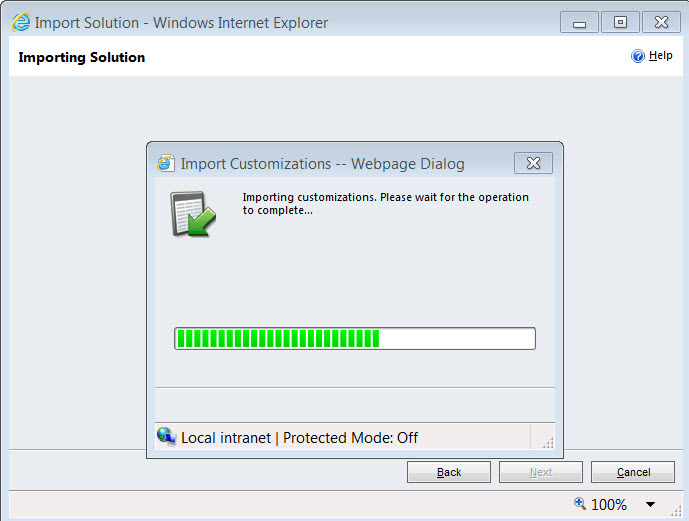
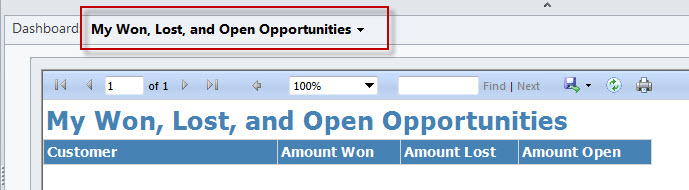
Click on Publish All Customizations. When complete you are ready to use this tool. To make sure this control is functioning properly go back to My Work, Dashboards click on the View Selector by Dashboards and choose the My Won, Lost and Open Opportunities. Make sure the control is rendering the solutions’ built in report.
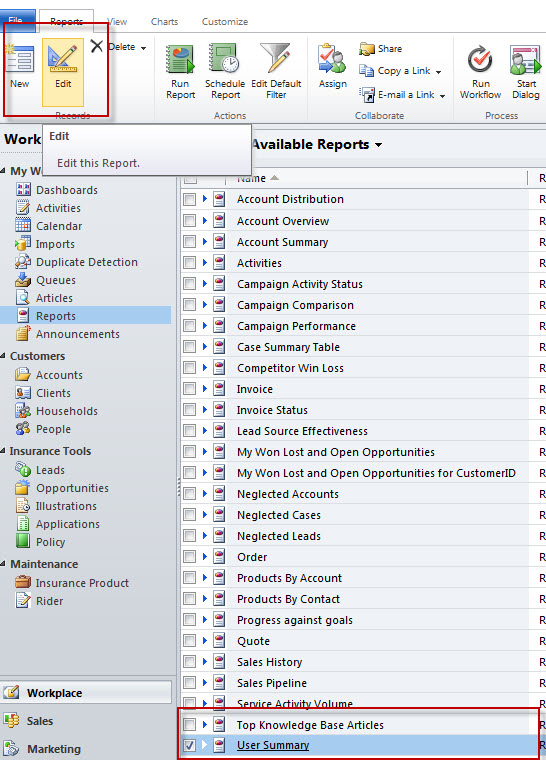
OK let’s create a new dashboard report component for ourselves. I am going to for the sake of this example use one of the out of the box reports for this exercise. Go to My Work, Reports, and highlight the User Summary Report, Click on the Edit button on the Ribbon.
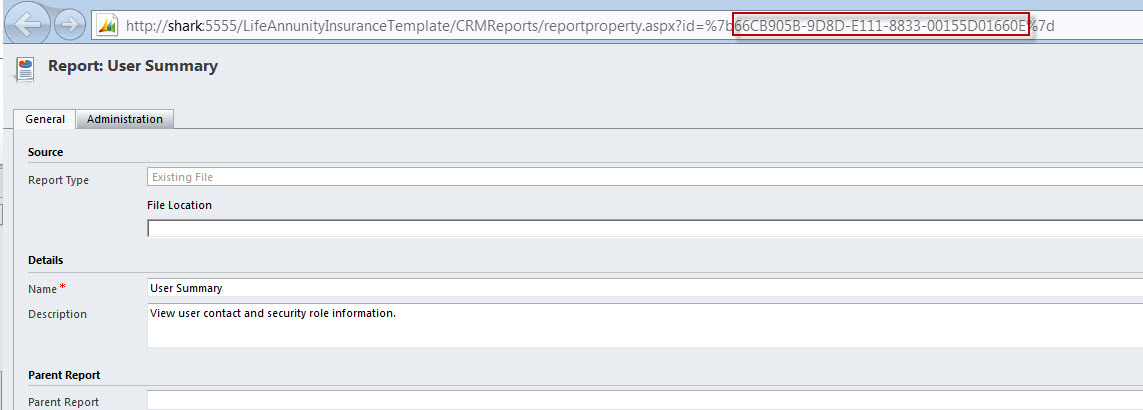
Bring up the Edit Dialog box and hit the F11 Key on your Keyboard. At this point you want to copy the GUID associated with this report, (Please see the illustration below). Very Important: Hint you want everything to the left of the Right of the %7B and the left of the %7B.
Ok let’s install the report. Go to Settings, Customizations, Customize the System, Dashboards.
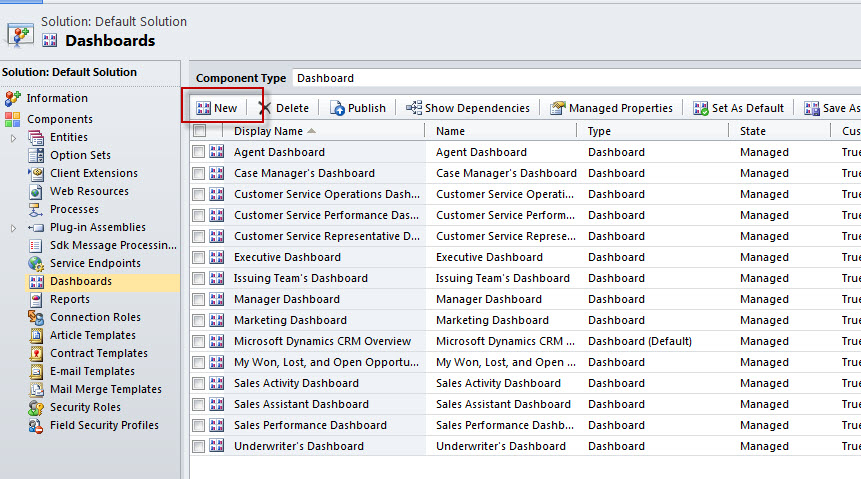
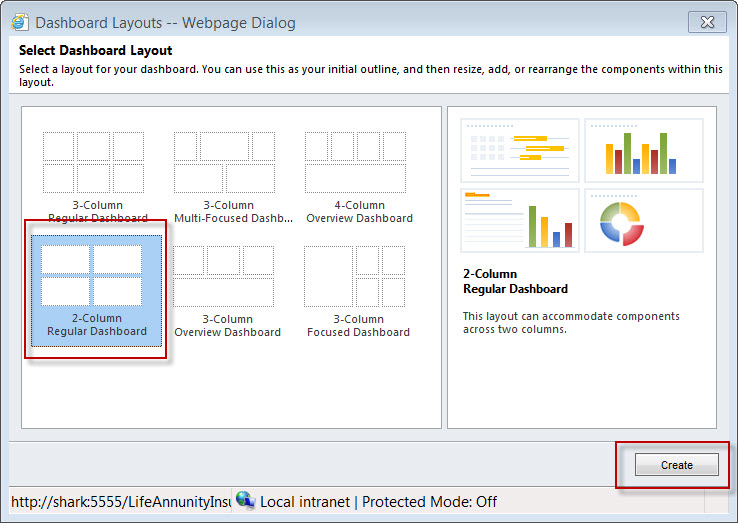
Click on New. Choose the Layout you wish to deploy and click on the Create button.
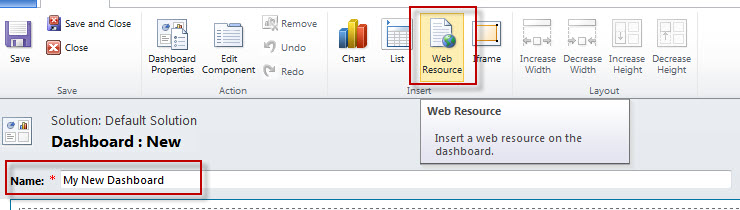
Name your new Dashboard, and then click on the Web Resource button.
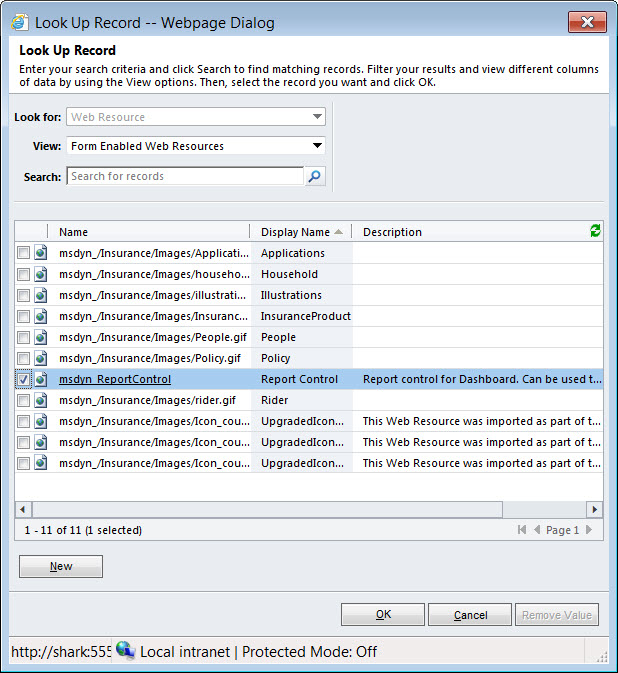
When you installed the Dashboard solution you installed a control a Web Resource which actually mimics as Report Control for Dashboard. This control is called msdyn_ReportControl. Browse for this control at the Add Web Resource Dialog Box.
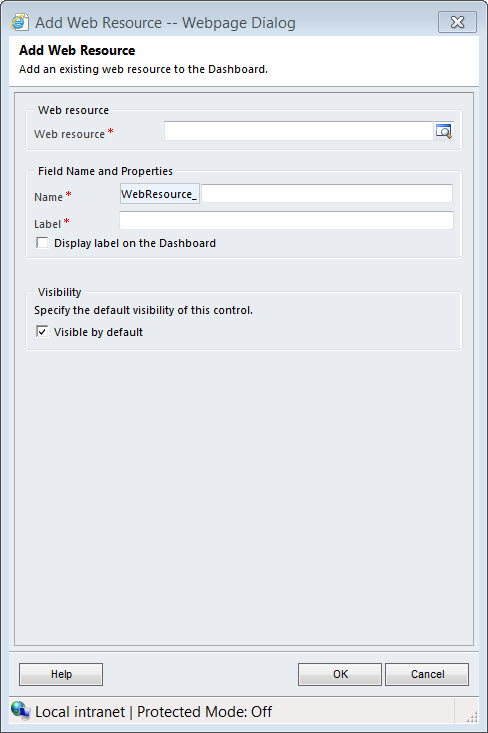
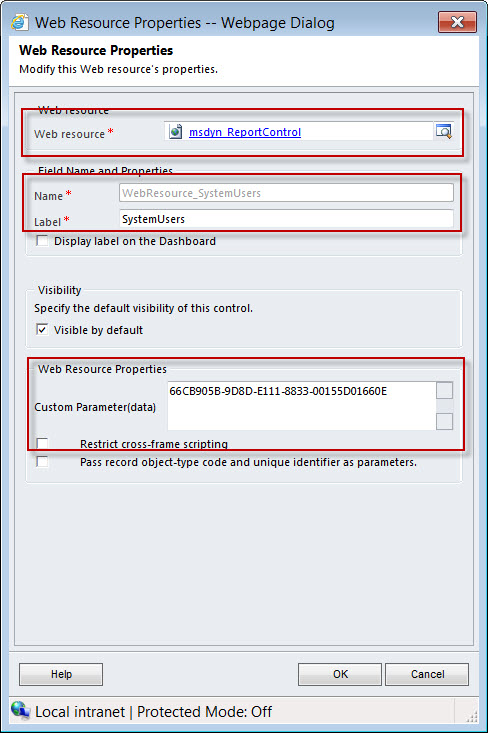
Click ok fill in the Name and Label on the Webpage Dialog, in the Custom Parameter (data) paste the GUID you copied from above
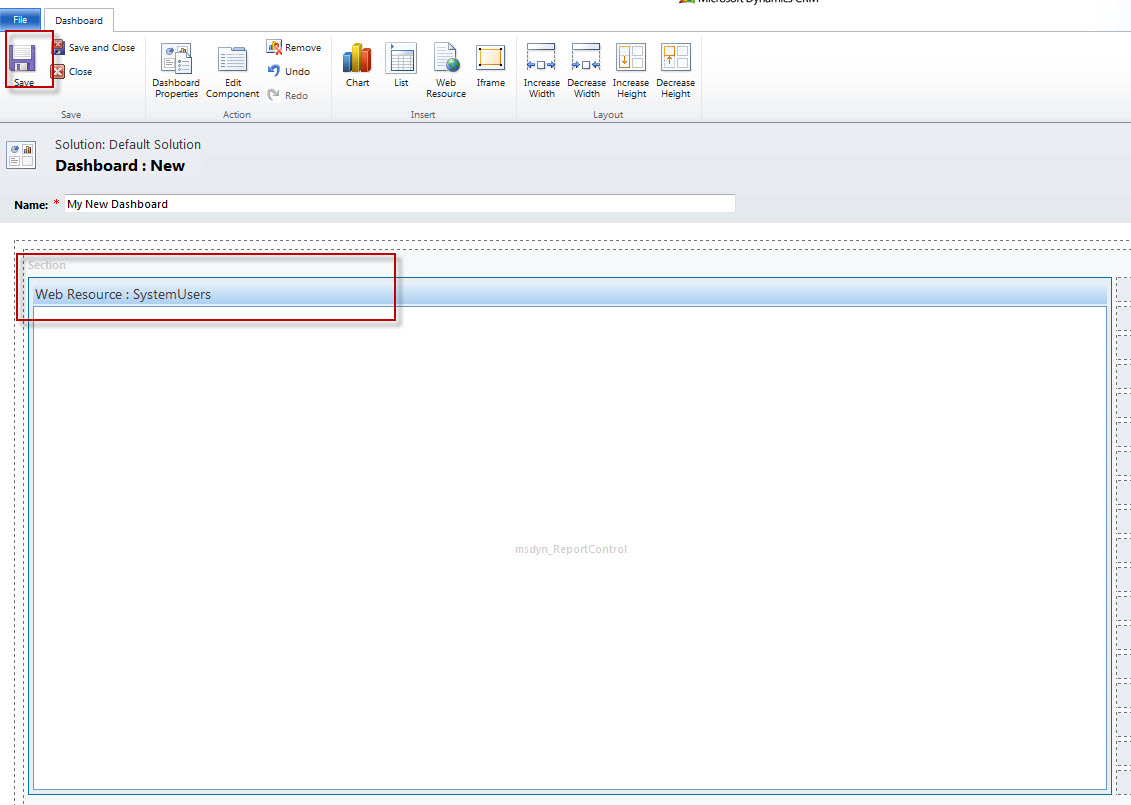
Size and position the dashboard element on your new Dashboard. Save and then publish.
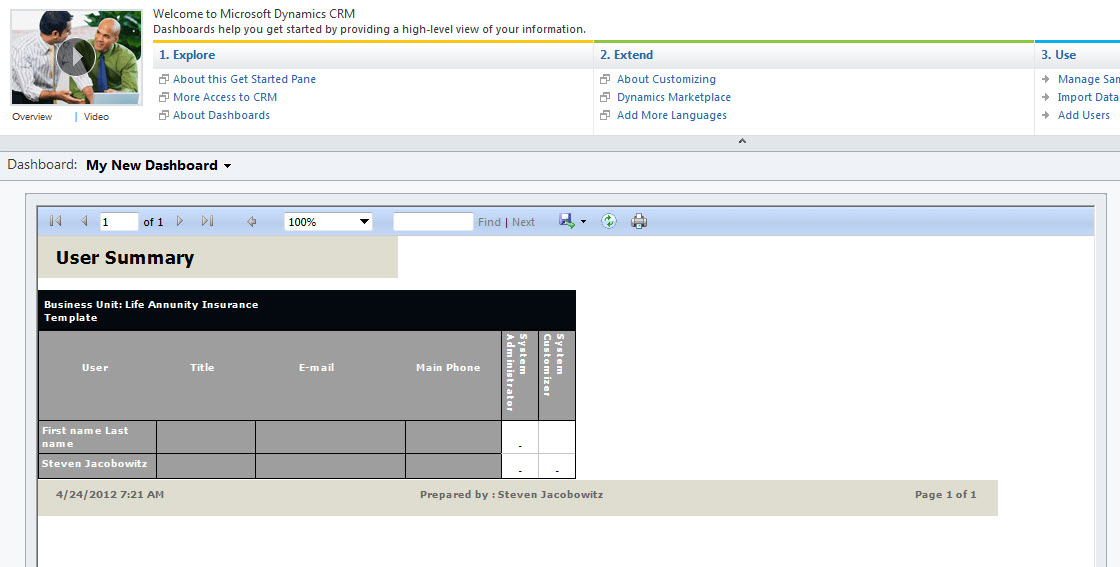
Go back to My Work, Dashboards and browse for your New Dashboard on the View Selector. Your new element will render automatically.
Using the dashboard functions in CRM 2011 offers a great deal of power of reporting information from the database. There are sometimes where the dashboard controls will not pick up exactly the information you require or you need to include sub-report functions in order to “Pull” the correct data from the database or you might want to use a graph element not available in the current feature set that you can use through a custom report. Using the Reporting Control will allow you the added features available in SSRS for reporting while allowing your end users the ability to view these components in their dashboards. It is just another option for your Configuration Tool Kit.
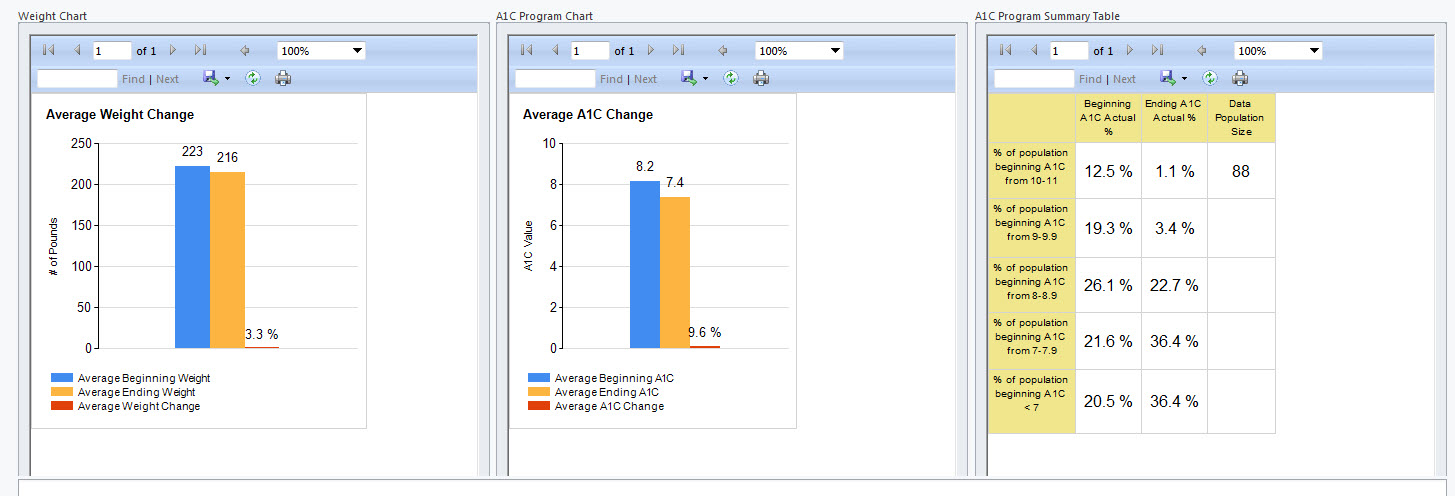
Below is an actual solution we produced for a client using this control and the dashboard functionality inherent in SSRS.
Happy CRMing!
Steven


 Steve's Site Innovation, Transformation, Change, Growth, Culture Building, Learning
Does the link to download the solution at Pinpoint work for you? I’ve been trying today in IE and Firefox, both logged in to my Live Account, and each time I click Accepts, the following page tells me it can’t find the page requested
Hi Ian –
Yes I just checked the post and the link takes me right to the download site. Here is the raw URL that you can paste in a web browser. Please make sure you have a live ID and are logging into Pinpoint with your proper credentials. My very best, Steven
http://dynamics.pinpoint.microsoft.com/en-us/applications/dashboard-reporting-control-for-microsoft-dynamics-crm-2011-12884910688
Thanks both for the write up and checking if you could download the solution. For some reason it’s not working for me. I am able to download the other solutions offered by Microsoft. For this, I click the link you provided, I see the pinpoint description about the solution, click Try in the left navigation, login with my live ID, and then accept the agreement from Pinpoint, at which point it tells me it can’t find the page specified, almost like they took down the solution file. I’m going to see if I can find a contact on pinpoint to report this issue. Thanks!
I’ve been using this in a production environment but the installation of Roll up 16 has effectively broken it; without reference to how large I have made the iFrame the report appears as a ‘letterbox’ in the middle of the iFrame, anyone else had this issue?
Unfortunately broken in Roll up 16 (Reports in Dashboards, not just this implementation, the iFrame solution doesn’t work either- now appears as a letterbox, apparently fixed in Roll up 17
I’ve been surfing online greater than three hours nowadays, yet I
never discovered any interesting article like yours. It is lovely value sufficient for me.
Personally, if all web owners and bloggers made good content as you probably
did, the net will be a lot more helpful than ever before.
I am flattered by your comments. Thank you very much. Steven