
I wanted to research this topic so I could fully understand this functionality before I attempted to put it into a real world scenario format for your viewing.
I went to Microsoft’s TechNet help file for further clarification. The more I read the more fascinated I was with how deeply the Publisher went into the implementation of this new Rollup feature in CRM 2015, therefore, as always rather than recreate the wheel I am going to first boil down that document and then go into practical application in this great new functionality’s use.
To view the Help Document on Microsoft’s TechNet site click here
The Capabilities of Rollup Fields:
- This is a configurable feature and is available once you create and define a new field during configuration.
- Rollups will aggregate over a 1:N relationships and the following functions are available.
- Sum
- Count
- MIN
- MAX
- You can filter the aggregations blocking items you do not wish to include in the counts
- Rollup fields are available for Forms, Views, Charts and Reports
- The can be part of a solution components therefore you can move them from deployment to deployment using the export, import functionality native in CRM
- Rollup fields can be deployed with Calculated fields, (My next blog) making your solution even more powerful.
Down Deep into the Technology:
When you define a Rollup field the following occurs.
- The attribute is created
- Two corresponding attributes are created with the following attributes:
- <AttributeName_date> – Date / Time
- <AttributeName_state> – Numeric with the following values
- 0 Not Calculated
- 1 Calculated
- 2 Overflow Error
- 3 Other Error
- 4 Retry Limit Exceeded
- 5 Hierarchical Recursion Error
- 6 Loop Detected
- Rollups are calculated by scheduled system jobs that run asynchronously in the background.
- You must be a system admin to view the jobs
- You can find the system jobs running by navigating to Settings-System Jobs->View->Recurring System Jobs
- There are two types of System Jobs that will run on this field
- Mass Calculated Rollup Field – is a recurring job that is created per a rollup field
- It will run once you create or update a rollup field 12 hours after the create or update of the attribute
- After it runs the next scheduled processing time will be set to 10 years.
- You can adjust the start time of the Mass Calculation to run during non-operational hours to optimize processing time.
- Calculate Rollup Field – is a recurring job that will perform calculations of all rollup fields in the existing record for a specified entity.
- There is only one Calculated Rollup Field Job per entity
- While running over an entity’s rollup fields the job will update or delete all changes to the child records since the last Mass or Calculated Rollup Field Job
- The default maximum recurrence setting is 1 hour
- The job is automatically created for an entity once the first rollup field is created for that entity
- There is also a Manual Online Rollup Calculation available if you hover over the rollup field on the form. You can see the time of the last rollup and refresh the rollup value by choosing the refresh Icon.
- In order to use the manual recalculations you must consider the following:
- You have to have write privileges on the entity and write access rights on the source records for which you are requesting the recalculation
- This option is only available in the online mode
- The maximum number of records during a rollup refresh is limited to 50,000 records. In the case of the hierarchical rollup this applies to the related records across the hierarchy. (This record limit will not be enforced for system recalculation jobs. )
- The maximum hierarchy depth is limited to 10 levels for the source records. (this limit is not enforced when the rollup is automatically recalculated by the system jobs)
- Finally a system admin can modify the rollup job recurrence pattern by postponing, pausing or resuming the job. However, you cannot cancel or delete the rollup job.
- Access by Settings > System Jobs. In View, select Recurring System Jobs. On the navigation bar, choose Actions and select the action you require.
- In order to use the manual recalculations you must consider the following:
- Mass Calculated Rollup Field – is a recurring job that is created per a rollup field
Rollup Field Conditions and Restrictions
- Rollup fields are limited to 100 per organization
- Rollup fields are limited to 10 per entity
- A workflow cannot be triggered by the rollup field updates
- A workflow wait condition cannot use a rollup field
- A rollup over a rollup field is not supported
- A rollup field cannot reference a complex calculated field that uses the fields of the related entities in the formula
- The rollup can only apply filters to the source entity or related entities, simple fields or non-complex calculated fields.
- A rollup can be done only over related entities with the 1:N relationship. A rollup can’t be done over the N:N relationships.
- A rollup can’t be done over the 1:N relationship for the Activity entity or the Activity Party entity.
- The business rules, workflows or calculated fields always use the last calculated value of the rollup field.
- A rollup field is aggregated under the system user context.
- If the precision of the aggregated field is greater than the precision of the rollup field, the aggregated field precision is rounded down to the precision of the rollup field
Real World Scenario, (Putting it all together)
Let’s have some fun and put this use of a rollup into action.
Scenario: You are the manager of an investment firm, managing high wealth clients. You would like to view a roll up total of all bank accounts owned by your company’s clients.
Execution Steps:
Our first step is to create an entity to capture contact’s assets, let’s call it Account Information.

The next step is to create a 1:N Relationship between the Contact Record and the Account Information record.

Our next step is to create a new rollup field at the contact level to total all the contact’s Bank Accounts

Notice above once you define a field as rollup you will render the edit button on the right hand side of the field type.
Net step is to click on the edit button and define the rollup criteria. Start with defining the related entity, (remember you will only have entities available where there is a 1:N Relationship to the Contact entity). From here we can define the criteria to execute the rollup for the example below, we want all Account Information Records where the Account Type = Savings Account.

Finally we also want only Bank Accounts that have a Status = Active

Our next step is to define the aggregation method. (Remember our Aggregation Function choices are Sum, MIN, MAX or Count). In this case we are going to use the Sum Function.

Finally we can view the entire Rollup statement below

Now we want to put the new Rollup Field on the Contact form. (Please note when we create the new attribute the two corresponding additional attributes were created automatically, <Name_lastupdated> and <Name_State>

Place field on form save and publish.

Now close the forms tool then let’s browse out to a record.

Notice you can hover over the field and the popup will tell alert you to the present status of the field. Also notice on the far right of the field there is the manual calculate option.

We will now open a contact record to view all open Account Information:
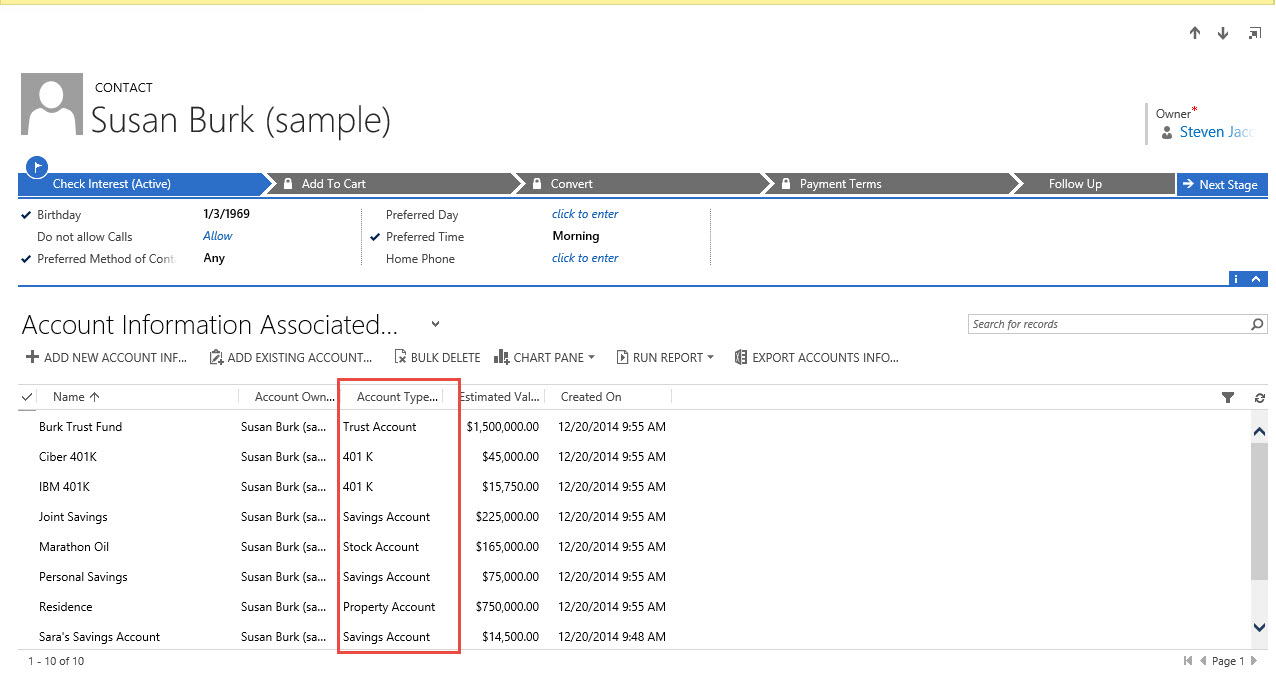
Let’s go back to the main account form and manually calculate all the bank account totals.

Notice when you hover over the Rollup Field you can view the present status

My objective today was to alert my readers of this new feature and demonstrate a very simple use of this functionality using a real world scenario.
Please note prior to CRM 2015 this type of customization would require a developer to write code. This entire demonstration was executed using the tool to configure the functionality. You do not need to be a programmer to add value to your CRM system.
My next post will focus on expanding this scenario, as well as include another example of a real world scenario from start to completion. Finally I will concentrate on the related system jobs including how to modify through the tool.
Please if you have any comments about utility let me know.
Have a good weekend!
Steven


 Steve's Site Innovation, Transformation, Change, Growth, Culture Building, Learning
Pingback: Microsoft CRM 2015 New Feature – Boiling Down Rollup Fields – Part 2 | C/xRM Ramblings
Pingback: Microsoft CRM 2015 New Feature – Drilling into Calculated Fields – Part 1 | C/xRM Ramblings
Pingback: Microsoft CRM 2015 New Feature – Drilling into Calculated Fields- Advanced Calculations and Date Calculations – Part 3 | C/xRM Ramblings
Hi Steven,
Using manual refresh, Rollup field can update upto 50,000 records.
What in case of Asynchronous update? Is there any limit on how much records a Rollup field can update using System job?
Pingback: Hosk’s Top CRM Articles of the week – 10th April – Hosk's Dynamic CRM Blog
Reblogged this on Wael Medhat – CRM technical blog.