
Since this will be my last post for 2014, I wanted to start to concentrate on another new capability in Microsoft Dynamics CRM 2015, The Calculated Fields functionality. I plan on handling this the post as I did with the Roll-up functionality, in two parts.
The first section of this post will be a synapsis of the functionality taken from the Microsoft TechNet Help file. I will finish up the post with a simple example. Part 2 will be focused on a few more detailed examples along with so tips and tricks.
Benefits:
- Using Calculated Fields you can automate manual calculations used in your business processes, (Yes you could do simple calculations using out of the box workflows, although, you would require several steps to complete in workflow processes).
- You have the ability to create calculations based on conditional logic, using common if-then logic with the ability to nest else logic.
Mathematical Operators:
The calculated field functionality will allow the following common mathematical operators:
- = (Equal)
- + (Plus)
- – (Minus)
- / (Divide)
- * (Multiply)
You can configure this functionality using the CRM 2015 user interface, Custom Code is not required.
Field Type Requirements: The following field types can be included or created as a calculated field.
Field Types allowed for calculations:
- Single line of text
- Option Set
- Two Options
- Whole Number
- Decimal Number
- Currency
- Date and Time
Calculated Field Functions Syntax: The following table contains information about the syntax for the functions provided in the ACTION section of the calculated field.
Function Syntax
Description
Return type
ADDDAYS (whole number, date and time)
Returns a new date and time that is equal to the given date and time, plus the specified number of days.
DateTime
ADDHOURS (whole number, date and time)
Returns a new date and time that is equal to the given date and time, plus the specified number of hours.
DateTime
ADDMONTHS (whole number, date and time)
Returns a new date and time that is equal to the given date and time, plus the specified number of months.
DateTime
ADDWEEKS (whole number, date and time)
Returns a new date and time that is equal to the given date and time, plus the specified number of weeks.
DateTime
ADDYEARS (whole number, date and time)
Returns a new date and time that is equal to the given date and time, plus the specified number of years.
DateTime
SUBTRACTDAYS (whole number, date and time)
Returns a new date and time that is equal to the given date and time, minus the specified number of days.
DateTime
SUBTRACTHOURS (whole number, date and time)
Returns a new date and time that is equal to the given date and time, minus the specified number of hours.
DateTime
SUBTRACTMONTHS (whole number, date and time)
Returns a new date and time that is equal to the given date and time, minus the specified number of months.
DateTime
SUBTRACTWEEKS (whole number, date and time)
Returns a new date and time that is equal to the given date and time, minus the specified number of weeks.
DateTime
SUBTRACTYEARS (whole number, date and time)
Returns a new date and time that is equal to the given date and time, minus the specified number of years.
DateTime
CONCAT (single line of text, single line of text, … single line of text)
Returns a string that is the result of concatenating two or more strings.
String
TRIMLEFT (single line of text, whole number)
Returns a string that contains a copy of a specified string without the first N-characters.
String
TRIMRIGHT (single line of text, whole number)
Returns a string that contains a copy of a specified string without the last N-characters.
String
String Functions Further Defined:
In the CONCAT function, you can use literal strings as single lines of text, entity fields that contain a single line of text, or a combination of both. For example: CONCAT (FirstName, LastName, “is a manager.”). If a literal string contains quotation marks, precede each mark with the backslash (\) escape character, like this: “This string contains the \”quotation marks.\”” This ensures that the quotation marks inside the string aren’t treated as special characters that separate the strings.
The following examples show how to use the TRIMLEFT and TRIMRIGHT functions. They contain the initial strings and the resulting strings, returned by the TRIMLEFT and TRIMRIGHT functions:
TRIMLEFT (“RXX10-3456789”, 3), returns the string “10-3456789”
TRIMRIGHT (“20-3456789RXX”, 3), returns the string “20-3456789”
Scenario 1
Requirements: Our financial manager from the previous scenarios would like to add additional functionality for their groups Dynamics CRM implementation. Since the financial firm underwrites mortgages and track customers liabilities, He would like to track all liabilities for each customer calculate a True Net Worth for each of their clients (Total Assets – Total Liabilities). For those readers picking up on this scenario in order to get caught up please view the following pervious post’s scenarios. Post 1 and Post 2
Execution: Since we haven’t tracked liabilities in the previous examples that will be our first step to create a rollup attribute that will capture liabilities at the Account Information level of each contact.
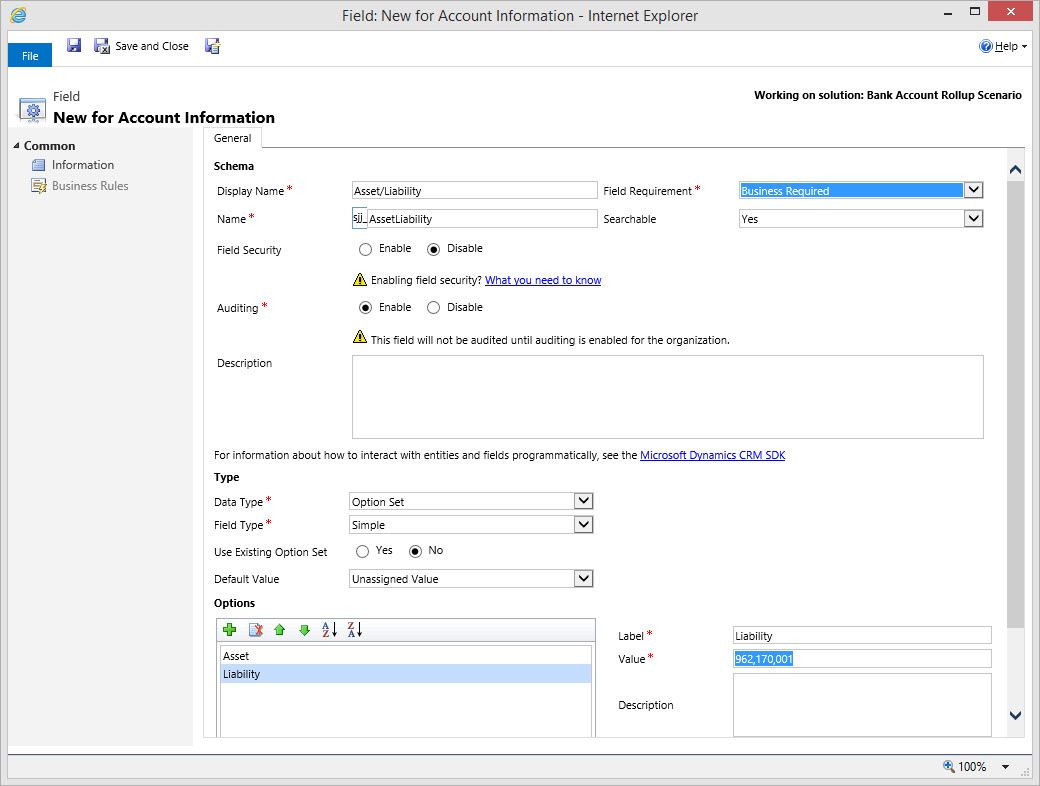
Our first step will be to create a new attribute to place on the Account Information form to identify whether each record is either an asset or a liability.
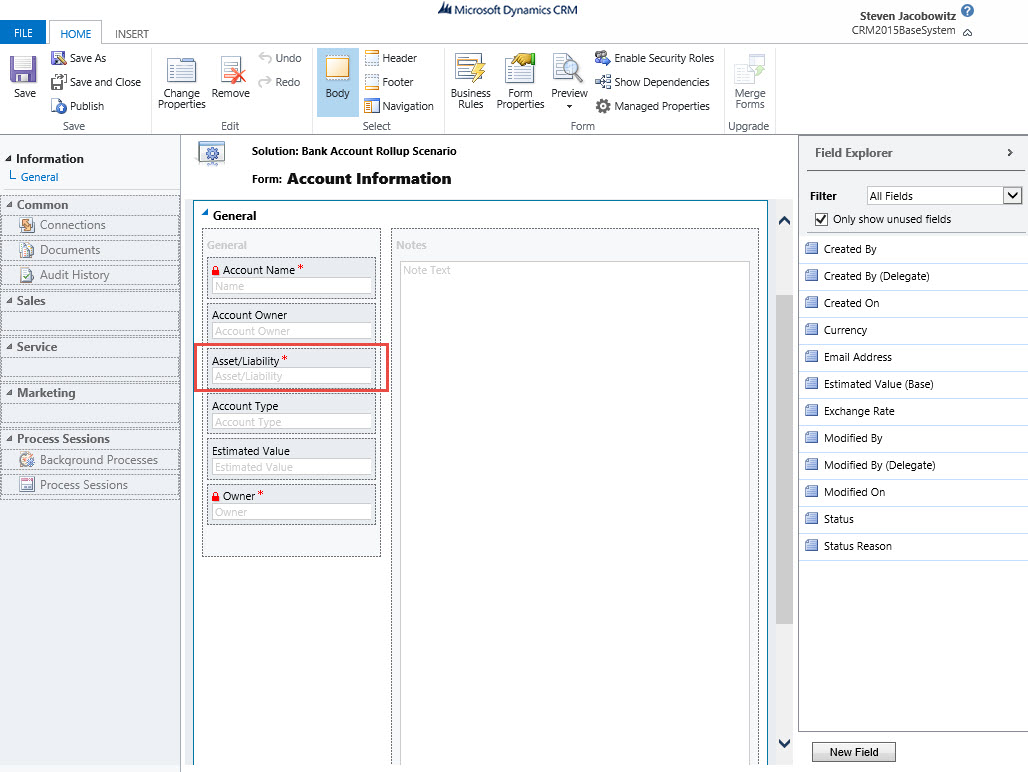
Our next step is to include this attribute on the form. (Note: we are adding this attribute so we can filter the estimated values by Assets and Liabilities on the subsequent Rollup fields at the Contact level).
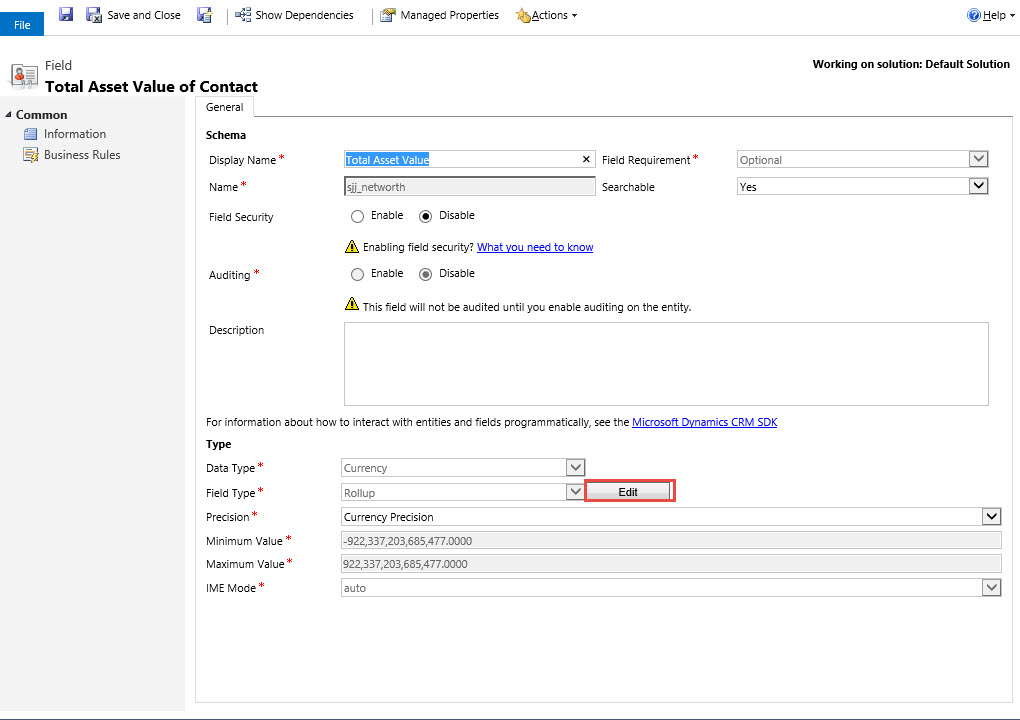
Since we already are tracking assets at the account level we will need to modify our filter on the Total Asset Value rollup to include the Financial Information Records that = “Assets”. Navigate to settings customizations contacts -> fields open up the Total Asset Value attribute and click on the edit button next to the calculation Option.
Add the Asset/Liability = “Asset”

Save and Close than Publish the changes. (Of course since we just included the attribute on the Account Information Form we will need to update all the current Asset Records using the mass edit feature).
Navigate to the Account Information Tab Highlight all records that are assets and click on the edit button.

Click on the Asset / Liability Attribute and change the option to Asset. Then click on the Change Button. (This will update all of your Asset records)

Our next step is to add a new rollup attribute for Total Liabilities.

Click on the edit Button next to the calculate.
- Related Entity = Account Information
- Filter = Account/Liability = “Liability and
- Status = “Active”
- Aggregation Method = Sum of Estimated Value where the filter is true.
Save and close your work. Than Publish

Next place the Total Liability Attribute on the Contact form. Save and close your work. Than Publish
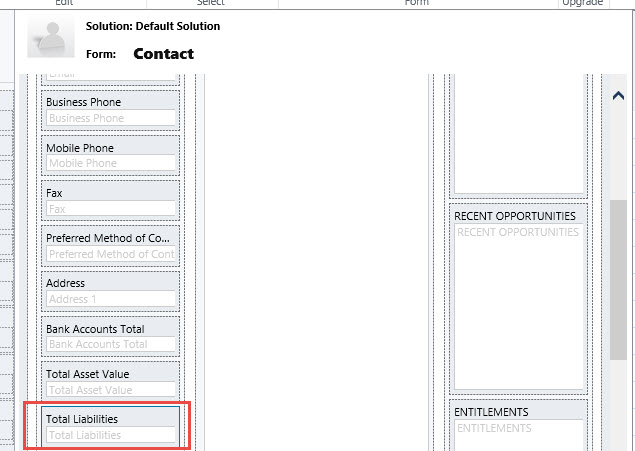
Test your work by adding a new Account Information record identified as a Liability, than manually recalculate the rollup attribute on the contact form.
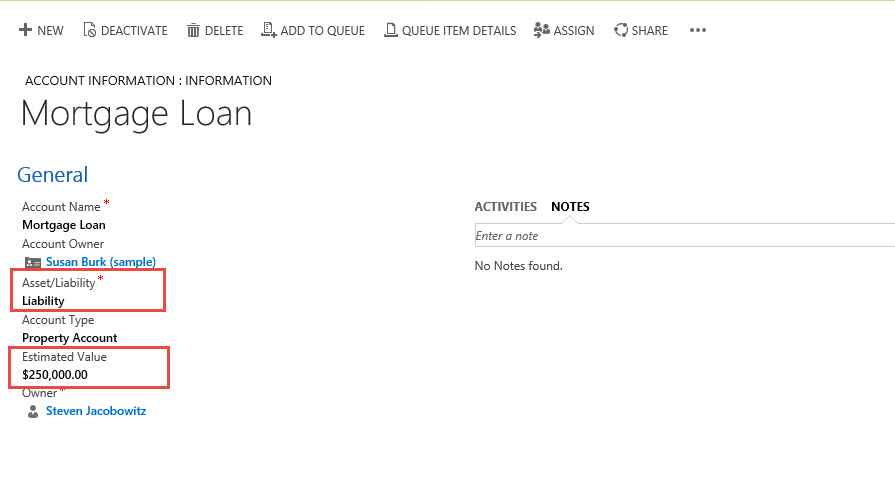

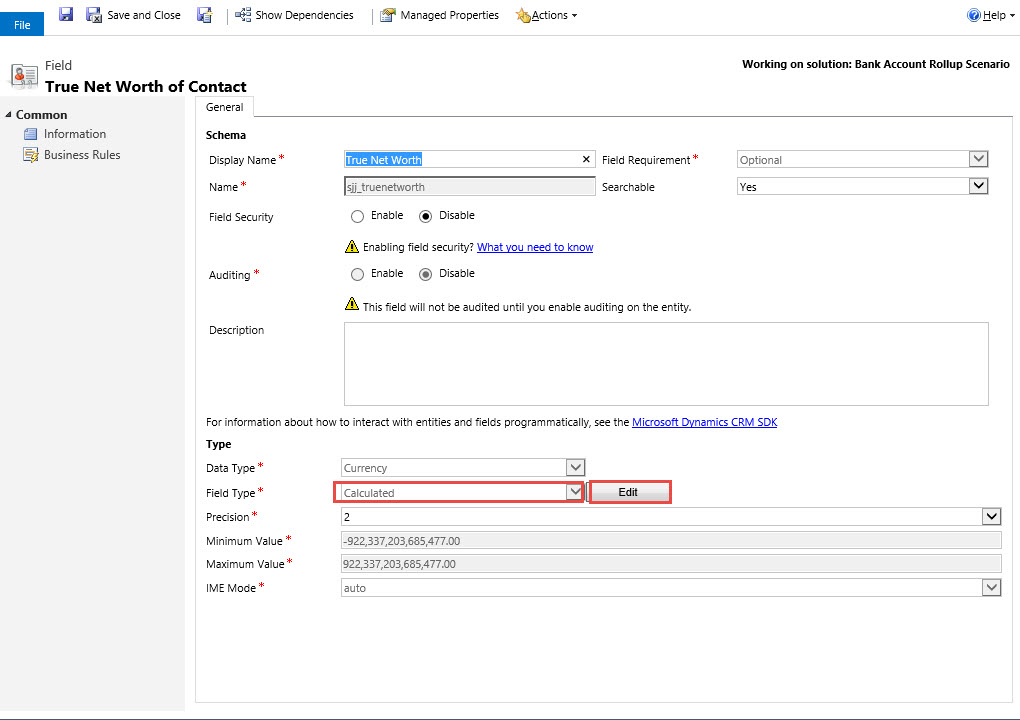
Our next step is to create a new Calculated Field Called True Net Worth. Navigate to the settings – > customizations -> contact entity -> fields and click on new.
Create the new attribute and change the Field Type to Calculated, then click on the edit button.
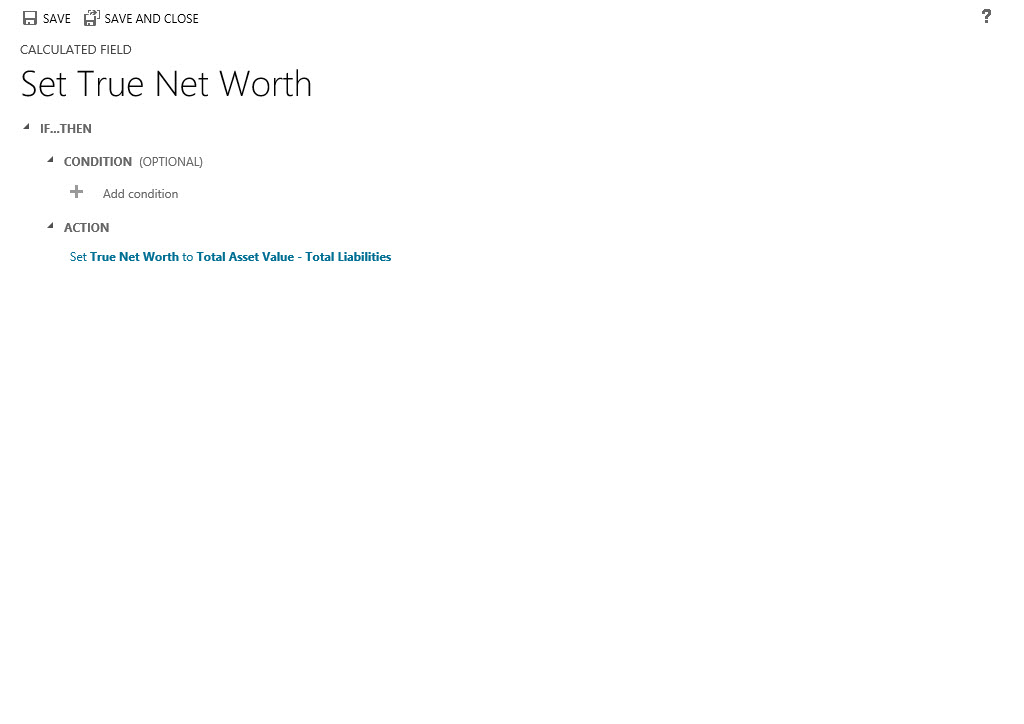
Since this is a very simple example under all conditions I want the True Net Worth calculated therefor I am not going to define a condition. I will click on the Action Section and identify the attributes, (rollup fields) I want to use in this calculation, (notice when you start typing the attribute name Intellisense will automatically create a dropdown with suggested attributes.

I only require the “-“ Operator between the two fields. Your final formula should appears as below. Click the check mark, than save and close.

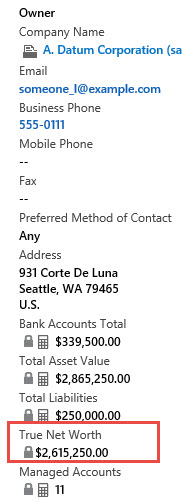
Place the attribute on the Contact form. Save and Publish.

Close the form designer. Please note one interesting item I discovered, they form will not render the true results of the formula until you refresh the page. This is also true of updates to the corresponding account information records. Therefore you will have to refresh the page by either hitting F5 or the refresh button. Your final results should appear as below.
It really is that simple!
According to all the documentation I read Microsoft is stating this is for simple formulas although I did try one enclosed in Double (( and the formula appeared to render properly. This is something I will include in my next Post Part 2. I will also call out all the limitations Microsoft suggest on the TechNet Document.
I really love this feature because quite frankly I wouldn’t even understand how to write code to produce the same functionality. This was a relatively simple example which used to take a developer and code to accomplish prior to Dynamics CRM 2015. I think this example took me 10 minutes in total to put it into action. The fact is, I spent way more time creating this post then creating the example. Think about the productivity gains you can also obtain!
Have a very Happy and Healthy New Year! See you all in 2015.


 Steve's Site Innovation, Transformation, Change, Growth, Culture Building, Learning
Pingback: Microsoft CRM 2015 New Feature – Drilling into Calculated Fields- The String Functions – Part 2 | C/xRM Ramblings
Reblogged this on CRM Dynamics.
Pingback: Microsoft CRM 2015 New Feature – Drilling into Calculated Fields- Advanced Calculations and Date Calculations – Part 3 | C/xRM Ramblings
Awesome read. Reblogging this.
Reblogged this on My Dynamics CRM Blog.