
Good Day Folks –
At IBM we are using Yammer internally for social collaboration. I wanted to test the Integration between Microsoft Dynamics CRM 2015 and Yammer. This functionality has been available since the “Polaris” (2013) release of Microsoft CRM, although, I had never been focused enough to address this integration.
Since I am not an expert on Yammer, today I will focus over how to integrate CRM to Yammer as well as using the “what’s new” section of Microsoft Dynamics CRM. First I would like to concentrate on the what’s new section.
“what’s new?”
The live feed functionality was released during Microsoft Dynamics CRM 2011 as a solution set called Activity Feeds. The functionality was officially release with CRM 2013.
Activity Feeds allow you to monitor real-time updates in the activity feed to stay current with fast-moving sales, customer projects, and marketing campaigns at your organization.
You’ll find the activity feed on your dashboard under the heading what’s new.
The activity feed includes automatic updates about the work your colleagues are doing. You can also choose to “follow” updates for up to 1,000 of the contacts, colleagues, and customer records you care most about. (1)
Progressively, the functionality has been enhanced from the original solution set. Any record you own will automatically post to the what’s new section of the Activity Social Dashboard. You can also follow records you do not own in order to view any updates made by others collaborating or working on these records.
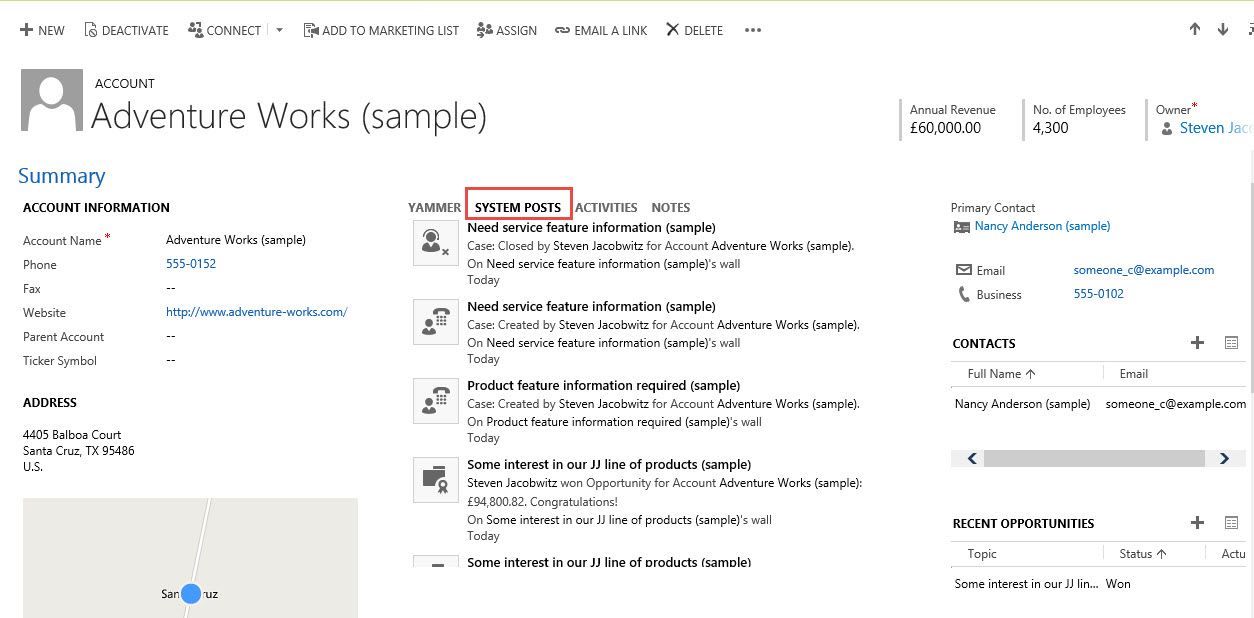
You will find the what’s new section under the Activity Social Dashboard although the feeds are also available on each of the Account, Contact, Opportunity, Case, etc. by default.

Example at the Account Level:
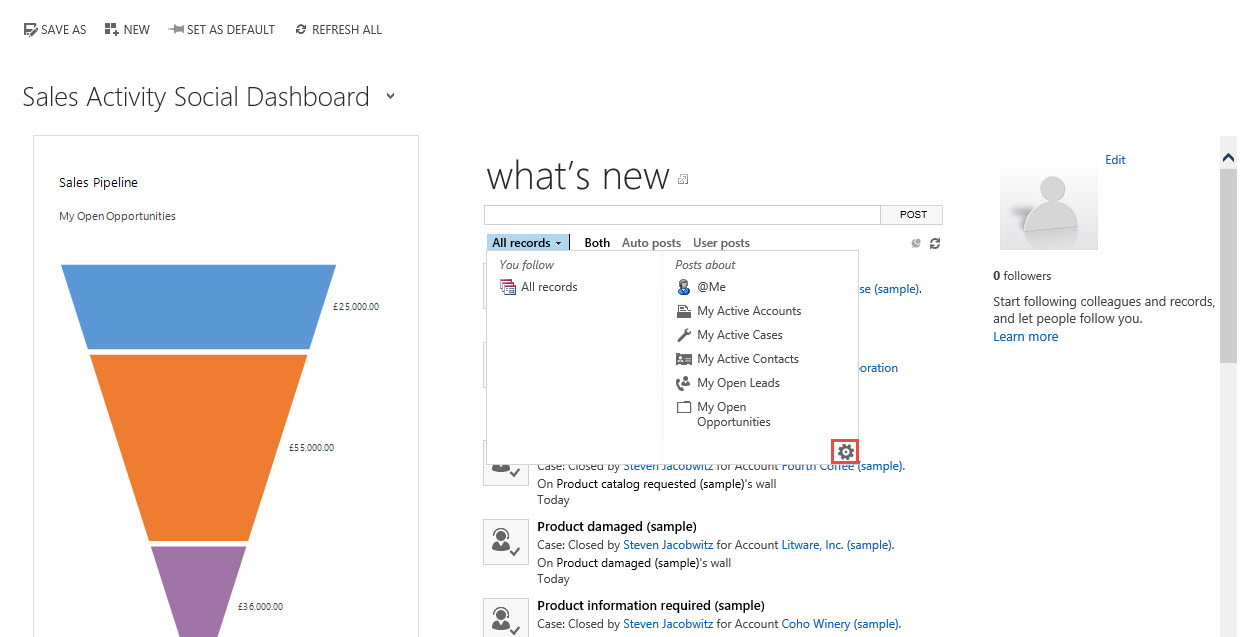
A few of the additional features of what’s new, include the ability to set and order advance find views to default for the user. Click on All records to view these options to order or add to the views you can click on the cog wheel on the lower right, (Options) to pop the system view window.

You also have the ability to filter the posts in what’s new by auto posts, (posts that are written to the database because of changes in records you are following or own a record),
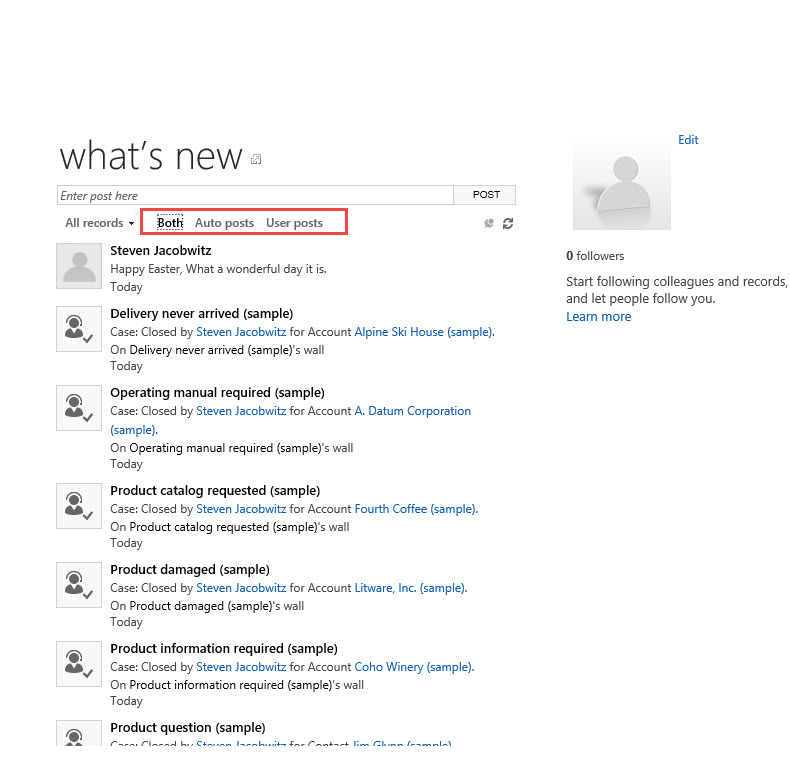
or user posts, (specific posts you make to the what’s new section window).

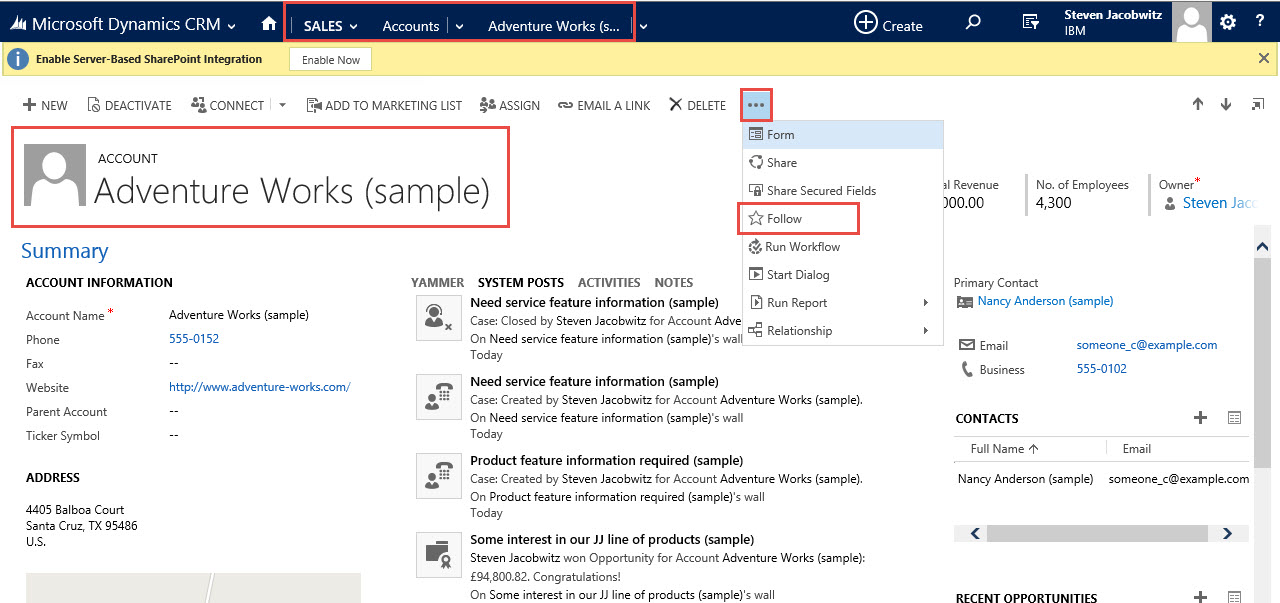
To follow a specific record in the database, including User records navigate to the record and click on the ellipsis and select the Follow option.
Integration with Yammer
Integration with Yammer will allow you to not only track changes occurring within the CRM database but will also allow you to link to your public or private Yammer account.
Turning on the integration is relatively straight forward.
Go to Settings->Administration -> Yammer Configuration
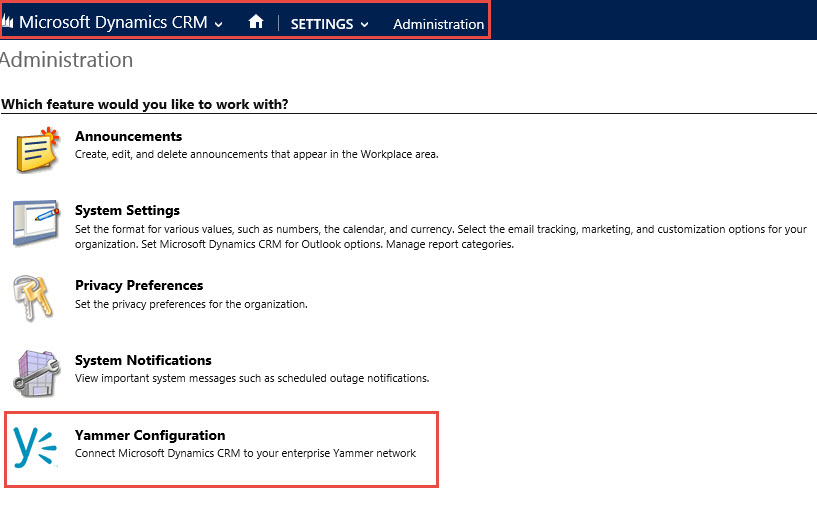
Click on the continue button

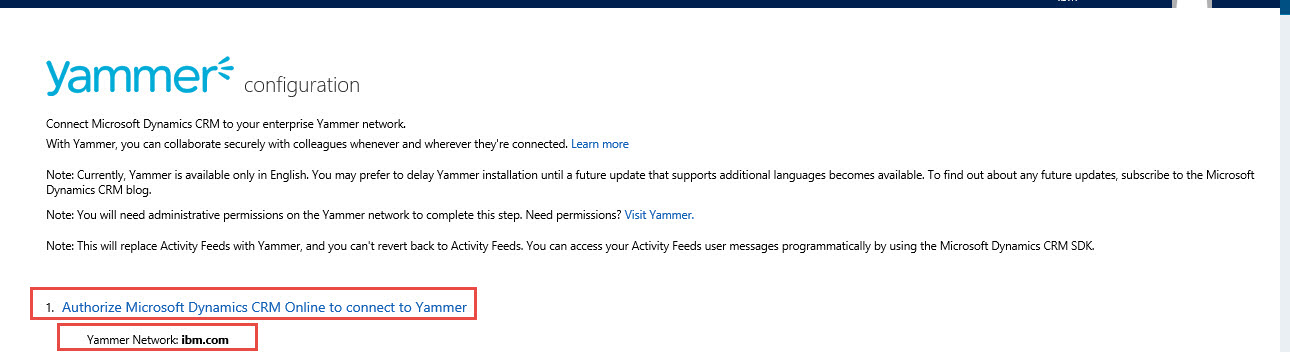
If your company has a Yammer account the account will automatically resolve to the correct Yammer Network.
Step 1 Click on the Authorize Microsoft dynamics CRM Online to Connect to Yammer
Step 2 is to define the Group ID you wish to default too.

Step 3 is to set the level of security for your Yammer activity stream messages
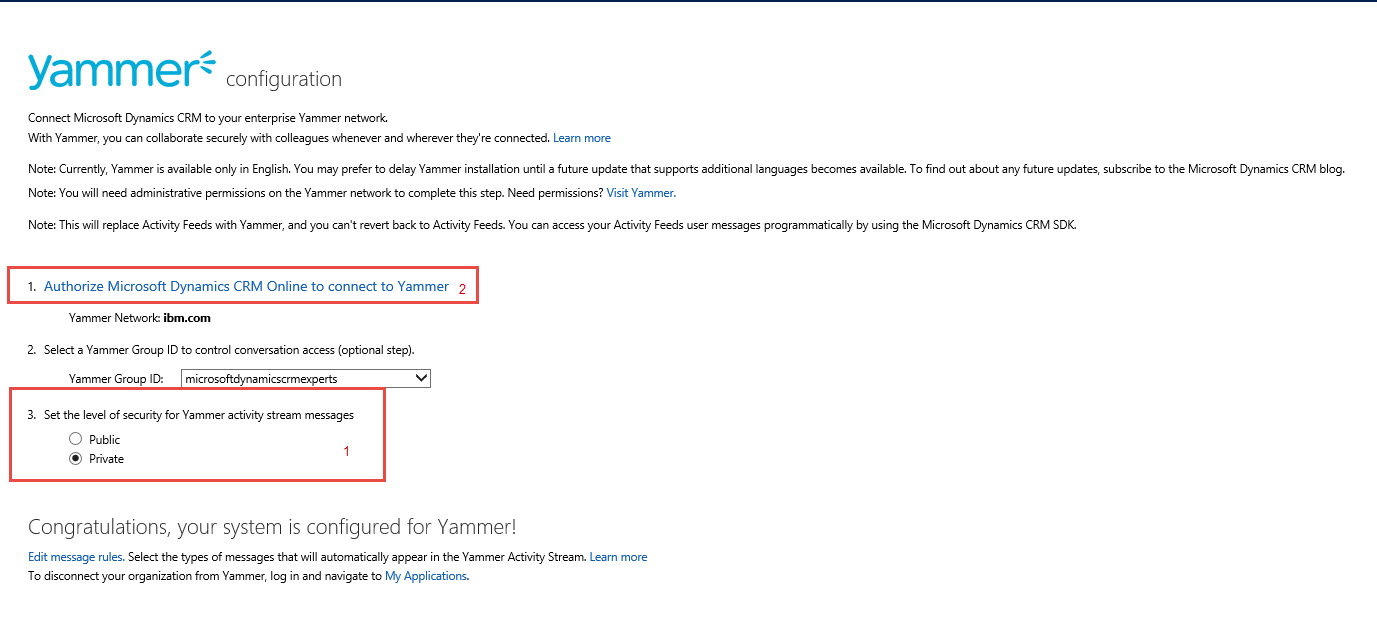
Your Yammer Configuration is completed
Now browse out to the Sales Activity Social Dashboard
Click on Sign in with your Yammer account
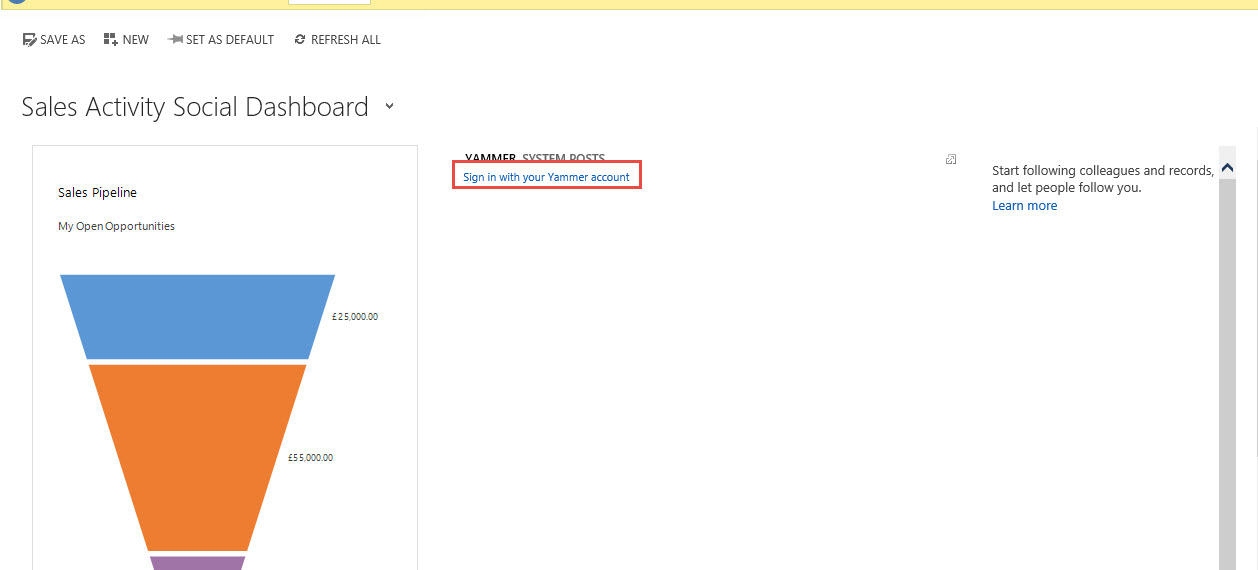
Notice my Yammer Account sign in is different from my Microsoft CRM sign in, therefore, we have to correct the issue.
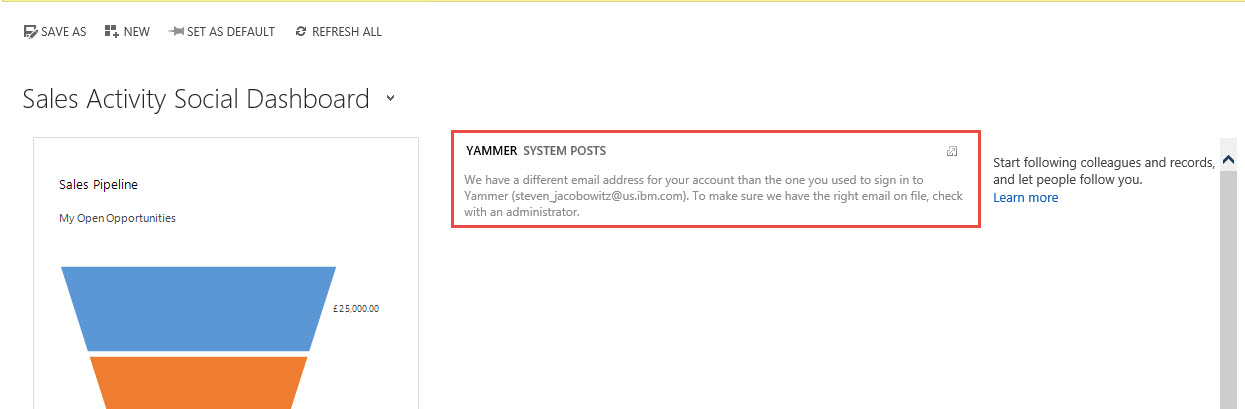
In order for the integration to work, either the primary email address or the Email 2 attribute has to be consistent with the Yammer Account sign in. Therefore, you can navigate to the User account and add the correct email address to the Email 2 address attribute.
Navigate to Settings -> Security -> click on the user.

Open up the details of the user and add the correct email address to Email 2 attribute

Save the record and then refresh your login into the system.
Navigate back to the Sales Activity Social Dashboard and click on the Yammer option, notice you are now viewing yammer posts.
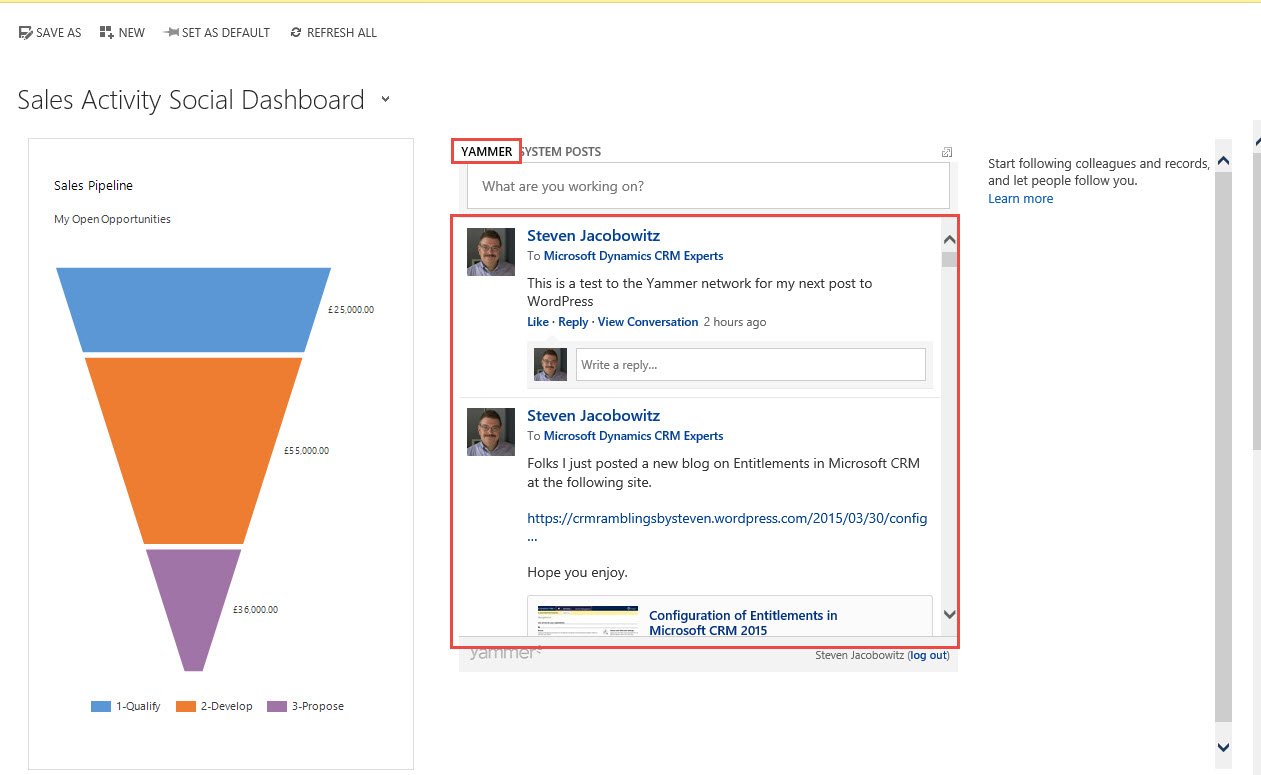
This is a two way integration, therefore you can post to Yammer from Microsoft CRM from this window
At IBM we currently have a very deep Yammer / BI practice headed by Ramin Mobasseri the focus is on your Company’s Internal Innovation. I am certain using Yammer everyone will participate in this new untapped internal potential. If you are interested in contacting Ramin for further information, please click on the link above and send him an email.
I hope you found this dive into this functionality useful.
My best,


 Steve's Site Innovation, Transformation, Change, Growth, Culture Building, Learning
This is great Steve, thanks for sharing.