Good Afternoon All –
It seem as though I continue to be asked for the same requirement from clients and felt it would be a good idea to share another one of my “secrets” in this forum. So many times I hear, I want my users to select a value in one field, and have only values that correspond to the first value to be made available in the next field.
The good news is Microsoft CRM can be configured to perform this type of functionality without the use of code, which I will demonstrate below.
Scenario:
Our Customer Service Manager, (for the First National Bank of Gotham) would like to capture information based on initial contacts to the call center. He would like to capture each of the incidents down to the root cause. The manager has determined most of the incidents reported can be fully defined by the fourth level, therefore, he has determined the first level should be initiated from the subject of the case, 2 level based on the subject, 3rd level based on the 2nd level, and finally the root cause of the incident reported.
He discussed these requirements with his solution architect, and asked him to configure a solution on the cases to meet these requirements.
Solution:
In cases such as these I would require to draw a diagram to validate my initial idea. Please see the below diagram.

Notice in order to create the solution we would have to create three additional entities. In effect, by starting with the Subject and adding the Second Level Cause Entity we can relate the two by the lookup of the title of the subject. This will allow us to identify multiple second level causes for every subject or 1:N from the subject to the second level causes. We can use this same logic to relate the third level cause to the second level cause, and the root cause to the third level cause.
It seems easy enough right? Let see.
First, we must define the values of the subjects
Browse out to the settings tile

Move to business settings
Double click on subjects
Click on add a subject

Add a tile and click on save
Now if you want to create subjects that are related to the top level highlight the subject you just created and click on add a new subject

Notice you retain the parent subject on the link
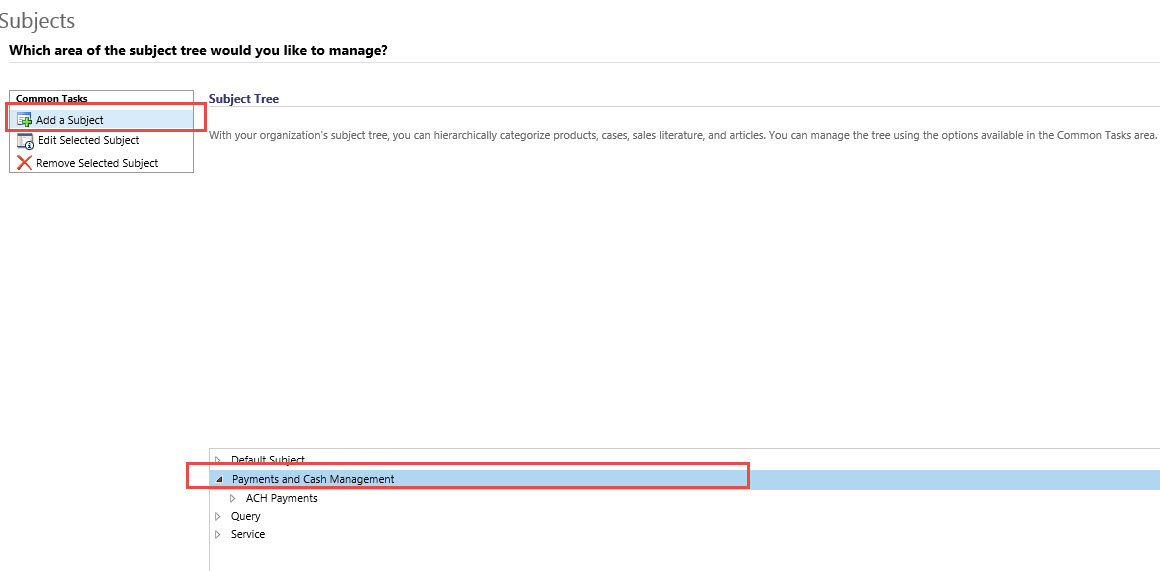
Type in a title for the “Sub-Subject’ then click on save

Continue these steps until you have the entire subject tree defined

Our next step is to create a solution for the root cause analysis entities
Browse to settings then solutions
Click on new and name your solution to identify the solution publisher, the version and the entity and attribute prefix, click on save.

The first step is to add a new entity called Second Level Cause
Open up the form and create a lookup from the Subject Entity call the relationship subject and identify it as Business Required

Save the entity
Next, create a new entity called Third Level Cause
Open up the form and create a lookup from the Second Level Cause Entity name the relationship attribute, Secondary Cause and identify it as Business Required
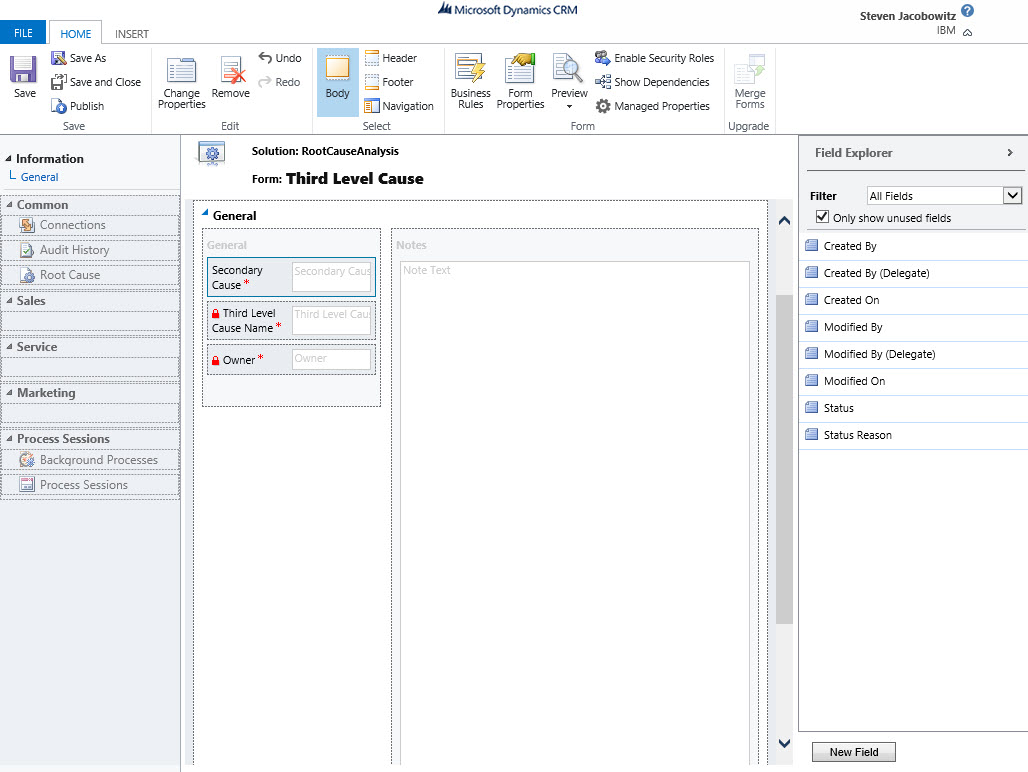
Save the entity
Next, create a new entity called Root Cause
Open up the form and create a lookup from the Third Level Cause Entity, call the relationship to attribute Third Level Cause and identify it as Business Required

Save the entity
The next step is to create N:1 Relationships as follows (1) for Case : Second Level Cause, (1) for Case : Third Level Cause and (1) for Case : Root Cause (Note this is vital because we require all of these attributes on a case form. The creation of these relationships to the new entities will allow you to include the necessary attributes on the form.)

Add the Case entity to your solution
Open the case
Add the 3 lookups from the previous step to the case entity
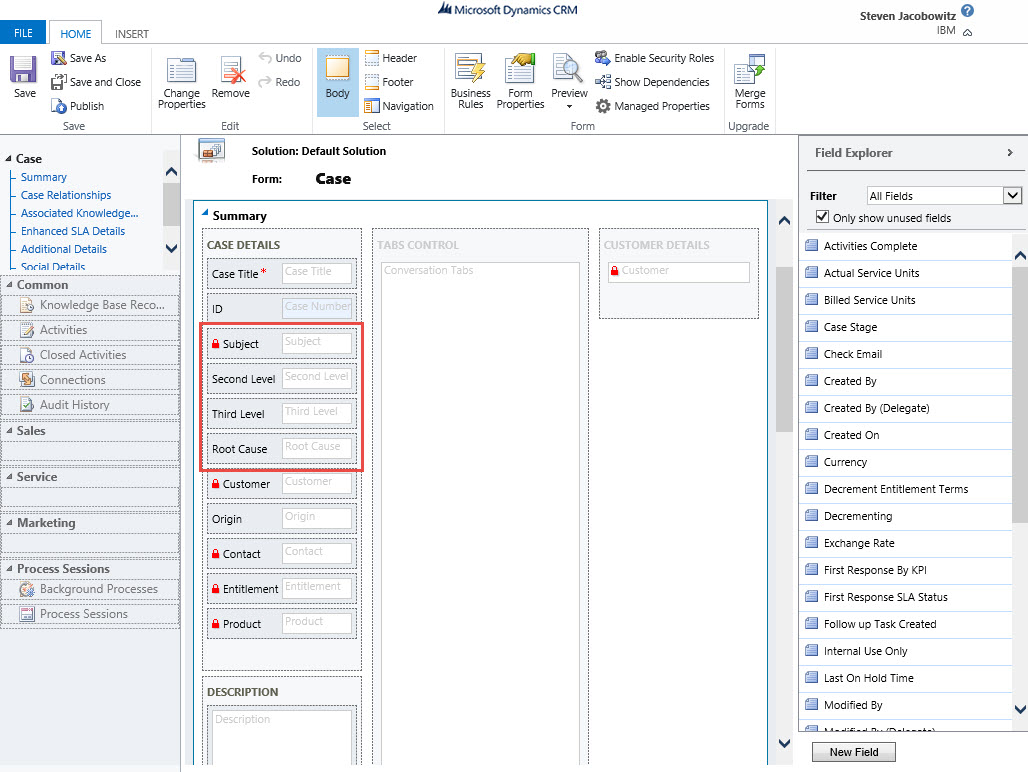
Save the form
There is one more step required; we would like to limit the child selection value options based on the choice of the parent value. We would like to accomplish this at the second level cause, the third level cause and the root cause. Microsoft CRM has a feature called filtered views which we will deploy for this functionality.
Select the Second Level Cause attribute on the form
Double click

Notice the Record Related Filter Options
Check the use of a filter only when the Subject, (from the parent record) is related to the Subject, (Second Level Causes) (This setting will allow only second level causes to show when instantiated by a subjects title)
Click the Ok Button
Repeat the same procedure for the Third Level Cause attribute
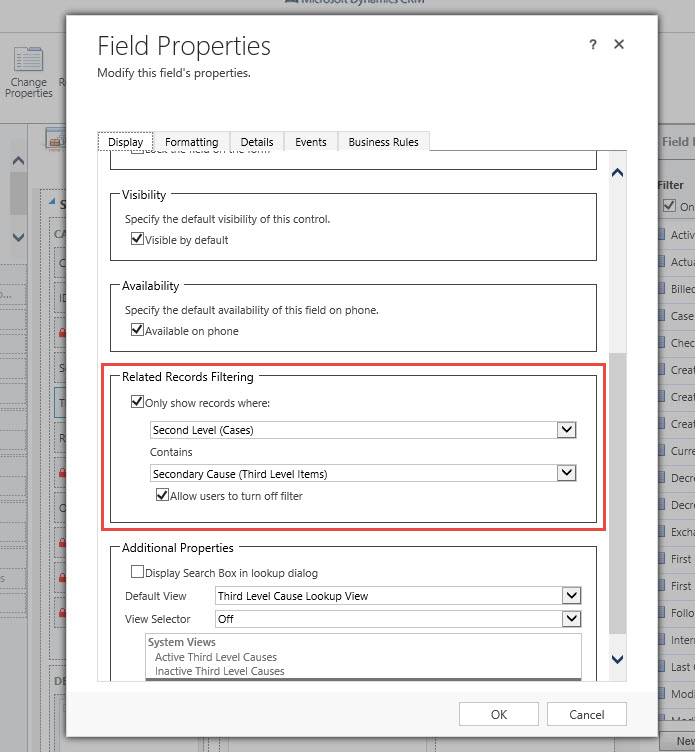
Click Ok
Repeat the same procedure for the Root Cause attribute

Click Ok
Save the Form
Close the form
Publish all customizations
Solution in Action:
Let’s take a look at the results
Let’s start with a case record, Identify the subject as Internet Banking

Click on the Second Level Cause look-up; notice the choices are only showing that are related to Internet Banking
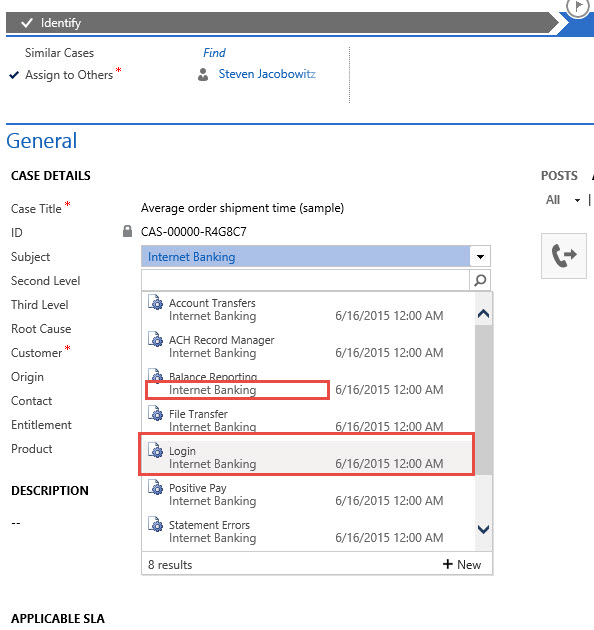
Select Login as the choice for Second Level Cause, then click on Third Level Cause look up; Select Browser Options

Notice the options available at the root cause are only associated with Browser issues.

Let’s take another example, suppose we select password as the Third Level Cause, notice the only option under Root Cause is User Forgot.

There you have it, a quick non programing method for creating constraining attributes based on a selection decision of the previous attribute. Of course, we can go deeper in the relationship tree just as we can also make it a two attribute relationship decision. The choice will be dependent on your customers.
My hopes, you can make use of this knowledge.
I am going to try to be a little more consistent in frequency of posts going forward.
Hope you have a sparkling week!



 Steve's Site Innovation, Transformation, Change, Growth, Culture Building, Learning
Reblogged this on and commented:
Thanks…Reblogging!!!